
Replies Walkthrough
Overview
The Replies page lists the replies your contacts send back to your emails, newest first. This walkthrough opens it, changes the period, reads a reply and narrows the list to one contact.
Step 1: Open Replies
Click Replies in the navigation panel
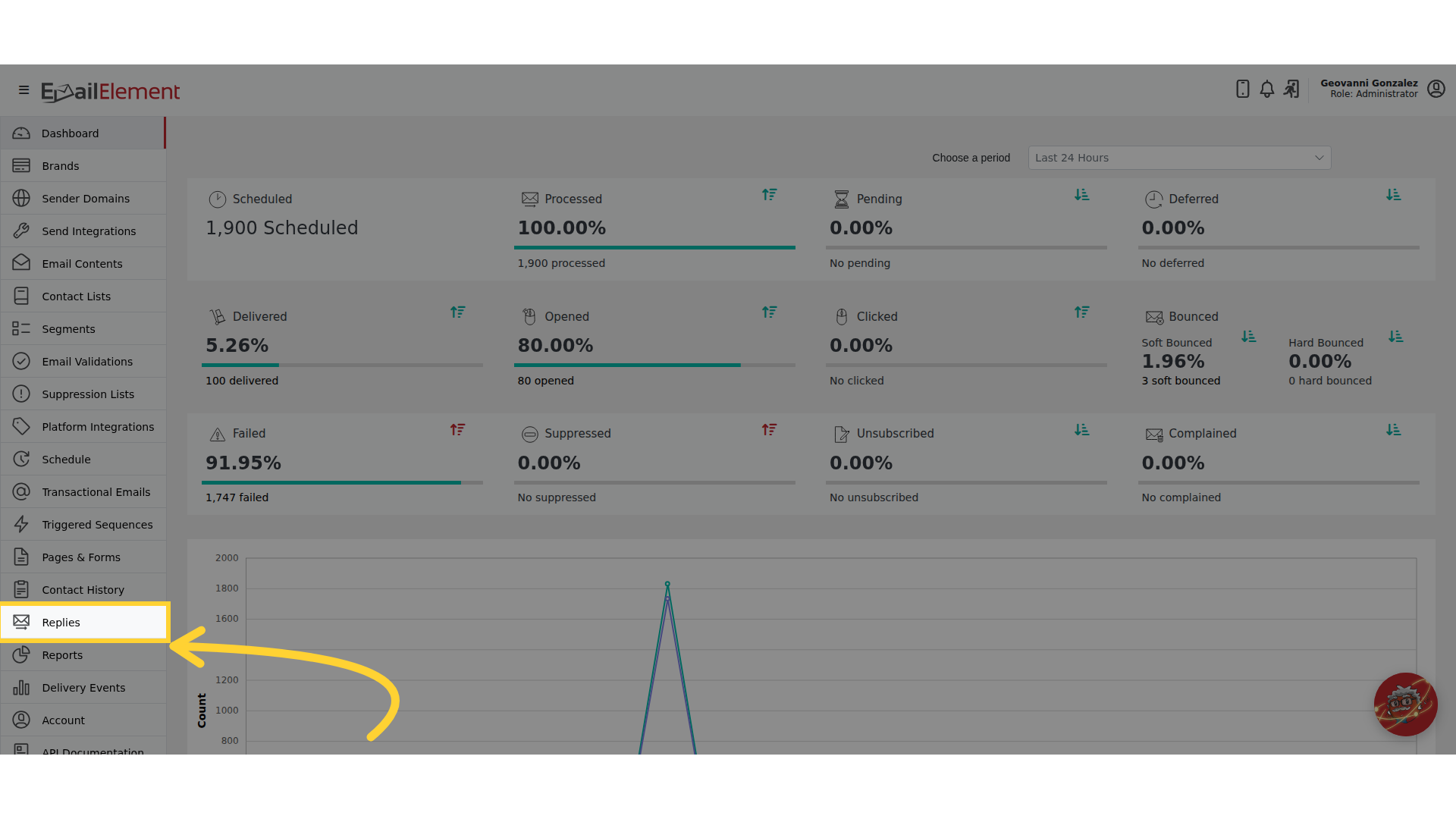
The page opens on This Week, the last seven days including today
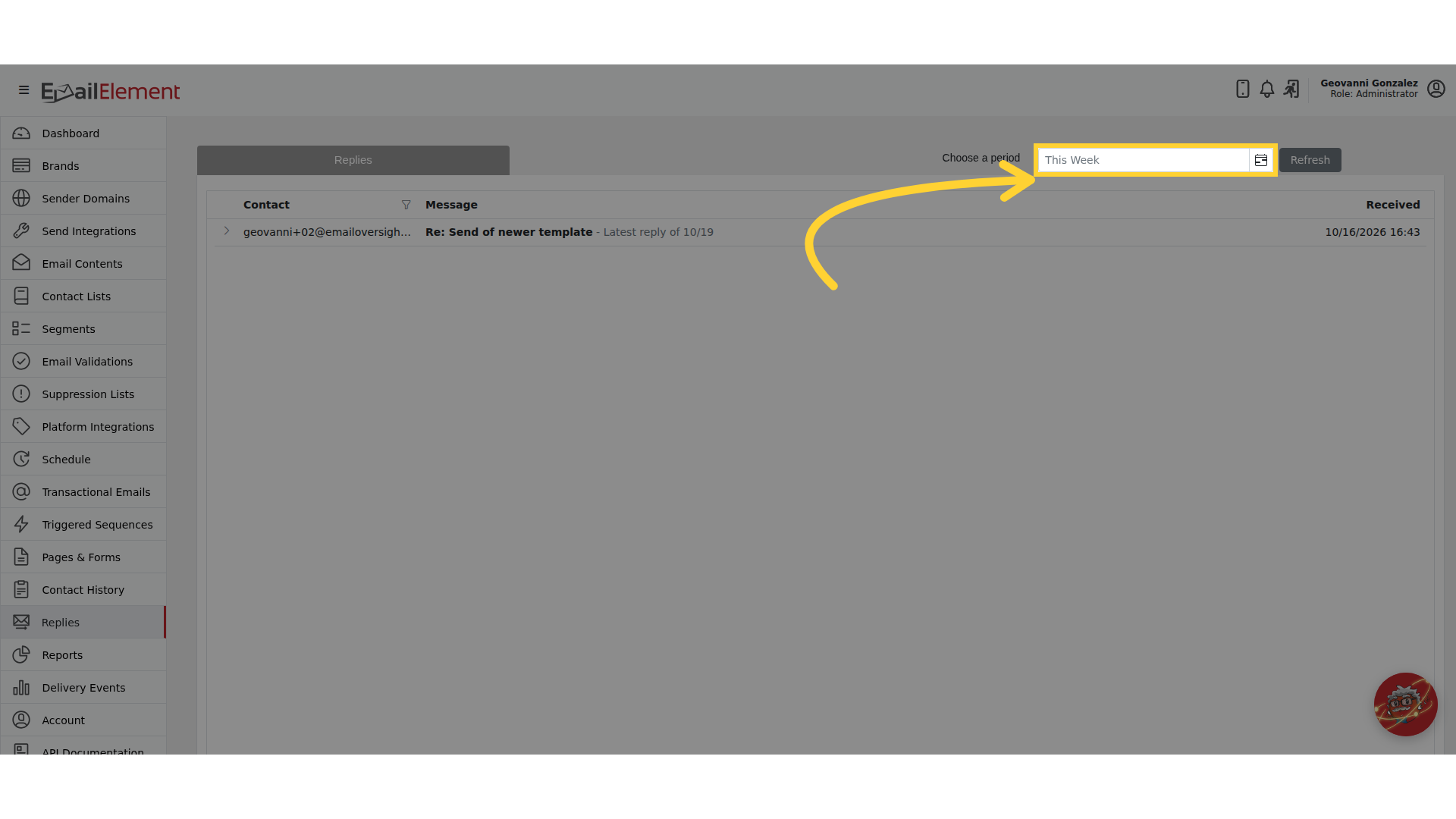
Step 2: Choose a Period
Click the calendar icon beside Choose a period and pick a preset from the list on the right: Today, This Week, Last 30 Days, Last 60 Days or Last 90 Days. A preset reloads the list as soon as you click it
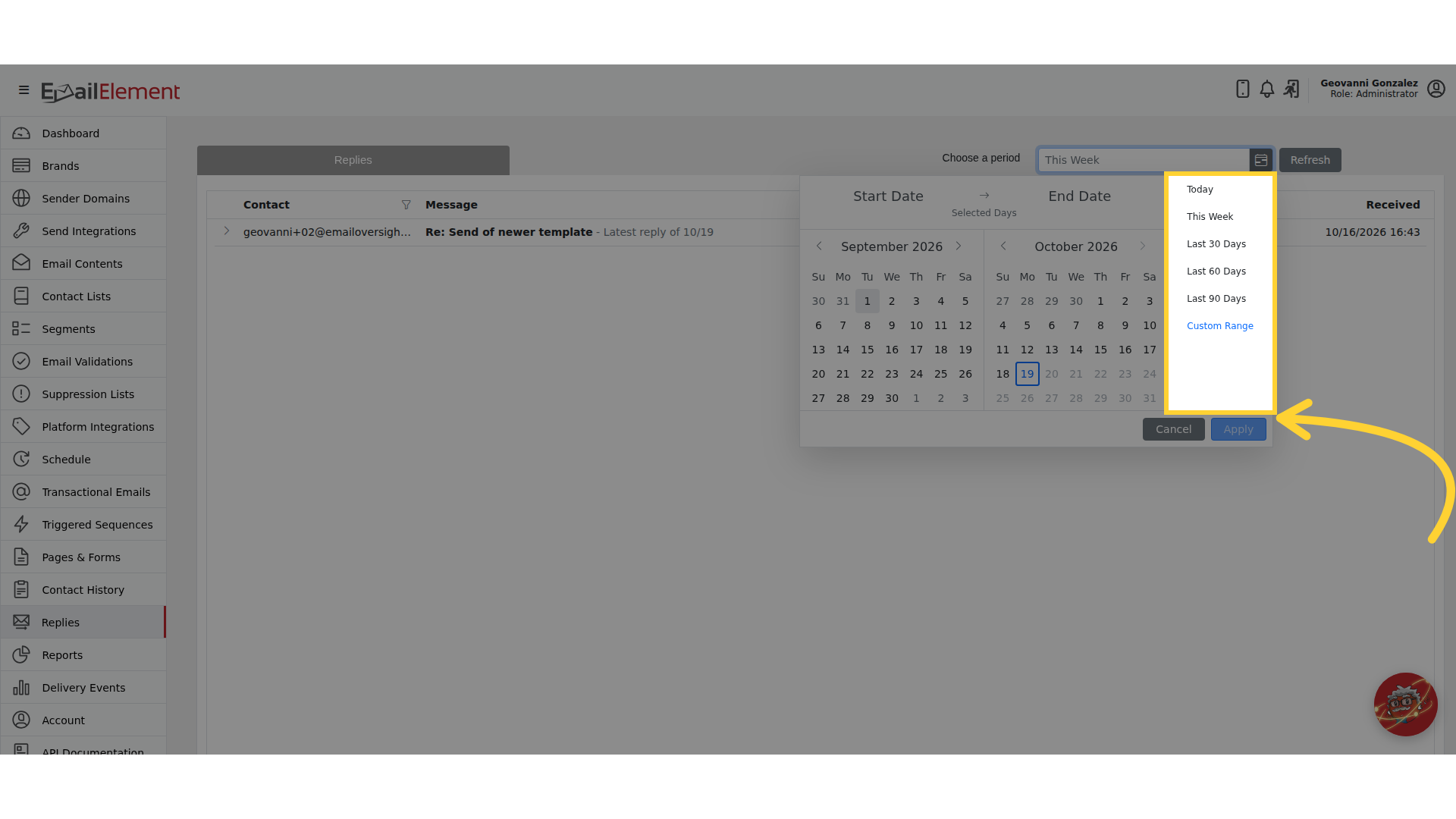
Or pick Custom Range, click the start and end dates on the calendar, and click Apply
Step 3: Read the List
Each row is one reply, newest first. It shows the Contact who sent it, the subject in bold followed by the start of the message, and the date it was Received
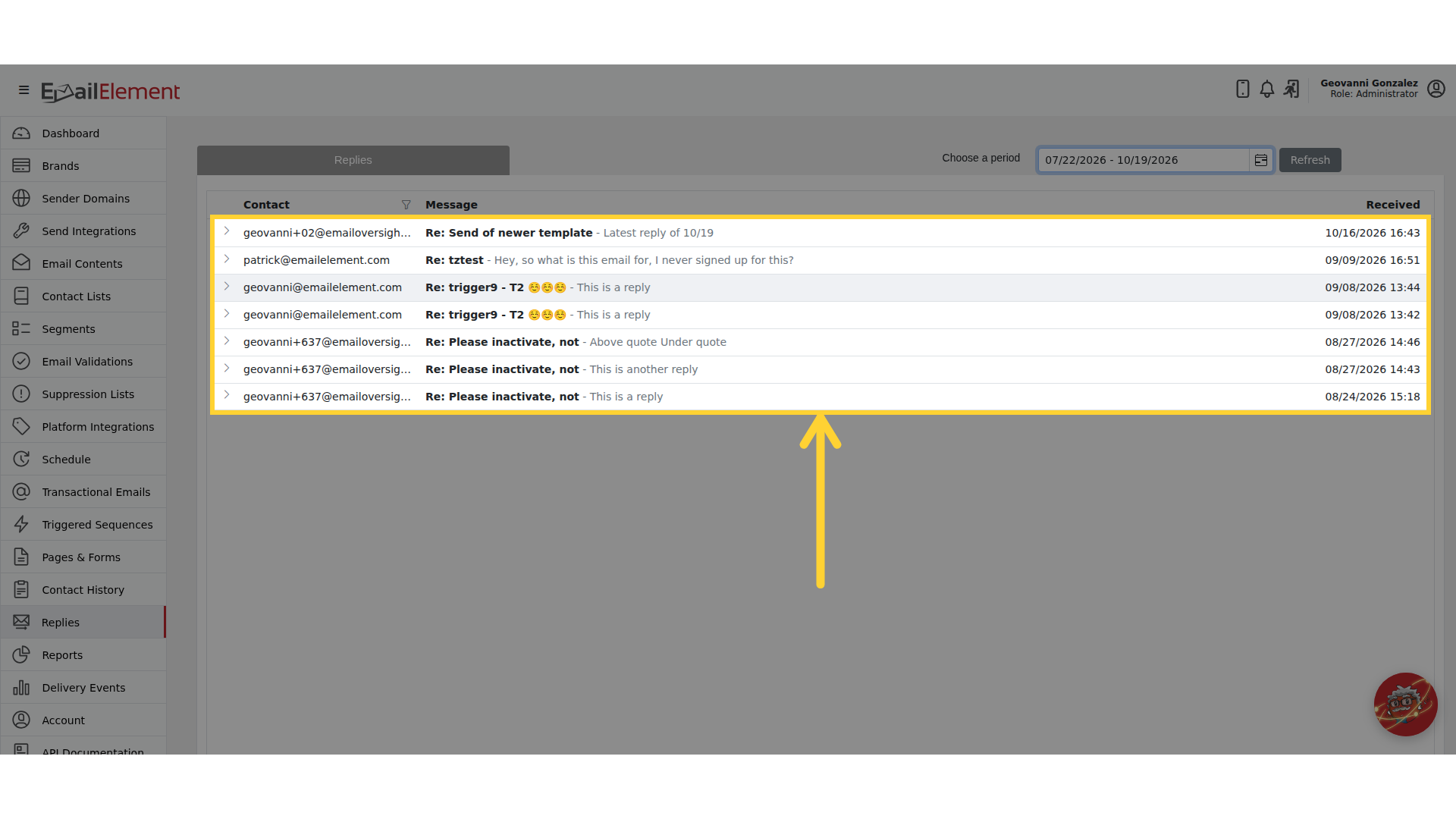
Scroll down and older replies load as you reach the bottom of the list
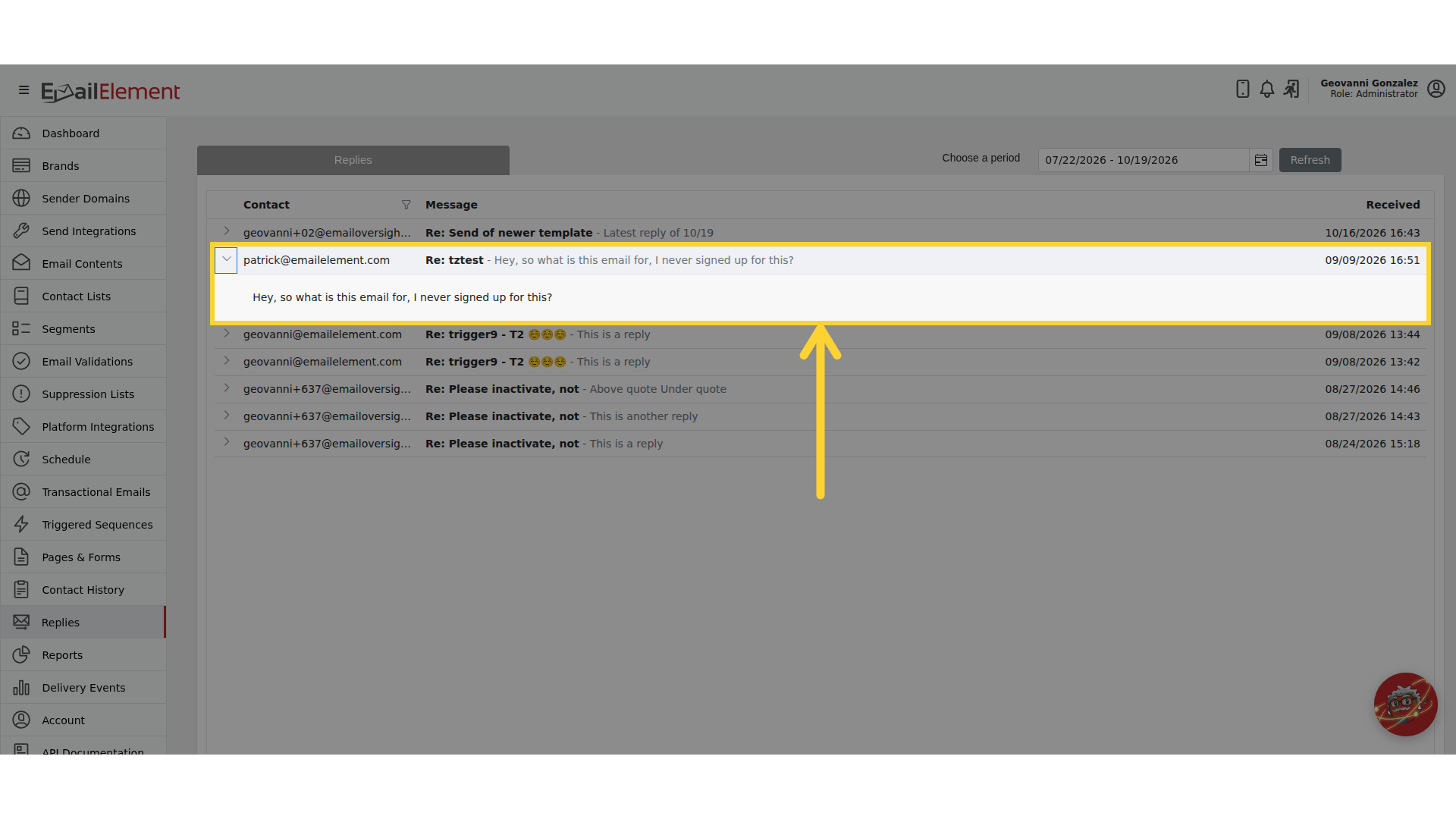
Click the arrow at the start of a row to read everything the contact wrote. Click it again to close it
Step 4: Filter by Contact
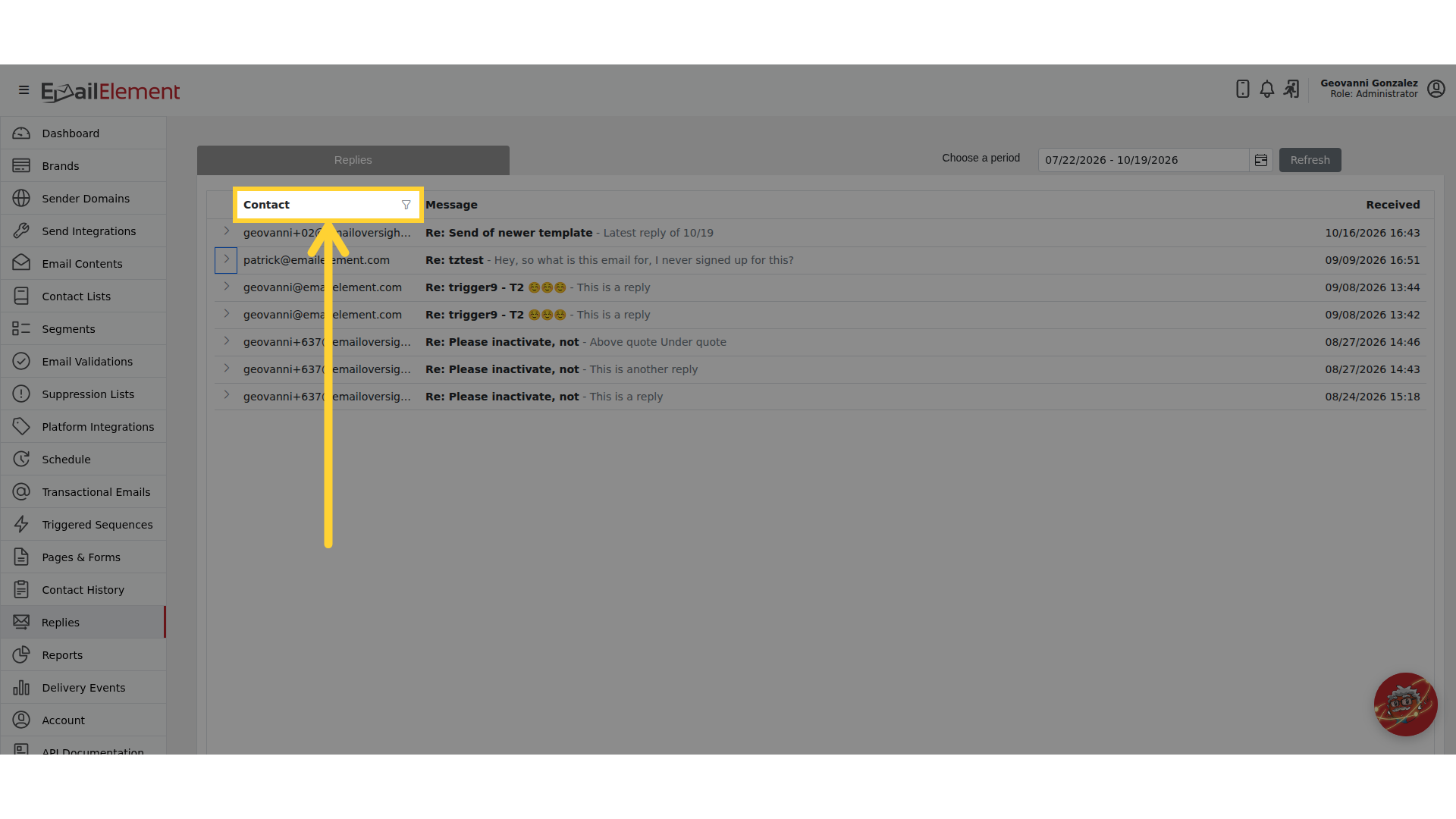
Click the funnel icon on the Contact column heading. It lists everyone who replied in the period
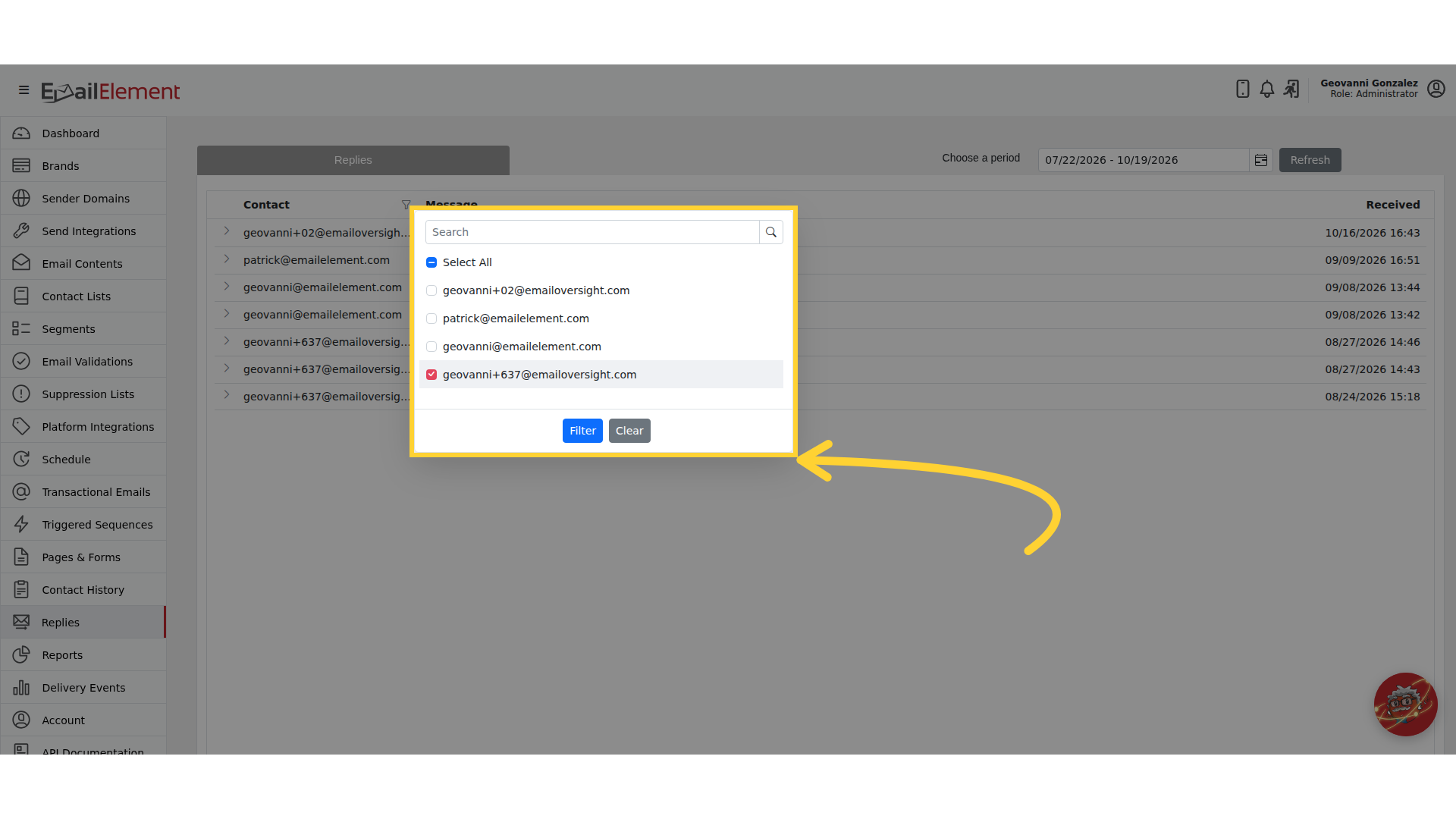
Untick Select All, tick the contacts you want, and click Filter. Search at the top narrows a long list
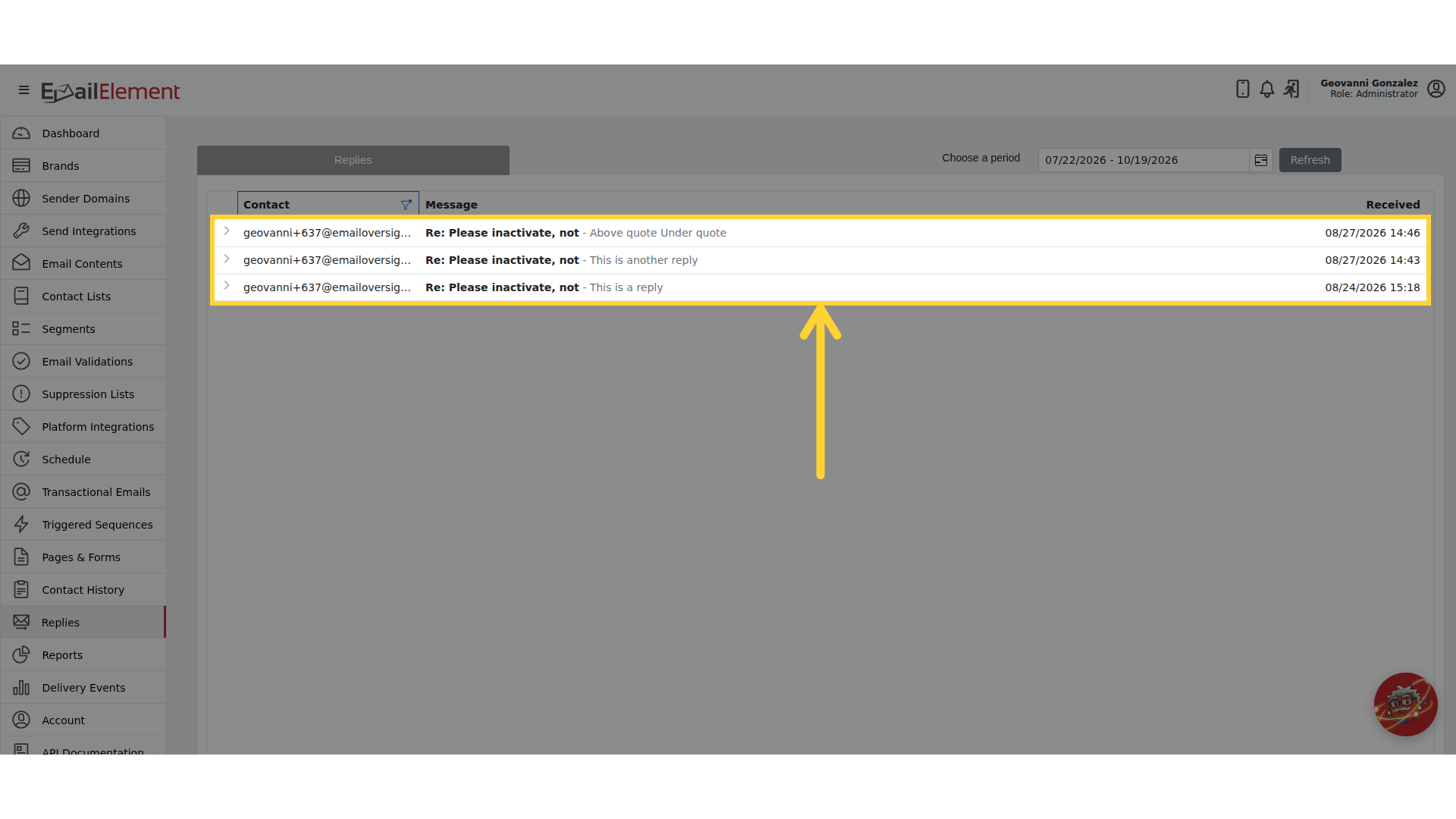
Only those contacts' replies are left, and the funnel icon shows the filter is on
To see every reply again, open the funnel and click Clear. Changing the period keeps the filter in place