
Validation Walkthrough
Setting Up Email Validation Integration
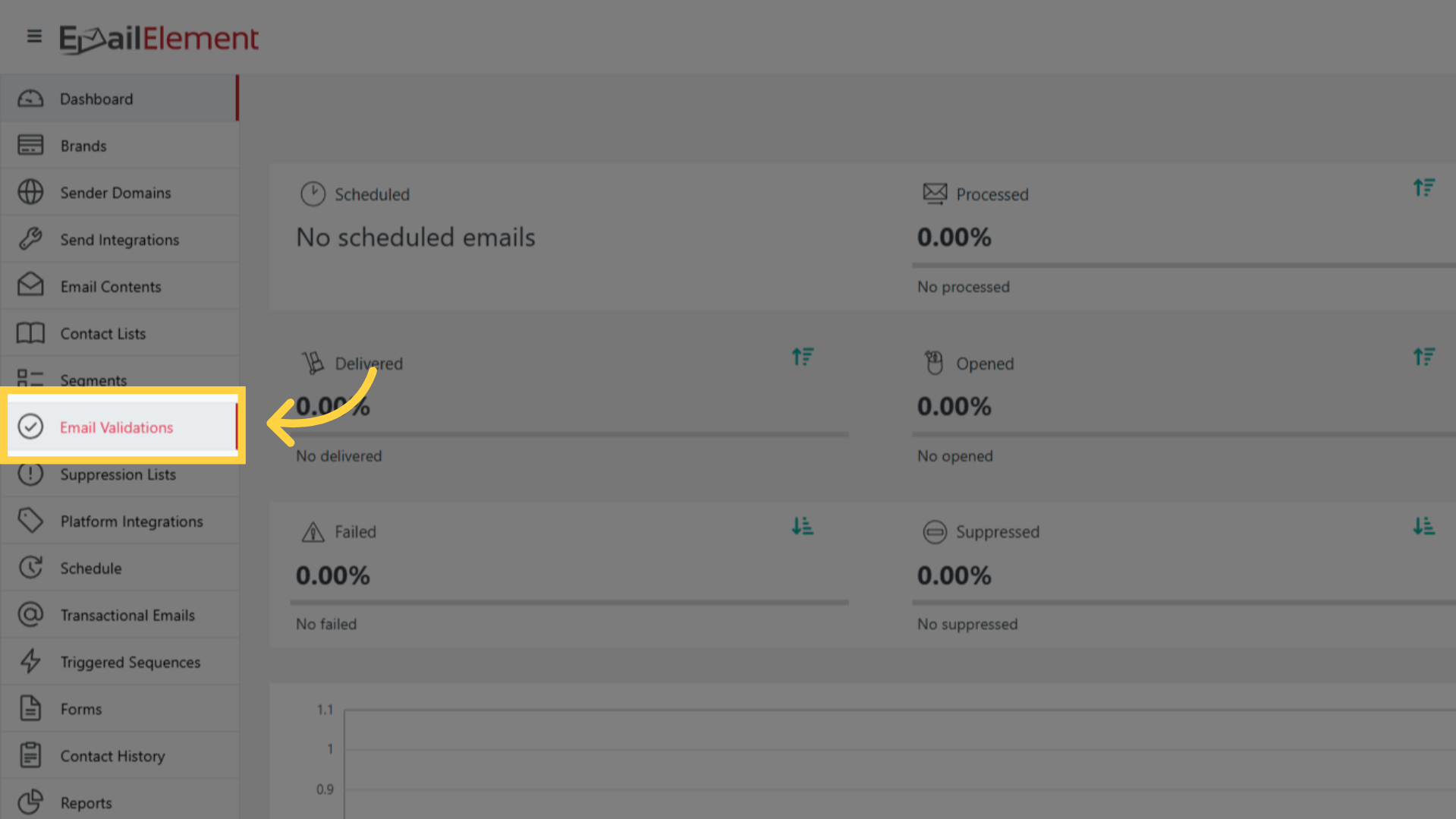
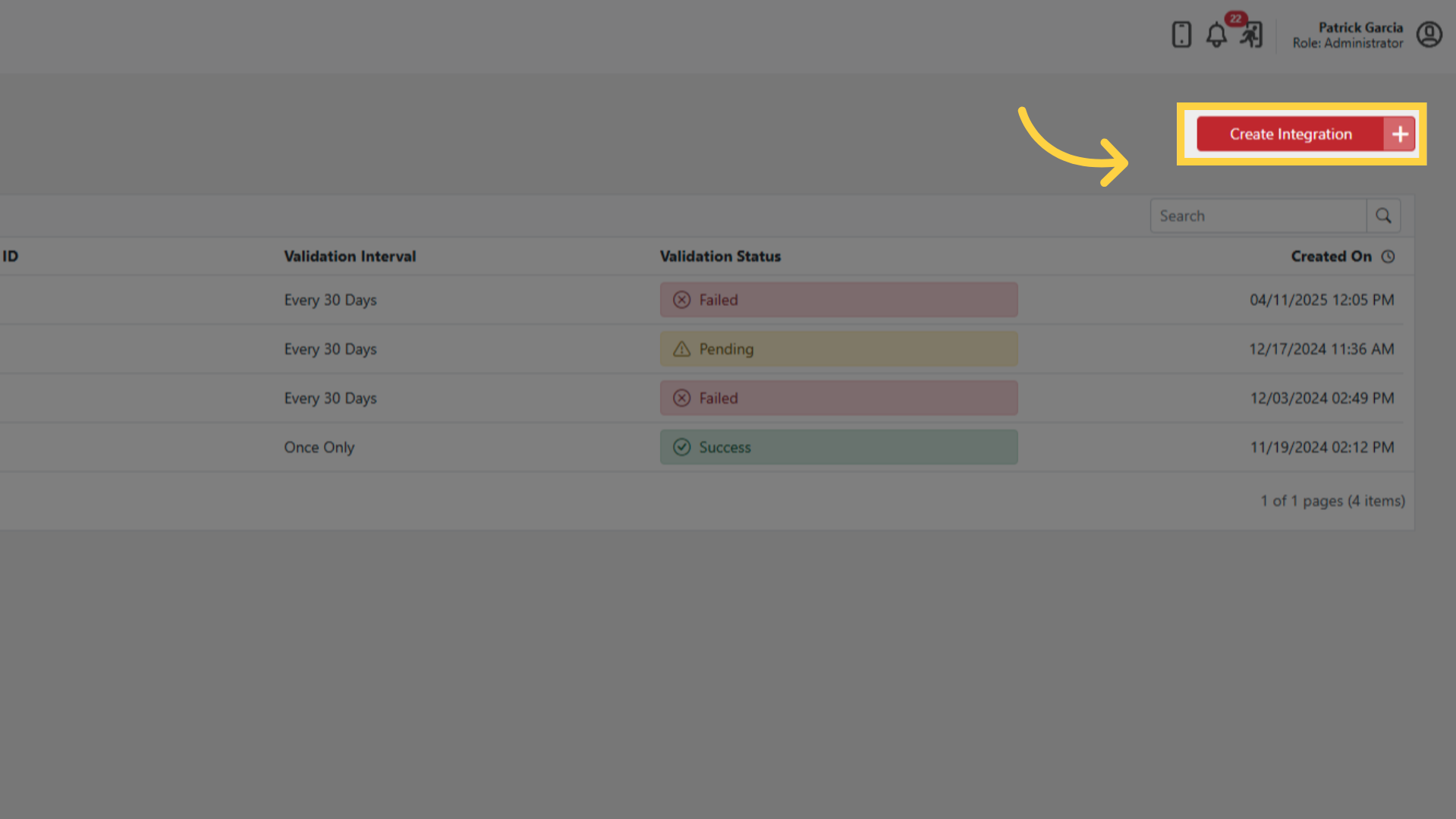
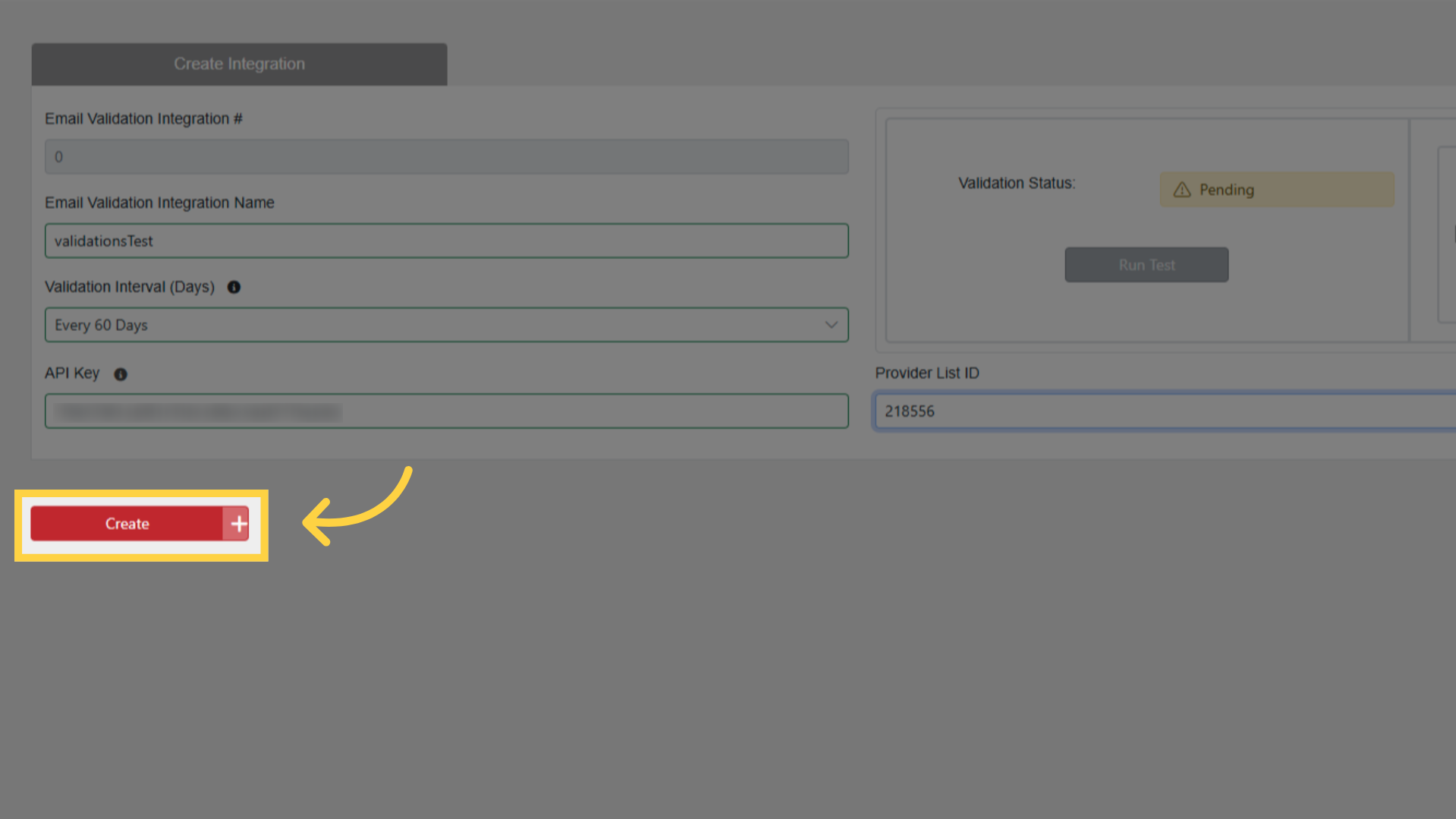
Click Email Validations > Create Integration
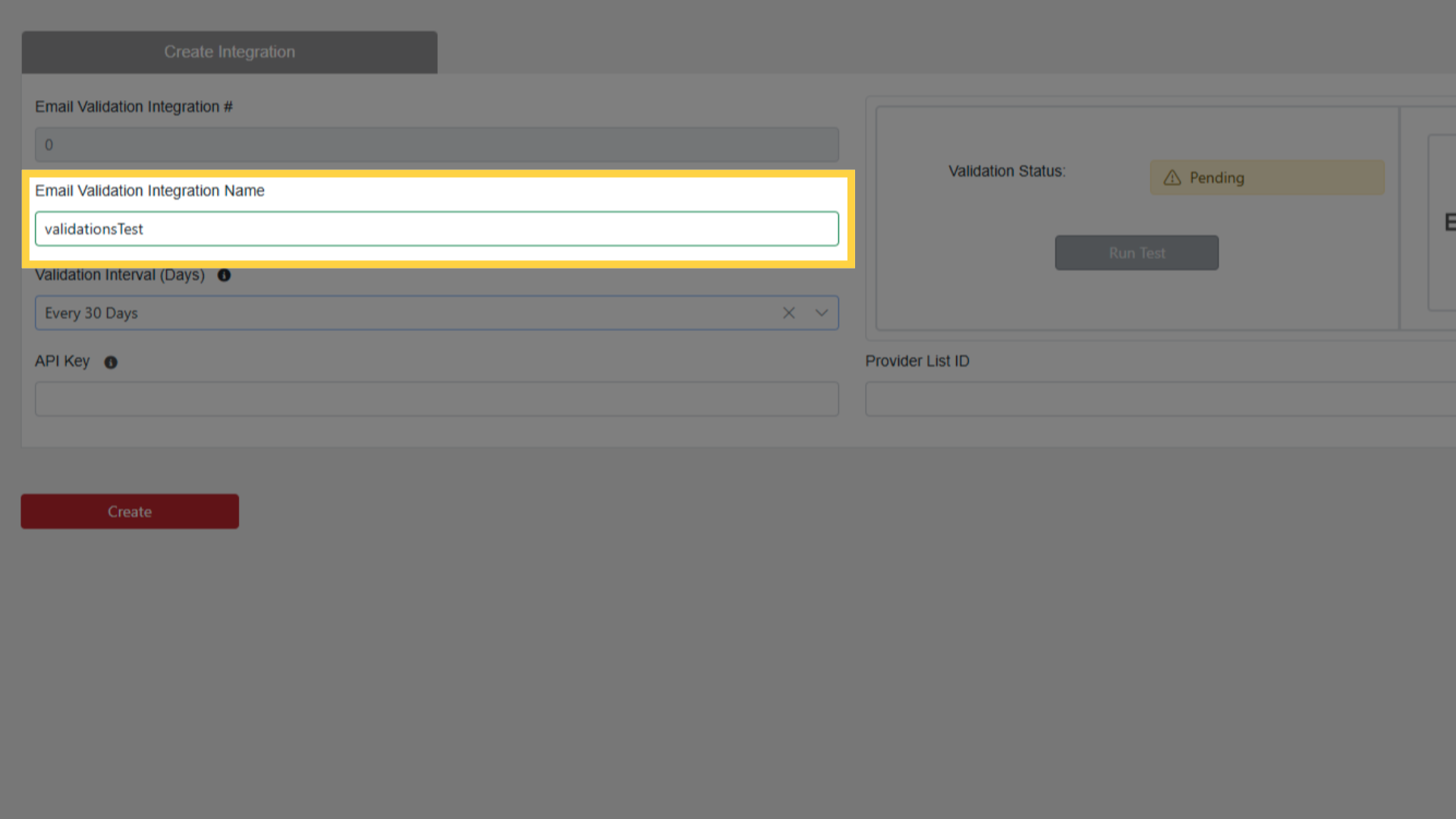
Enter integration name
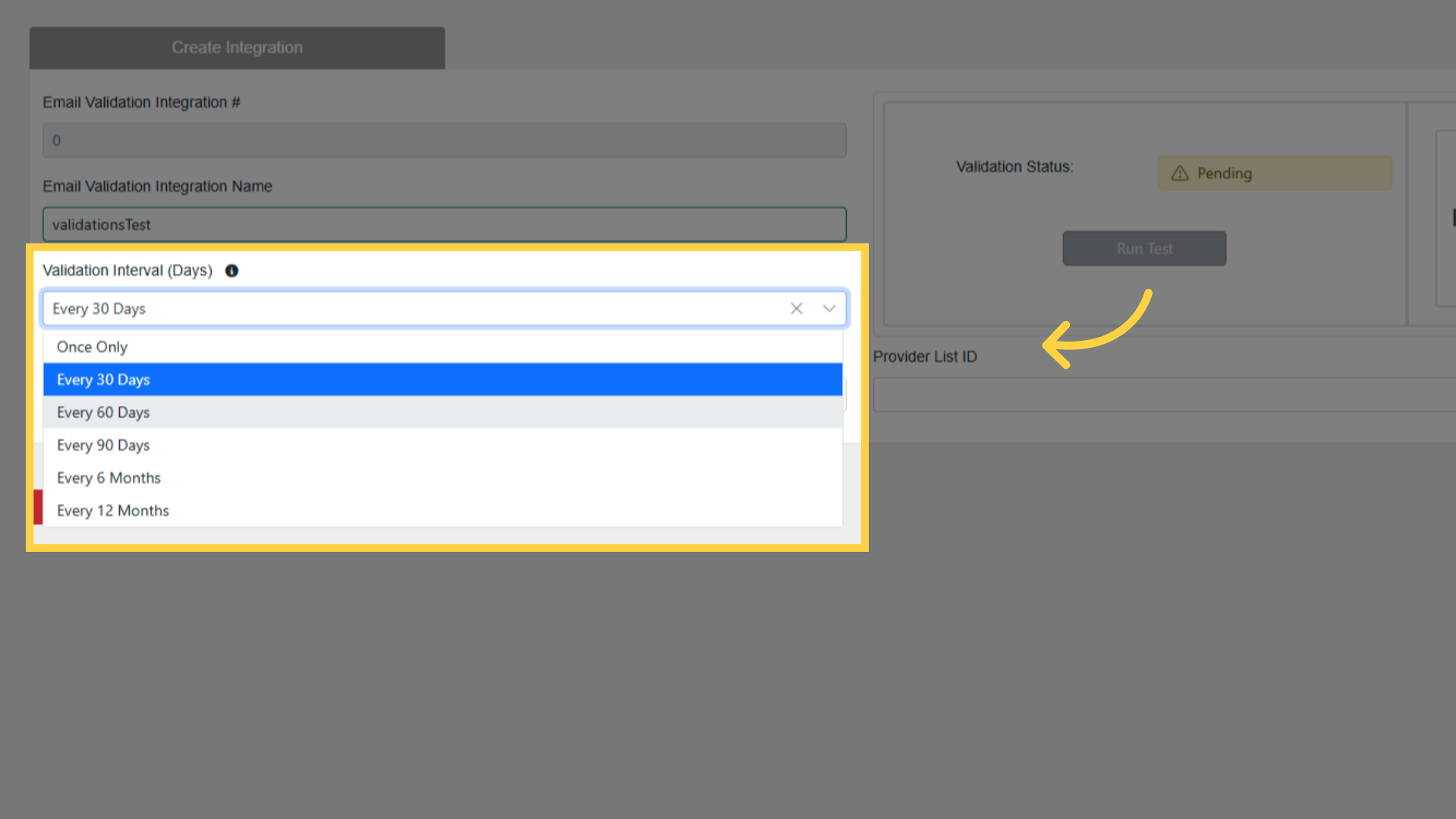
Select Validation Interval: OnceOnly or recurring (30/60/90 days)
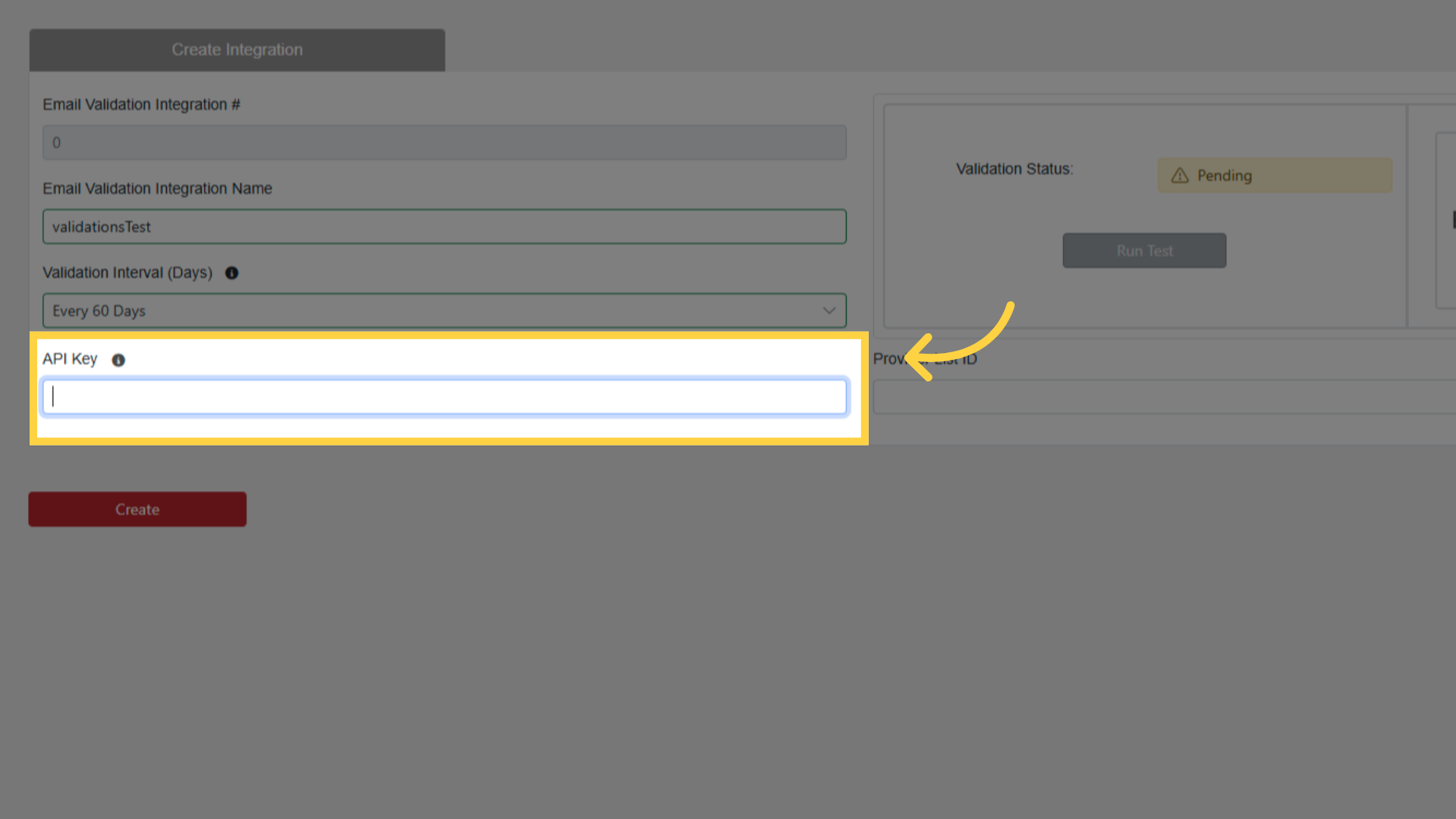
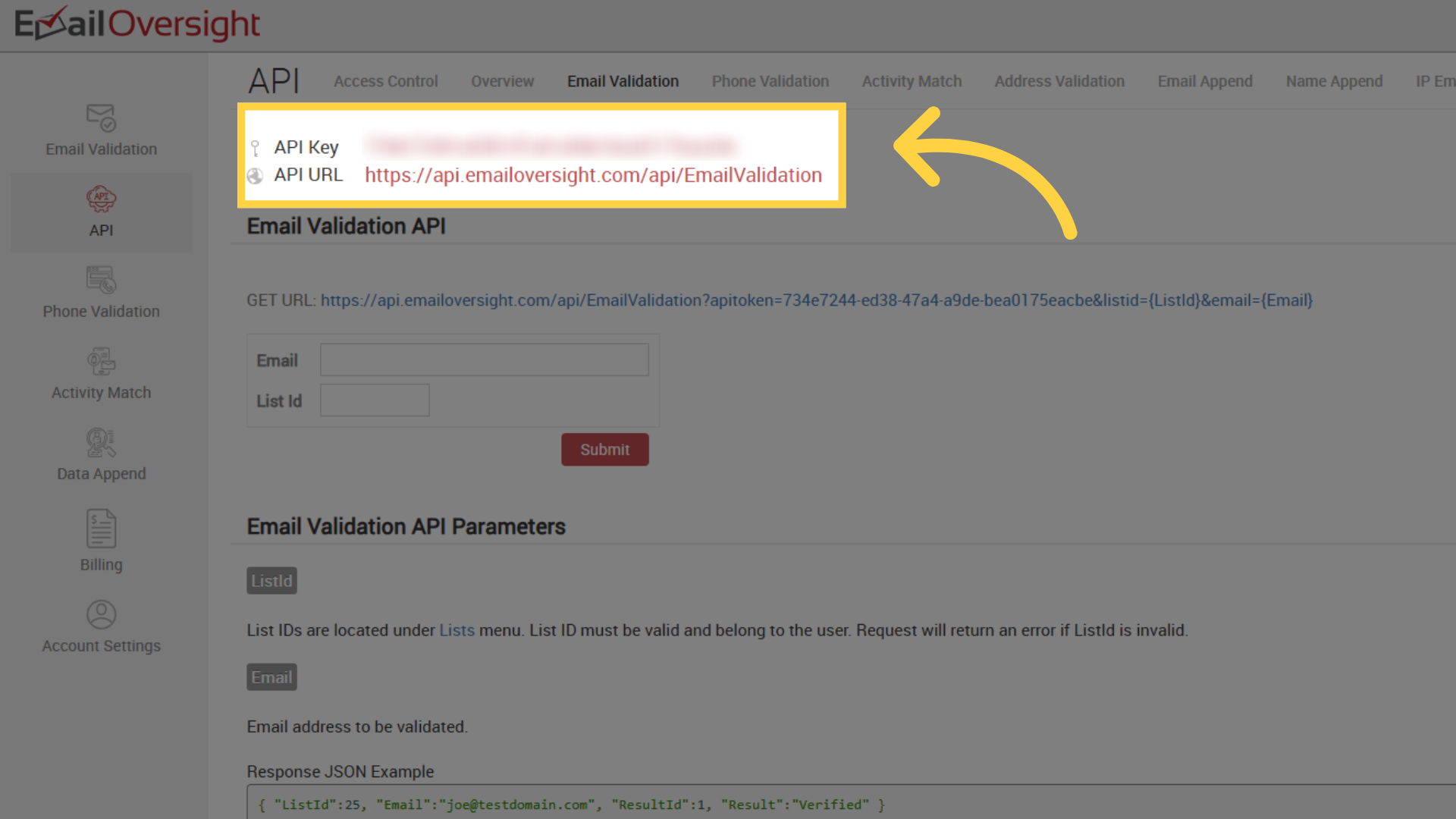
Enter API Key from EmailOversight (found under Email Validation tab > API section)
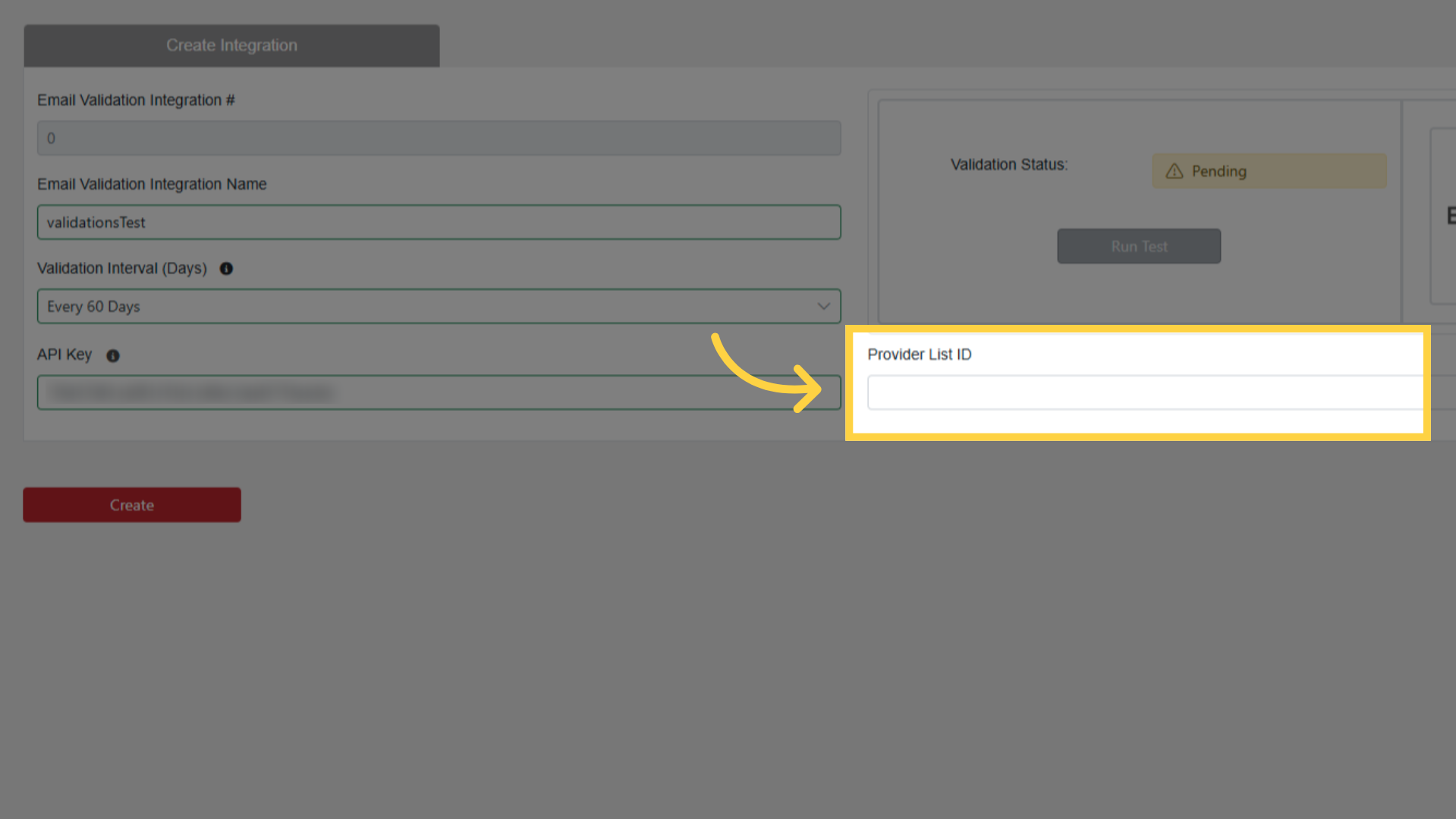
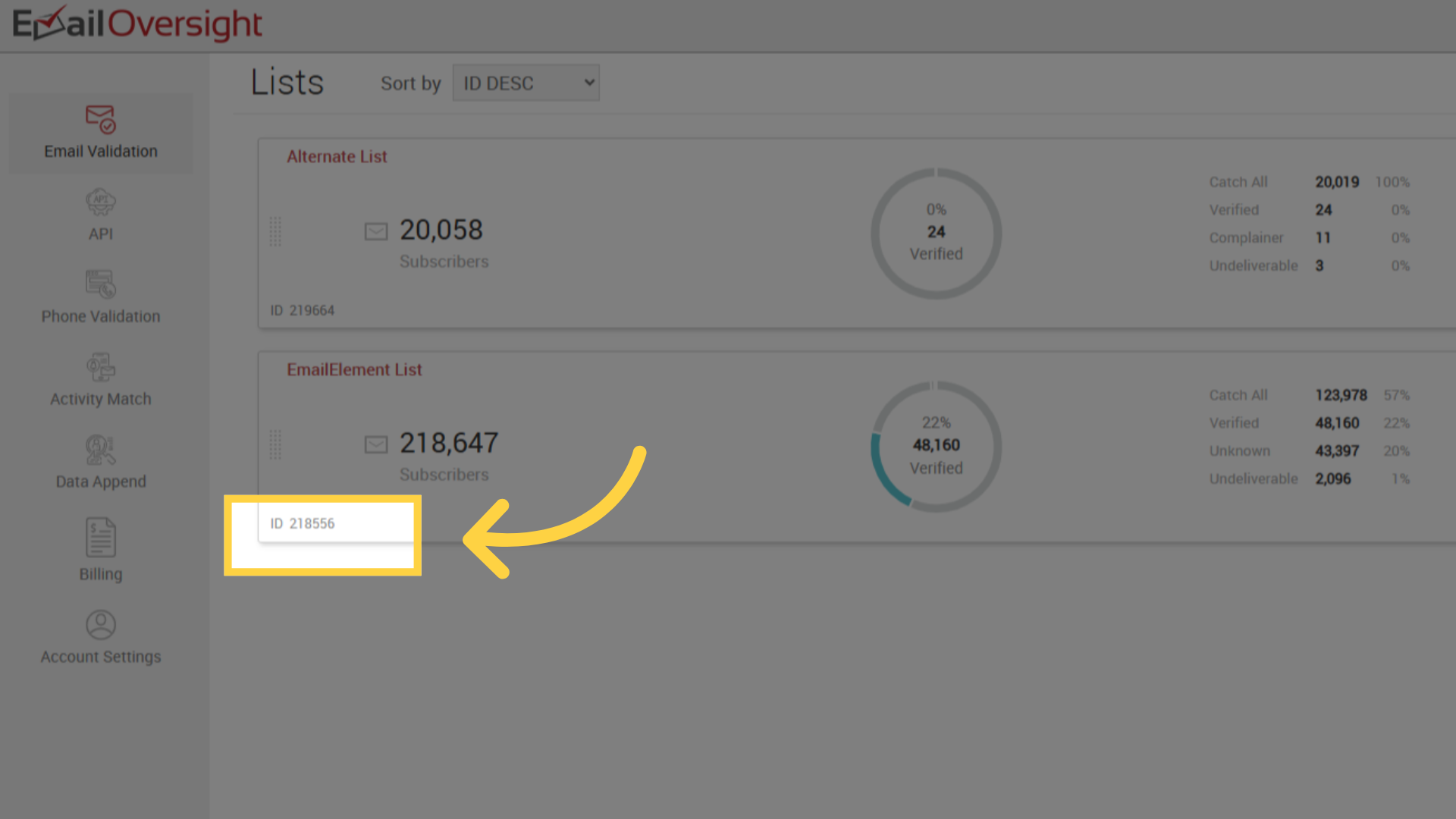
Enter Provider List ID from EmailOversight
Click Create
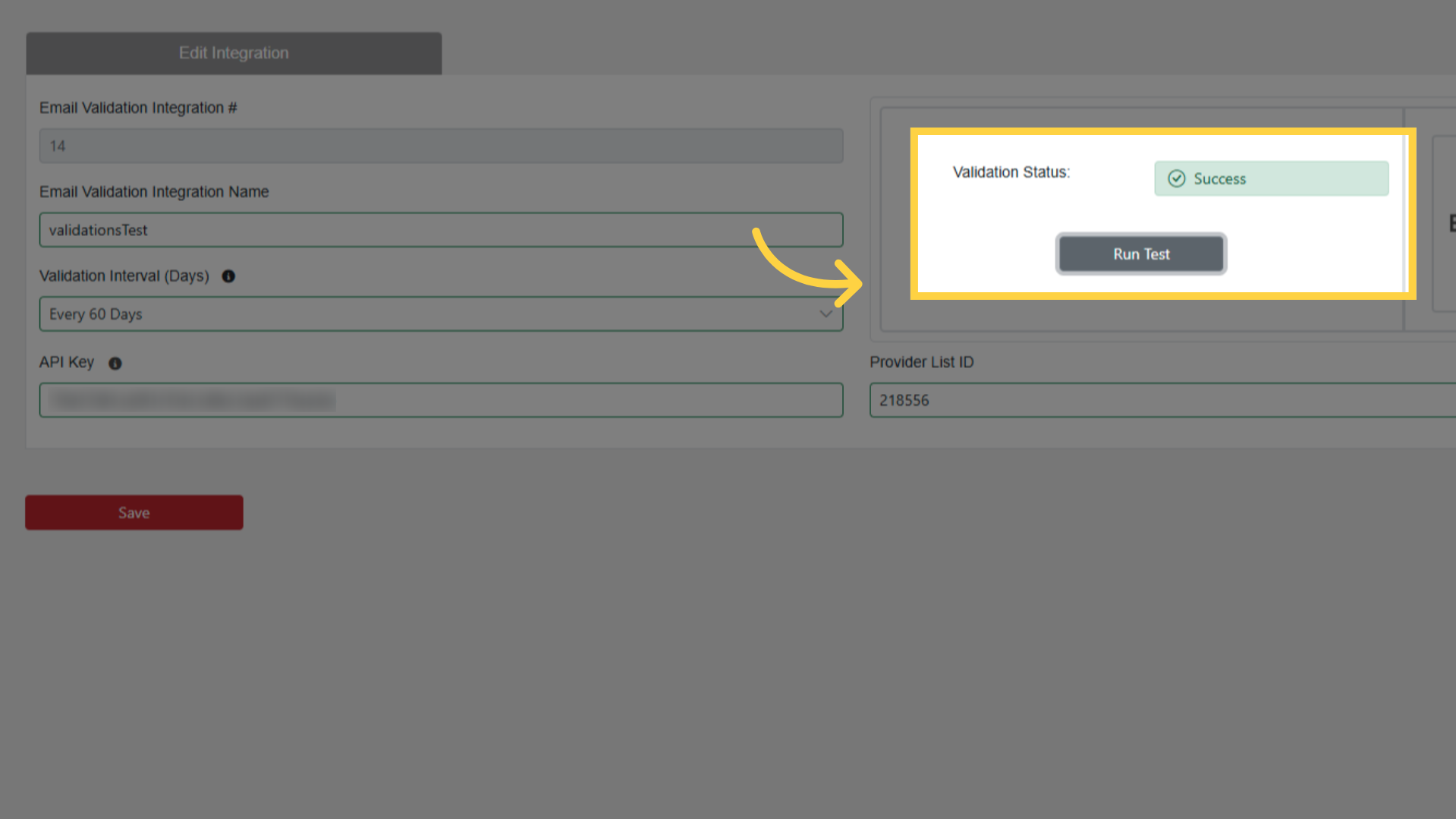
Click Run Test to verify
Adding Validation to a Contact List
Open a Contact List with contacts
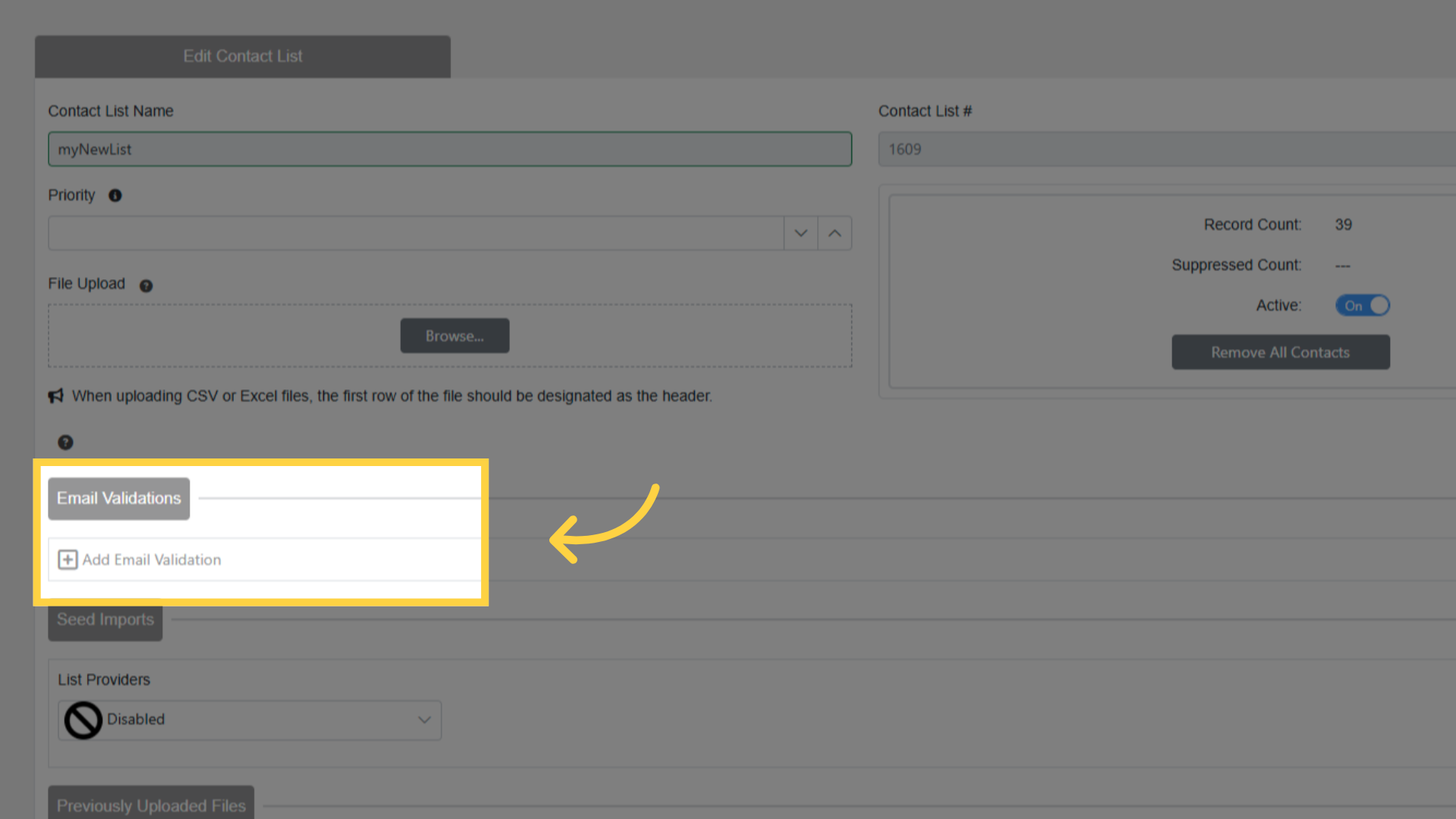
Under Email Validations section, click Add Email Validation
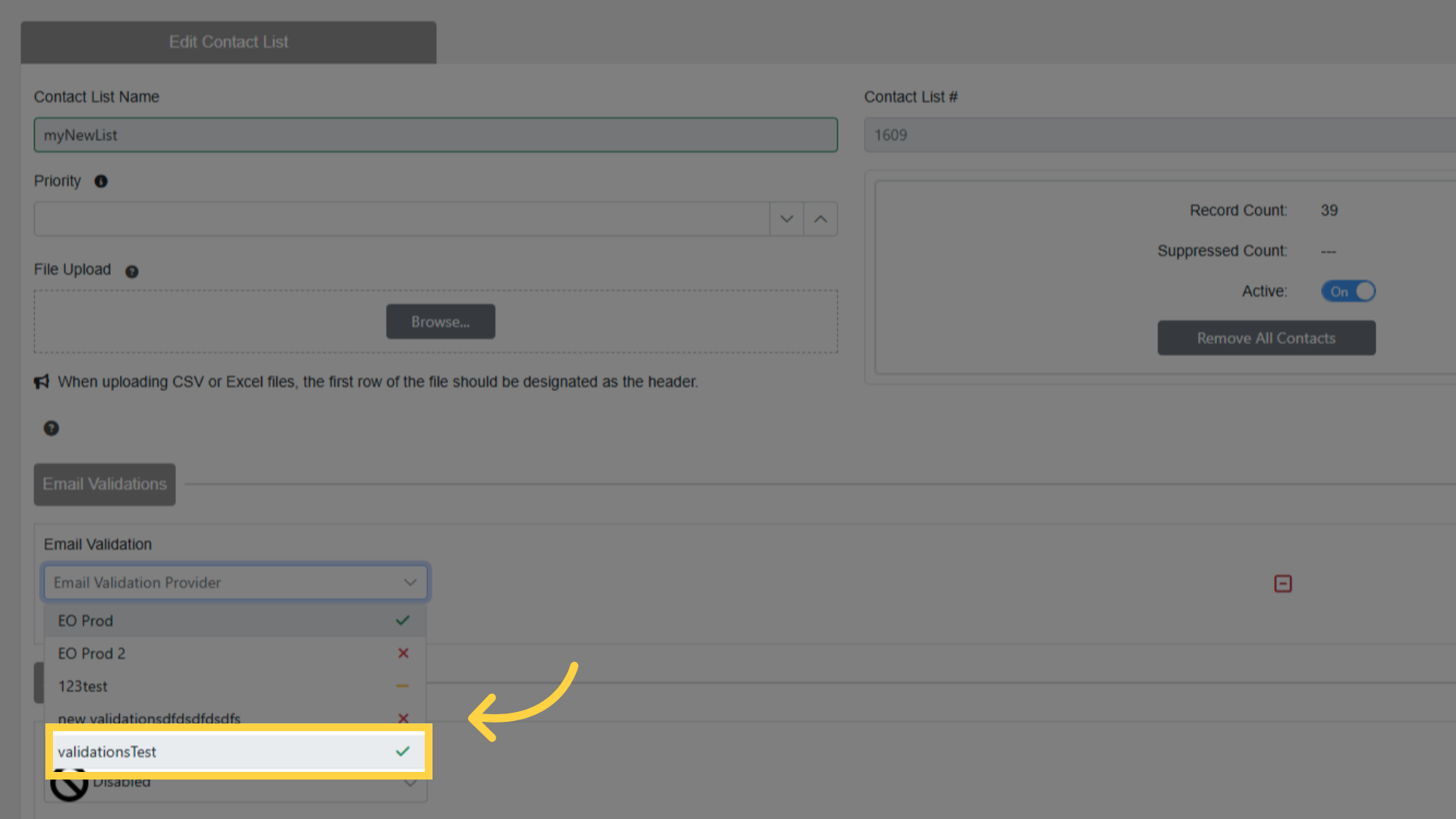
Select your integration from dropdown
Validation Interval and Provider List ID default from integration (can override per-list)
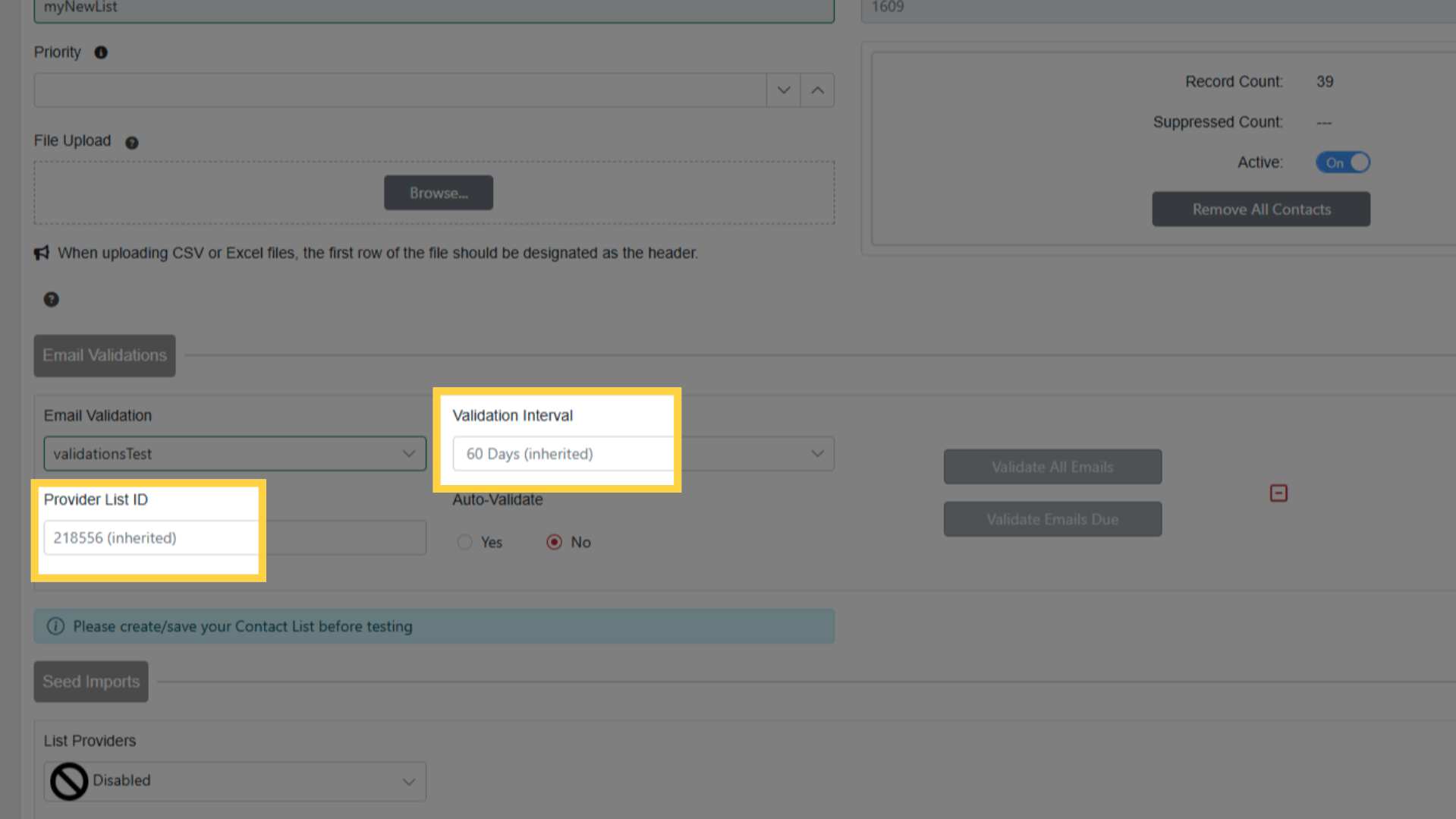
Toggle Auto-Validate for automatic recurring validation (uses EmailOversight credits)
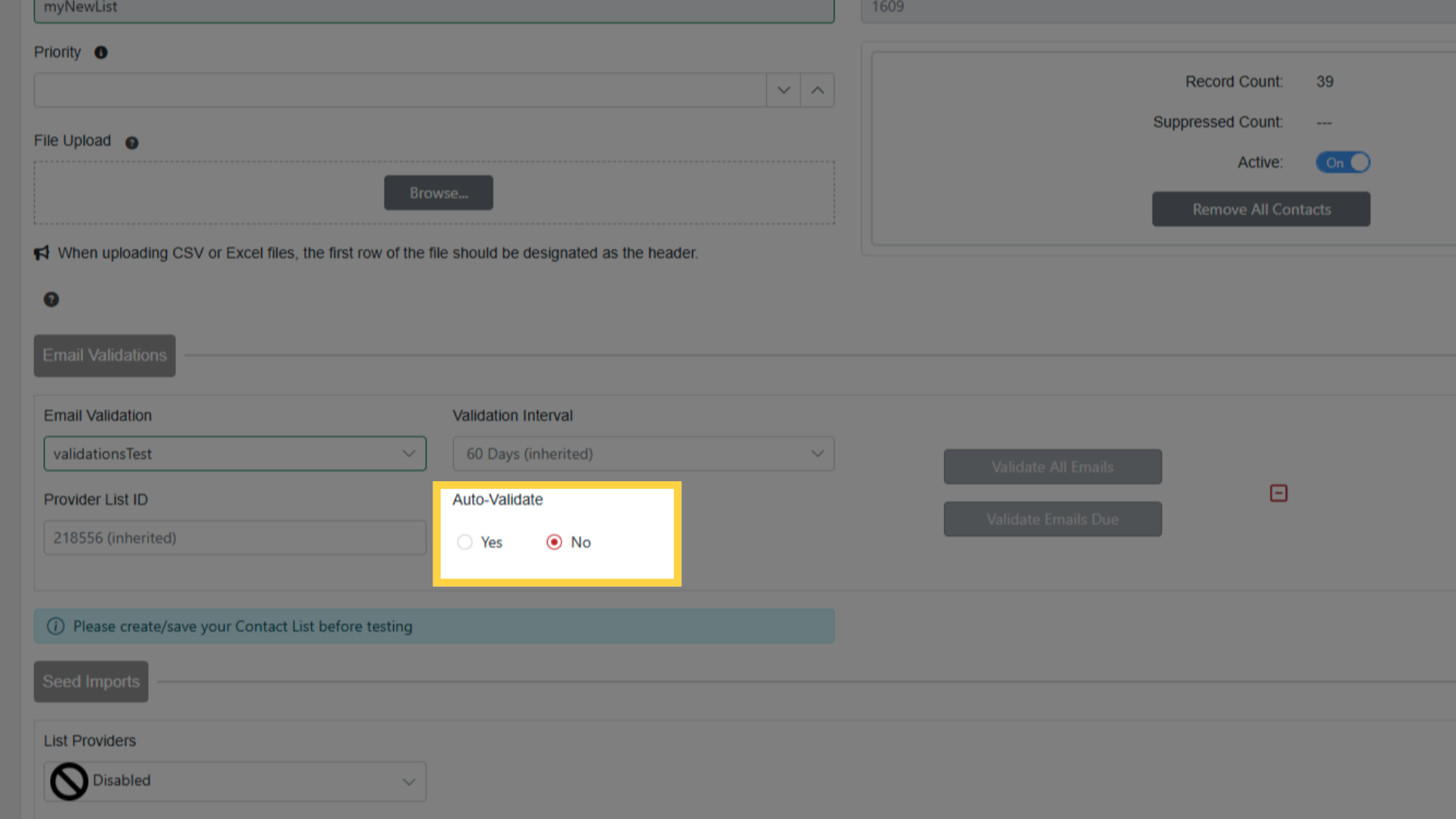
How Auto-Validate Works
- Every new email added to the list is validated within the hour.
- Existing emails are re-evaluated automatically based on the Validation Interval selected (e.g., every 30, 60, or 90 days).
- No manual action required once enabled — new contacts get validated on the next hourly run, and overdue contacts get re-validated when their interval elapses.
Running Validations
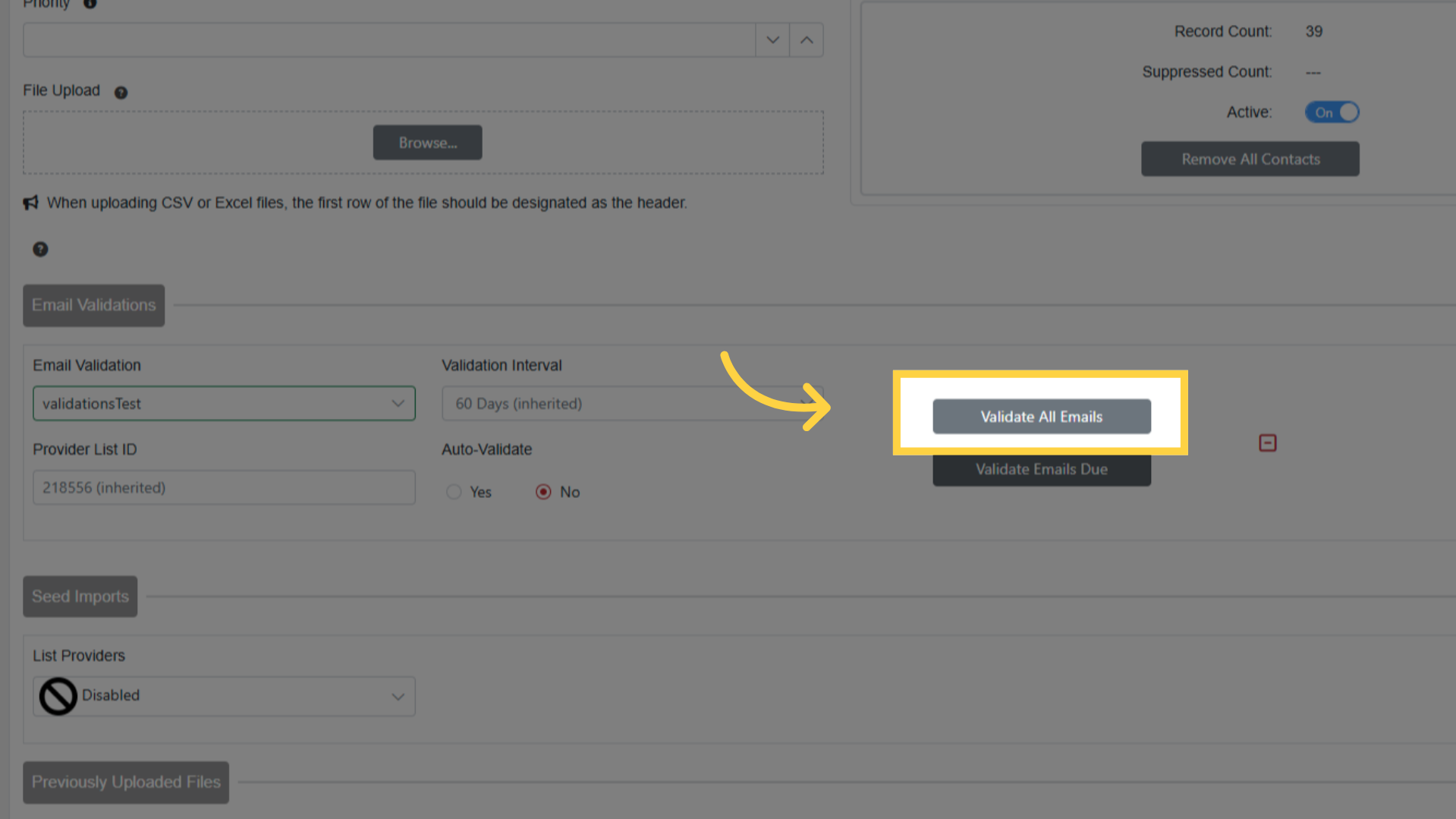
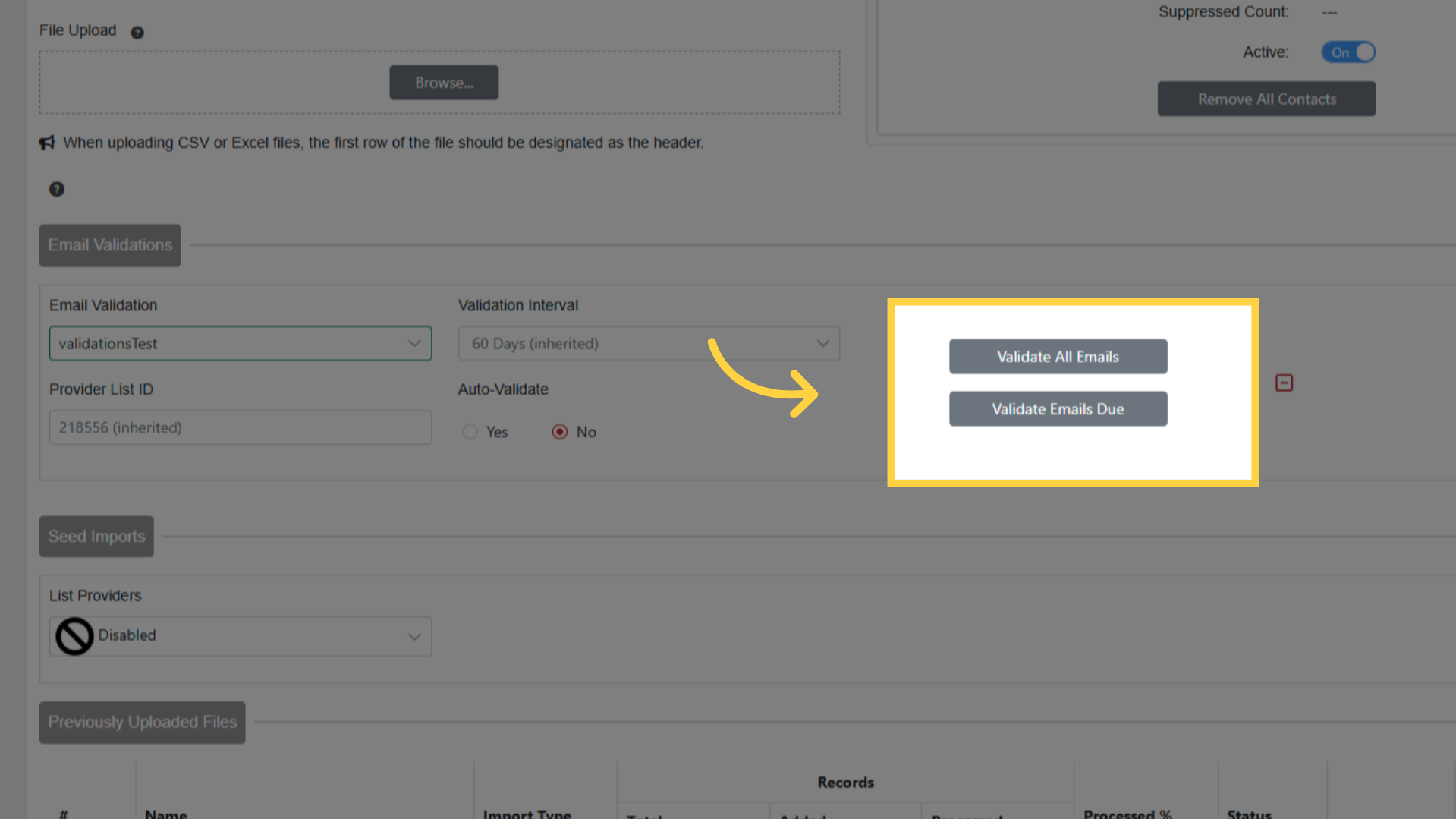
Validate All Emails: validates all contacts regardless of last validation
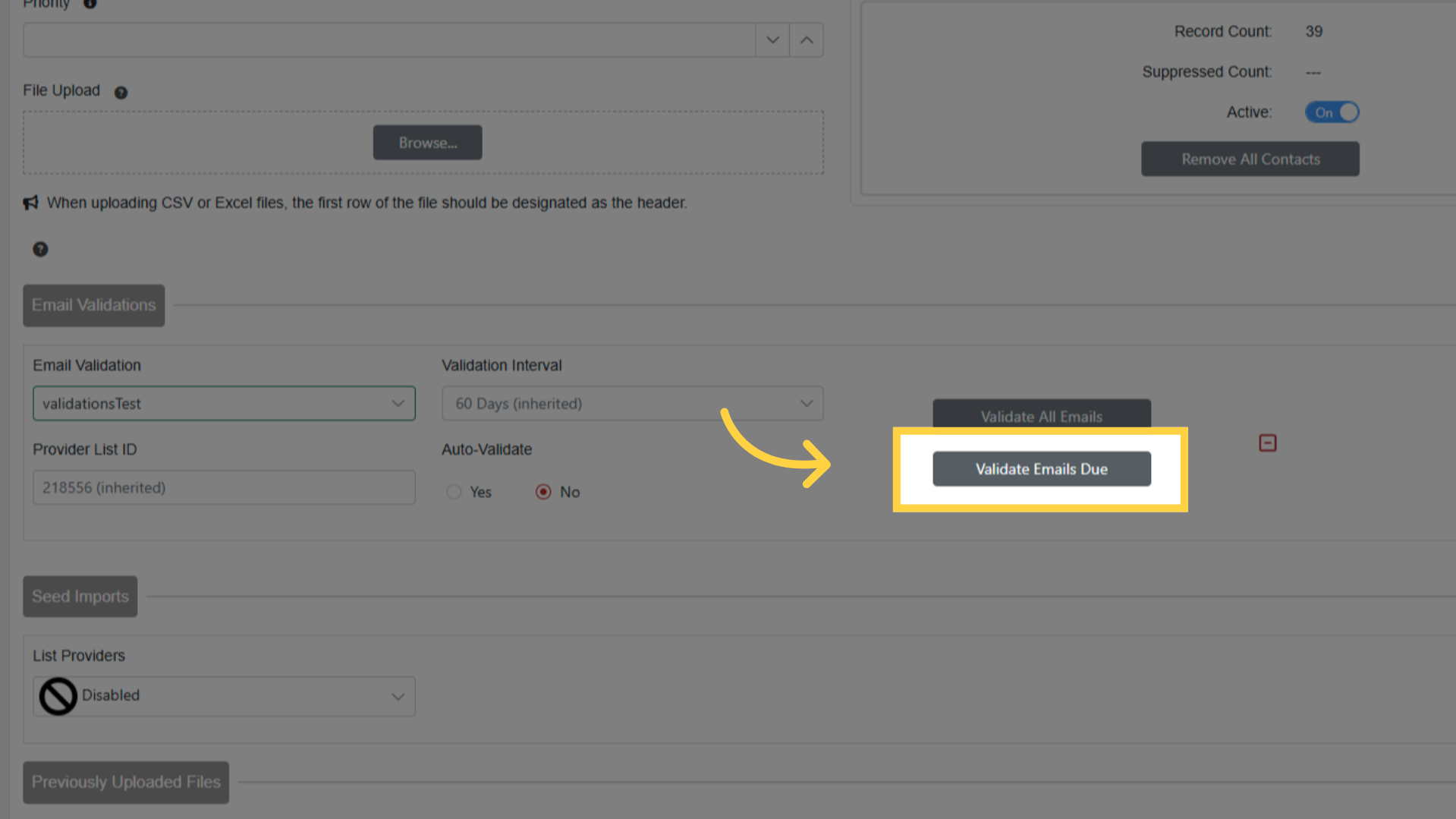
Validate Emails Due: only validates never-validated or overdue contacts
Progress percentage shown on button during validation
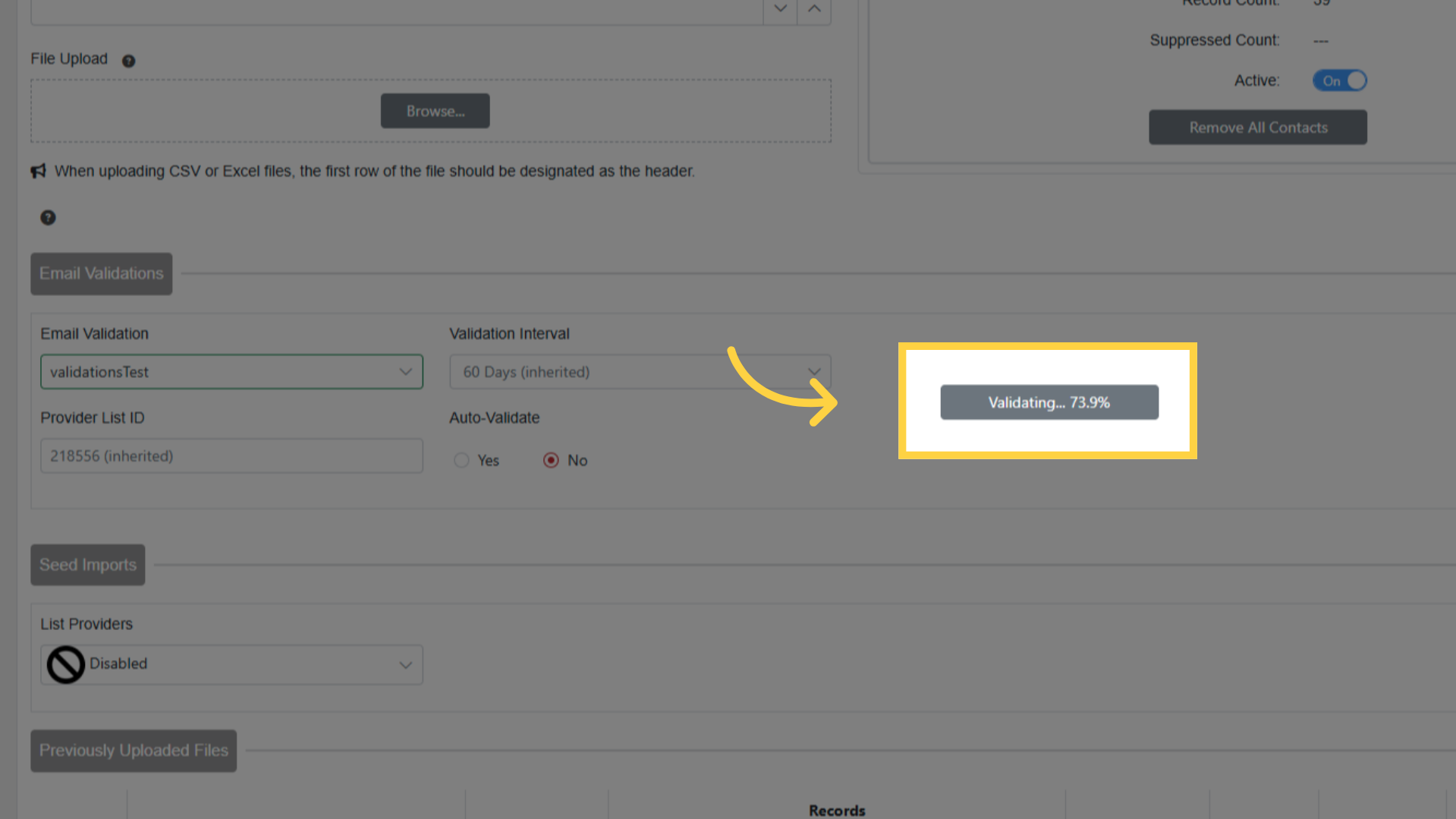
Click progress button to cancel
Buttons reset when complete
Using Validation Results in Segments
Create a segment with Email Validations filter
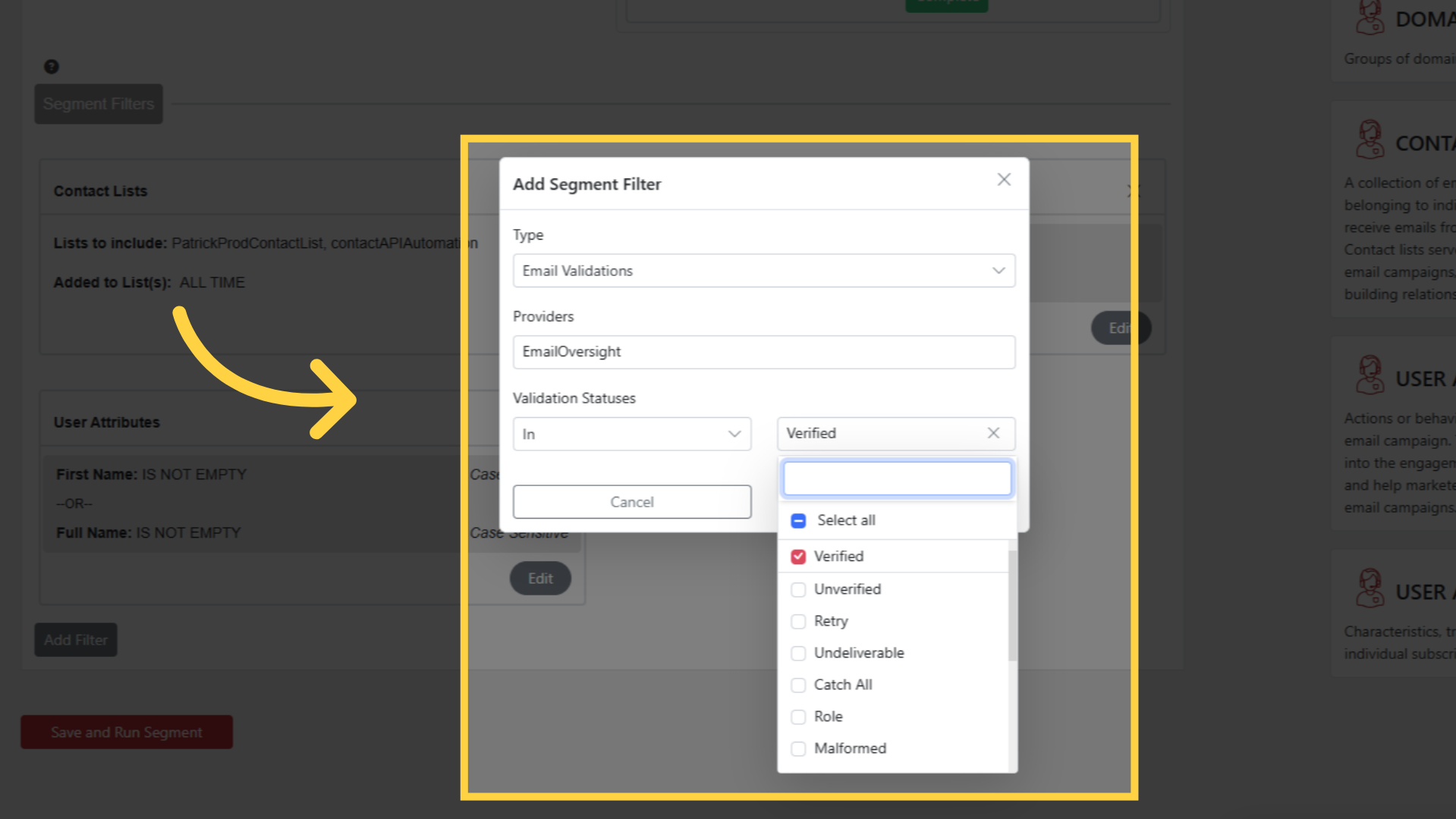
Select EmailOversight as provider
Choose In or Not In a validation status
Example: Only send to contacts with "Verified" status