
Engagement
The Engagement Report lists clicks, opens and unsubscribes as rows, to read or to download. Opens and clicks we can tell are automated are not in it. They are recorded separately, so mailbox privacy features and security scanners do not inflate your numbers.
Instructions
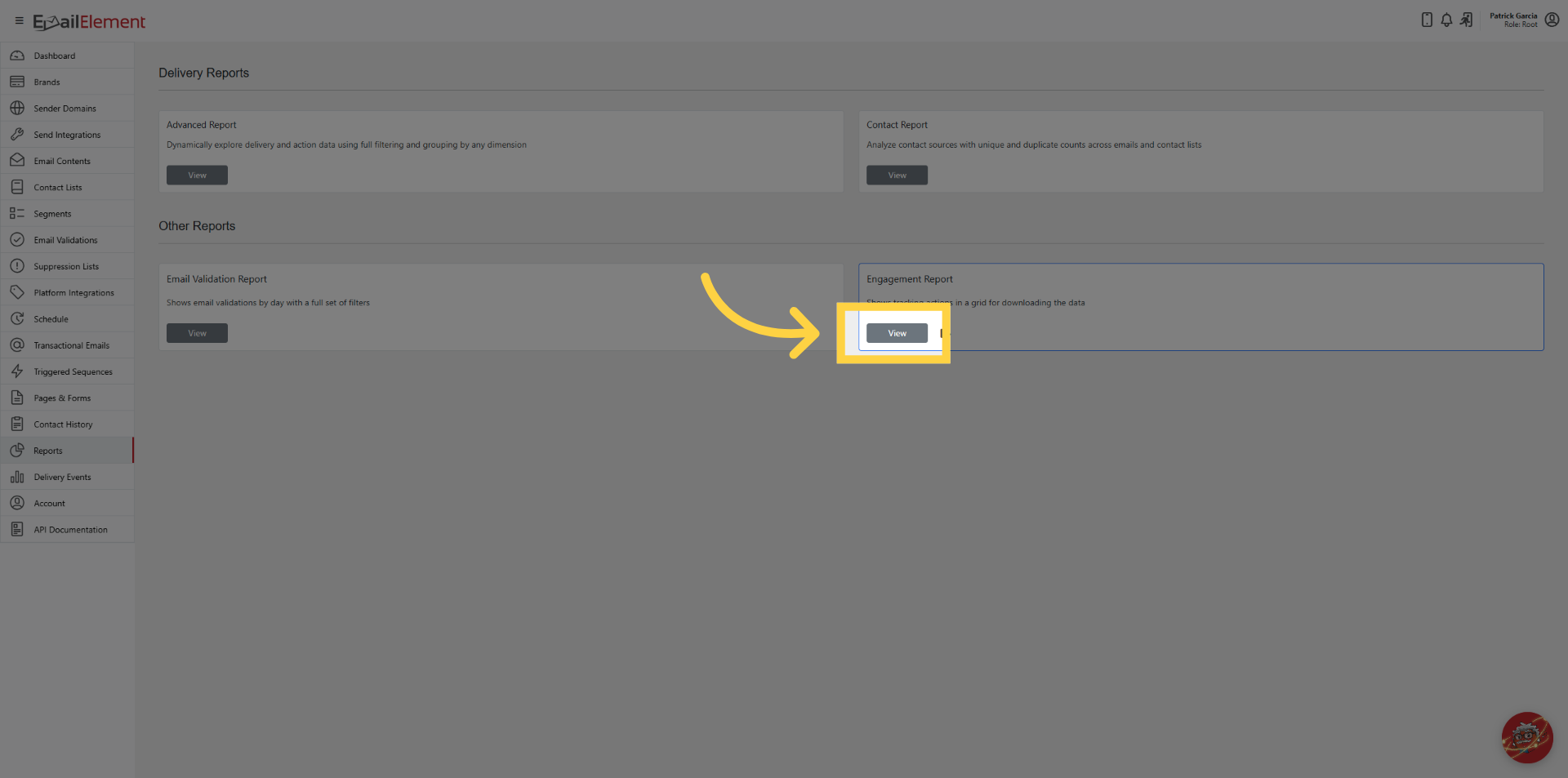
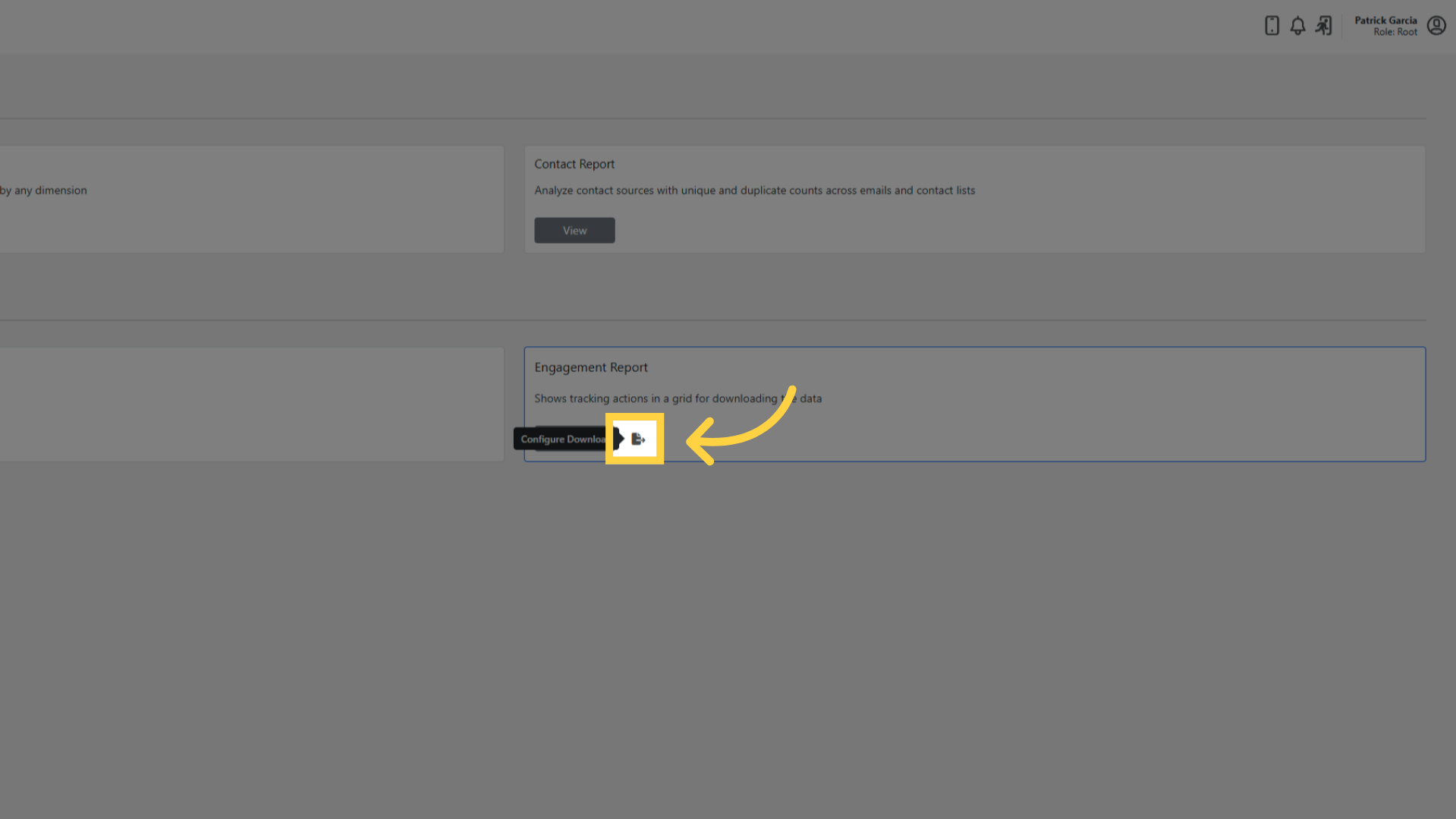
Navigate to Reports > click View on the Engagement Report card.
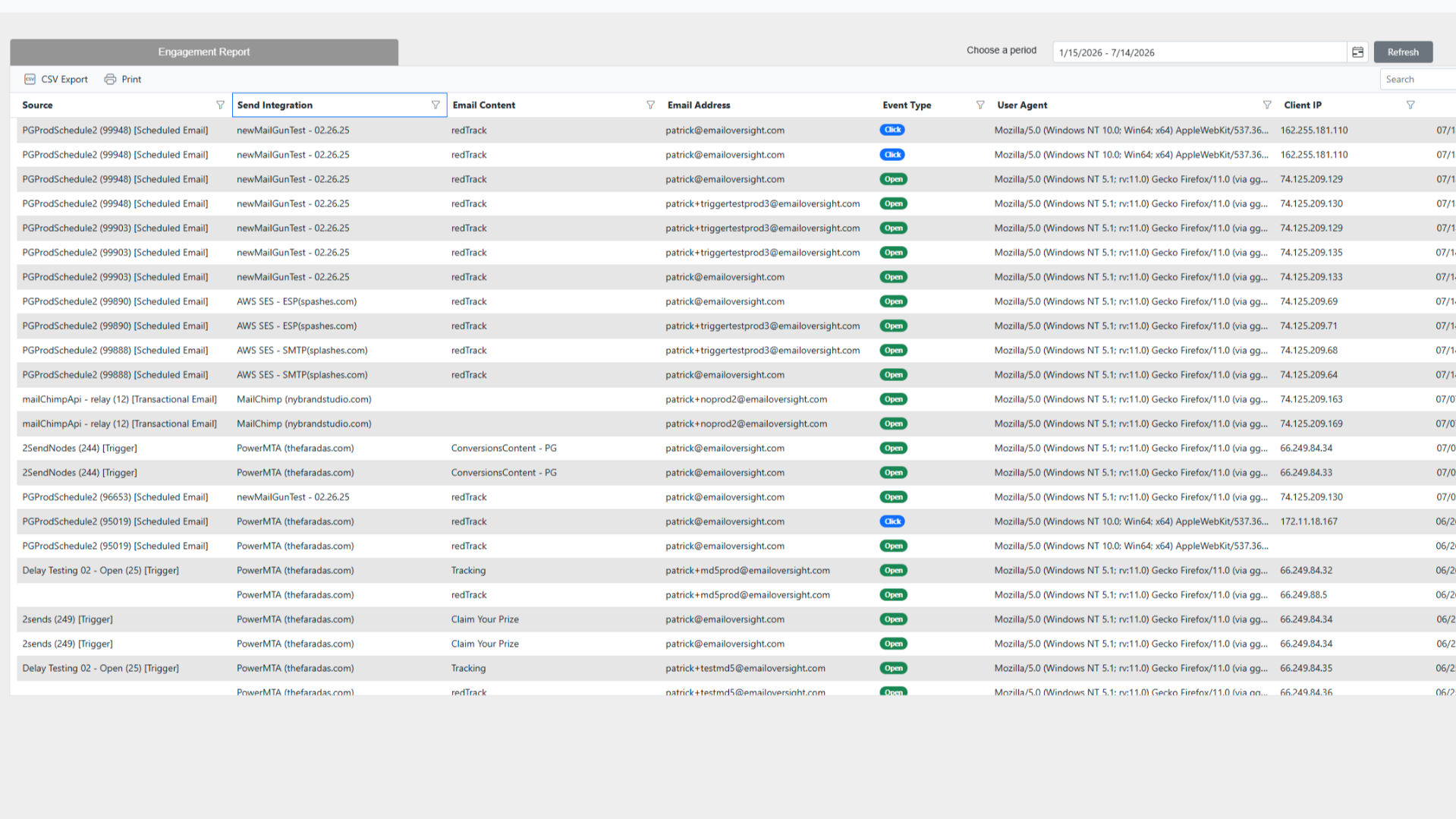
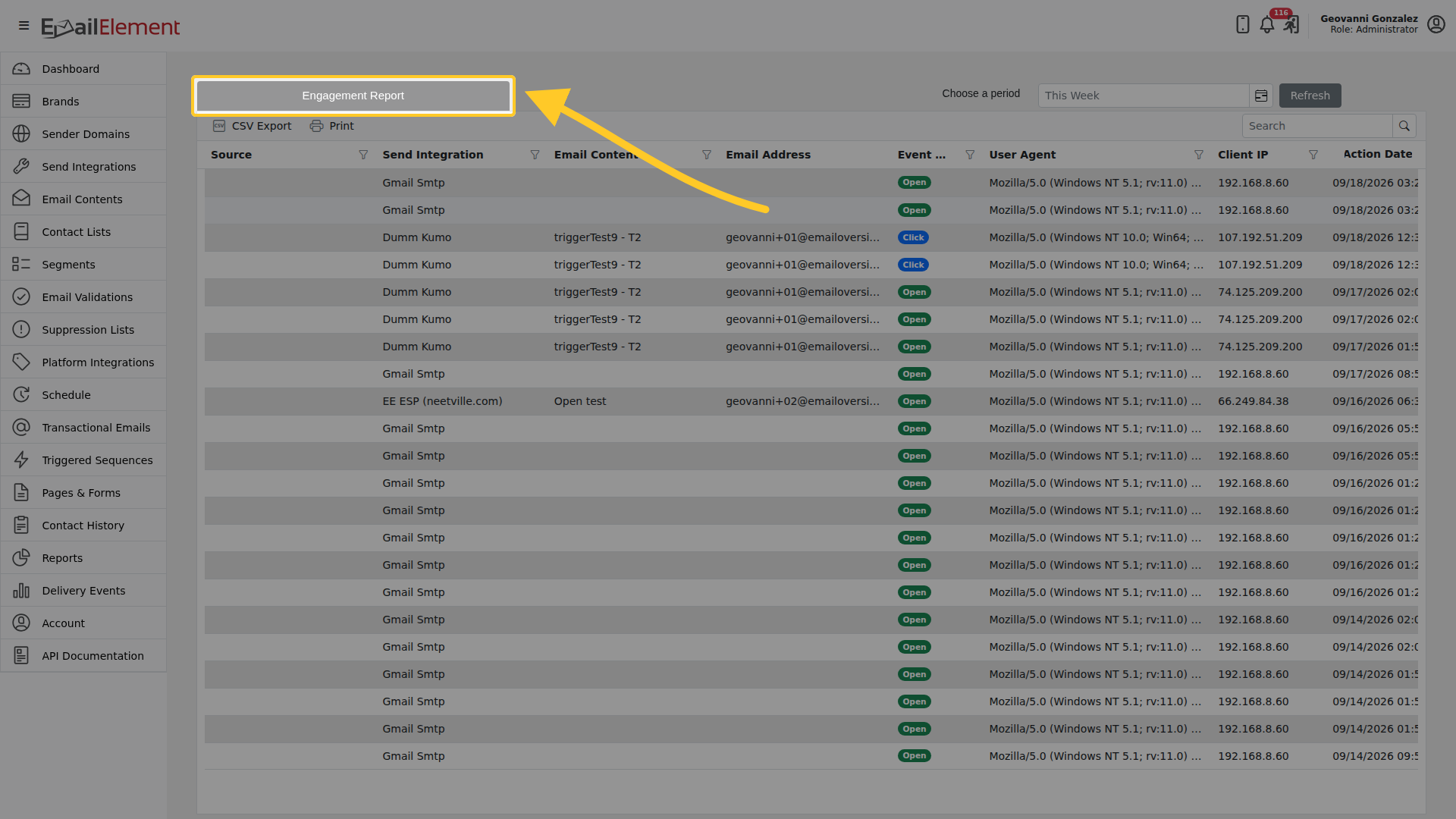
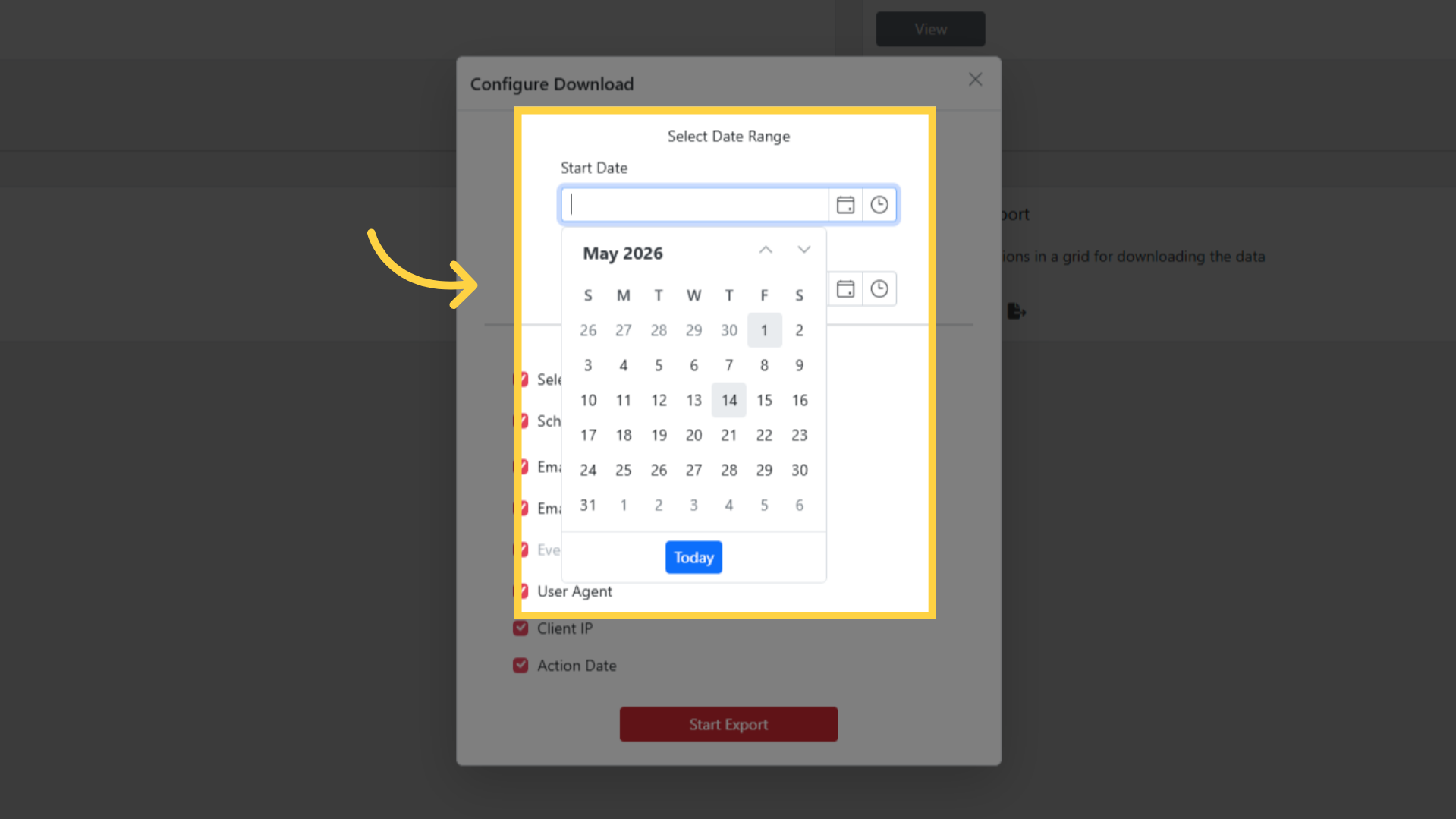
The default view shows engagement events from the last 7 days. Use the date range picker at the top to adjust the period.
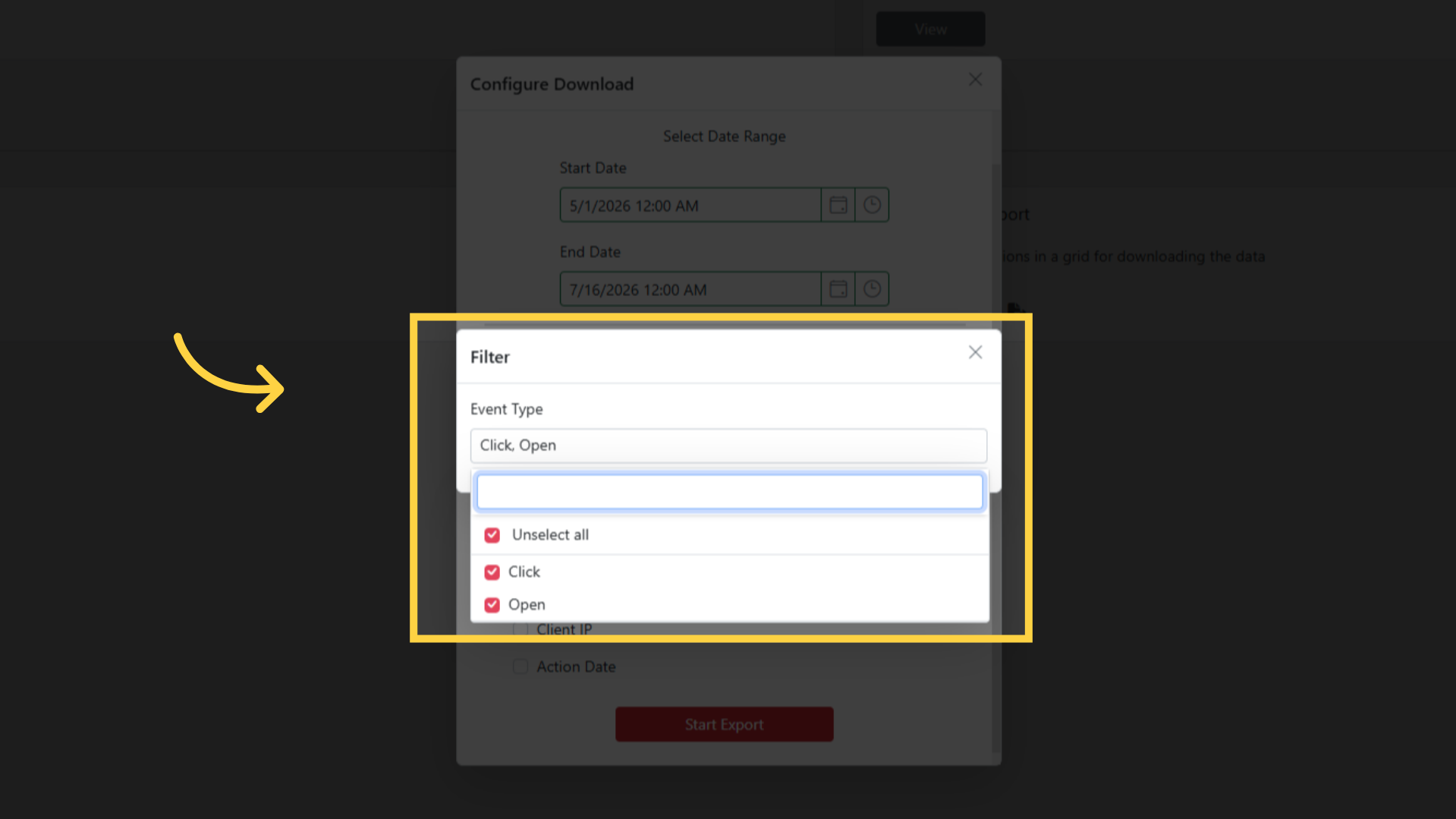
The report shows three event types, and the Event Type filter offers only these three:
- Click — the recipient clicked a tracked link
- Open — the recipient's email client loaded the tracking pixel
- Unsub — the recipient unsubscribed
Opens we identify as automated are not shown as opens. When the open arrives from an IP address or a user agent on our bot list, it is stored as a BotOpen in its own table instead of as an Open. It is not in the Engagement Report, not in open counts, and not in segments.
Clicks work the same way. A click from an IP address or user agent on our bot list is stored as a BotClick and is not shown as a click.
The bot list covers mailbox privacy proxies, including Apple Mail Privacy Protection and Google image proxying, and known scanners. We maintain it; there is no per-account setting for it.
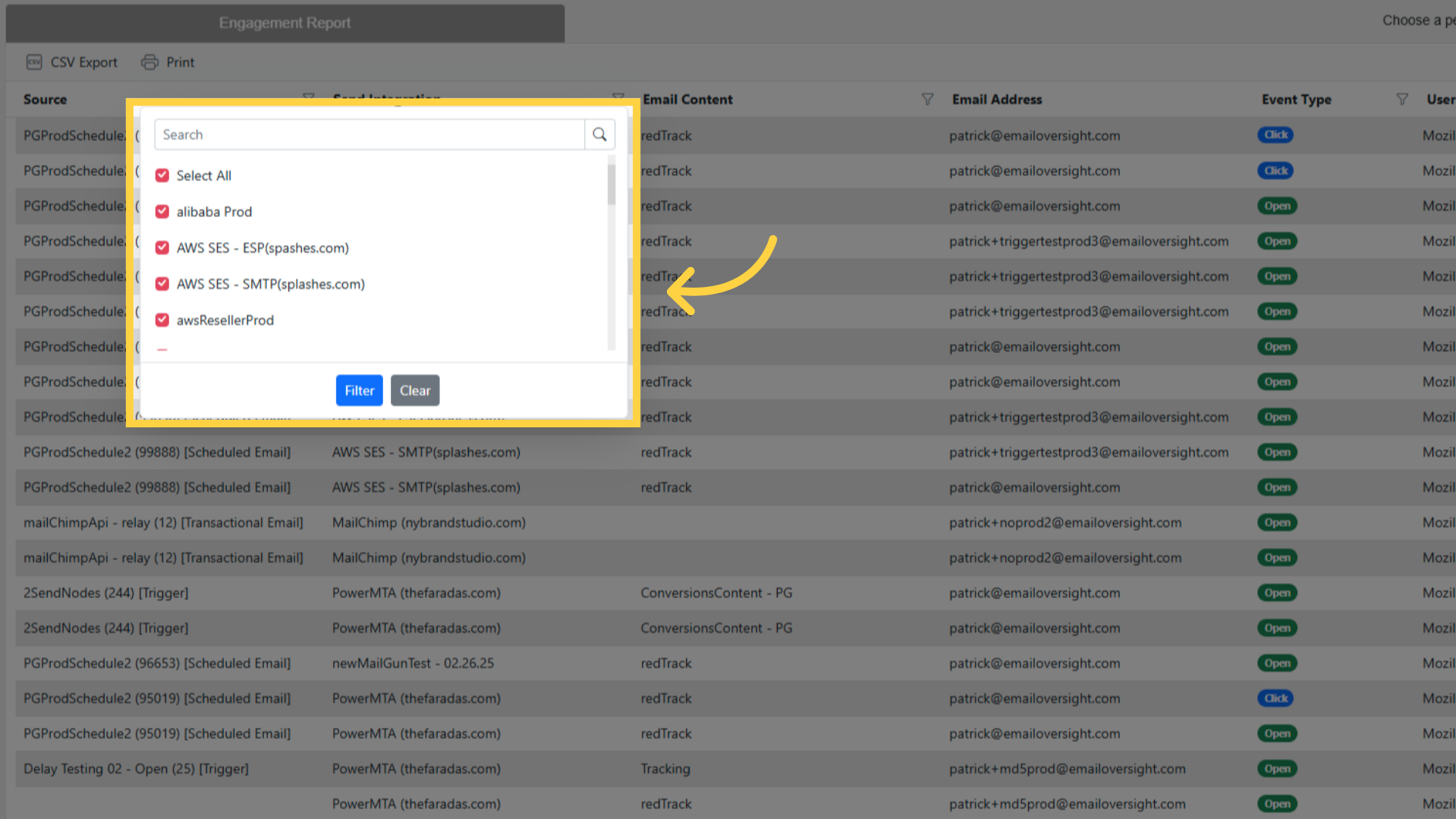
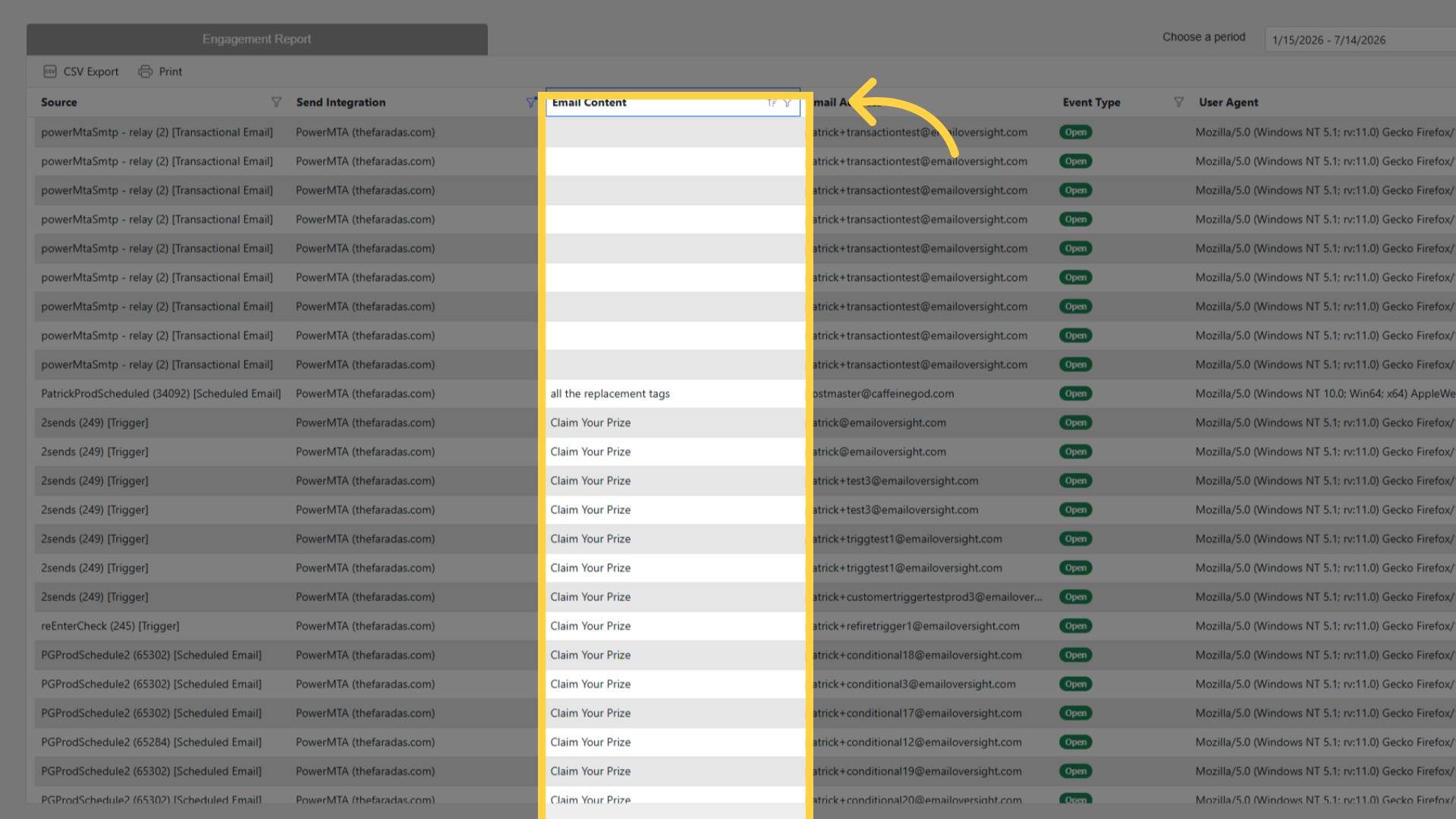
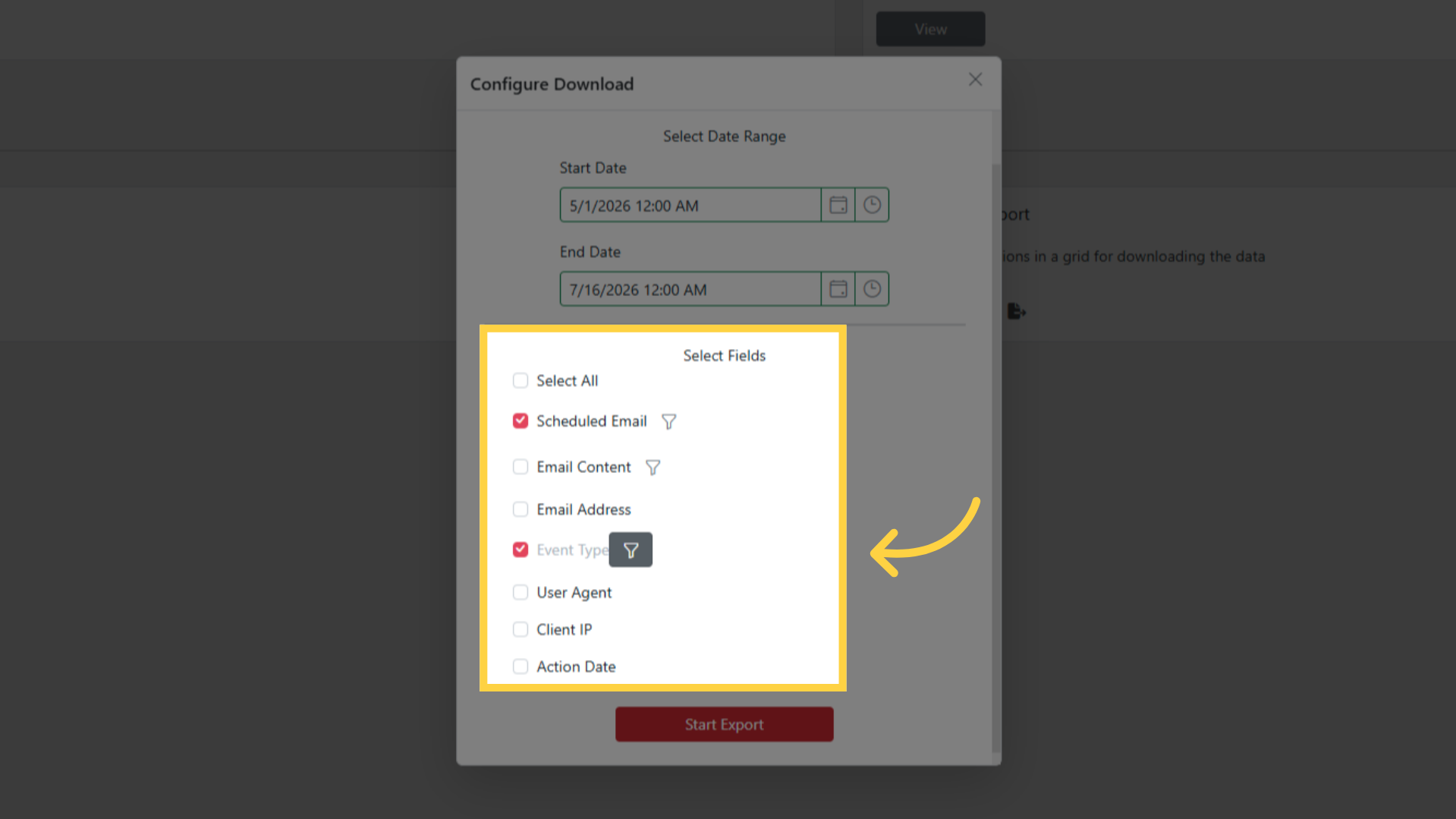
The grid can be filtered on Source, Send Integration, Email Content, Event Type, User Agent and Client IP. Email Address and Action Date cannot be filtered.
Each row shows the email address, event type, action date, source, and the related metadata such as the link clicked, the IP address, and the user agent.
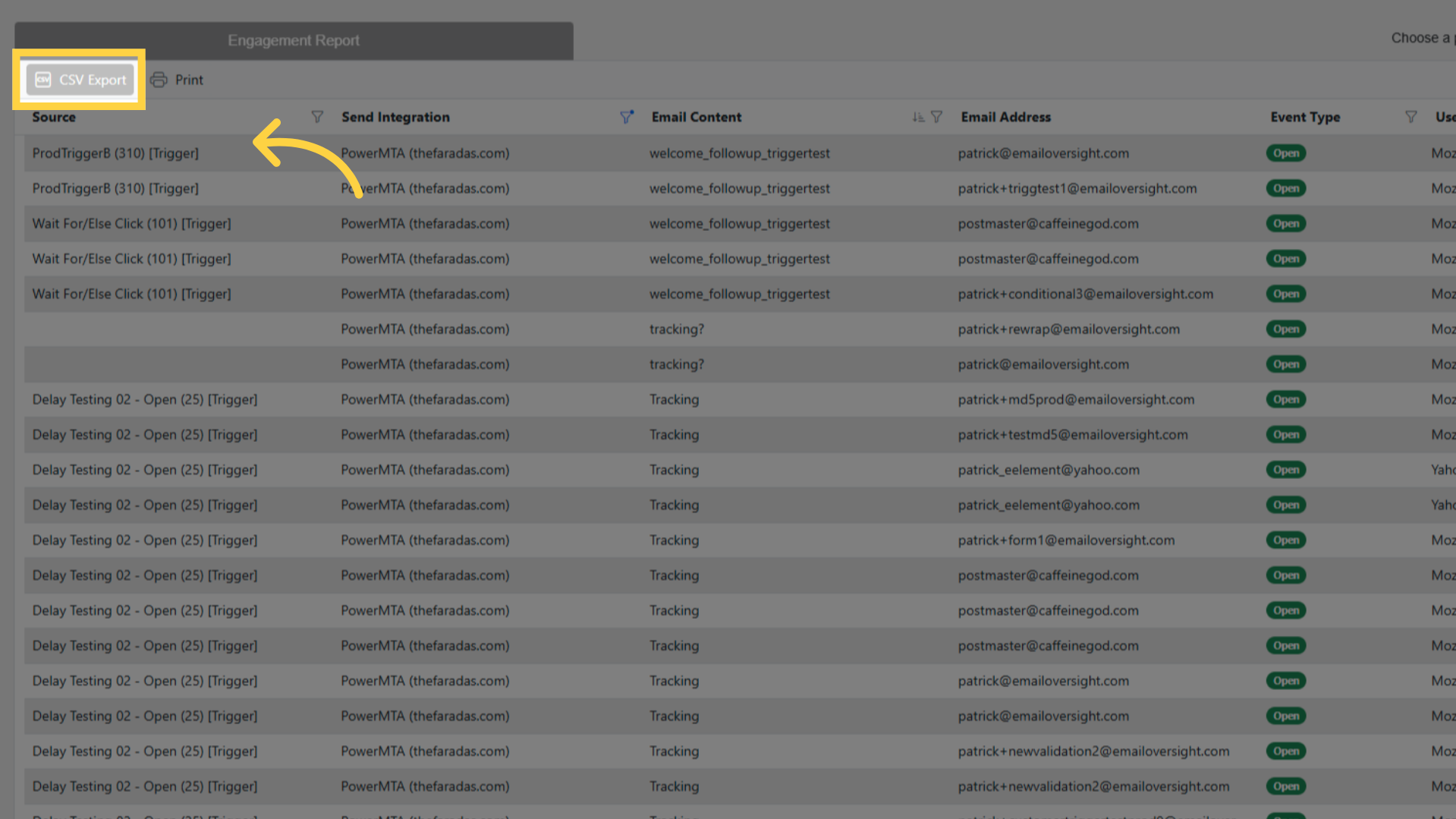
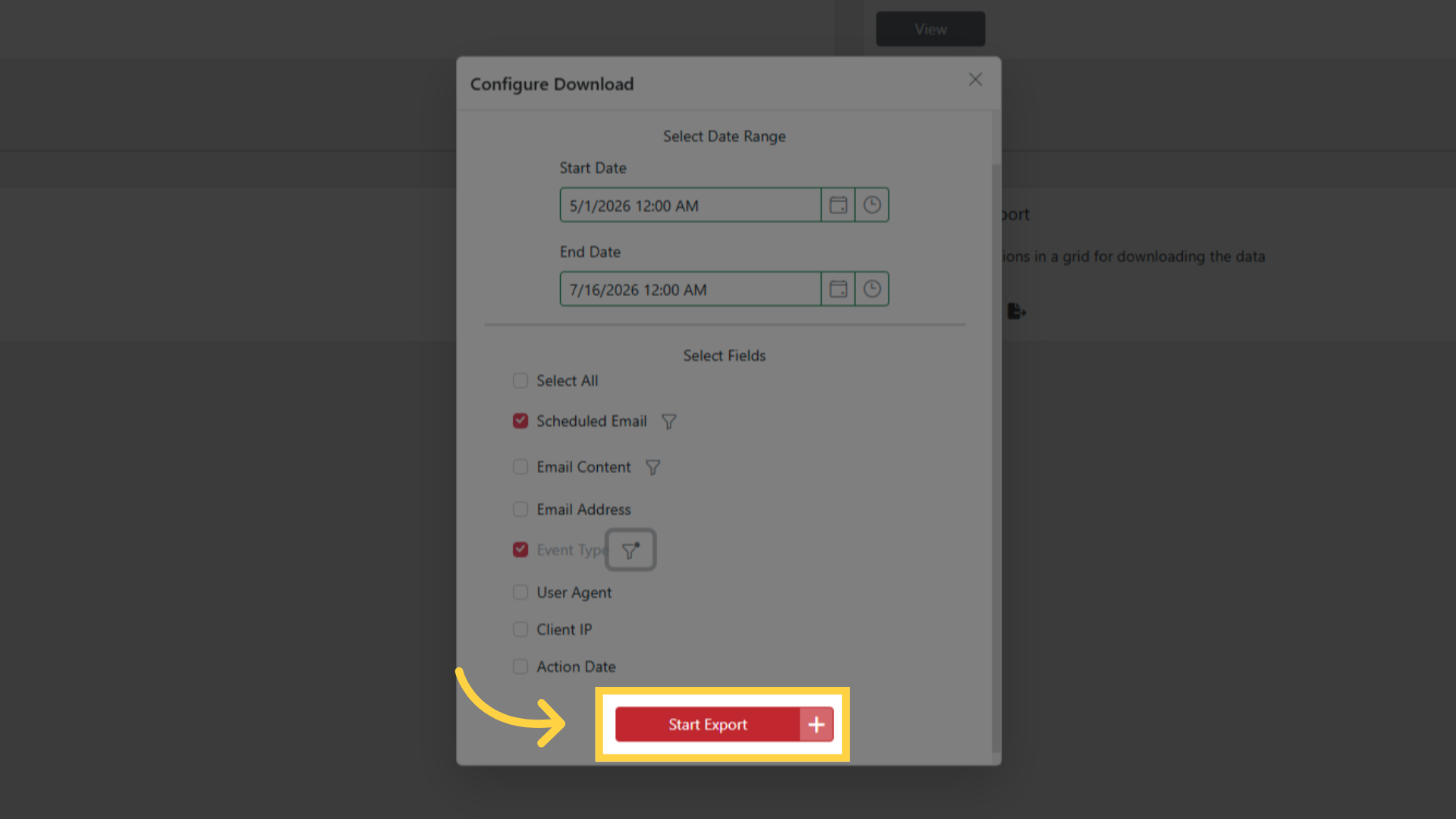
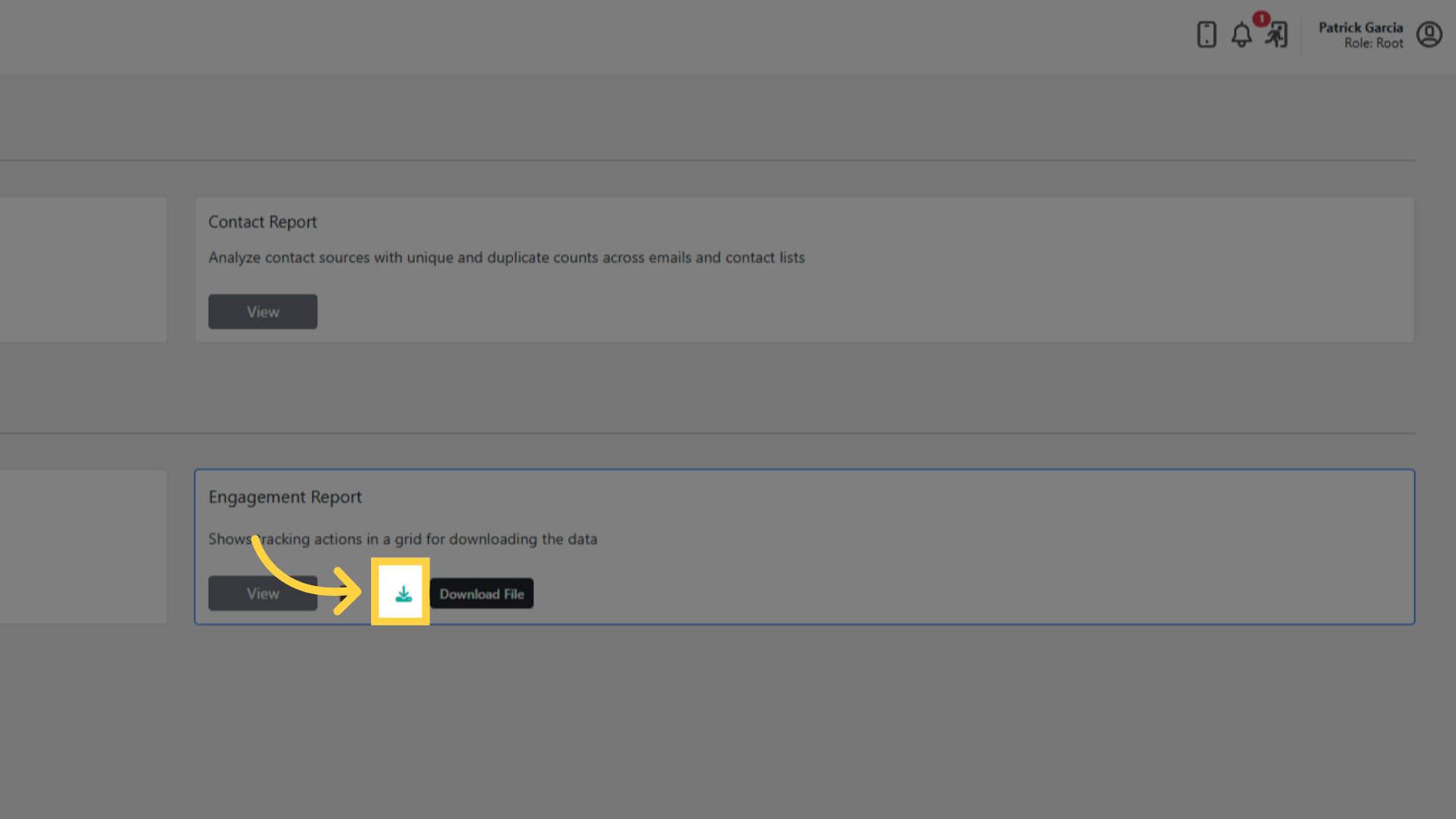
Click CSV Export in the toolbar to download the filtered data.
The report can be opened from the Dashboard — click the engagement counts on a Scheduled Email card to open it pre-filtered to that campaign.
Related pages
- Engagement Event Types Reference — The Engagement Report shows Click, Open and Unsub events