
Sequence Actions Reference
Where the actions are
Open a triggered sequence and choose its trigger event first. The actions palette is then on the right, and an action is added to the flow by dragging it in. Everything below is in that palette.
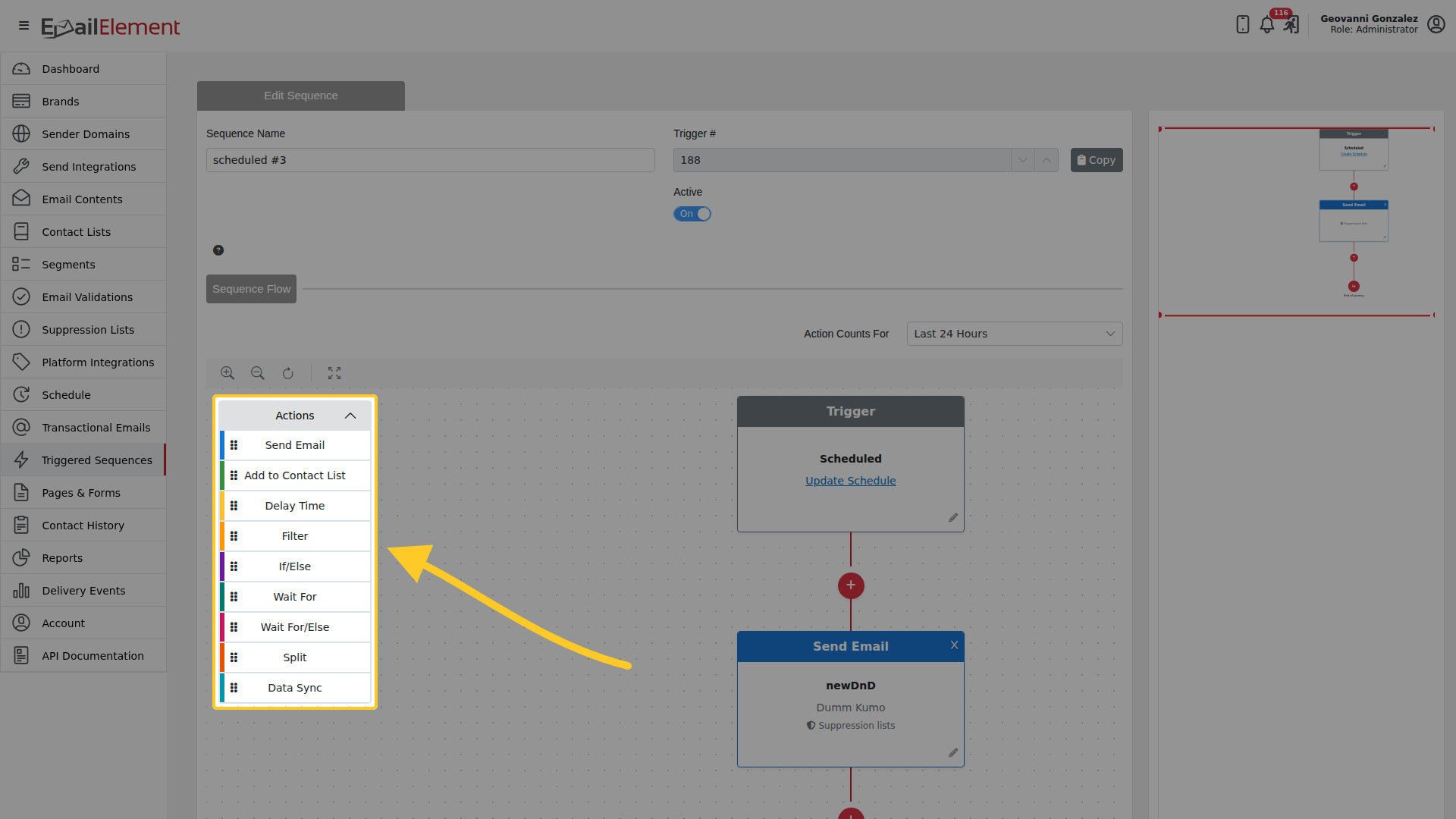
There are two ways to add one. Drag an action from the palette onto the red + on the connector, or click that + and pick the action from the Add Action list. Either way the action lands in the flow and its settings open straight away.
Available Actions
| Action | Description | Configuration |
|---|---|---|
| Send Email | Send a specific email to the contact | Email Content, Send Integration, Jump Page |
| Add to Contact List | Add the contact to a list | Select Contact List |
| Delay Time | Wait before executing the next action | Duration in Minutes, Hours, or Days |
| Filter | Filter contacts by criteria before proceeding | The same filter types as Segments |
| If/Else | Branch the workflow based on a condition | Filter condition defines the If path; non-matching contacts follow the Else path |
| Wait For | Pause until a specific event occurs | Event, and the email content the event is measured against |
| Wait For/Else | Wait for an event with a timeout fallback | Event + time limit; If path for event met, Else path for timeout |
| Split | Random A/B split across multiple branches | Multiple branches with percentage weights (must total 100%) |
| Data Sync | Send the contact to another system over HTTP | Connector, request method, URL, headers and field mappings |
Two more appear in a flow but are not dragged in. Exit Trigger Flow ends a branch, and a placeholder marks a branch that has no action in it yet.
Action Details
Every action opens the same Edit Action dialog. What is inside it differs per action, and each one is shown below.
Send Email
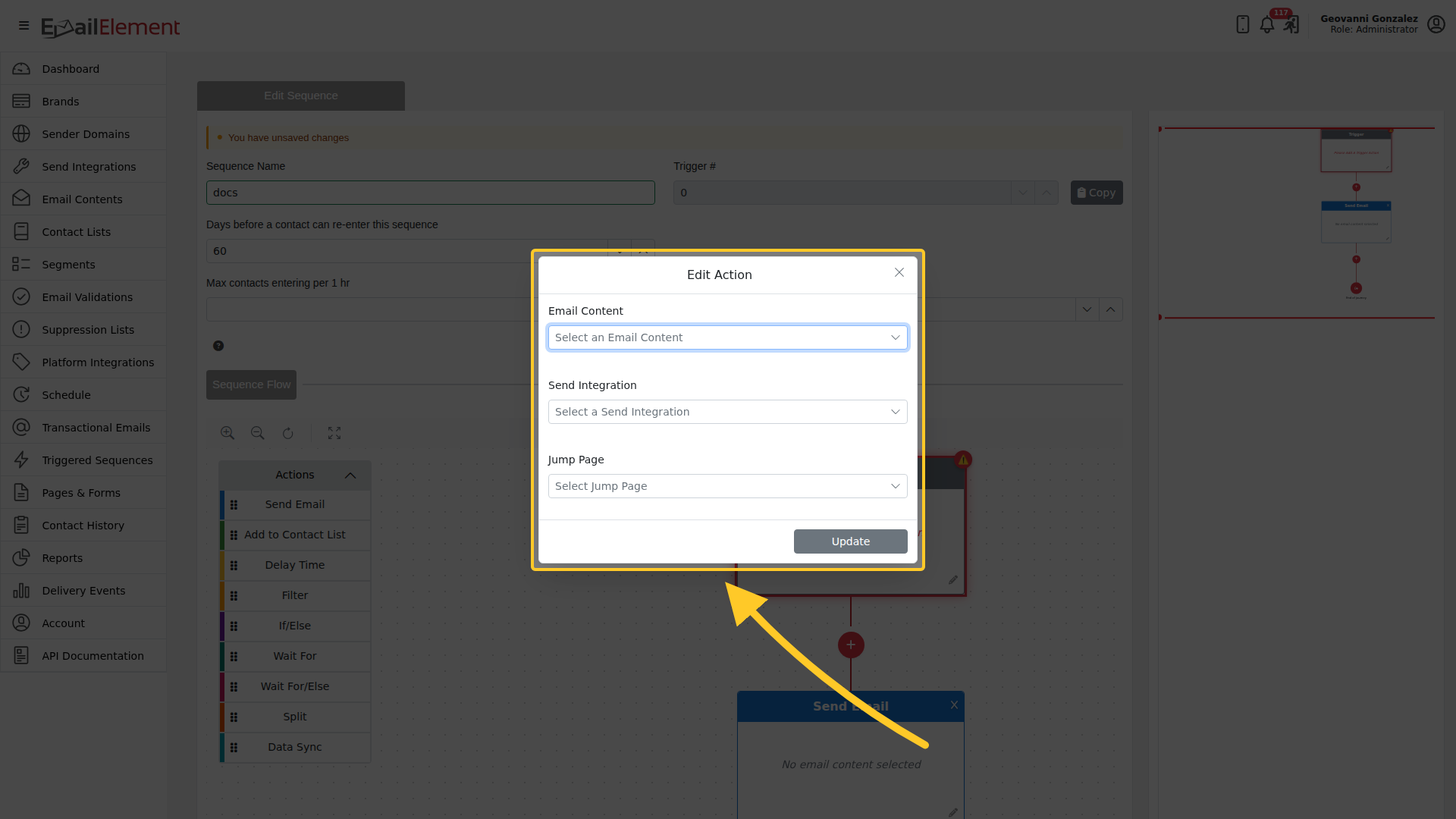
- Email Content: select the email template to send.
- Send Integration: select which ESP/integration delivers the email.
- Jump Page: optionally select a jump page for the send.
- The email is sent immediately when the contact reaches this step (unless preceded by a Delay).
Add to Contact List
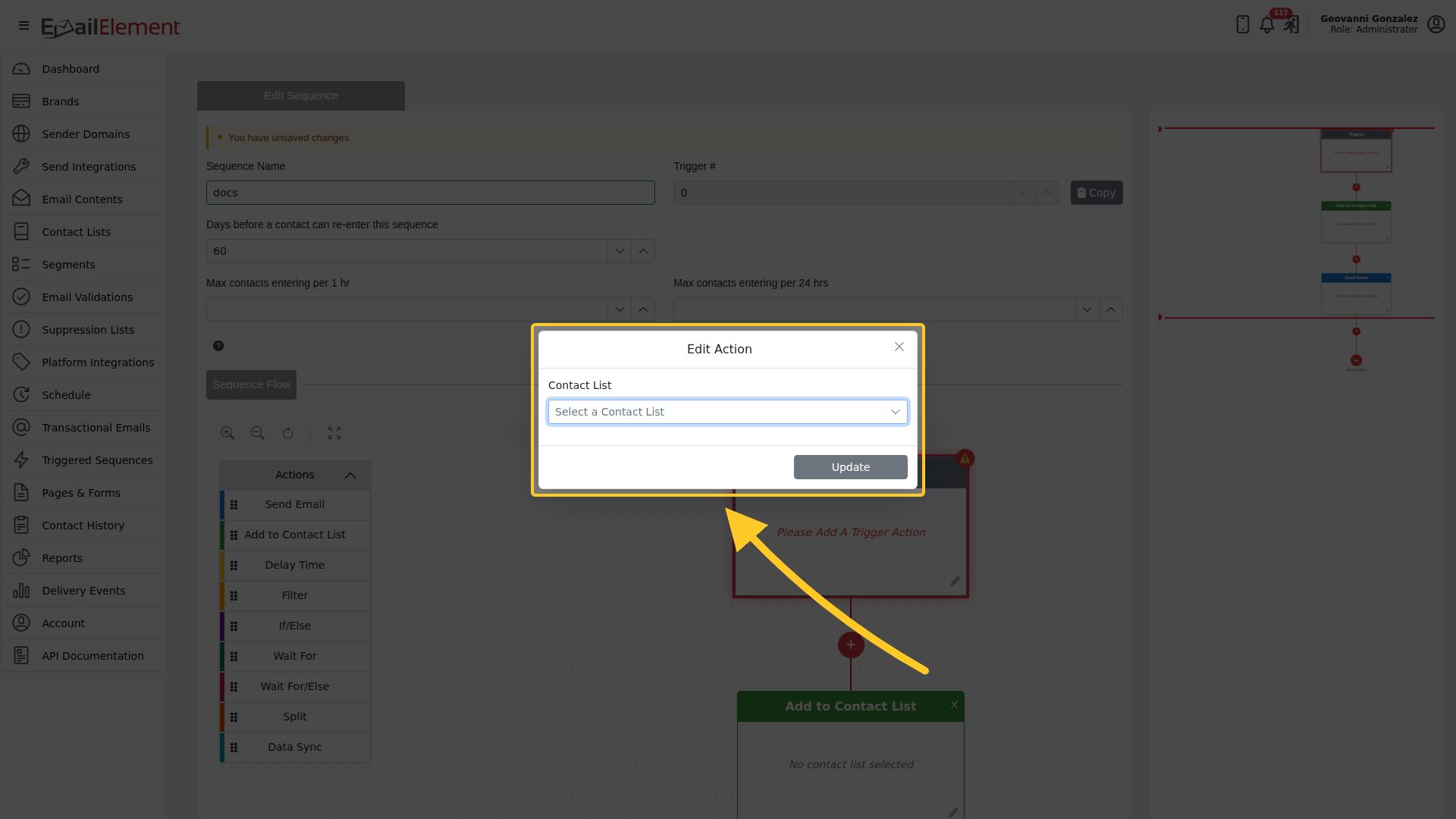
- Contact List: select the destination list.
- Useful for organizing contacts based on their journey through the sequence (e.g., adding engaged users to a "Hot Leads" list).
Delay Time
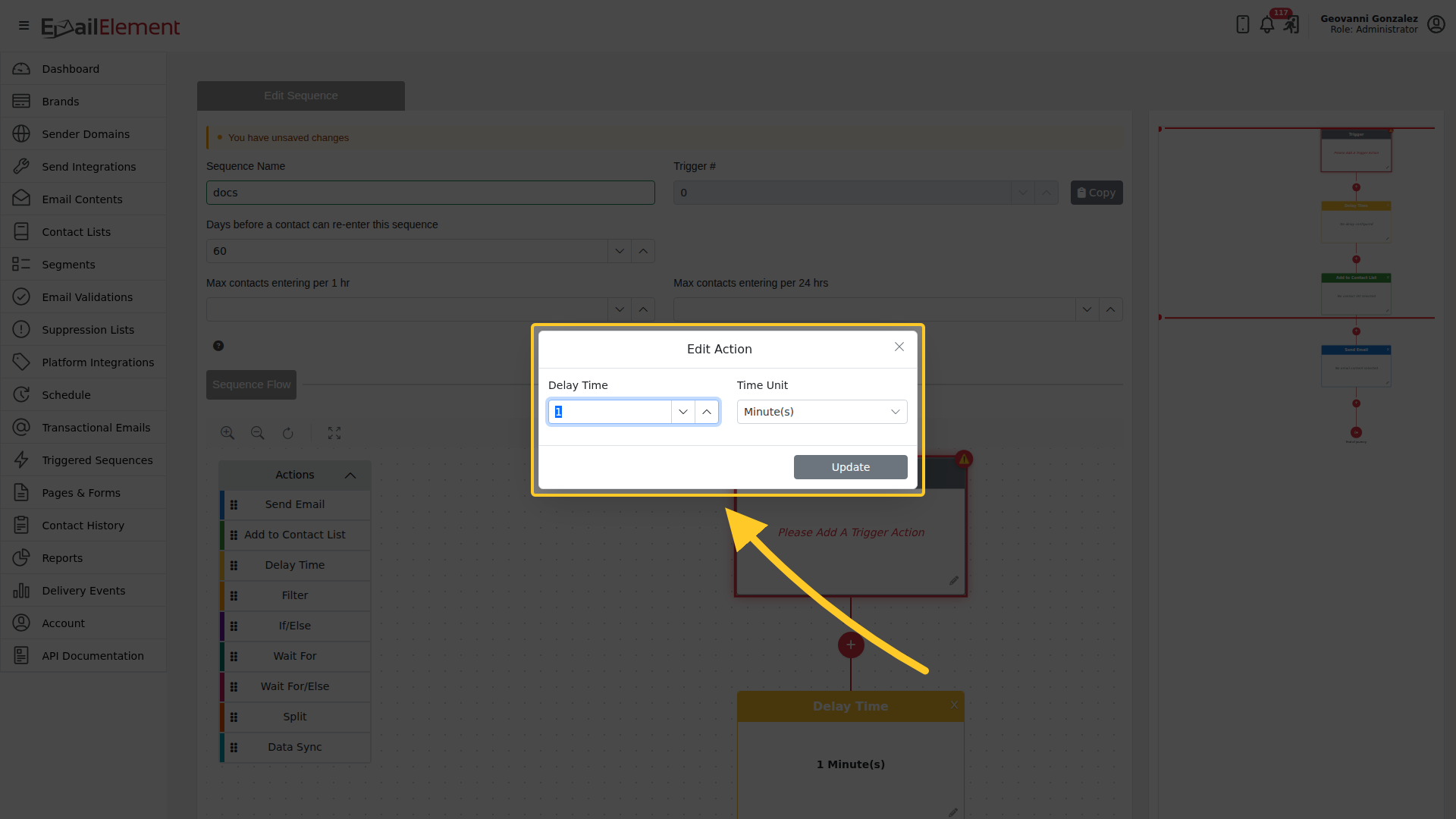
- Delay Time: enter a numeric value.
- Time Unit: select Minutes, Hours, or Days.
- The contact waits at this step for the specified duration before proceeding.
- Example: "Delay 2 Days" pauses each contact for 48 hours.
Filter
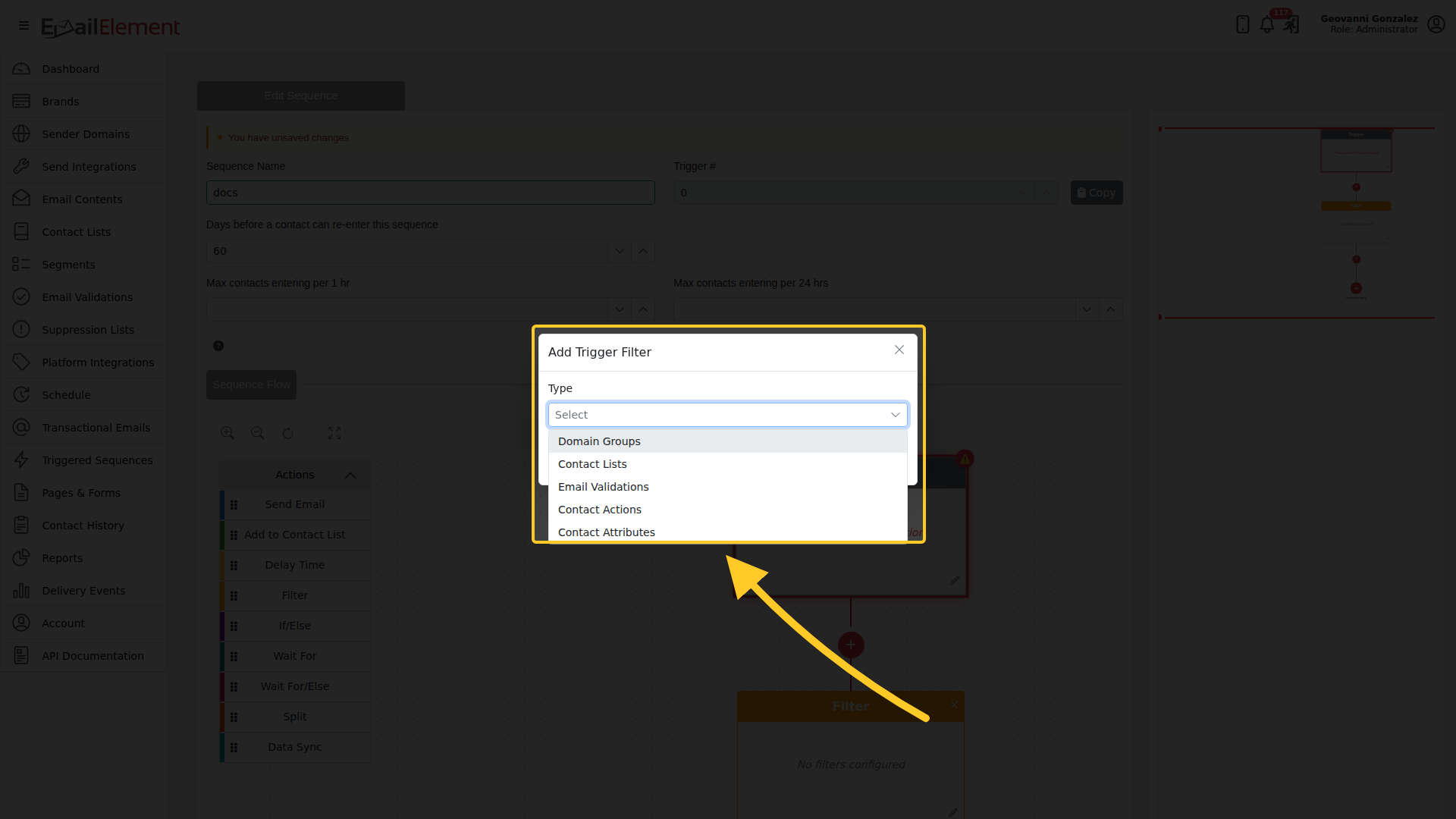
Adding a Filter opens Add Trigger Filter, and the Type list there is where the filter type is chosen. These are the same five types used by Segments:
- Domain Groups
- Contact Lists
- Email Validations
- Contact Actions
- Contact Attributes
Only contacts matching the filter conditions proceed to the next action. Contacts not matching are removed from the sequence at this point.
If/Else
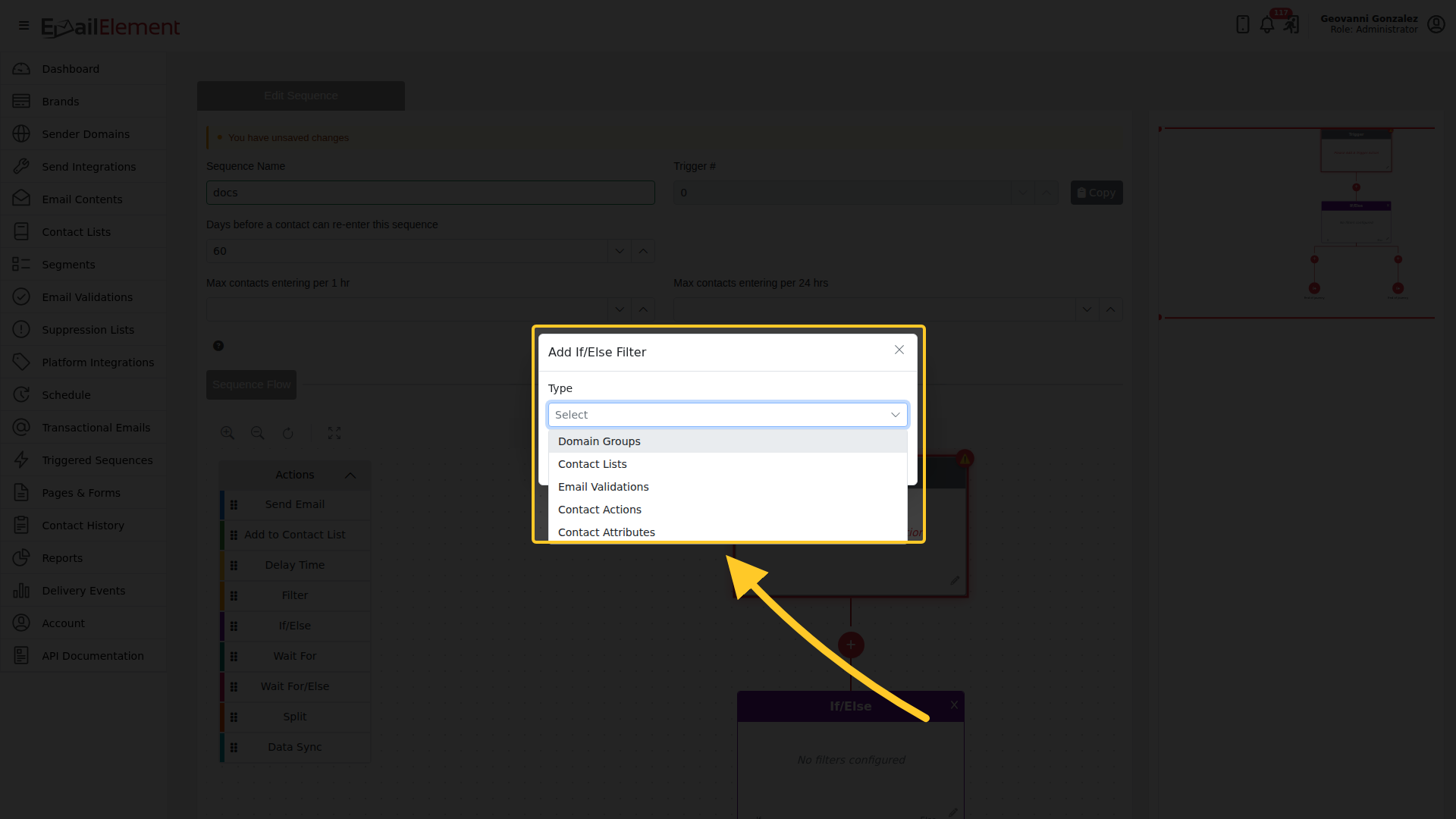
- Splits the workflow into two paths based on a filter condition.
- The condition is built from the same five filter types, in an Add If/Else Filter dialog.
- If path: contacts matching the condition.
- Else path: contacts not matching the condition.
- Each path can contain any number and combination of actions.
- Both paths can rejoin or end independently.
Wait For
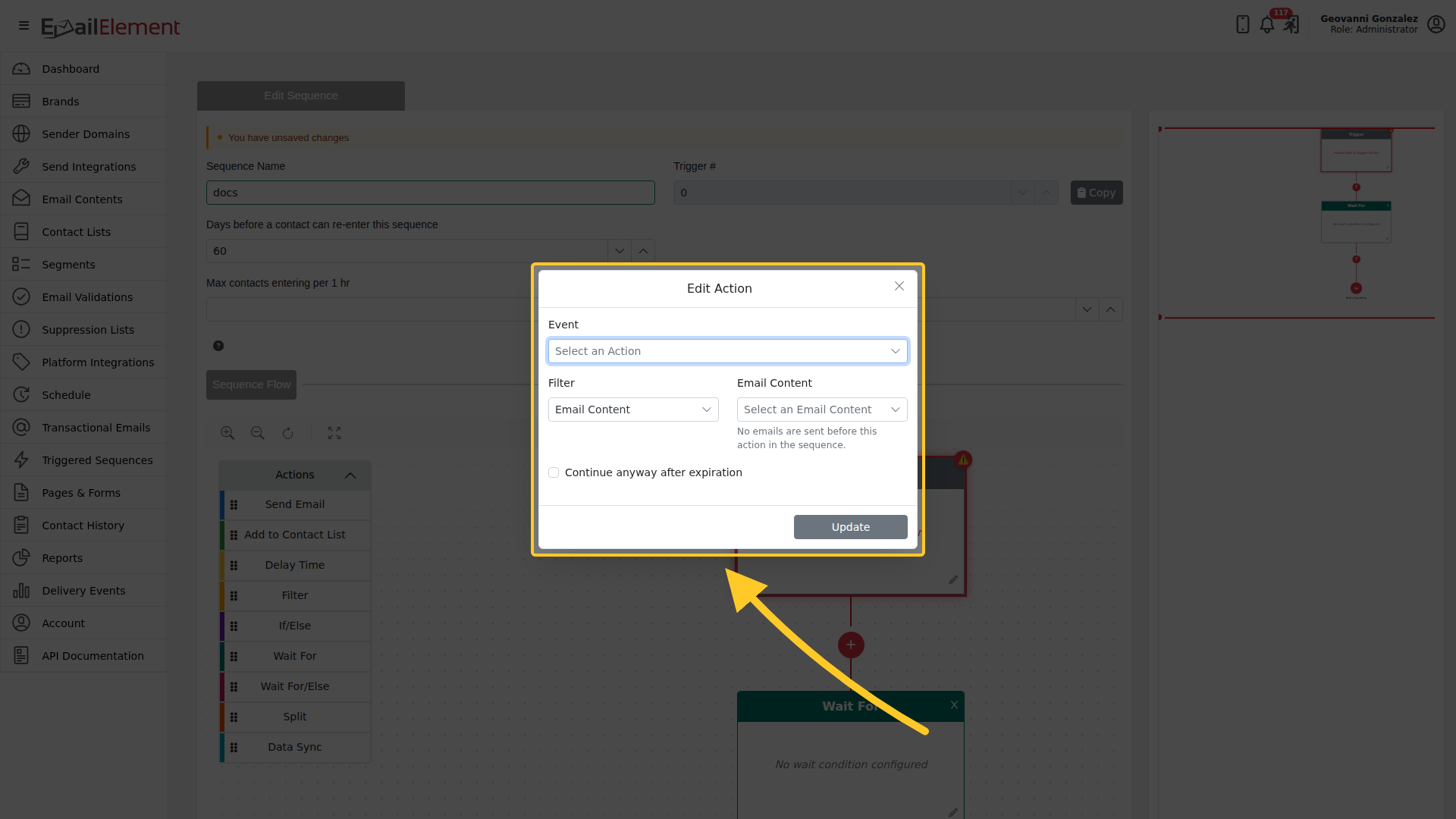
- Event: the action being waited on.
- Filter and Email Content: which email the event is measured against. The dialog warns "No emails are sent before this action in the sequence" when nothing has been sent yet.
- Continue anyway after expiration: let the contact carry on instead of stopping when the wait expires.
Wait For/Else
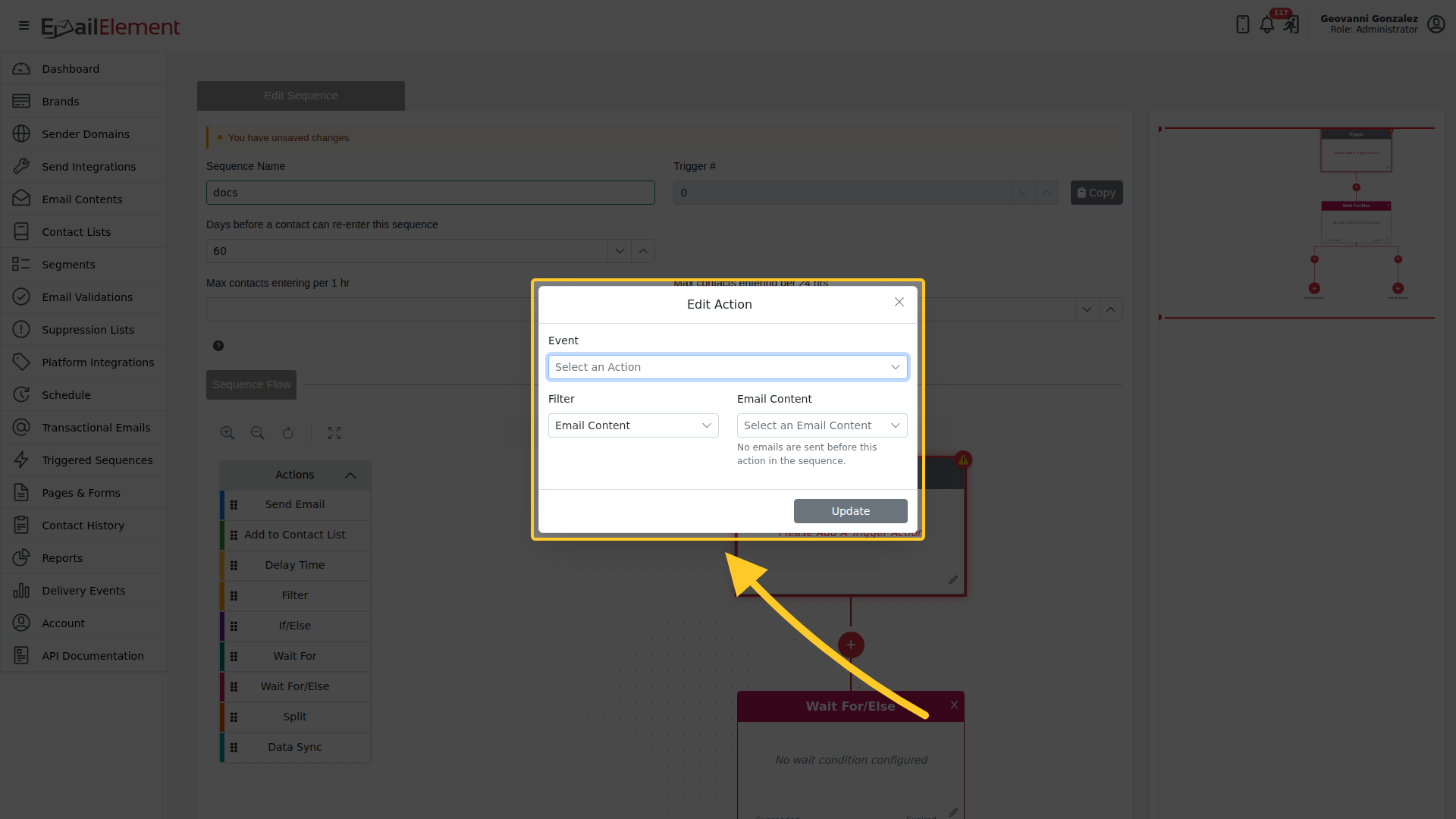
- Similar to Wait For but includes a timeout.
- Event, plus the Filter and Email Content the event is measured against.
- If path: the event occurred within the timeout period.
- Else path: the timeout expired without the event occurring.
- Prevents contacts from being stuck indefinitely in the sequence.
Split
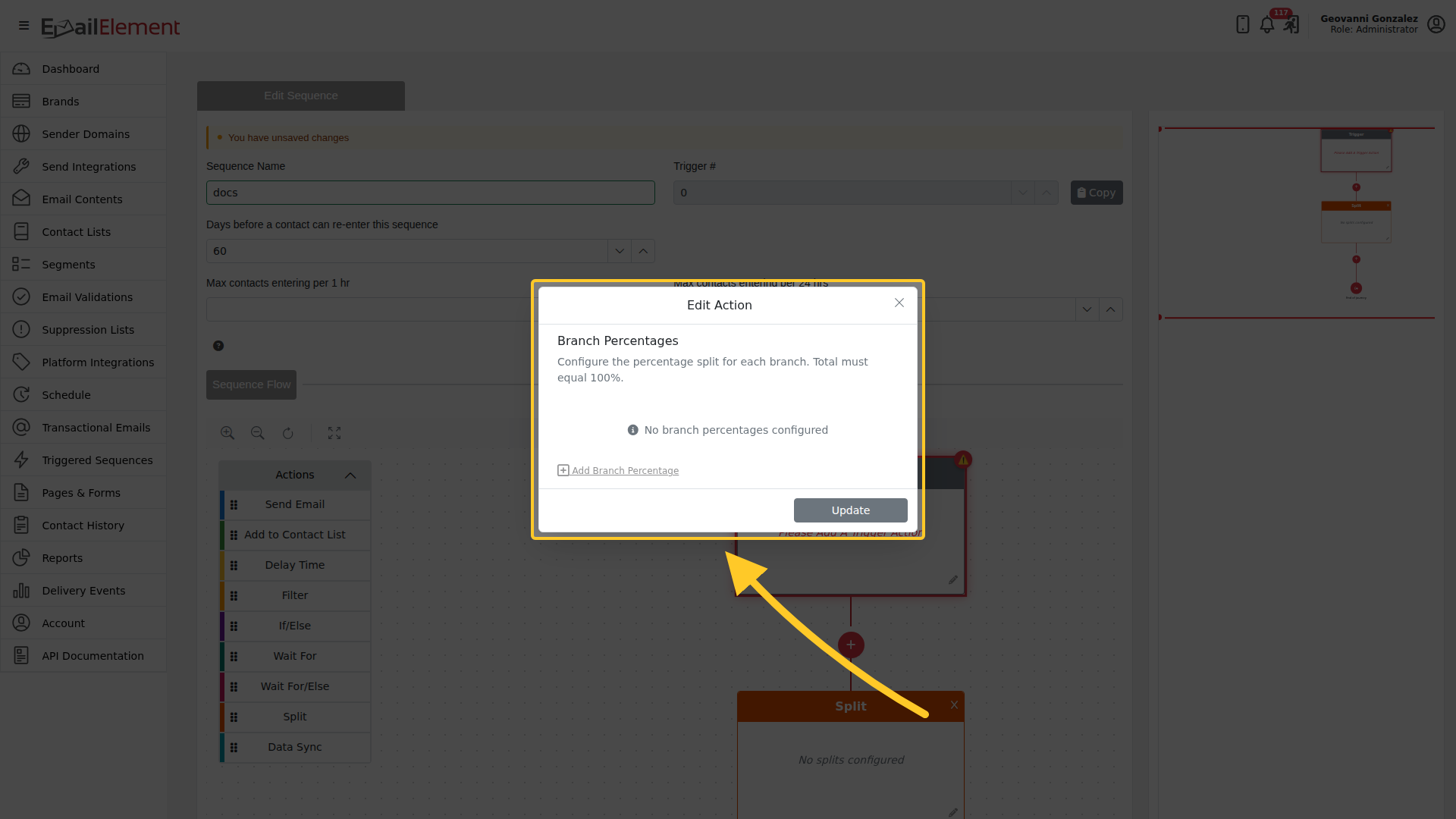
- Randomly distributes contacts across multiple branches.
- Add Branch Percentage adds a branch, each with a percentage weight.
- All branch percentages must total 100%.
- Useful for A/B testing different email content, subject lines, or timing strategies.
- Example: 50%/50% split to test two different follow-up emails.
Data Sync
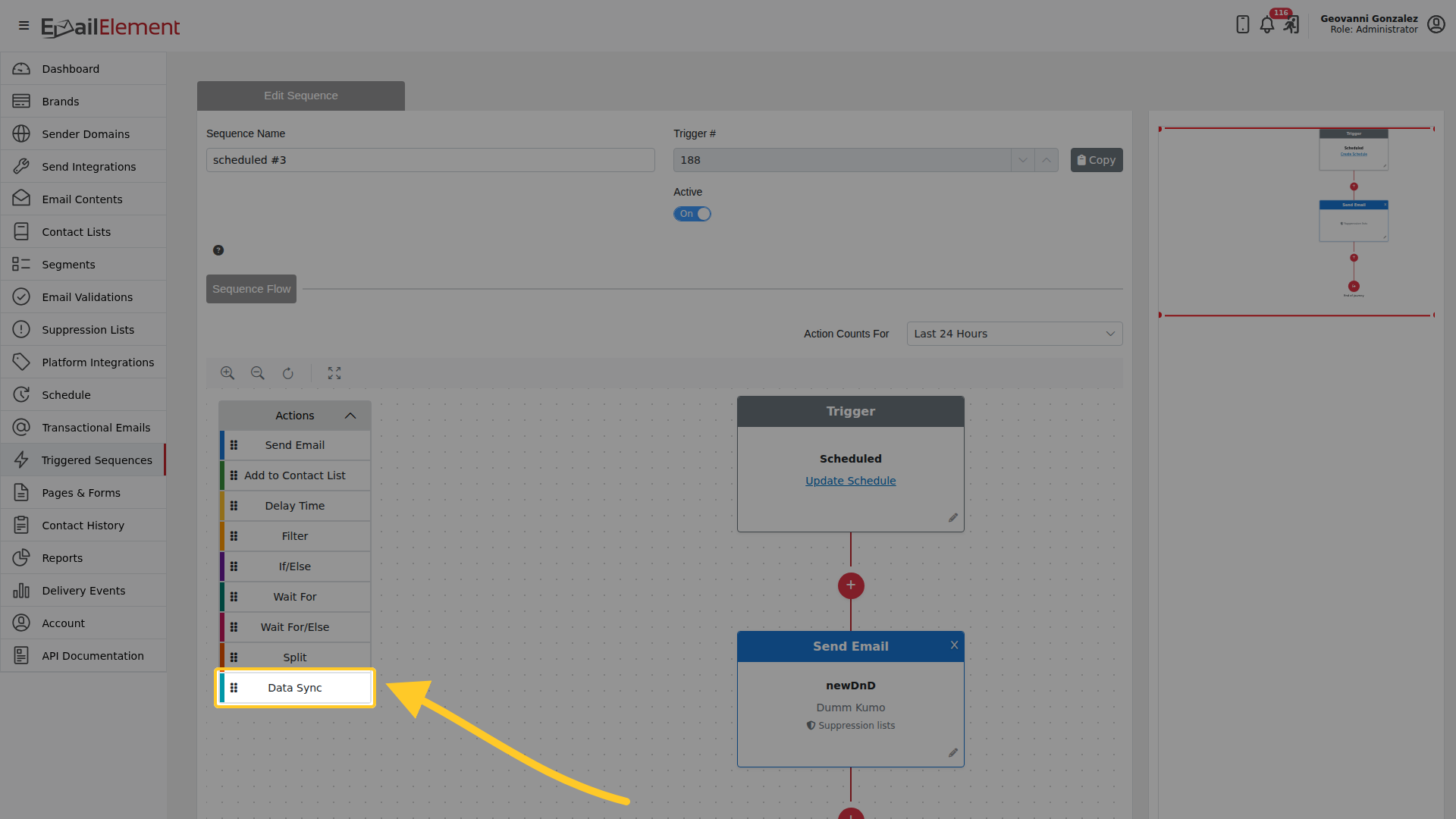
Data Sync posts the contact out to something else while the sequence is running.
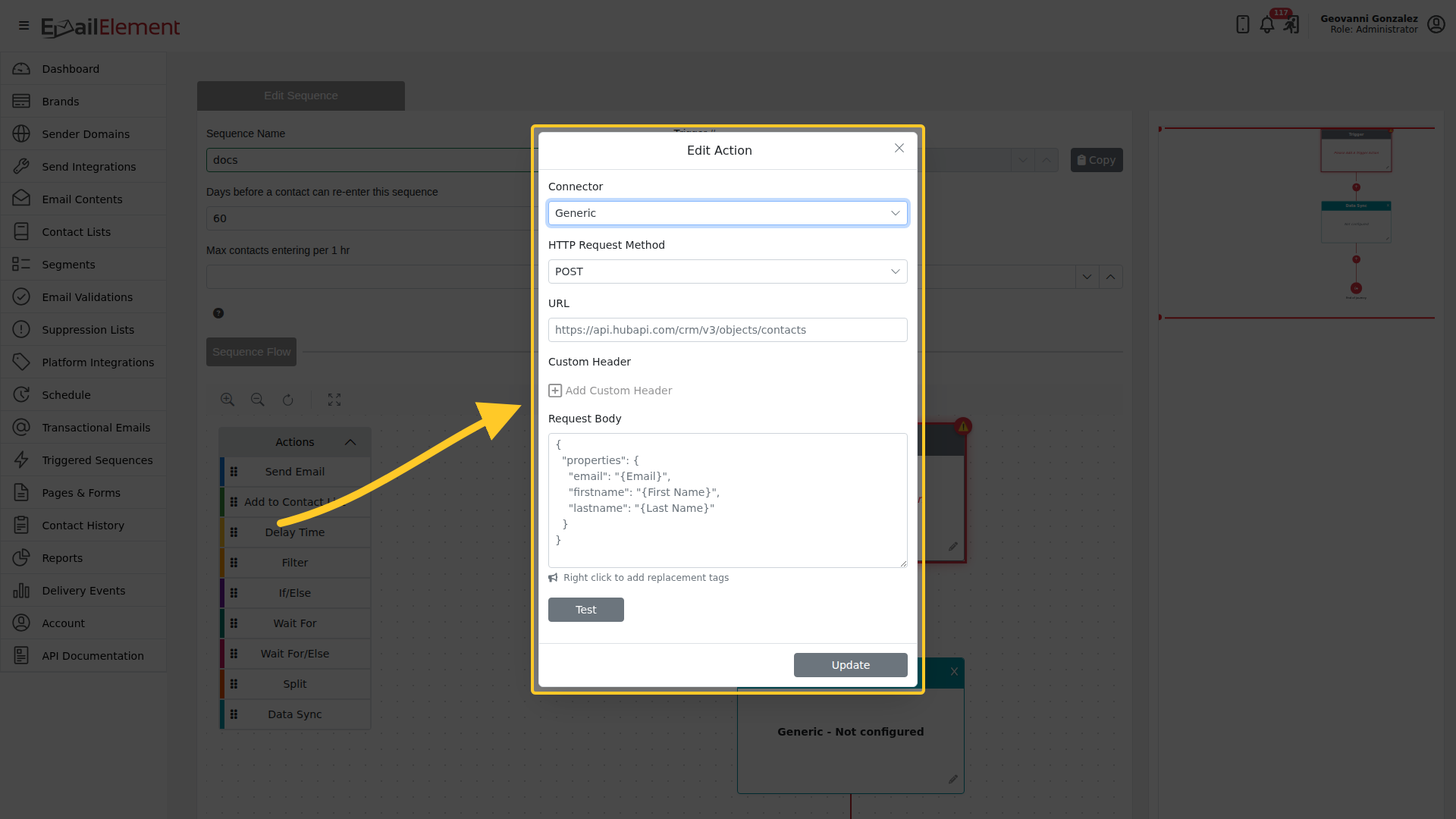
| Setting | Notes |
|---|---|
| Connector | Generic for any HTTP endpoint, or EmailElement to write into another EmailElement contact list |
| HTTP Request Method | GET, POST, PUT, PATCH or DELETE |
| URL | Where the request goes |
| Custom Header | Added to the request, for an API key or similar |
| Request Body | With a preview of what will be sent |
| Field Mappings | Which contact field fills which key in the body, and which are required |
Right click inside the Request Body to insert a replacement tag, so values such as
{Email}, {First Name} and {Last Name} are filled in per contact. Test sends a
sample request without running the sequence.
The EmailElement connector asks for a Contact List ID and an Overwrite Existing choice instead of a URL, because it is writing back into EmailElement.