
Everflow Auto-Suppression Setup
An Everflow automated import keeps a suppression list current with the opt-out list for one Everflow offer. Everflow offers distribute their suppression list through Optizmo, so the import needs your Everflow API key, the offer's ID and an Optizmo API key.
Prerequisites
- An Everflow partner account that is approved to run the offer.
- An offer that lists a Suppression File URL under Email Instructions, and that link has to be an Optizmo list.
- An Optizmo API Key.
- A suppression list in EmailElement in MD5 or Email format. Some offers allow only MD5.
Getting the Everflow Details
API Key: in Everflow, open Company Settings > My Account and click the API tab. The Everflow page shows where it is.
OfferId: open Offers and click the offer. The ID is at the top of its General card.
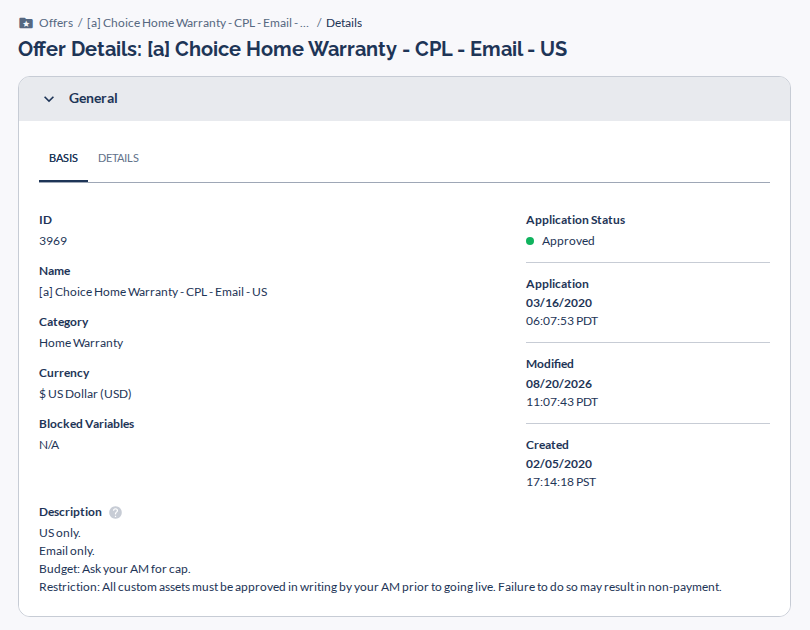
On the same offer, scroll to Email Instructions and check there is a Suppression File URL. An offer without one has no list to import.

Optizmo API Key: the Optizmo page shows where to find it.
Configuring in EmailElement
Navigate to Suppression Lists and create or open a suppression list. Choose MD5 unless the offer allows plain email addresses.
Turn on Automated Imports.
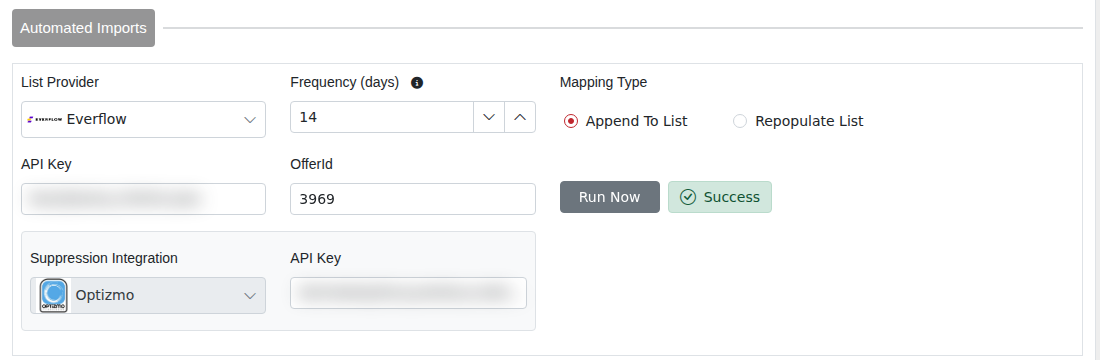
Select Everflow from the List Provider dropdown.
Enter the fields:
- API Key: your Everflow API key. If you already have an Everflow platform integration in Platform Integrations, this is filled in for you.
- OfferId: the offer whose suppression list you want.
- Suppression Integration: Optizmo is selected for you.
- API Key beside it: your Optizmo API key.
Set Frequency (days). 1 keeps the list current with opt-out requests.
Click Save, then Run Now to pull the first file.
Checking It Worked
- The upload history on the suppression list shows each run and how many records it added.
- A run that fails says why, and is not retried straight away. Fix the setup and click Run Now, or wait for the next scheduled run:
- Offer has no suppression list: the offer has no Suppression File URL in Everflow.
- Non Optizmo download urls are not supported: the offer's suppression list is not hosted on Optizmo.
- You do not have access to plain text downloads: the list is in Email format, and the offer only allows MD5. Use an MD5 list.
- A wrong Everflow API Key or OfferId fails the same way. Check both for extra spaces.
Ongoing Maintenance
- Each run adds the new opt-outs to the list on the frequency you set.
- If your Everflow or Optizmo key changes, update it on the suppression list. Changing the Everflow platform integration does not change a suppression list that was already saved.