
Contact List Walkthrough
Creating a Contact List
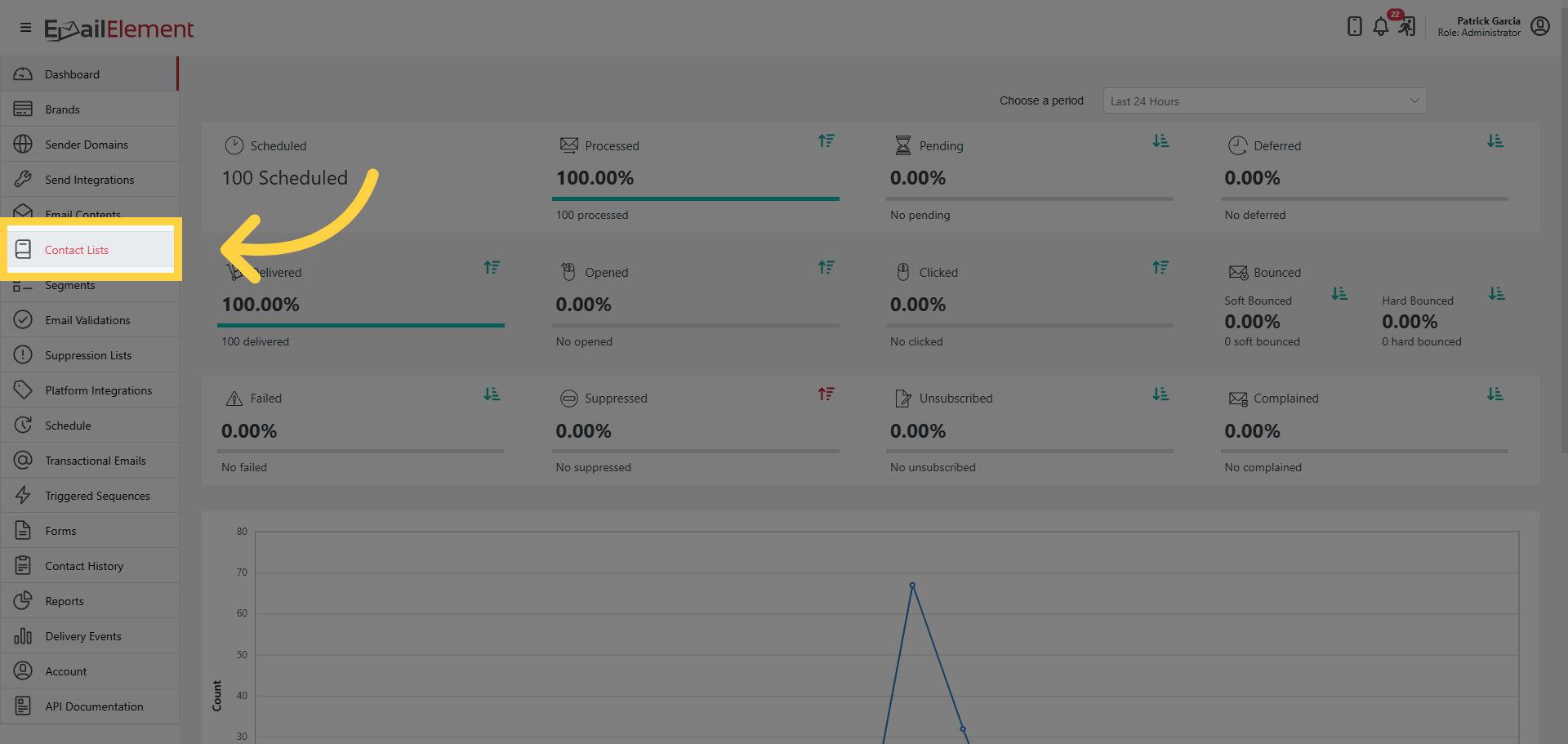
Click Contact Lists in navigation
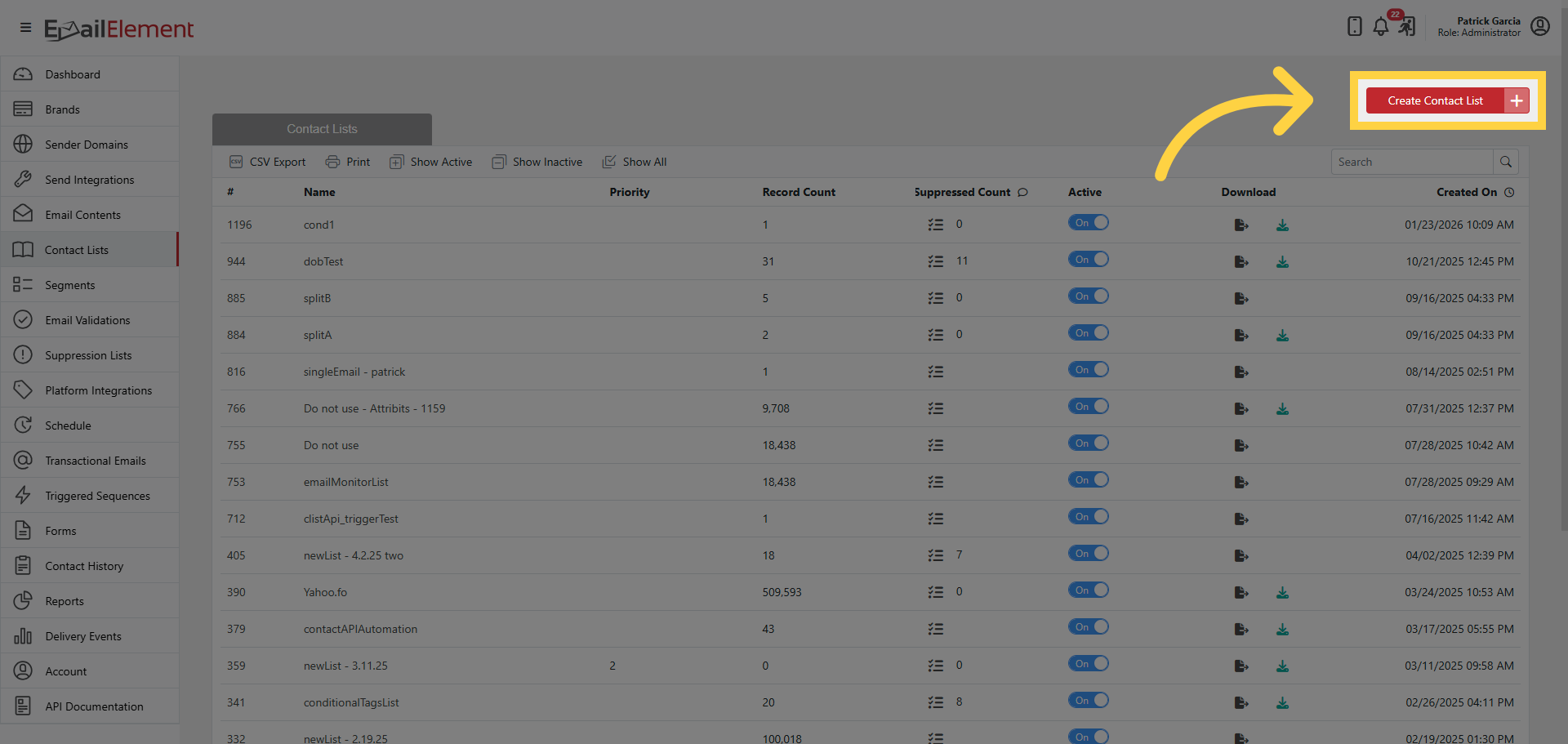
Click Create Contact List
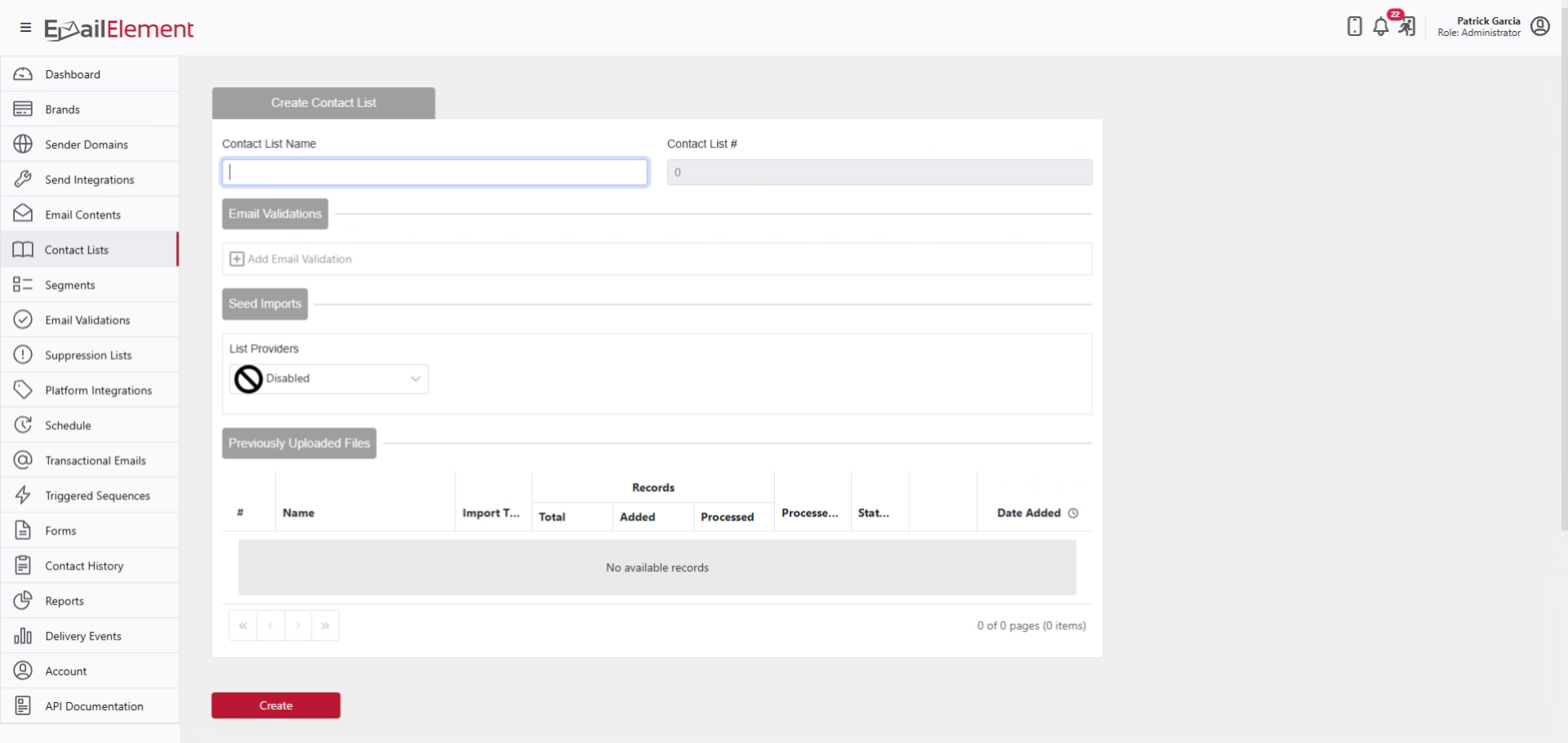
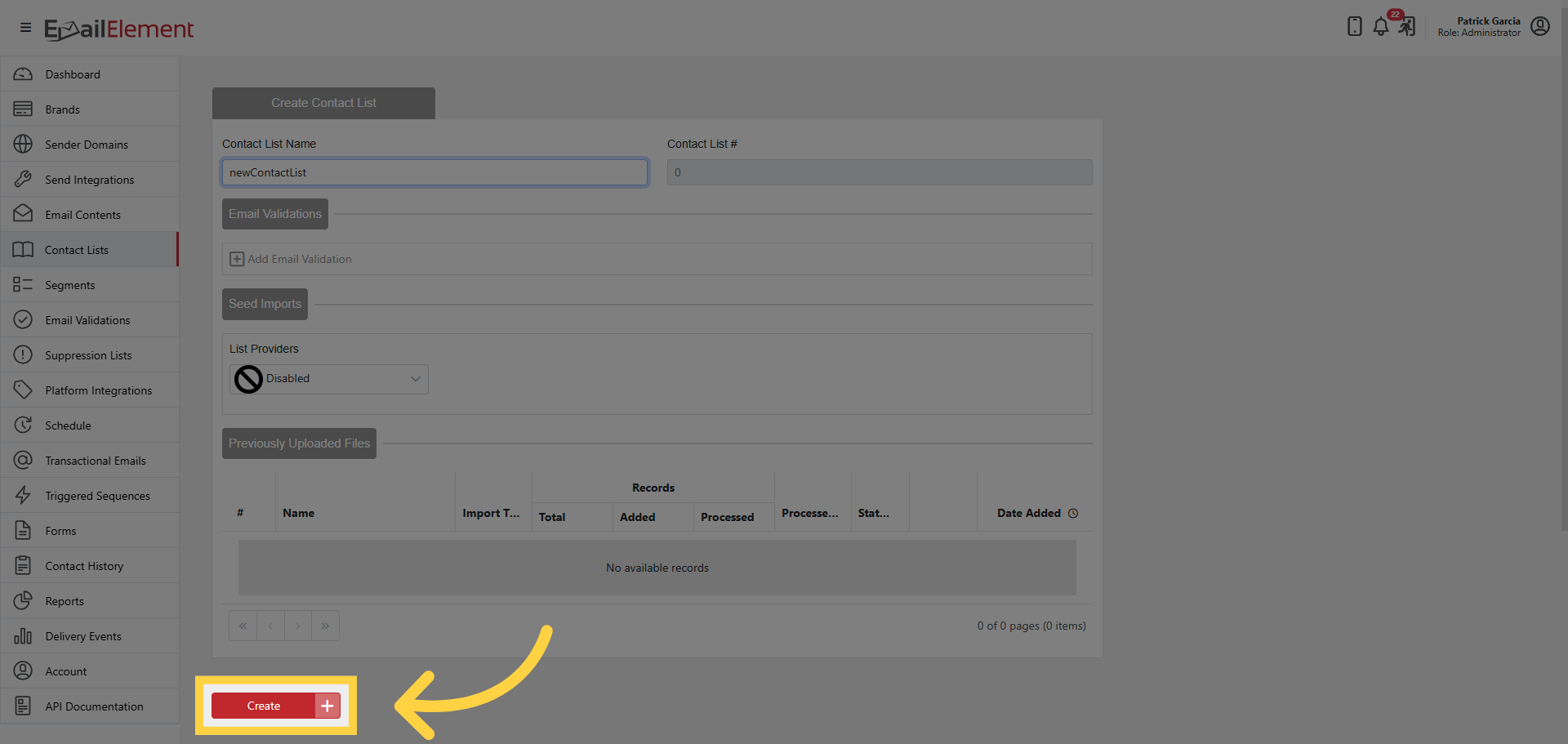
Enter a name > click Create
Importing Contacts from File
Supported formats: CSV, Excel (.xlsx), Text (email-only)
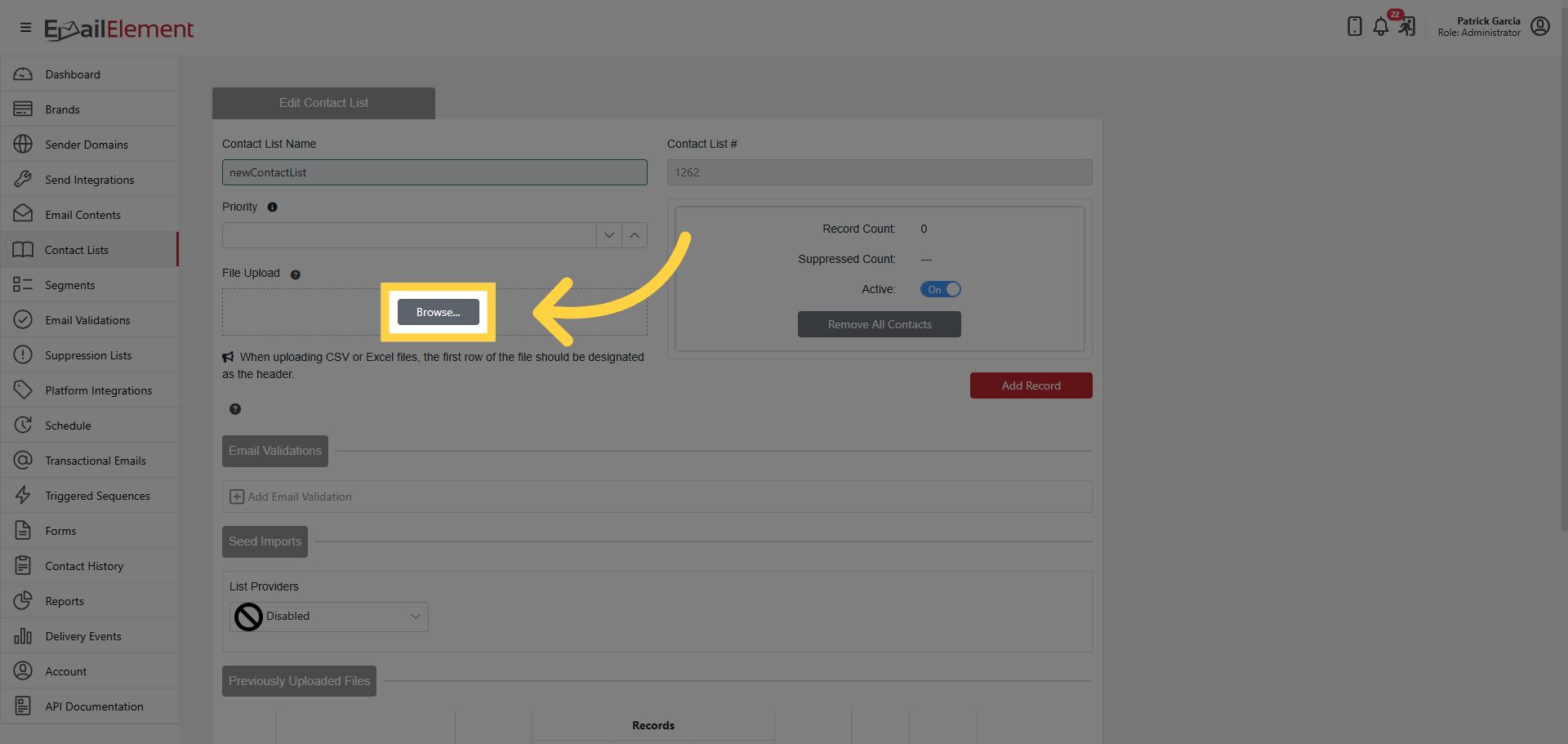
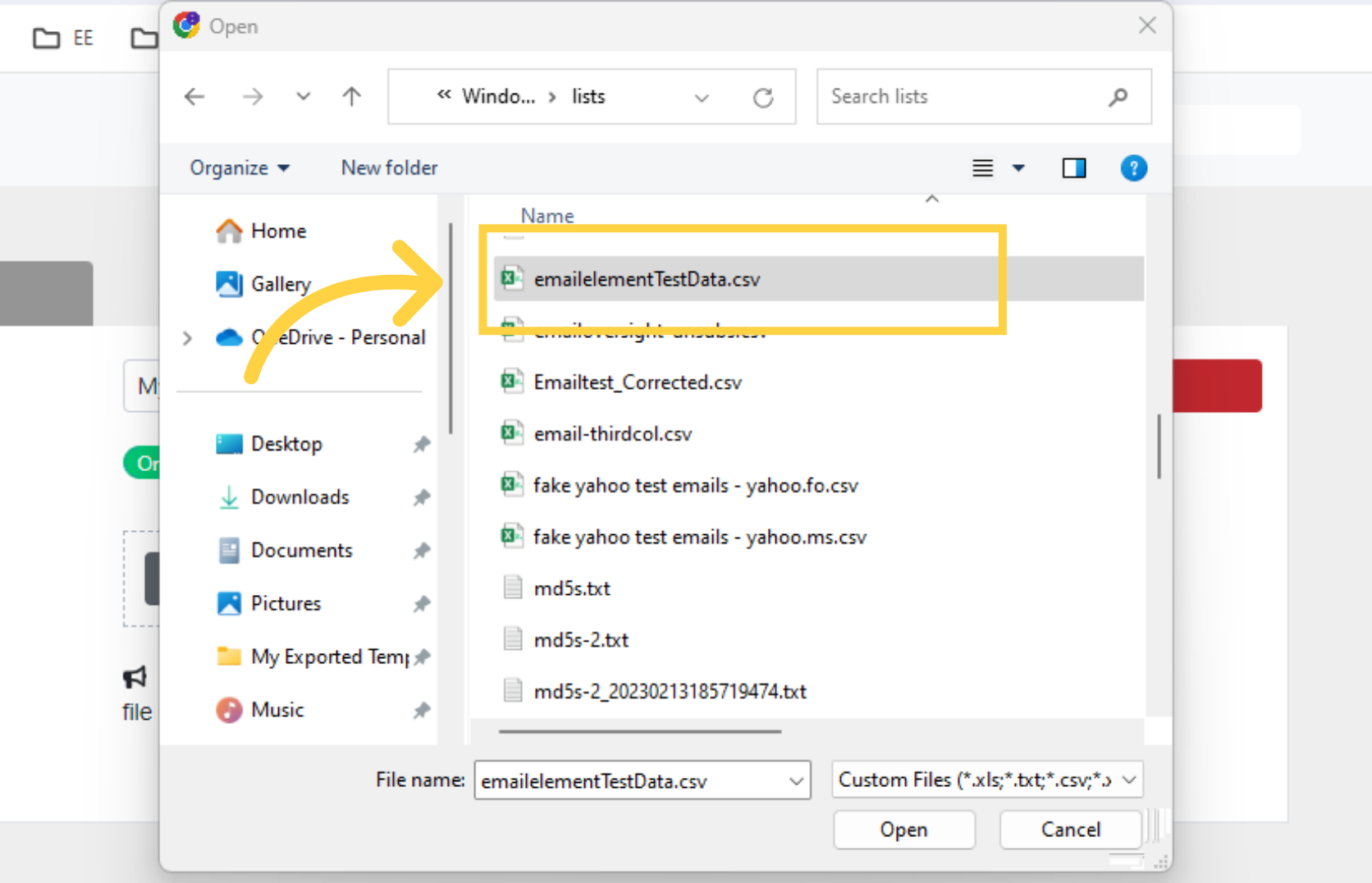
Click Browse and select your file
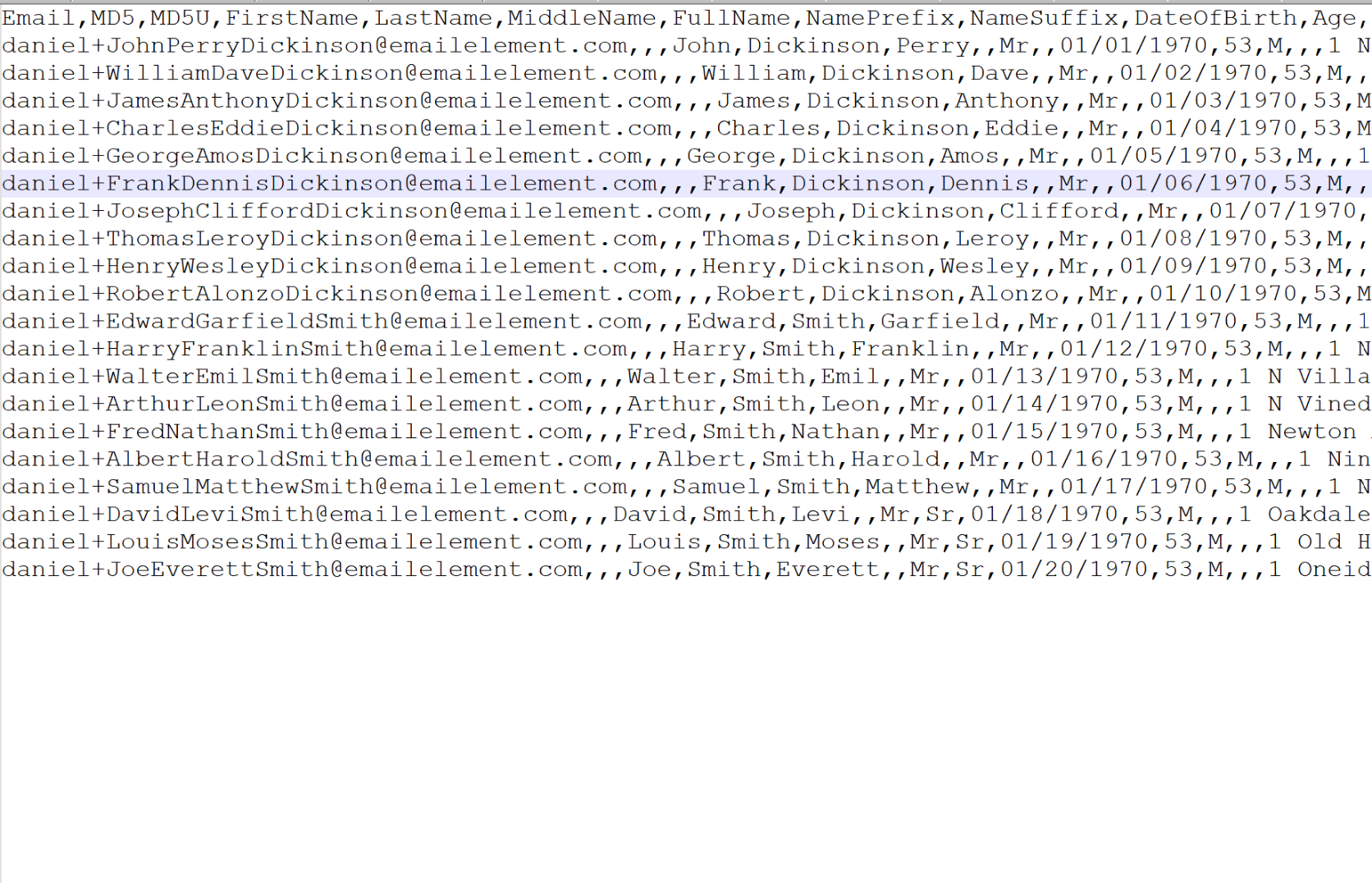
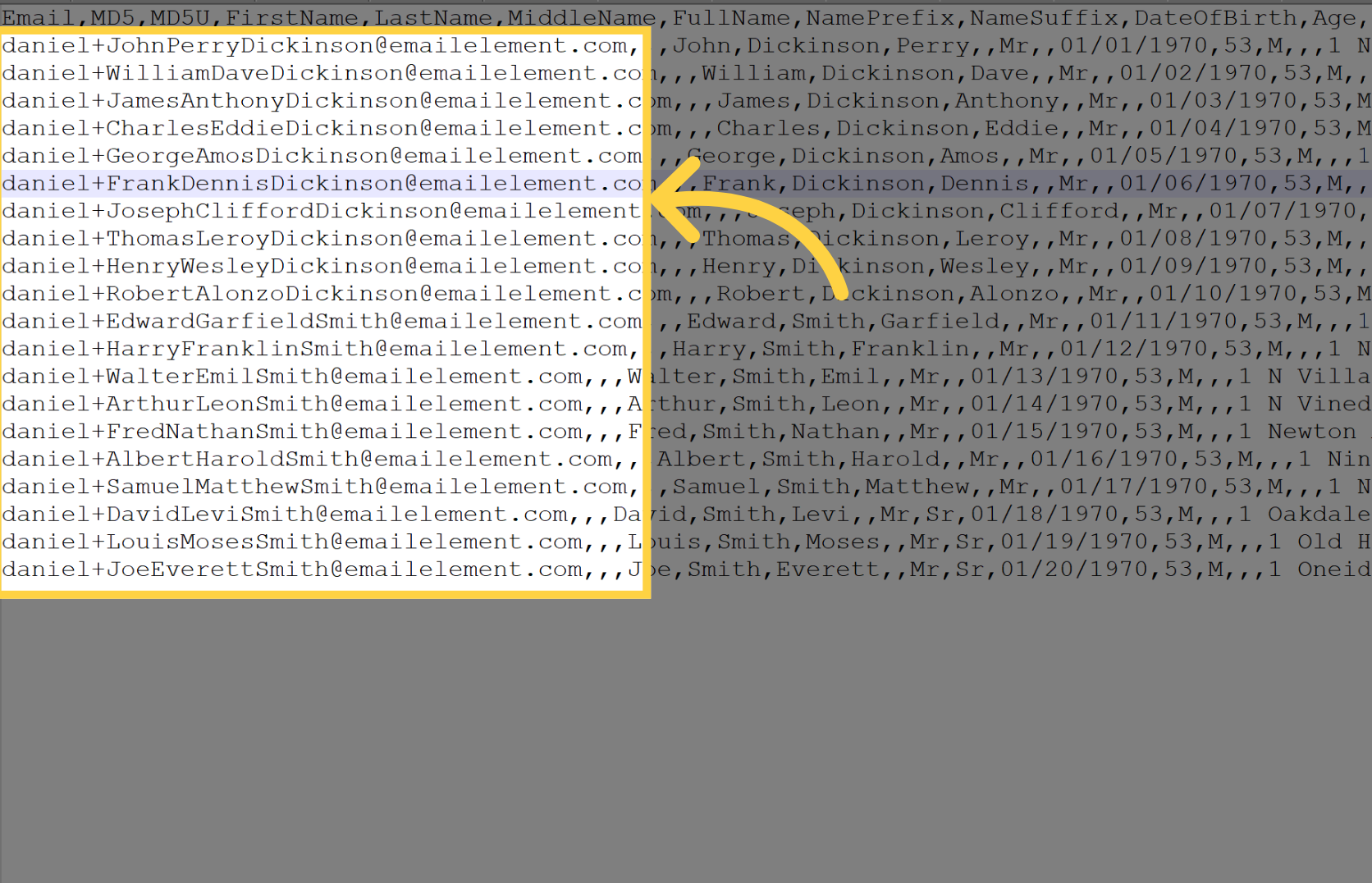
File requirements: must have email column, CSV/Excel must have header row
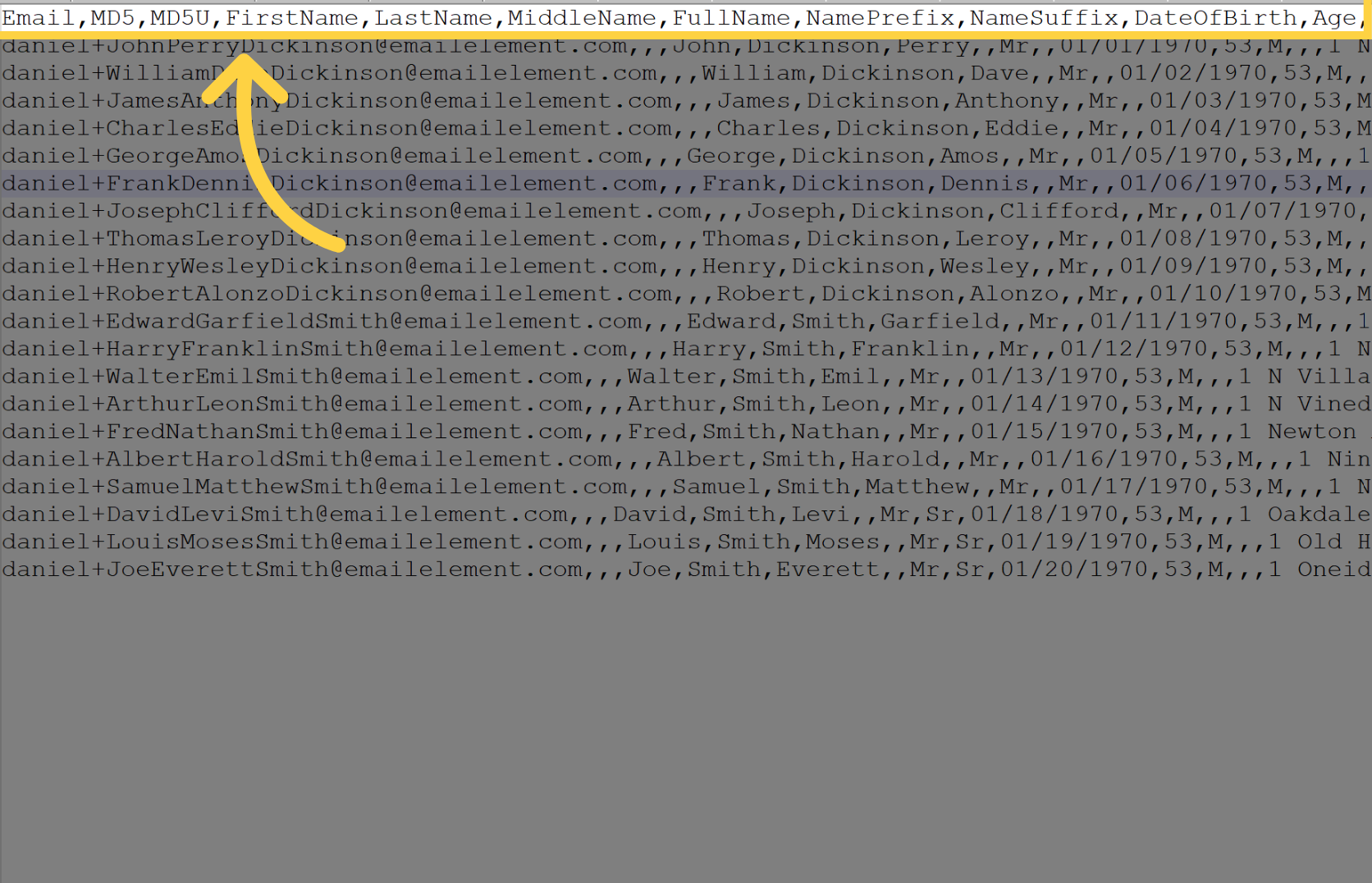
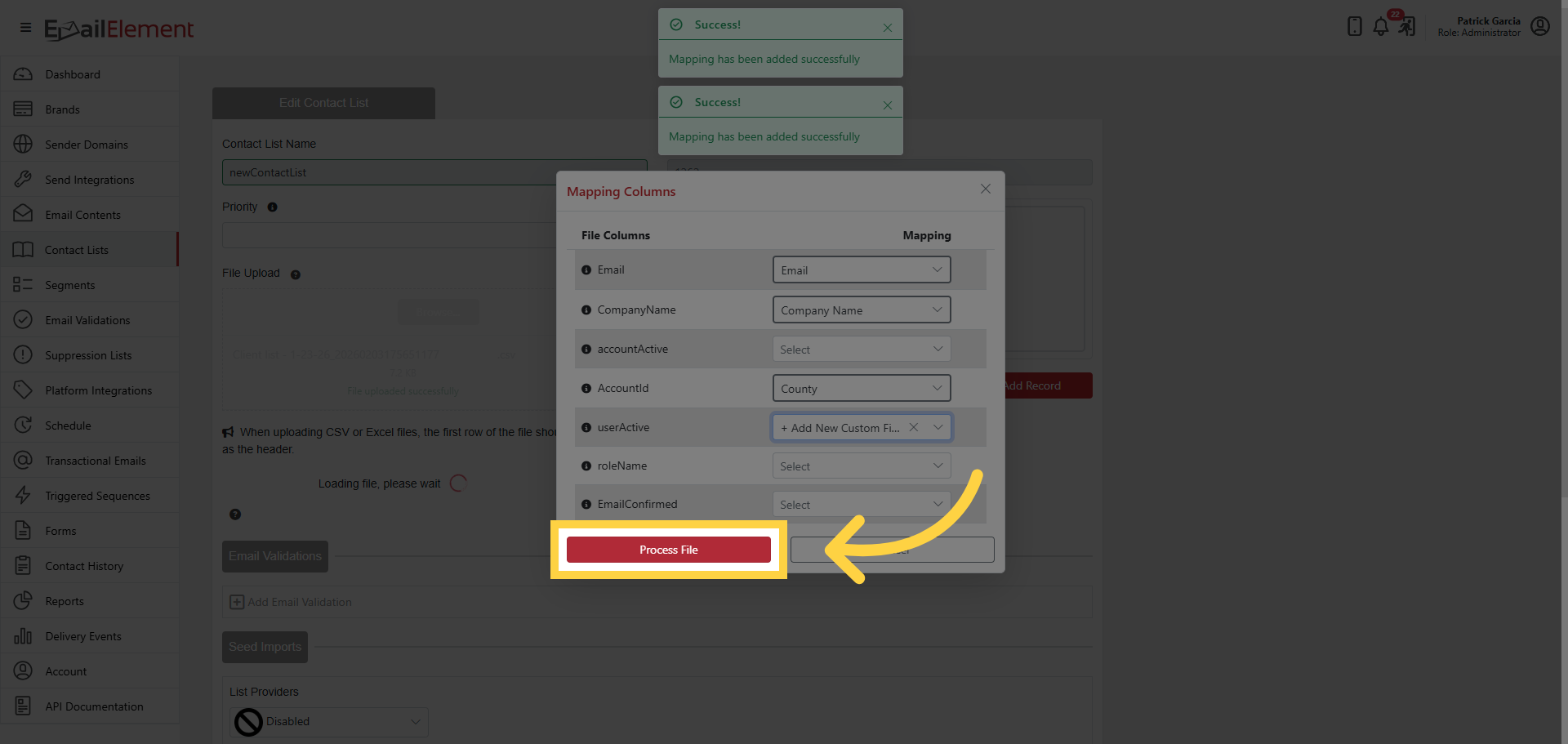
EmailElement auto-maps columns to existing fields
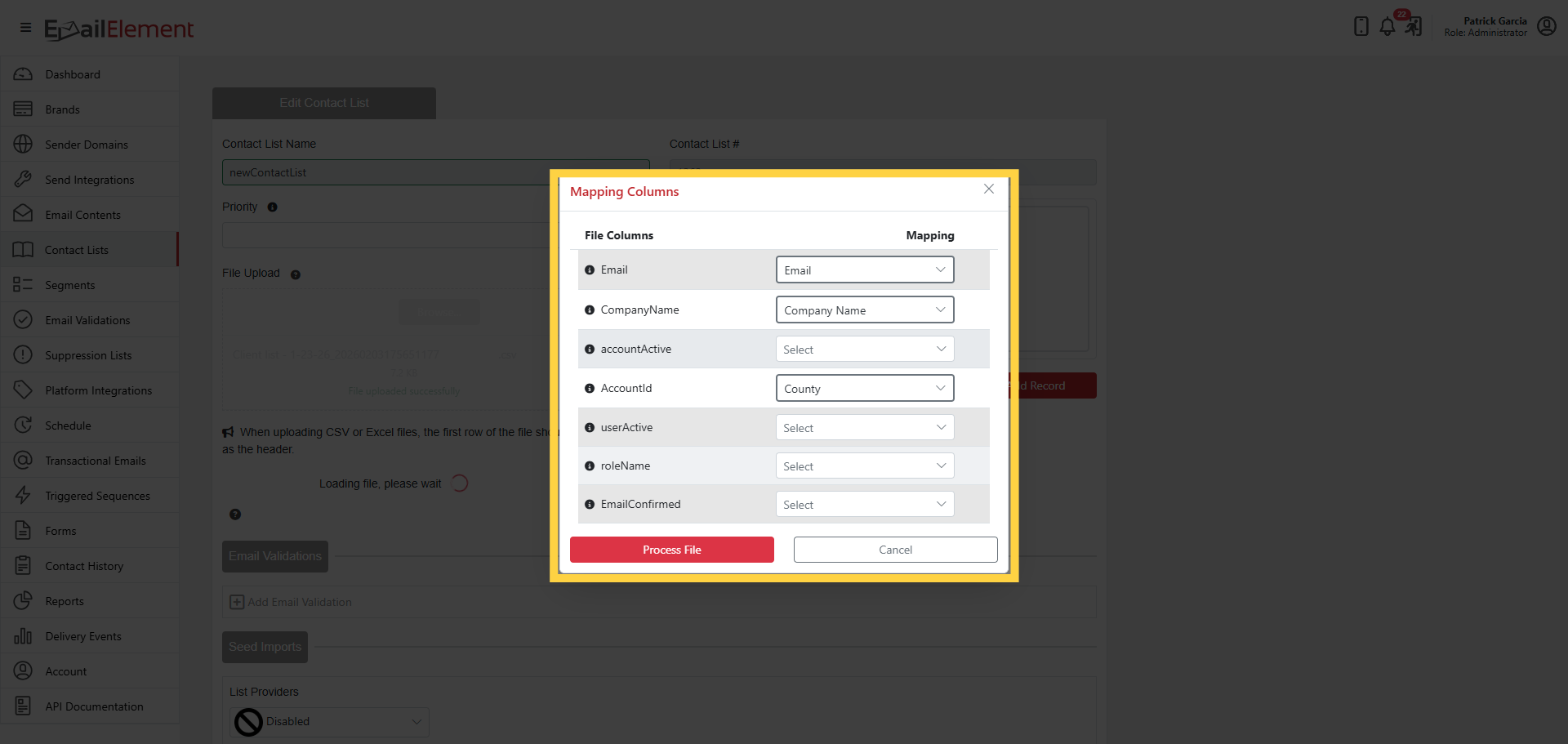
Adjust mappings as needed — hover tooltip shows sample data from each column
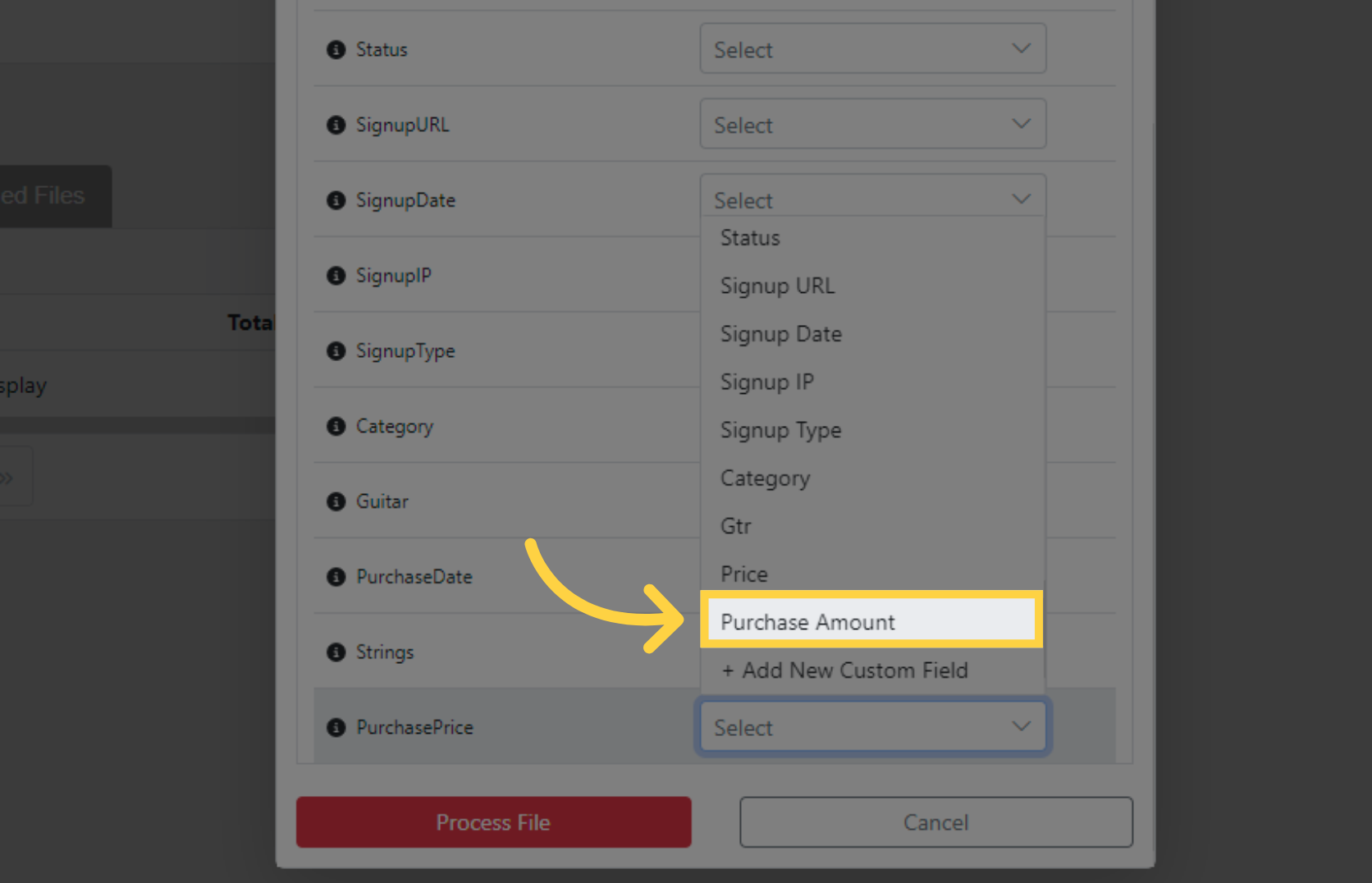
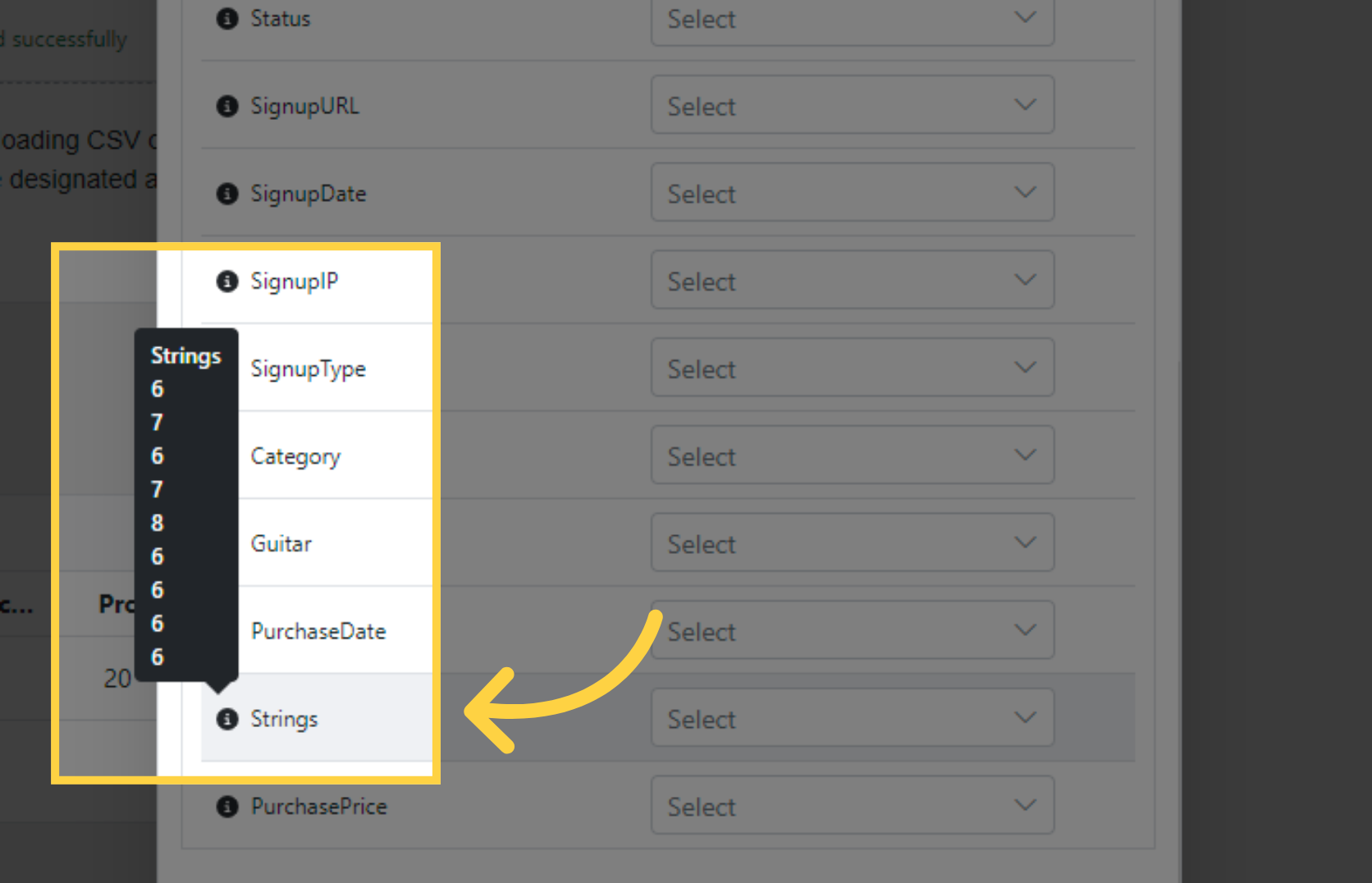
Click Process File to start import
Results show: total records in file, records processed (added to list)
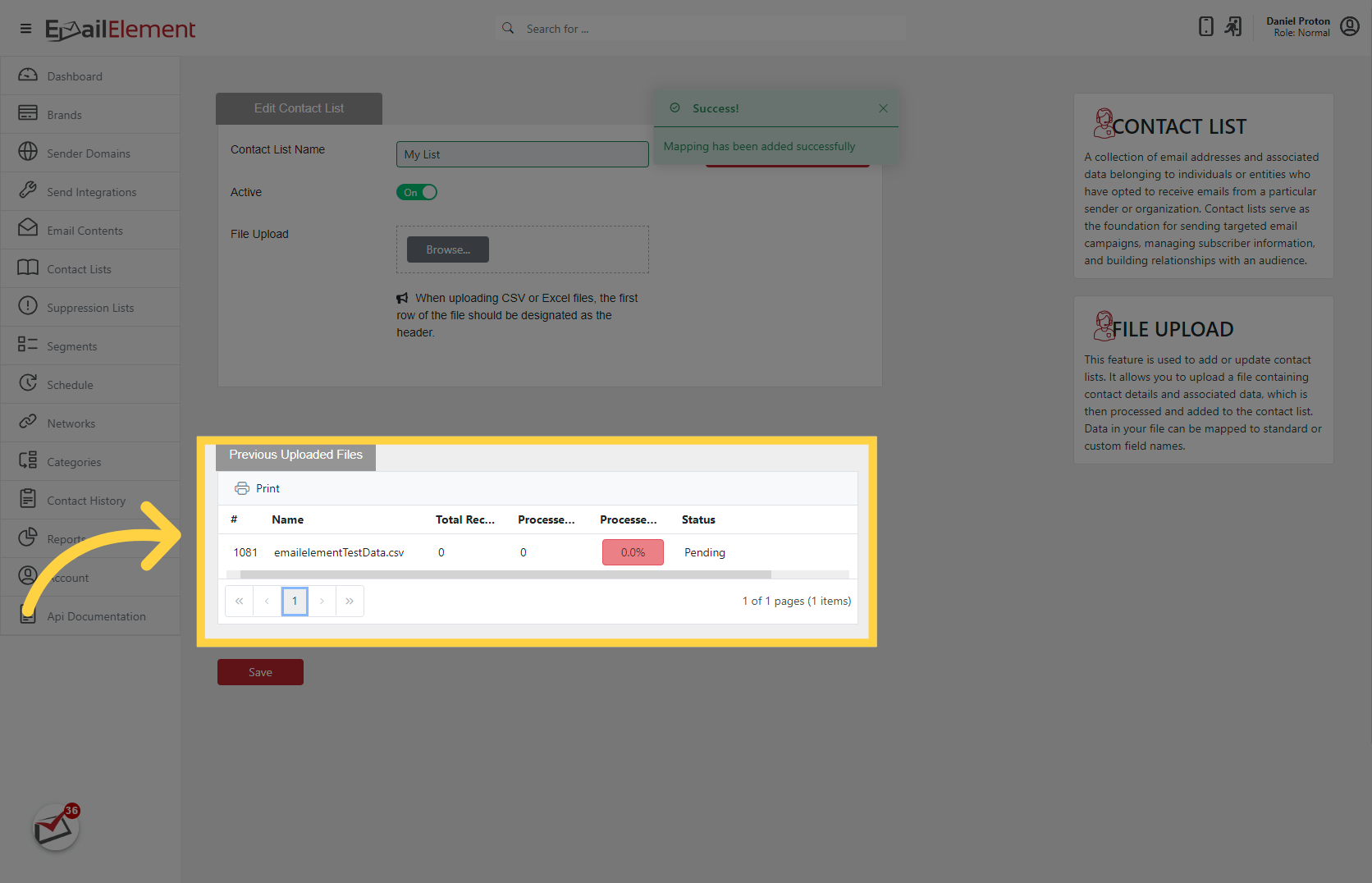
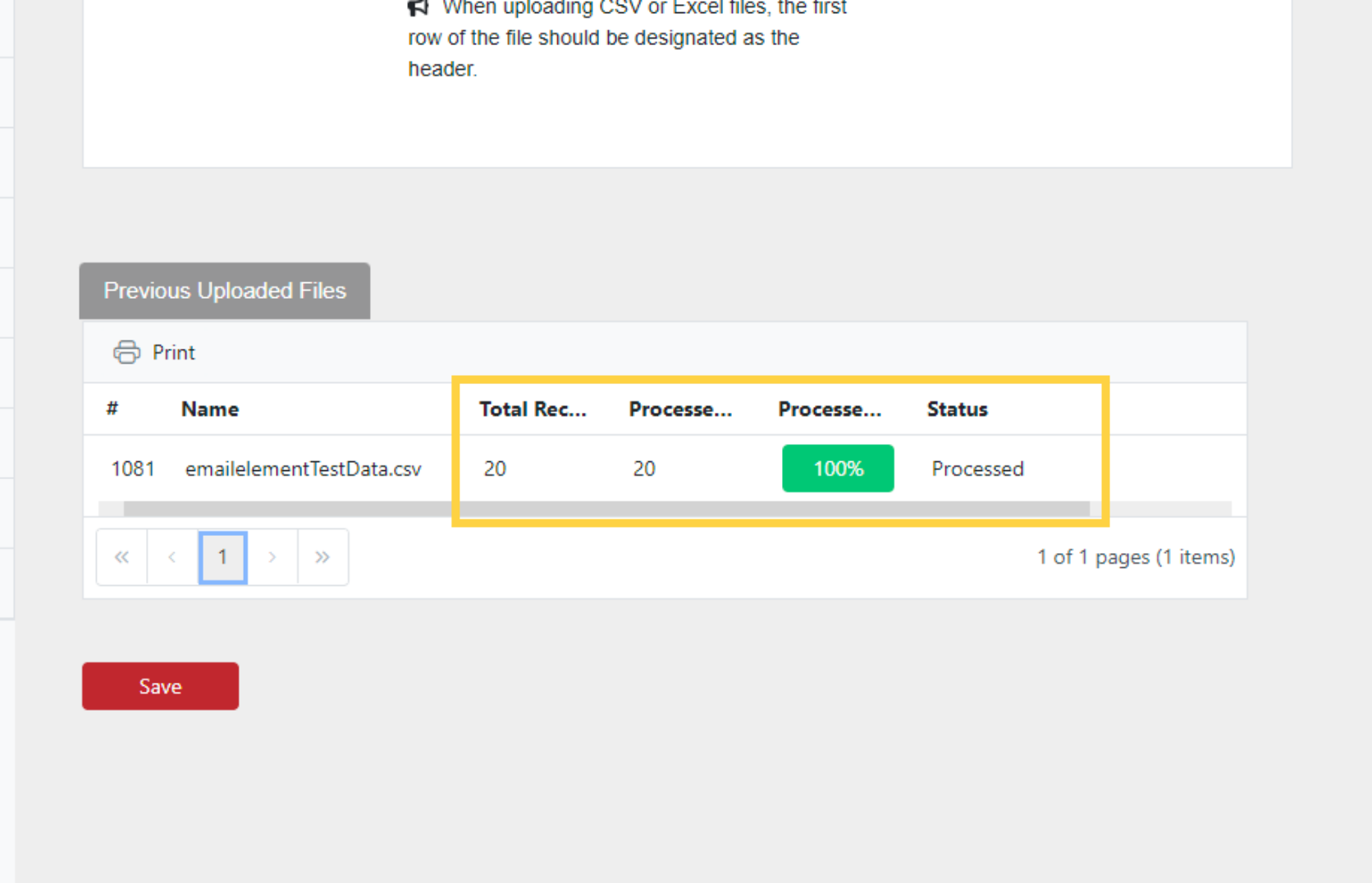
A contact already on the list has their data appended or updated, not duplicated. If a Duplicate Rejection Rule covers the list, a contact seen inside the rule's day window is turned away instead
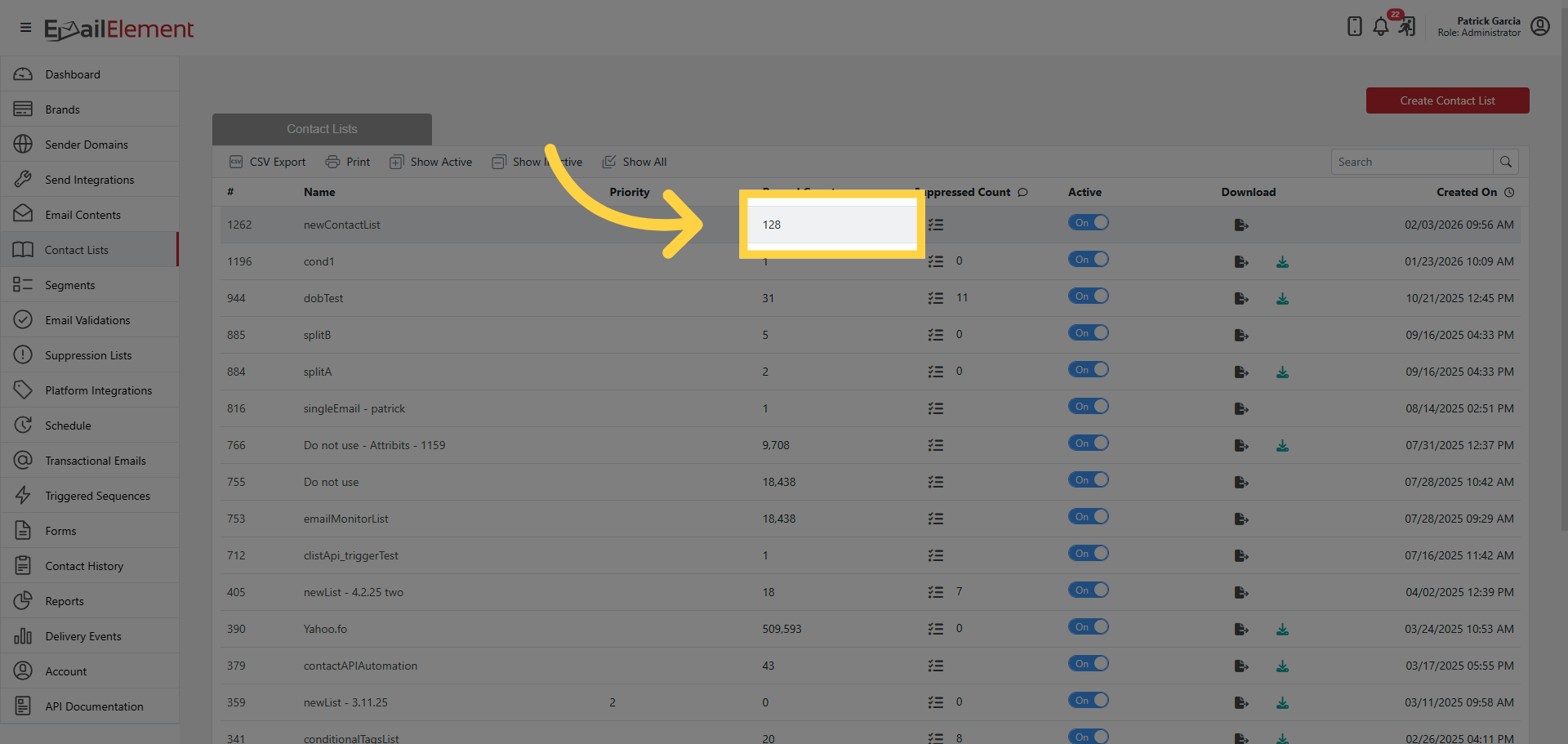
Record Count on main grid updates after import
Custom Fields
Created during import or in advance
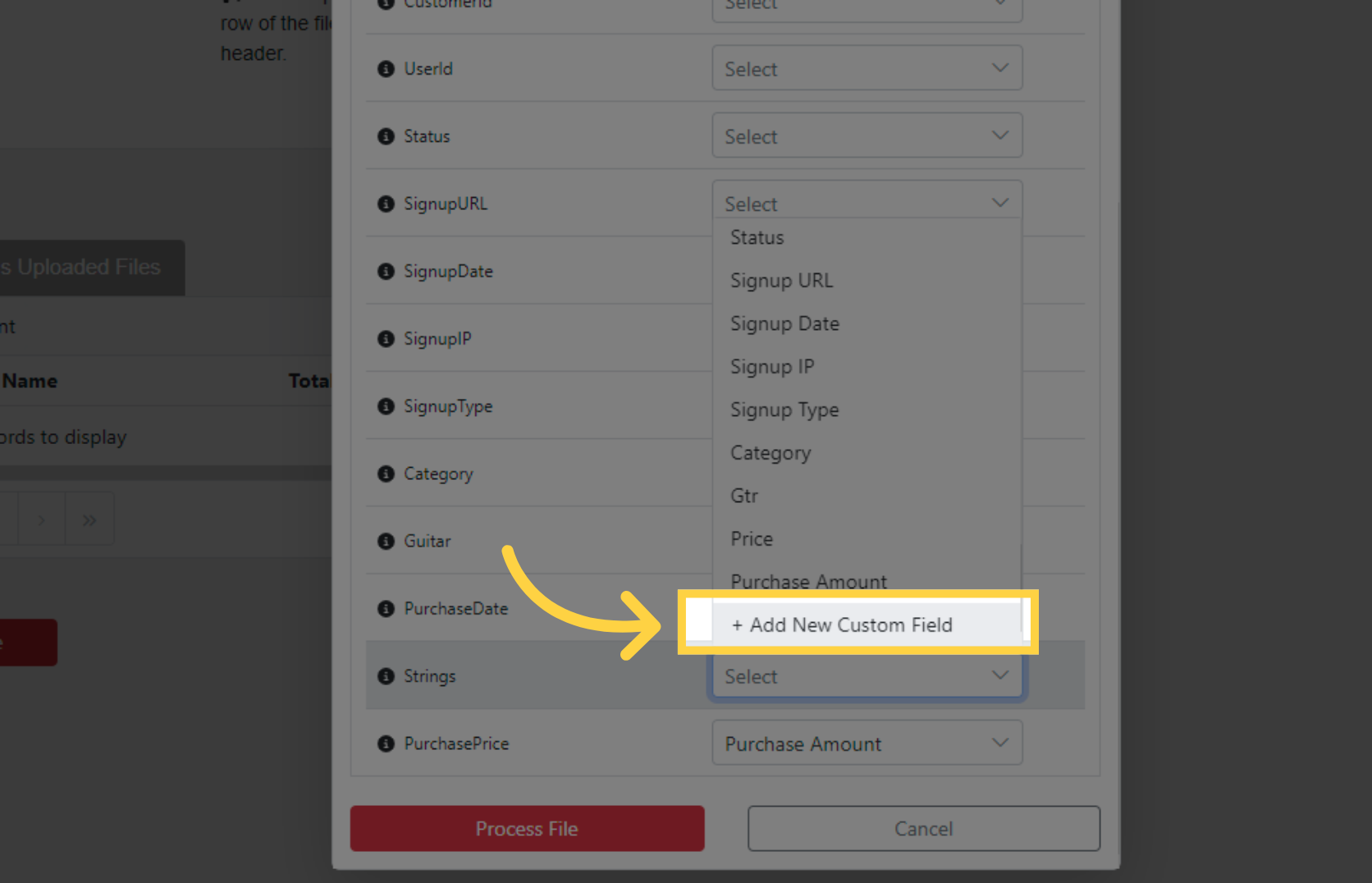
Scroll to bottom of field dropdown > Add New Custom Field
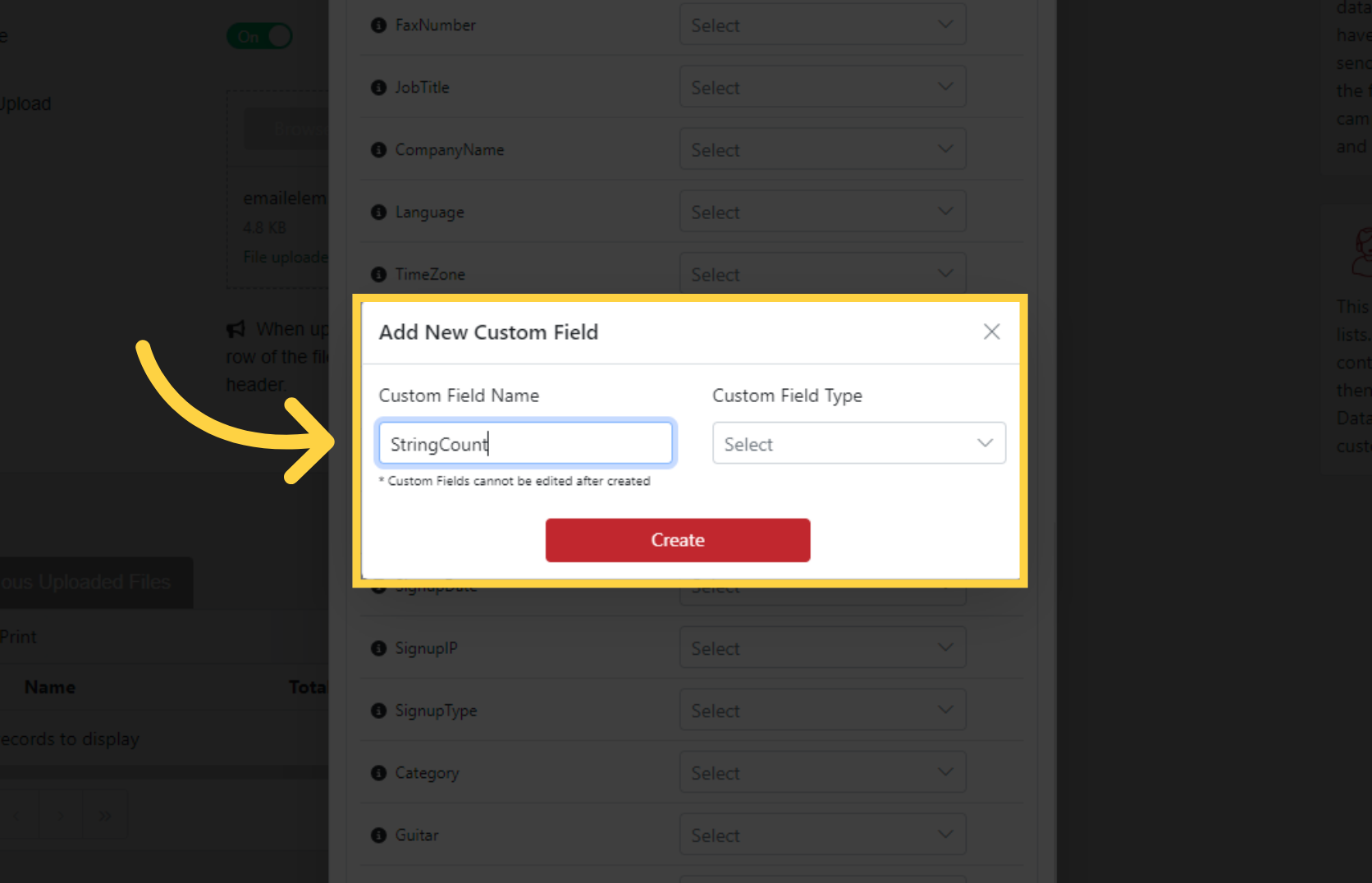
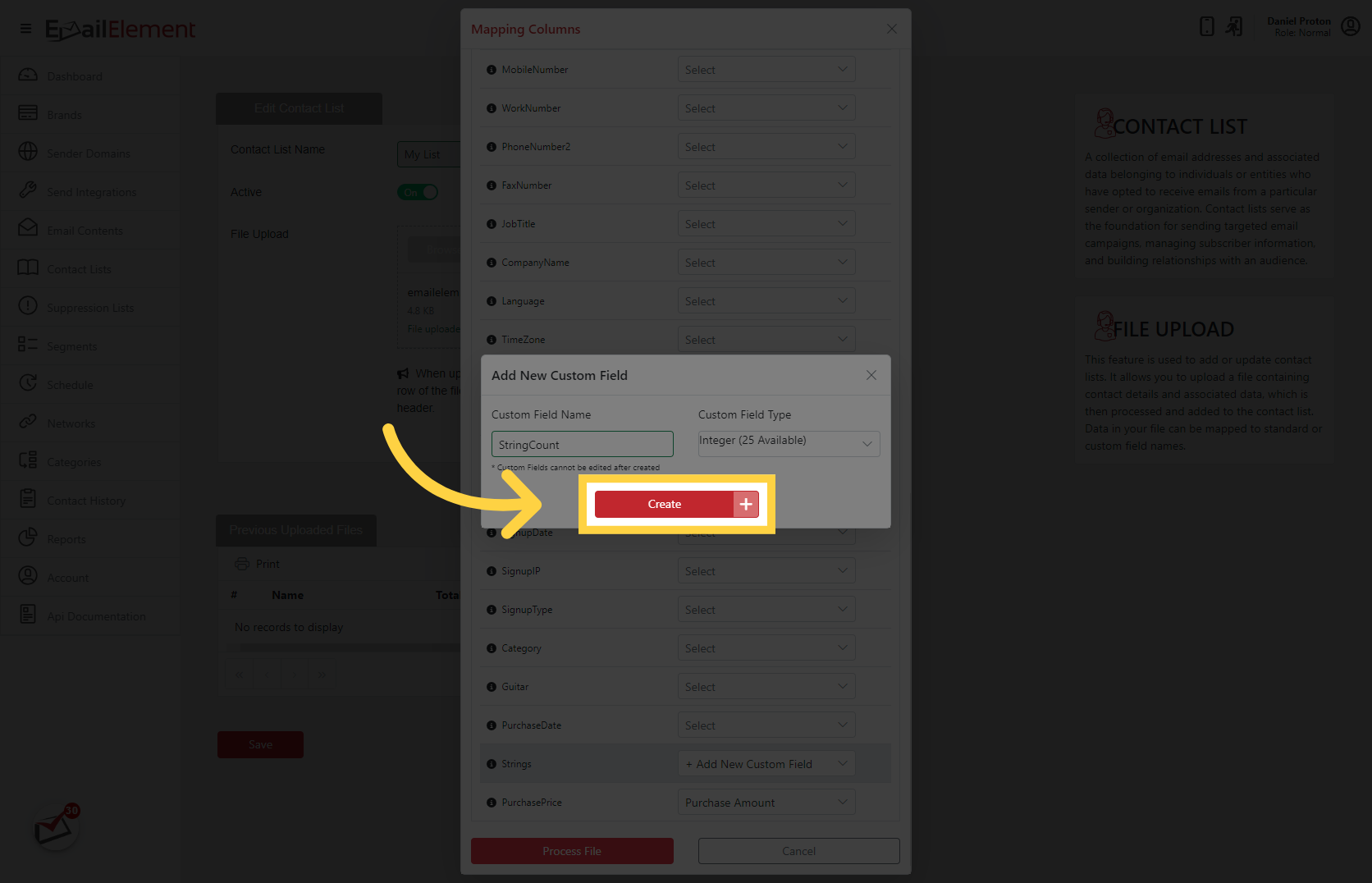
Enter name, choose type: String, Integer, Date, Boolean, Decimal, etc.
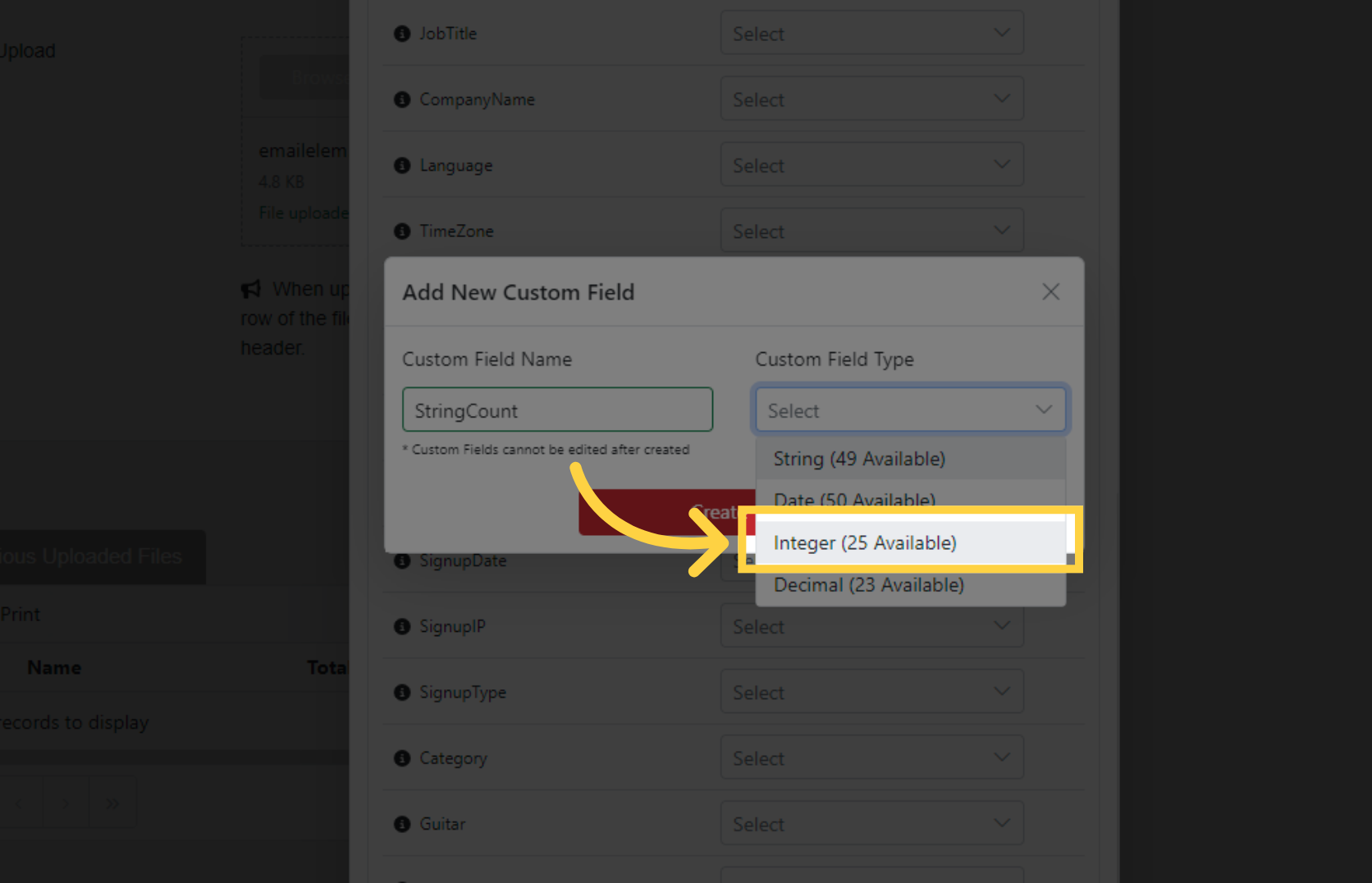
Up to 150 custom fields total (25 or 50 per type)
Custom fields available for segmentation and replacement tags
Adding a Single Contact
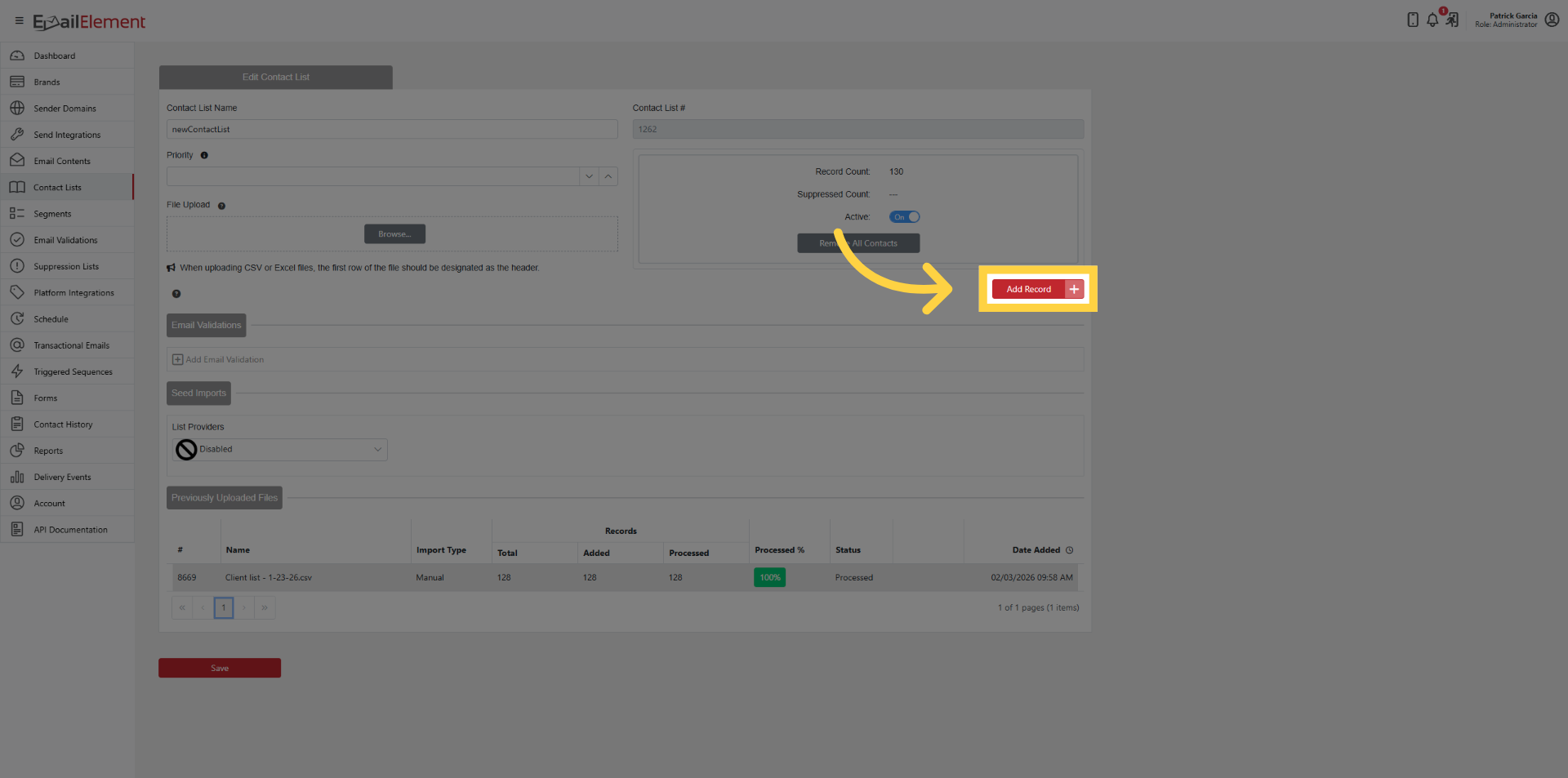
Click Add Record in Contact List
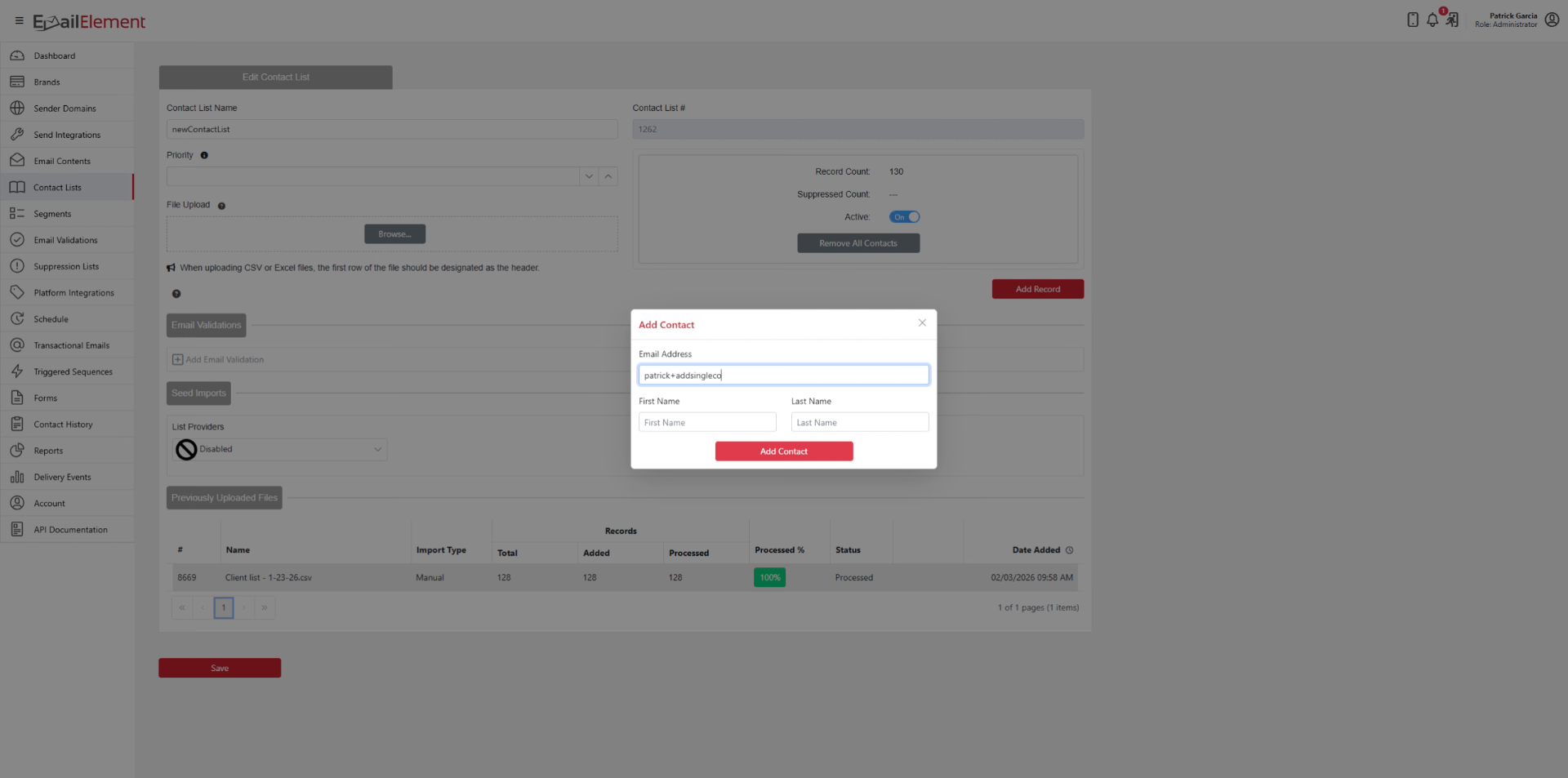
Enter email address (required)
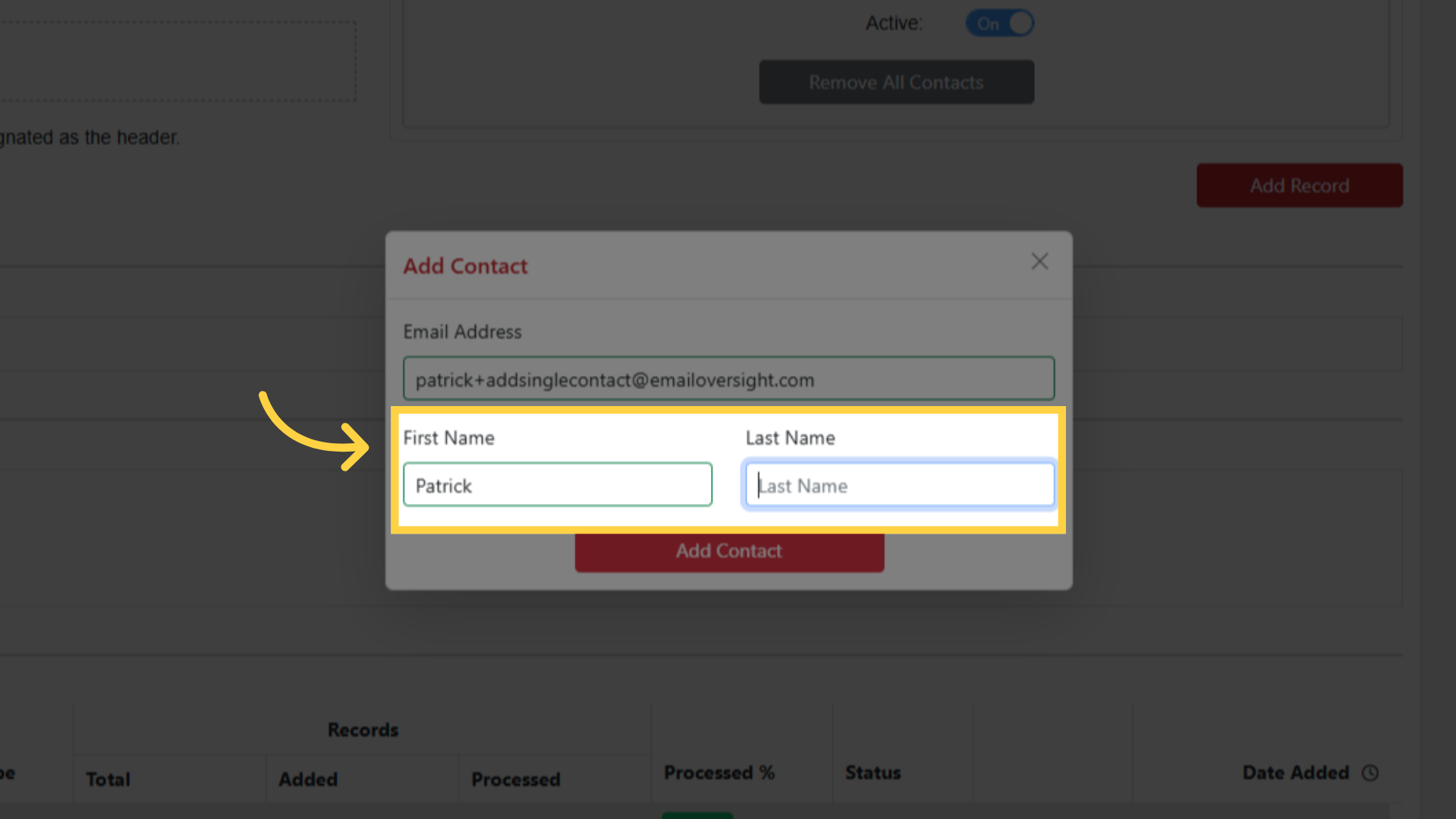
Optionally add first name, last name, custom fields
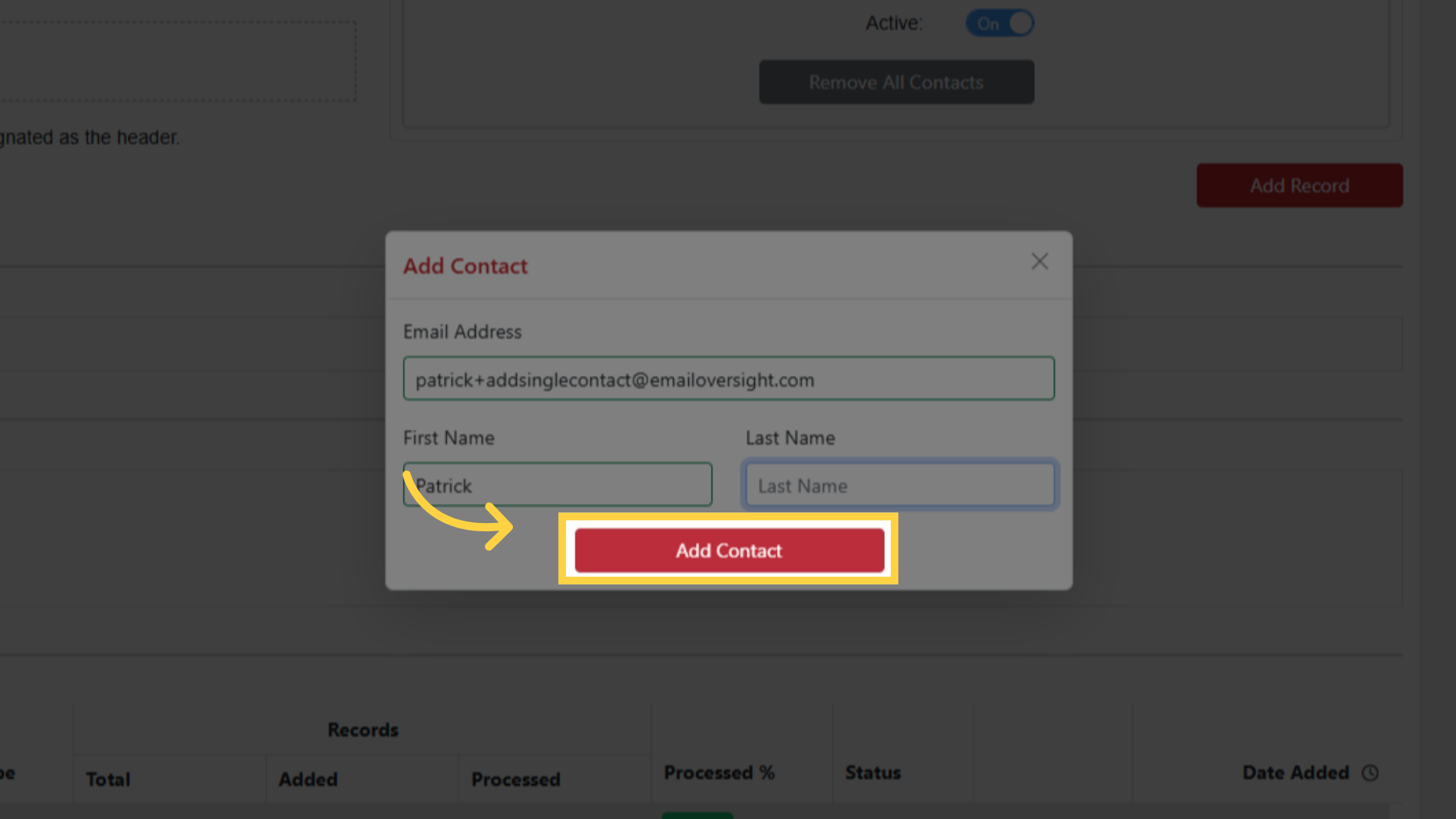
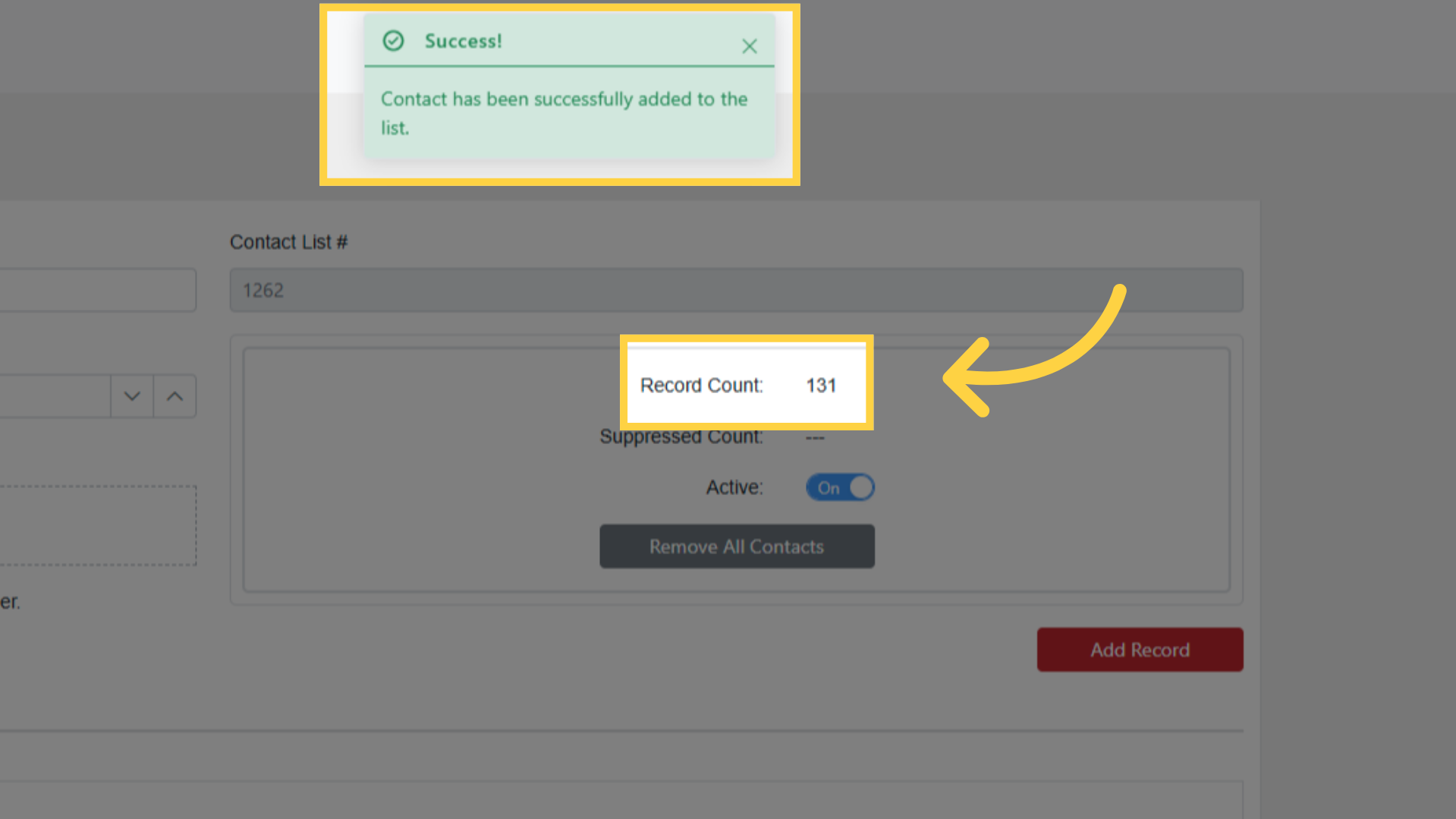
Click Add Contact
Managing Contact Lists
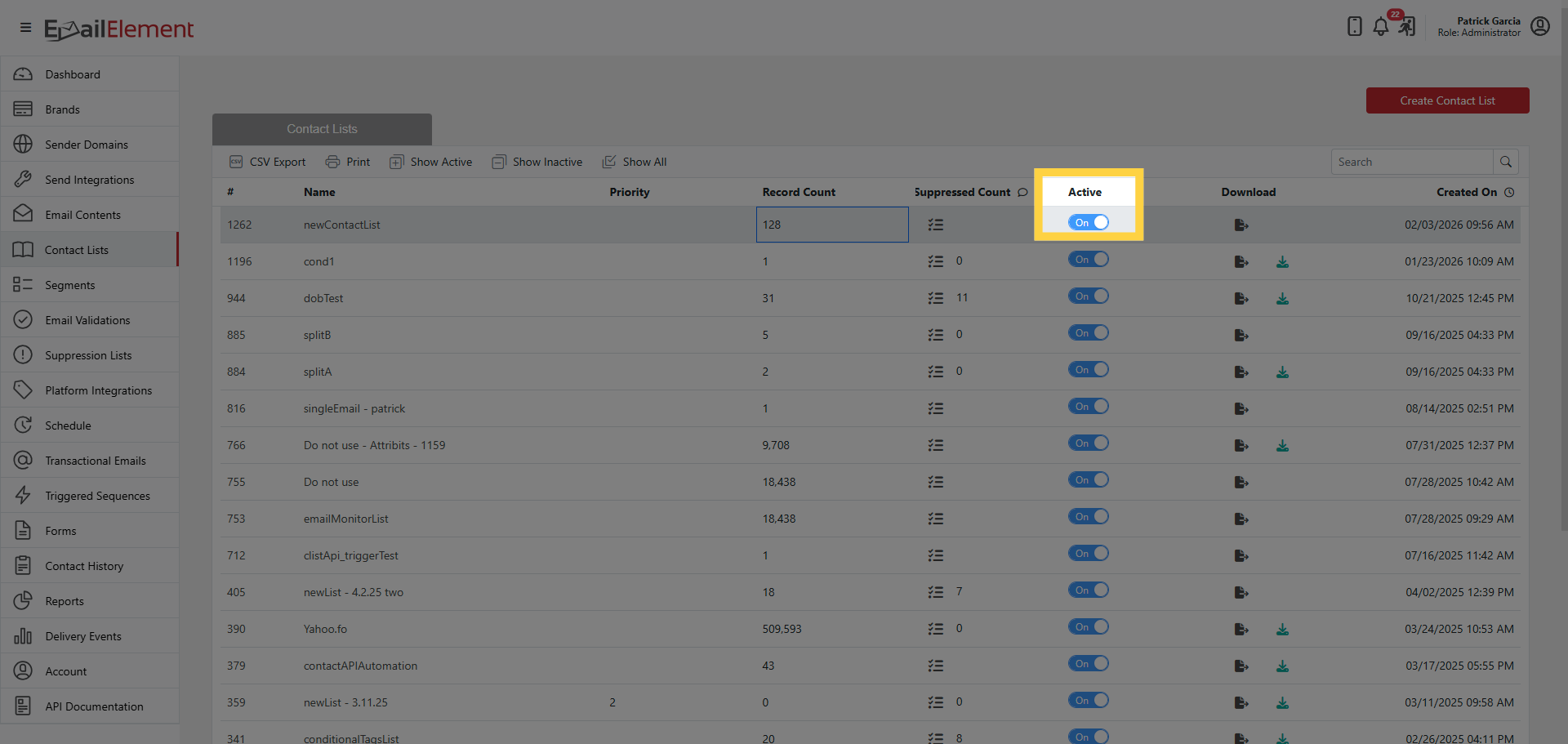
Activate/Deactivate: Toggle slider on list grid
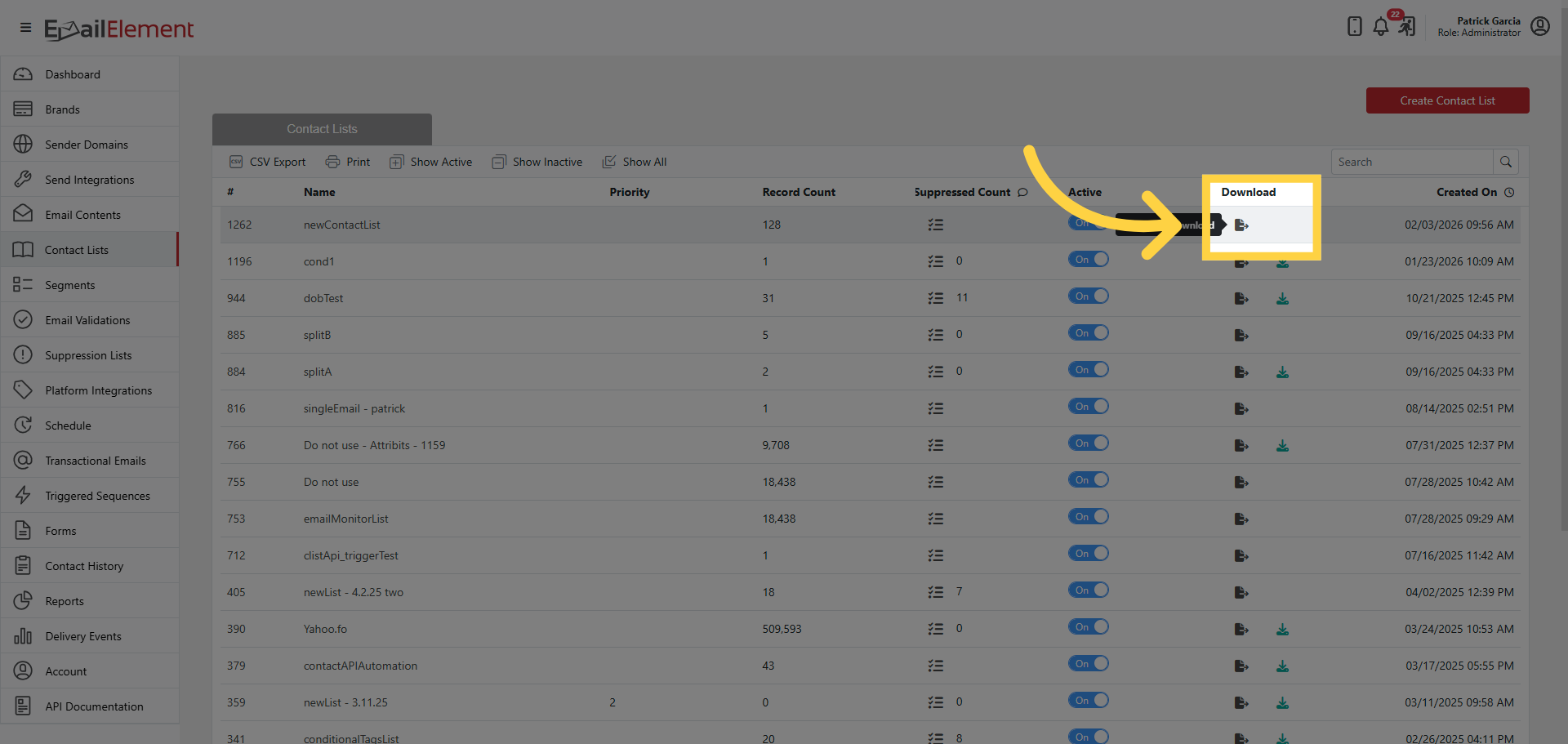
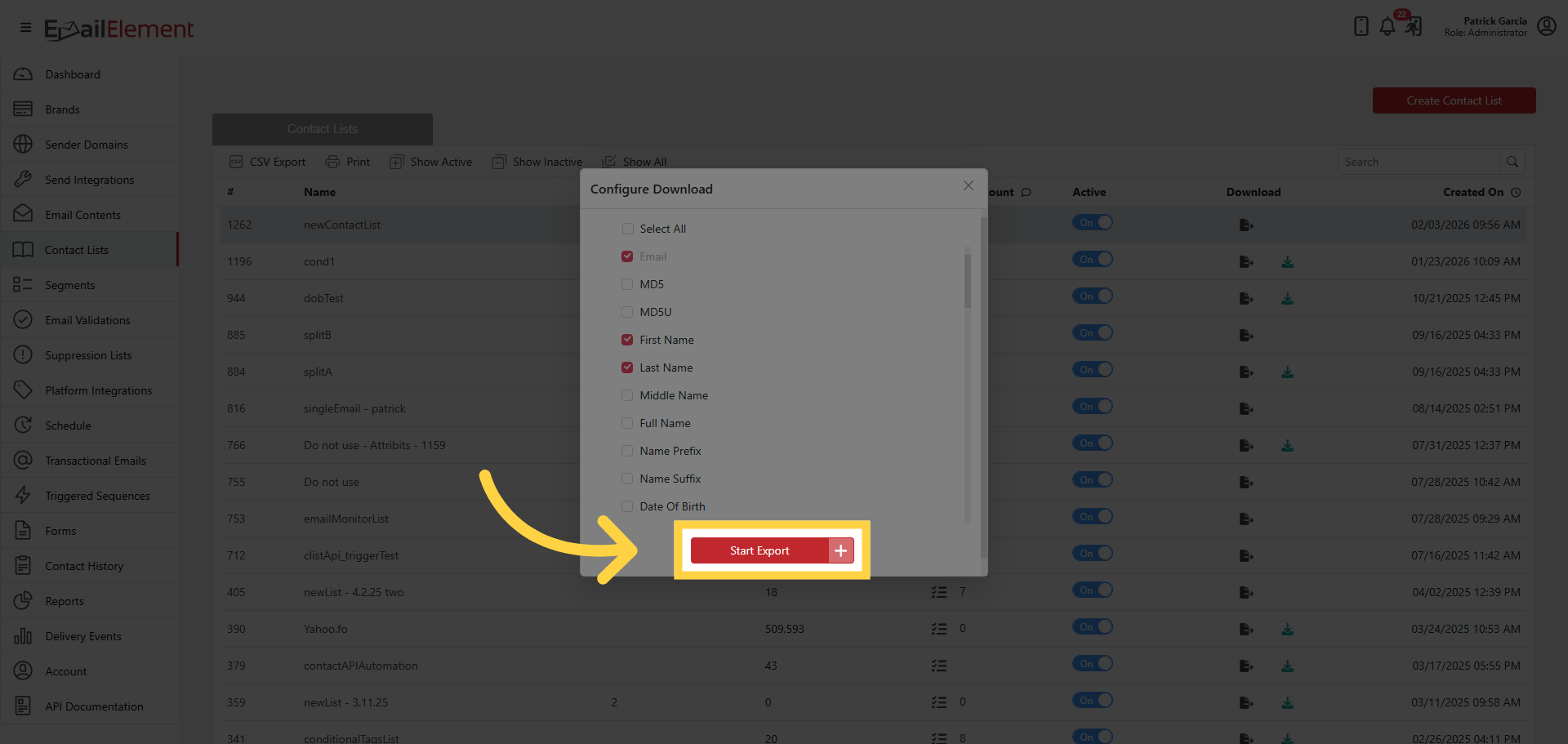
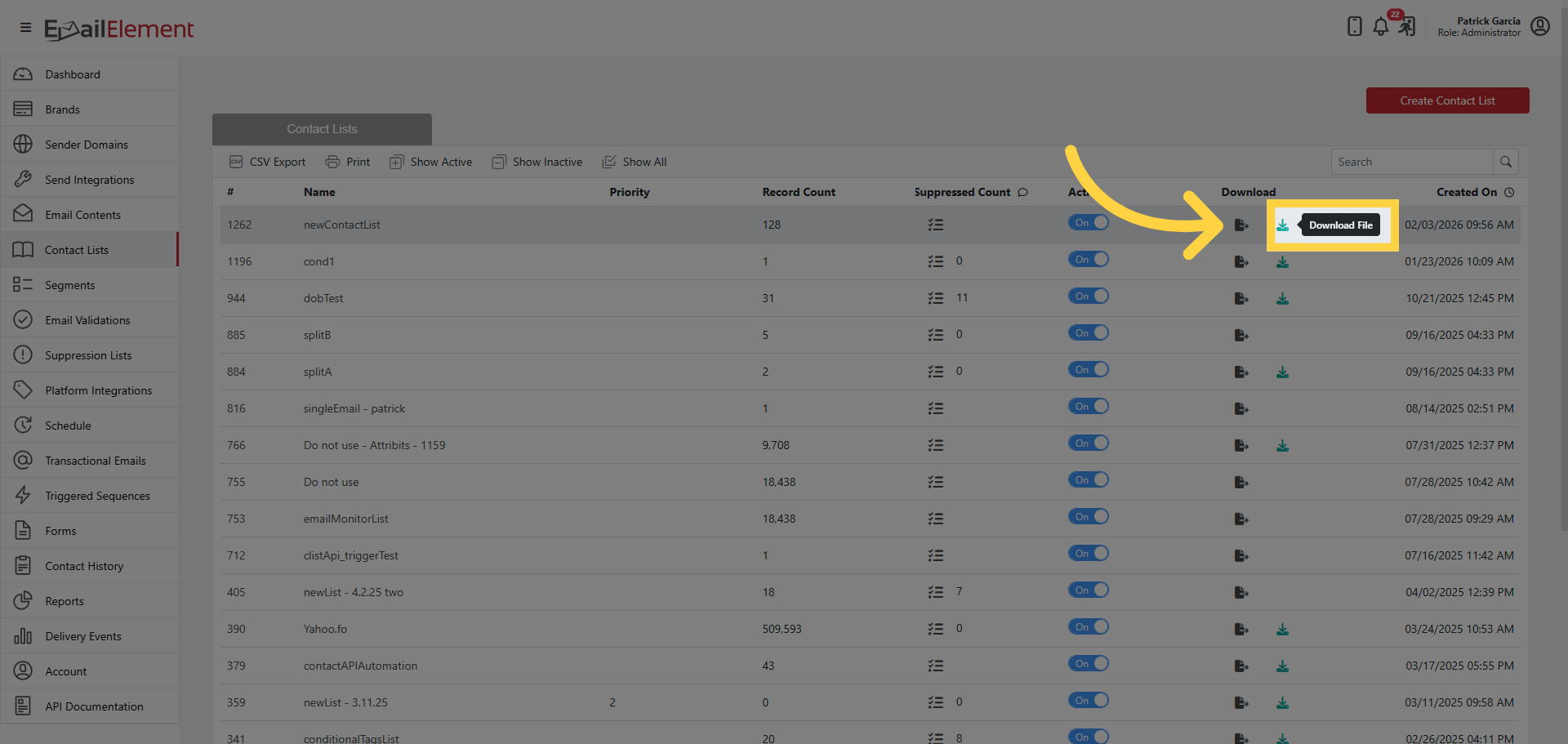
Export: Click export icon > select columns > Start Export > Download CSV
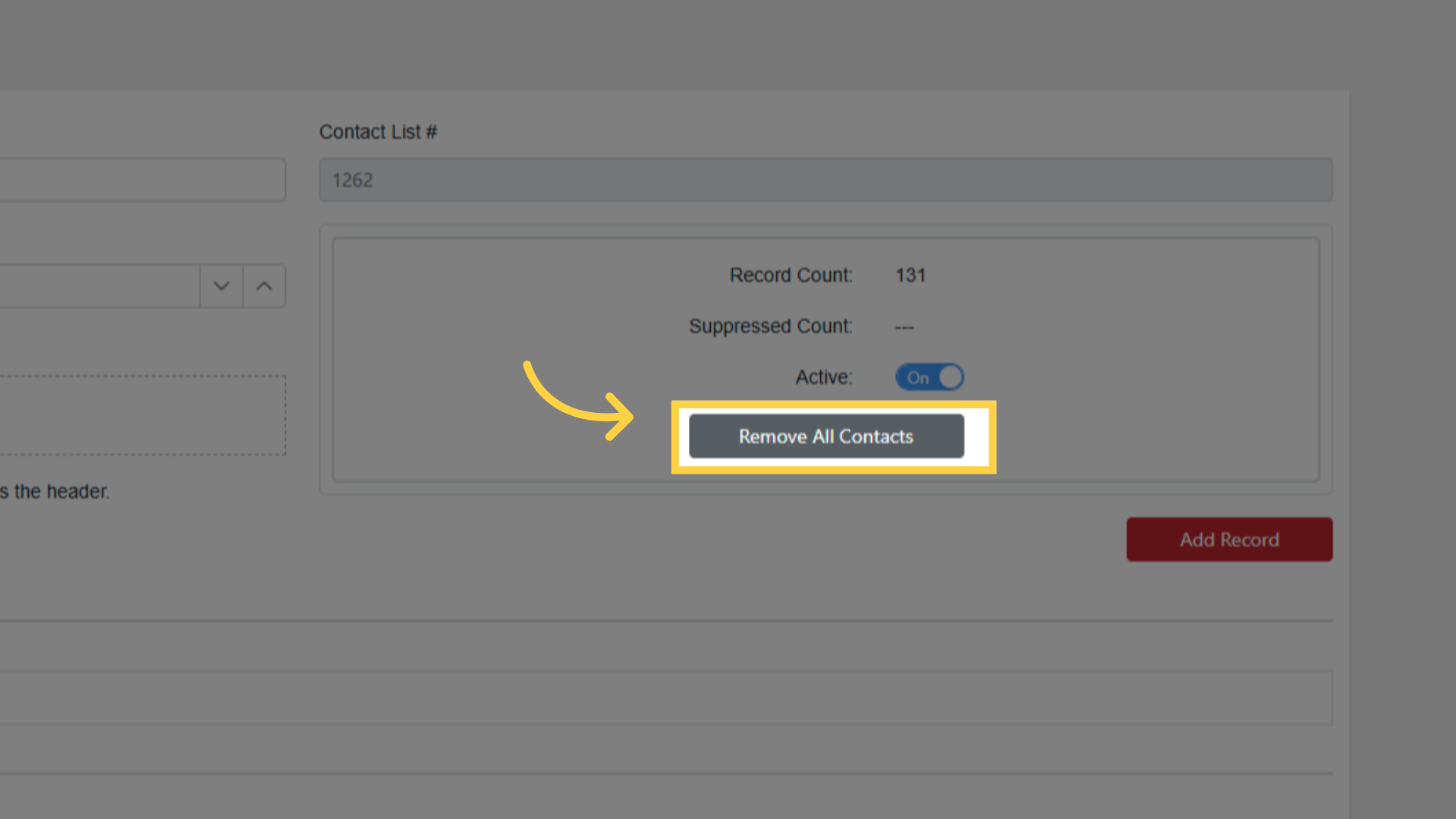
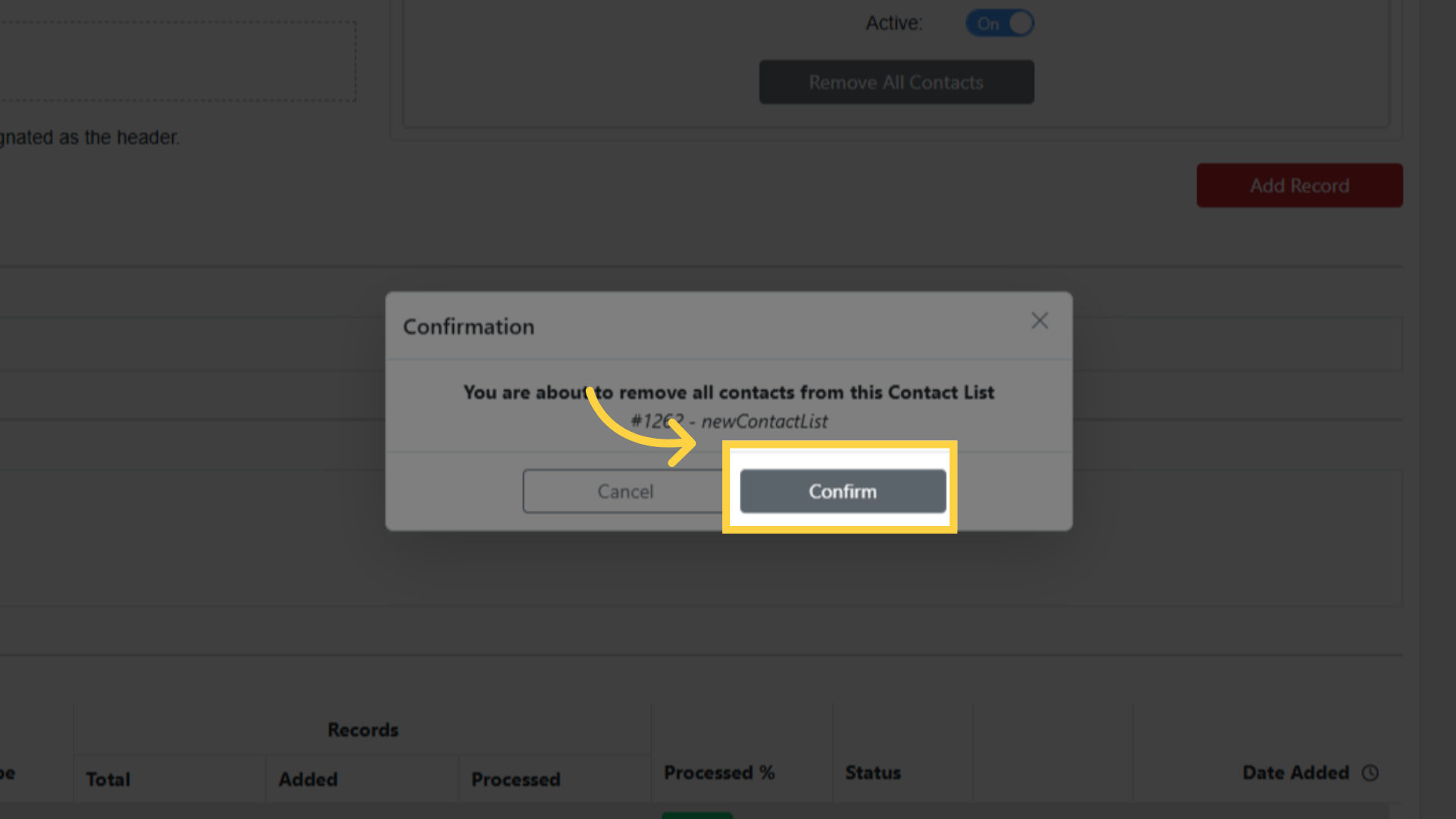
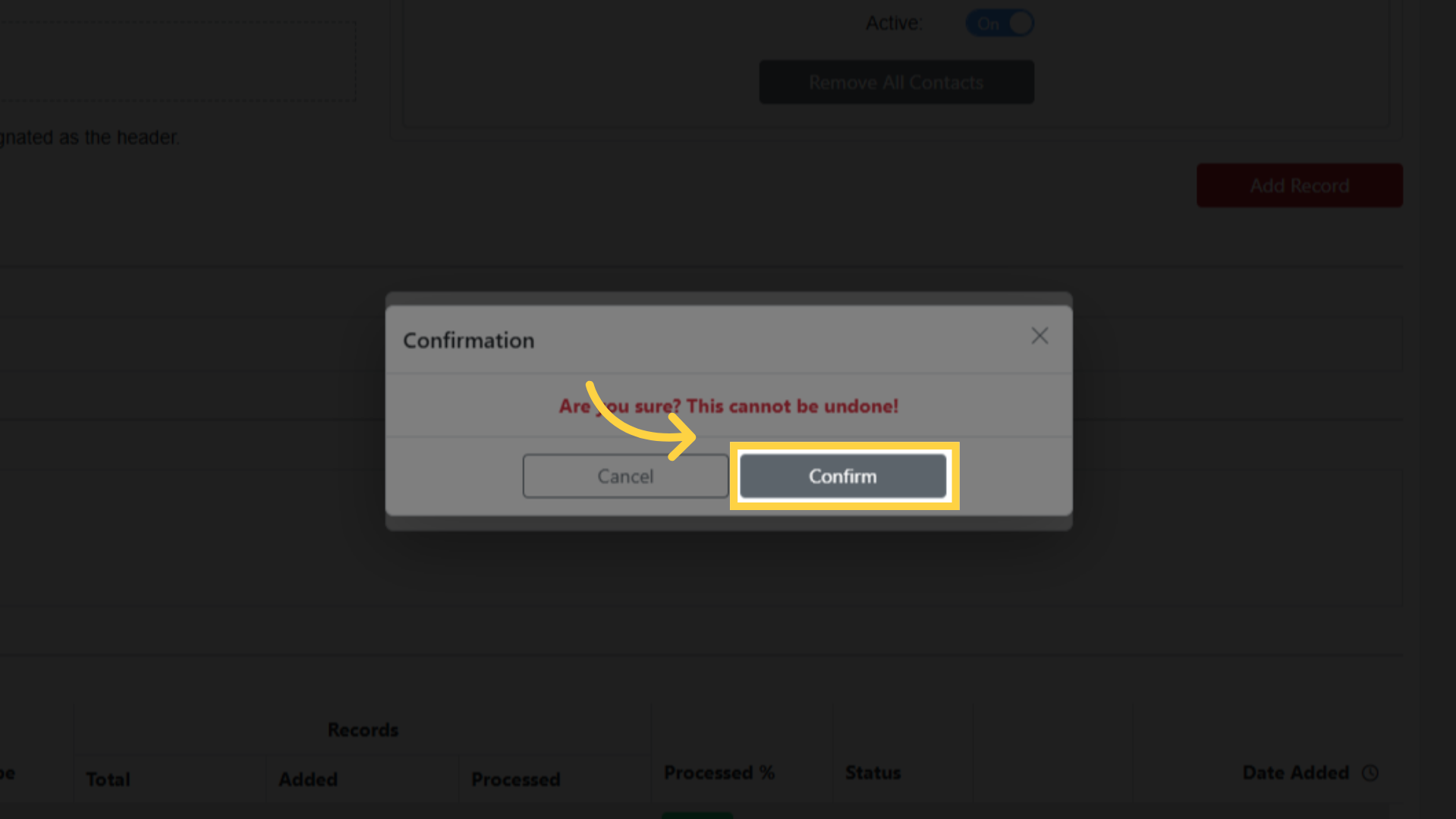
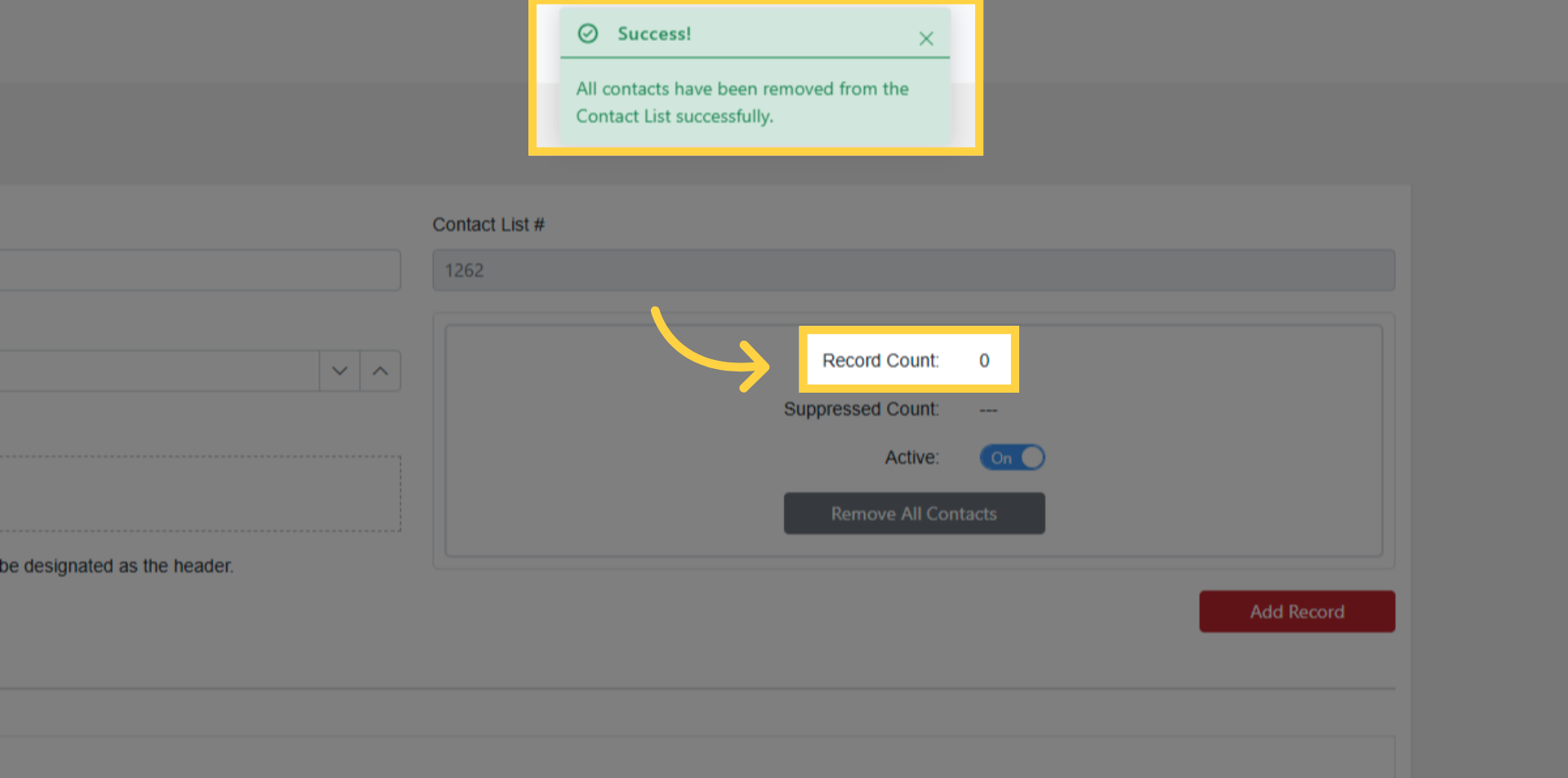
Remove All Contacts: Click option > Confirm twice > resets to zero. This cannot be undone.
Record Count shown on main grid, increases with imports
Removing Contacts and Triggered Sequences
Emptying a list does not stop work that is already under way for its contacts.
- Remove All Contacts clears the list membership and sets the record count to zero.
- A contact who is part-way through a triggered sequence stays in it and finishes it, including any emails still to be sent. Removing one contact from a list does the same thing.
- To stop email to a specific person for good, add their address to a suppression list. Suppression is checked at send time, so it also applies to contacts already moving through a sequence.