
Engagement Event Types Reference
Where it is
Reports > Engagement Report > View.
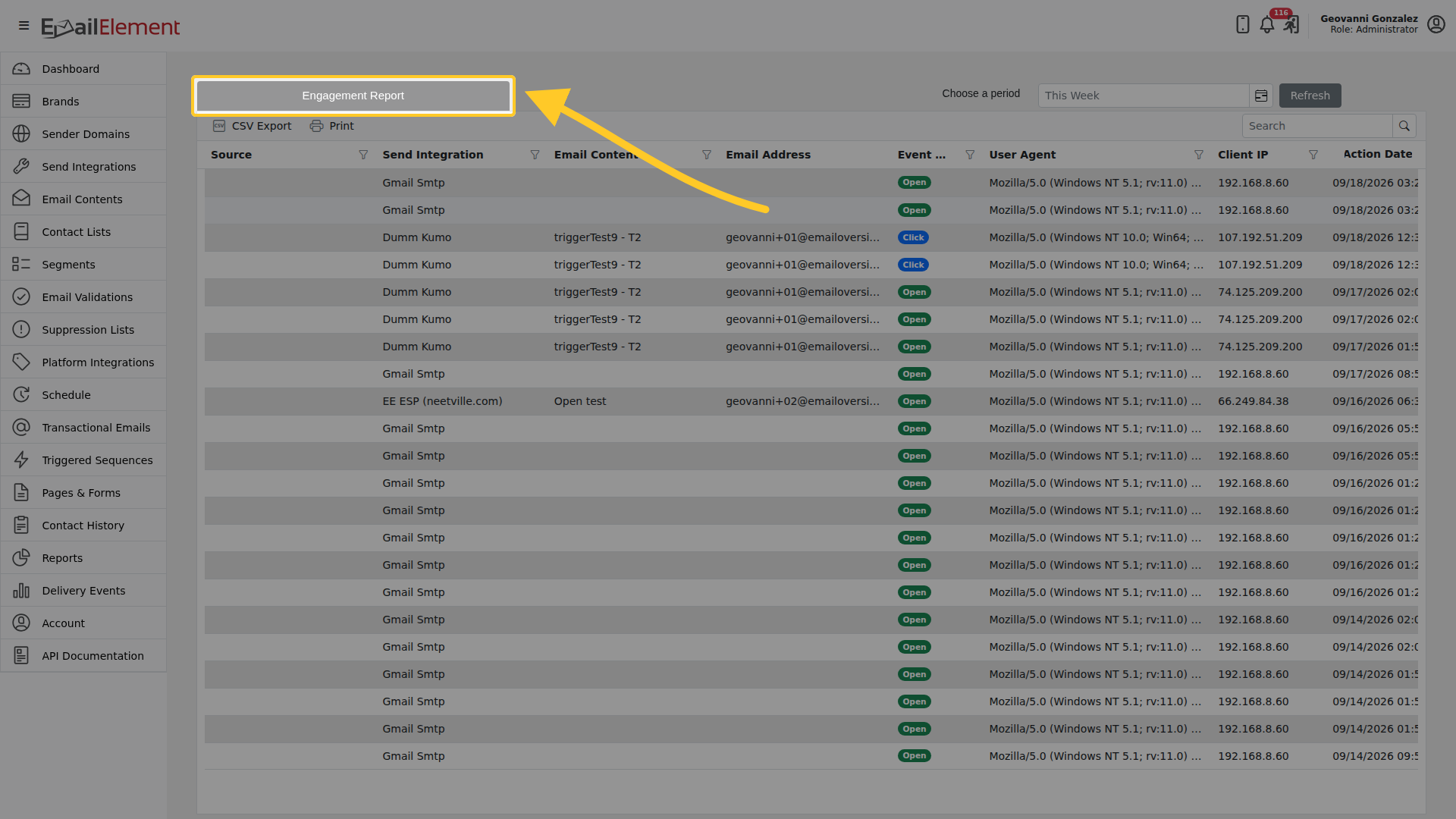
The grid lists the tracking actions themselves, one row per event, and the toolbar exports them.
Default vs On-Request Event Types
The Engagement Report loads only Click, Open, and Unsub by default. The other event types below are tracked by the platform but are not shown unless the user explicitly requests them via the Event Type filter. When a user asks about bot activity, unsubscribe clicks, image loads, or tracking pixels, instruct them to add those event types to the filter (or do so on their behalf) to pull the data.
Event Types
| ID | Event Type | Shown by Default | Description | Indicates |
|---|---|---|---|---|
| 0 | Unknown | No — on request | No information available | Edge case or system error |
| 1 | Click | Yes | Recipient clicked a tracked link in the email | Real user engagement |
| 2 | Open | Yes | Recipient opened the email (tracking pixel loaded) | Real user engagement |
| 3 | UnsubClick | No — on request | Recipient clicked the unsubscribe link | User wants to opt out |
| 4 | Image | No — on request | Image loaded in the email | Image rendering event |
| 5 | Bot | No — on request | Automated bot activity detected (click or open) | Not real engagement |
| 6 | BotProtection | No — on request | Bot was blocked by the Jump Page | Bot filtered successfully |
| 7 | Unsub | Yes | Recipient unsubscribed | User opted out |
| 8 | TrackingPixel | No — on request | Tracking pixel was loaded | Open tracking event |
Event Details
Click
- Recorded when a recipient clicks a tracked link in the email
- The report shows which specific link was clicked
- More reliable than opens as a measure of real engagement
- Multiple clicks on different links each generate separate events
- Compare against Bot events to assess real vs automated clicks
Open
- Recorded when the recipient's email client loads the tracking pixel
- Some email clients (notably Apple Mail with Mail Privacy Protection) may pre-load images, inflating open counts
- Not all opens are tracked — clients that block images will not trigger this event
- Use as a directional engagement signal rather than an exact metric
UnsubClick
- Recorded when a recipient clicks the unsubscribe link (
{EEUnsubscribeLink}) in the email - This is the click action on the link itself
- The corresponding Unsub event records the actual unsubscribe action
Image
- Recorded when an image in the email is loaded by the recipient's email client
- Related to open tracking but specifically for image loads
Bot
- Recorded when automated bot activity is detected
- Security scanners, email gateways, and anti-virus programs may automatically click links or load images
- These events should be excluded from engagement metrics
- High bot activity on a specific send may indicate the audience includes corporate or security-conscious domains
BotProtection
- Recorded when a bot is blocked by the Jump Page
- Jump Pages present a challenge (e.g., CAPTCHA or JavaScript check) before forwarding to the real link
- Only real users pass through; bots are stopped and logged as BotProtection events
- Configure Jump Page on your Scheduled Email to filter automated clicks
Unsub
- Recorded when a recipient completes the unsubscribe action
- The contact is automatically added to the brand-level suppression list
- No further emails will be sent to this contact for the associated brand
TrackingPixel
- Recorded when the tracking pixel embedded in the email is loaded
- Related to the Open event — provides additional tracking data
Engagement Report Columns
| Column | Description |
|---|---|
| Email Address | Recipient email address |
| Event Type | The engagement event (Click, Open, Unsub, Bot, etc.) |
| Action Date | Timestamp of when the event occurred |
| Source | What initiated the send: Scheduled Email name, Trigger name, or Transactional Relay name |
| Run ID | Unique identifier for the send run |
Filtering
The report supports filtering by:
- Event Type — defaults to Click, Open, and Unsub. Add other event types (Bot, BotProtection, UnsubClick, Image, TrackingPixel, Unknown) to the filter to include them in the results.
- Source — filter by specific Scheduled Emails, Triggered Sequences, or Transactional Relays
- Date Range — adjust the time period using the date range picker
Accessing from Dashboard
Click engagement counts on a Scheduled Email card in the Dashboard to open the Engagement Report pre-filtered to that campaign's data with the relevant date range and source.
CSV Export
Click CSV Export in the toolbar to download the currently filtered engagement data as a CSV file. The filename includes the current date.