Generic SMTP
EmailElement provides support for a number of different Email Service Providers, but in the even there's an SMTP provider that we have yet to integrate directly with, we do have a way you can get it working within EmailElement using the generic SMTP connection. This type of setup does not require an API Key, so you can even setup, say, and AWS SMTP account that you may not have an API Key for.
SENDER DOMAIN
To start, you will need a domain that is set up with our MX record. This will allow us to track bounces:
- In EmailElement, go to Sender Domains.
- Select your desired Sender Domain, or add a new one that you have access to and save it.
- Open the Advanced section at the bottom and copy the MX/Mail Server Record.
mx1.emailelement.com
- Log into wherever you manage your domain and add the MX record (this may take some time to propagate).
- Go back to the Sender Domain in EmailElement and run the “Validate DNS Records”.
- If the MX record has been properly configured and is ready, the MX validation will show as green.
SEND INTEGRATION
- Next, you'll need to create a new Send Integration with the set-up Sender Domain:
- In EmailElement, go to Send Integrations and “Create New Send Integration”.
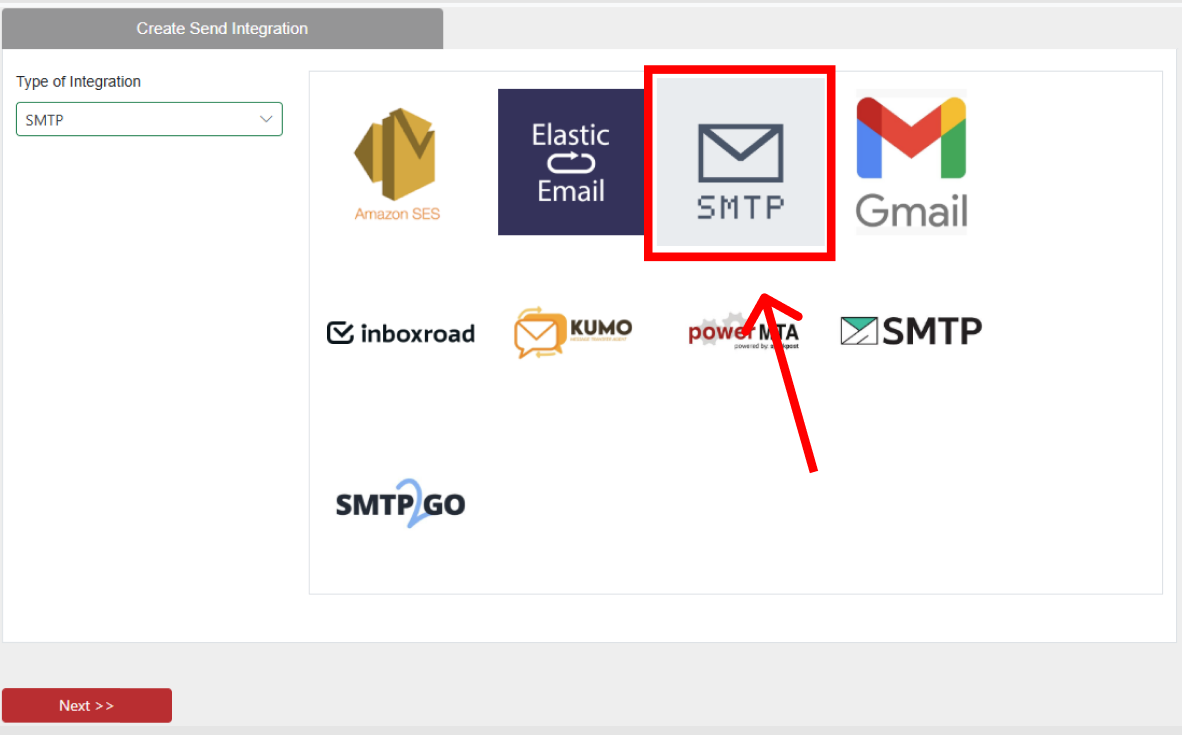
- Select “SMTP” from the “Type of Integration” dropdown.
- Select the generic SMTP integration from the list and proceed.
- Select your Sender Domain from the “Sender Domains with Bounce Processing” field. This will ONLY show domains you have properly set up with that MX record.
- Continue adding your credentials from your SMTP account into the corresponding fields.
- Save your integration and “Run Test” to ensure everything was set up properly.
Note
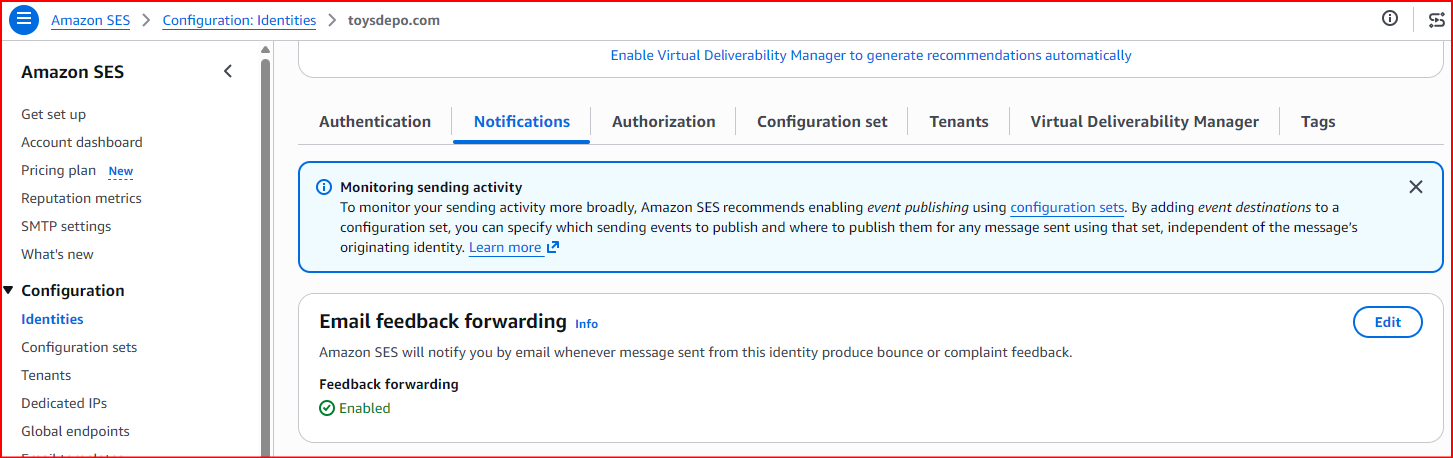
If you are using AWS with Generic SMTP setup, make sure the “Email feedback forwarding” in enabled in your AWS account: