
Template Editor Walkthrough
A template is the body of the email. Every Email Content needs at least one active template before it can be sent, and there are four ways to make one.
Step 1: Open an Email Content
Email Contents in the left menu lists them.
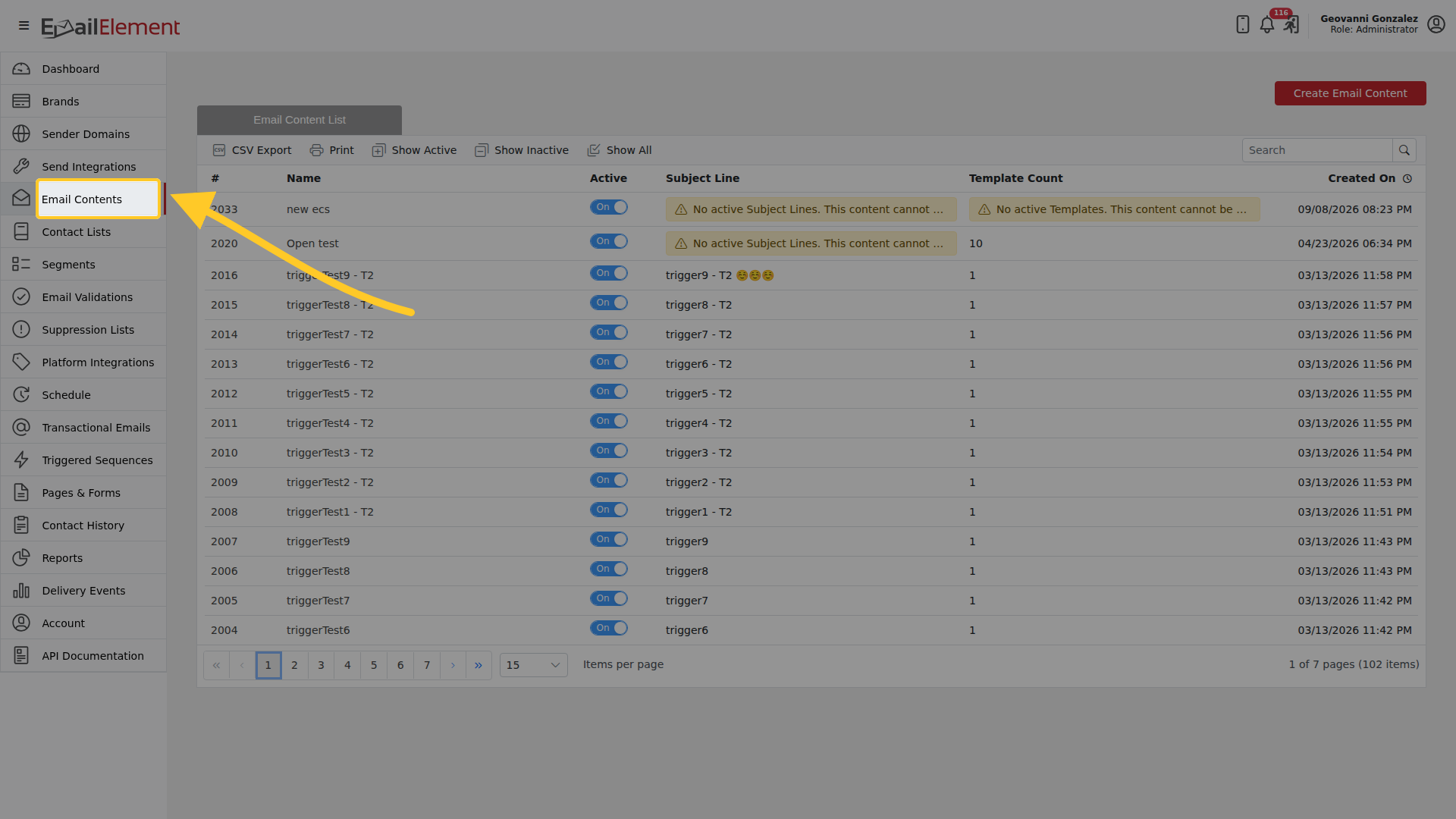
The grid warns you where a content cannot be sent yet, for example "No active Templates. This content cannot be sent without an active Template." Open one by clicking it.
Step 2: Choose how to build it
The Template Creation card offers four routes.
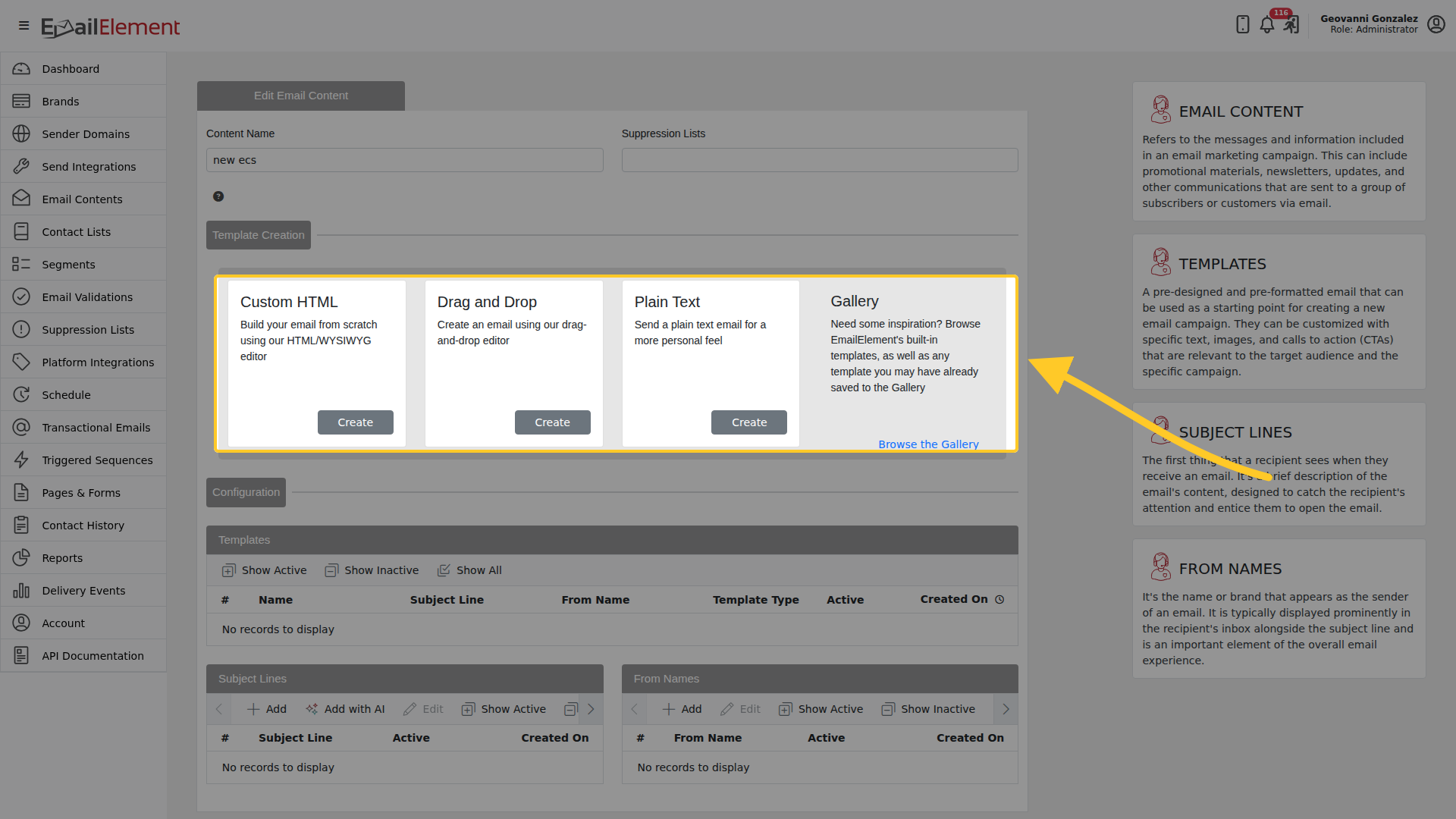
| Route | Use it when |
|---|---|
| Custom HTML | You have HTML, or want to write it, in an HTML and WYSIWYG editor |
| Drag and Drop | You want to build the email visually from blocks |
| Plain Text | You want a text-only email for a more personal feel |
| Gallery | You want to start from a built-in template, or one you saved earlier |
Below that, Configuration holds the Templates, Subject Lines and From Names grids for this content, each with Show Active, Show Inactive and Show All.
Drag and Drop
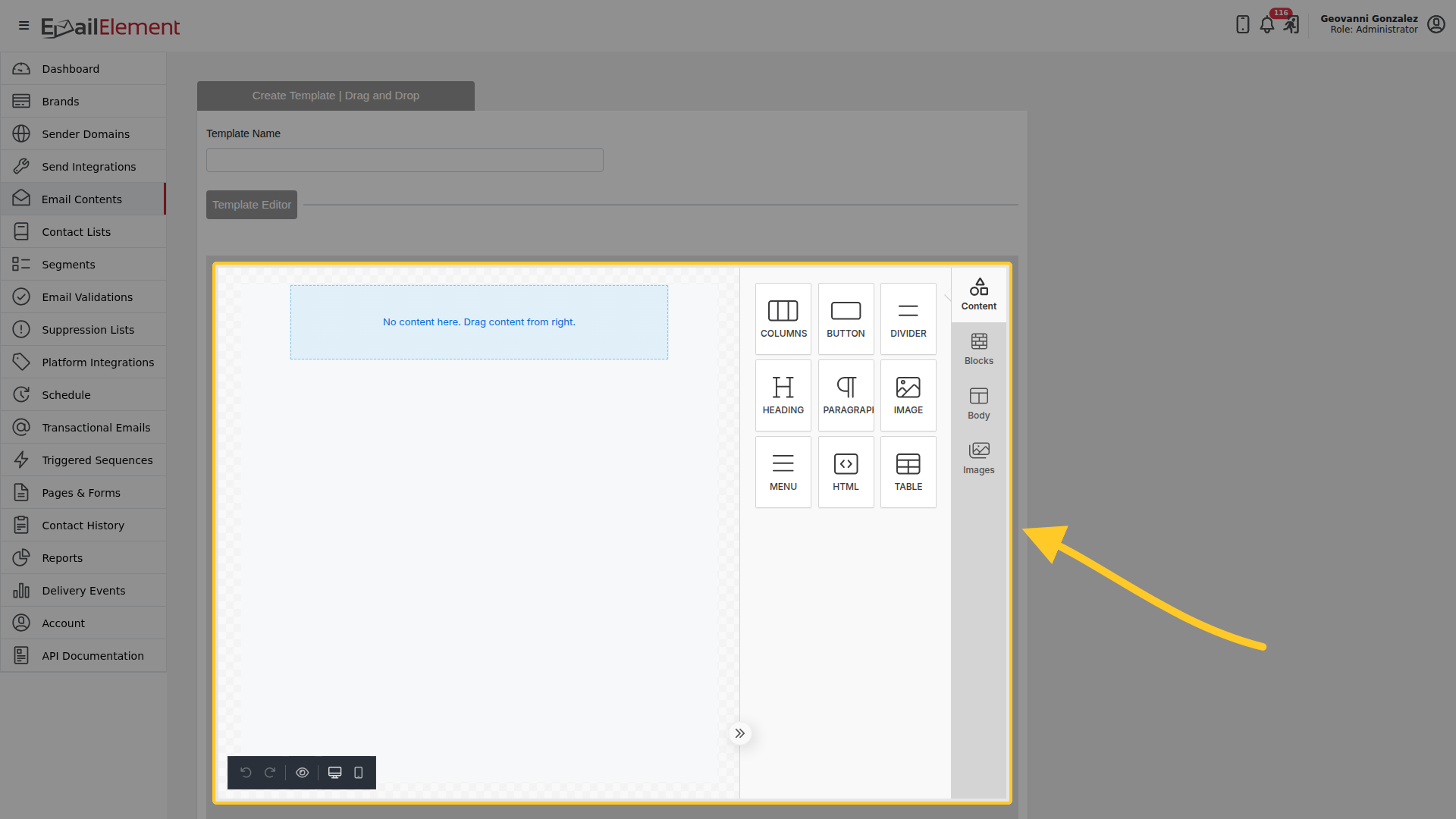
Name the template at the top, then drag from the palette on the right into the canvas on the left. The palette holds Columns, Button, Divider, Heading, Paragraph, Image, Menu, HTML and Table, and the tabs beside it switch to Blocks, Body and Images. The toolbar at the foot of the canvas undoes and redoes, previews, and switches between the desktop and phone view.
An empty canvas says "No content here. Drag content from right."
Custom HTML
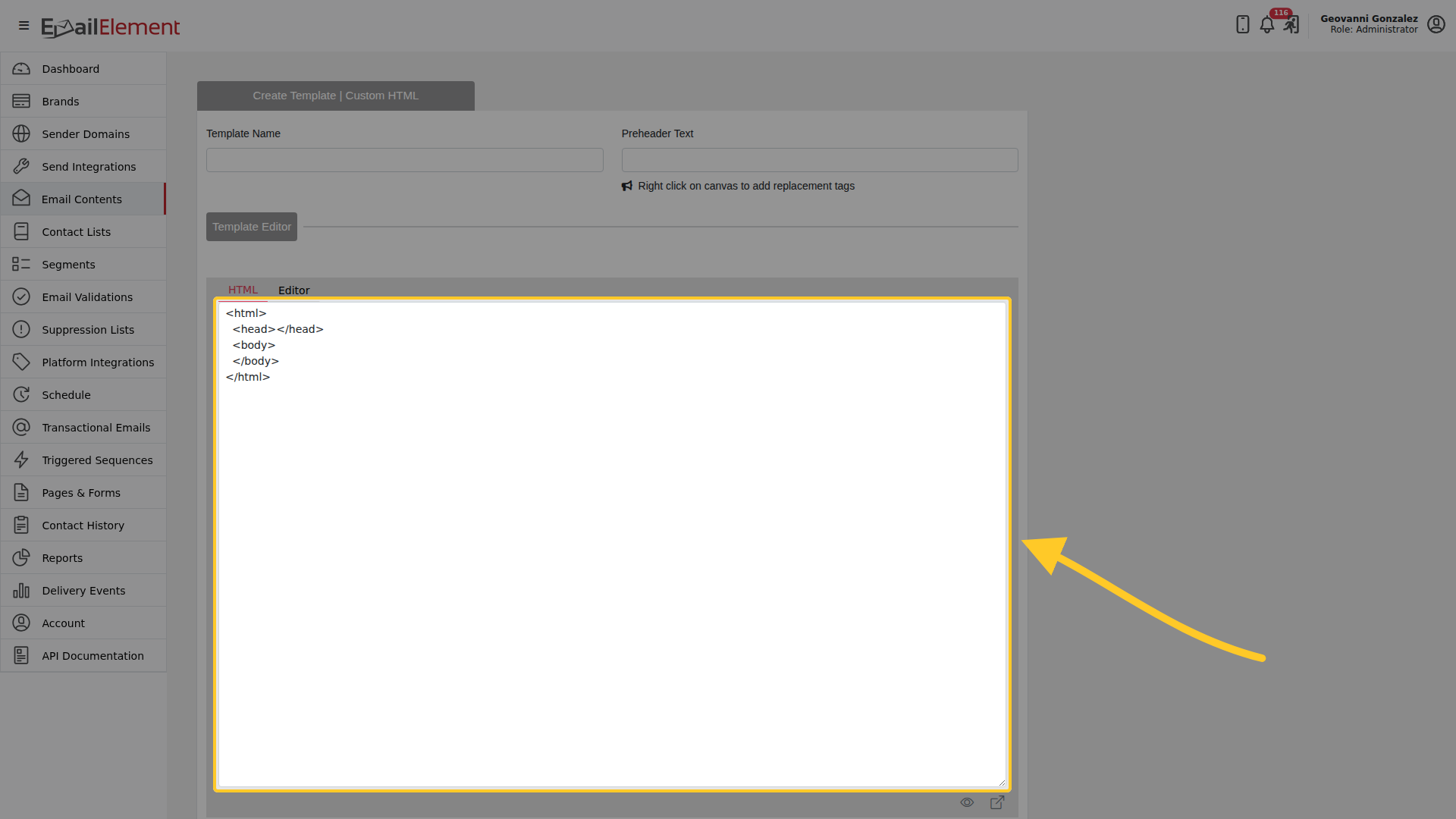
The same page with an HTML editor instead of the canvas. Use it when you already have markup, or when you want control the visual builder does not give.
Plain Text
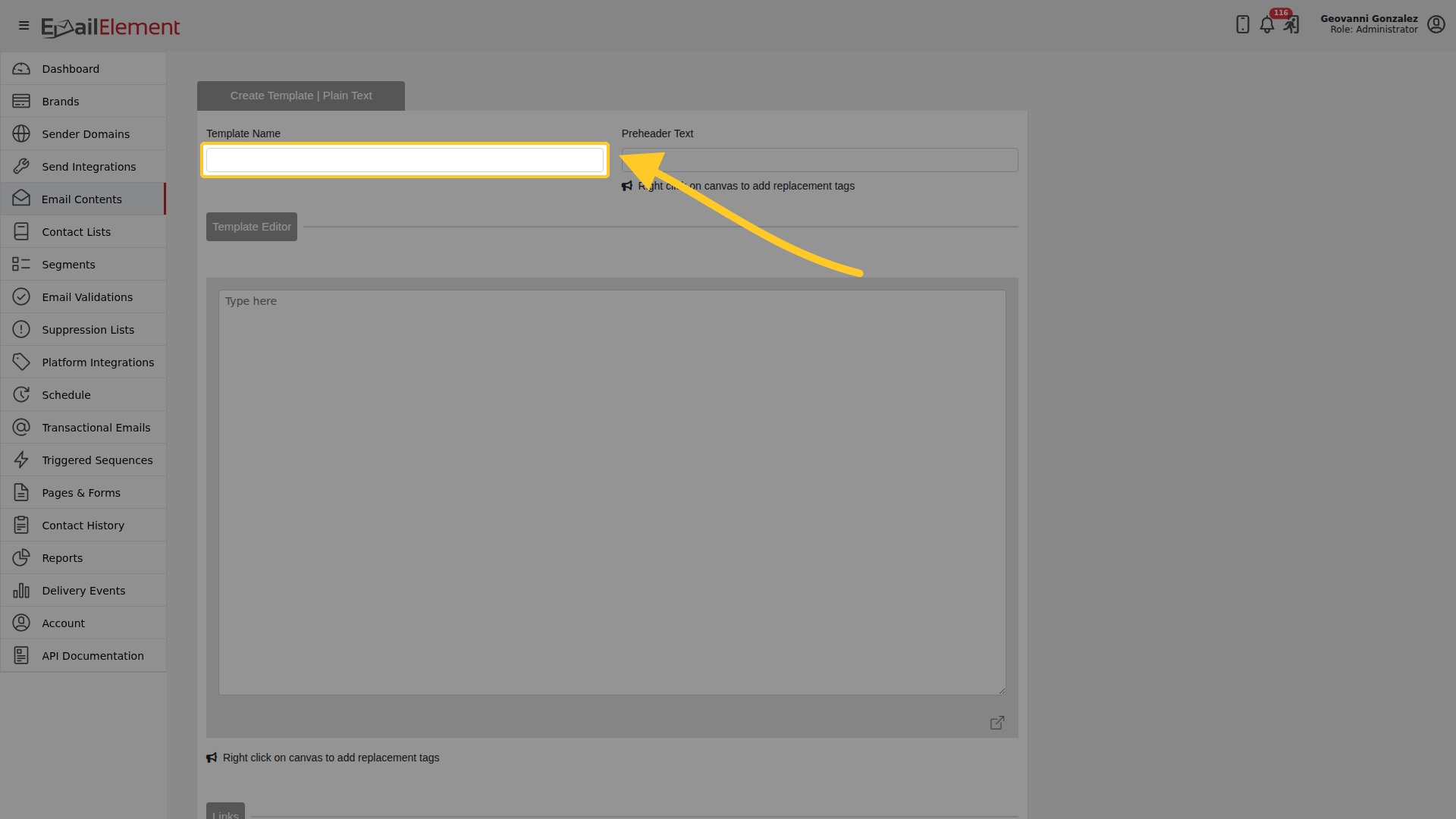
Text only, no markup. Some recipients prefer it and it reads as a personal note rather than a campaign.
Gallery
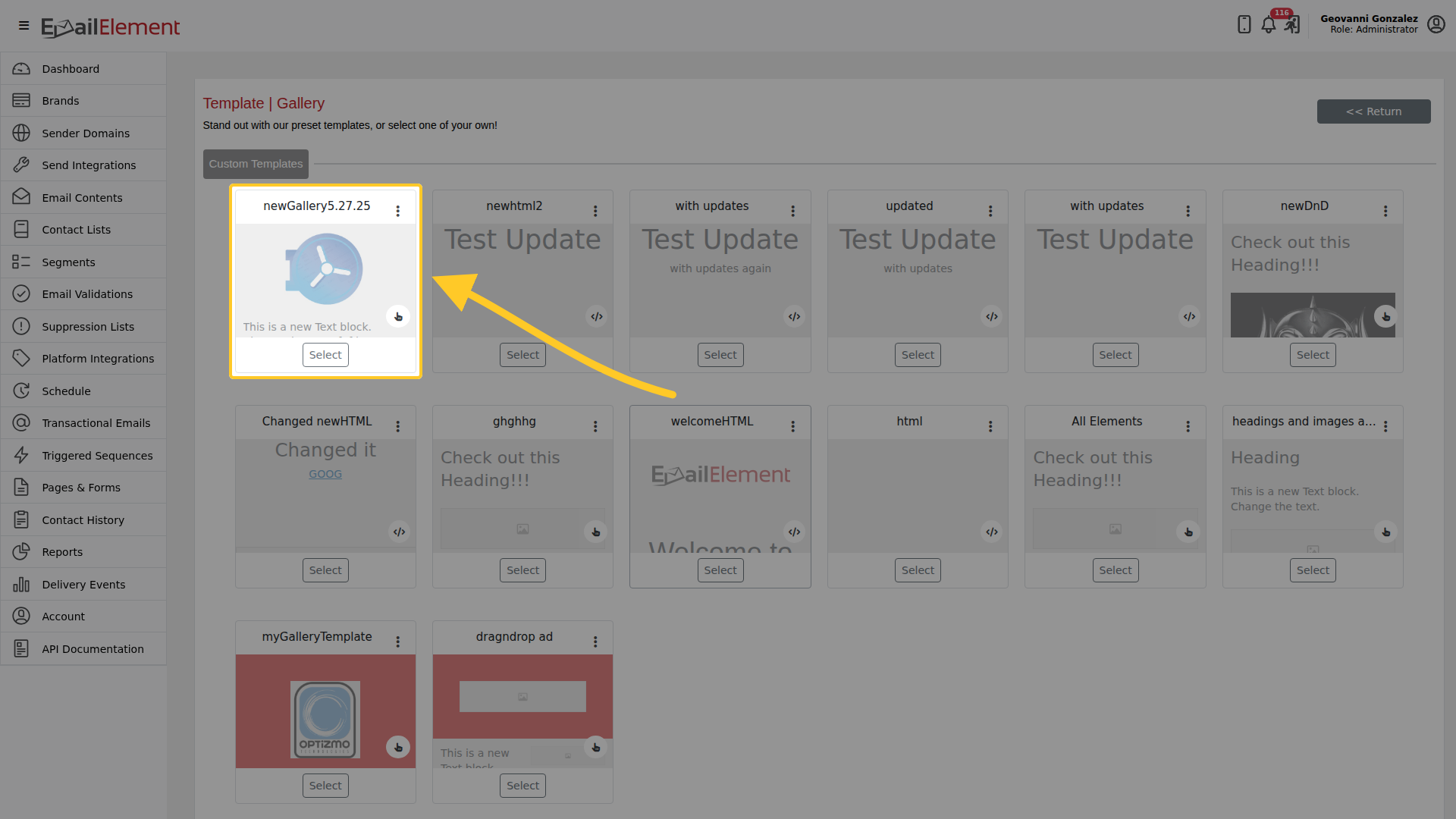
Browse the Gallery opens the built-in templates and anything you saved there yourself. Picking one copies it into this Email Content as a new template, which you then edit like any other.
After you save
The template appears in the Templates grid under Configuration. It has to be Active, and the content needs an active Subject Line and From Name too, before it can be sent.
Related pages
- Email Contents — the content the template belongs to
- Brands — brand headers and footers use the same editors