

SparkPost
To setup Sparkpost for integration with EmailElement, you'll need:
- At least one Email Sending Domain setup
- A valid API Key
Add and Set Up an Email Sending Domain
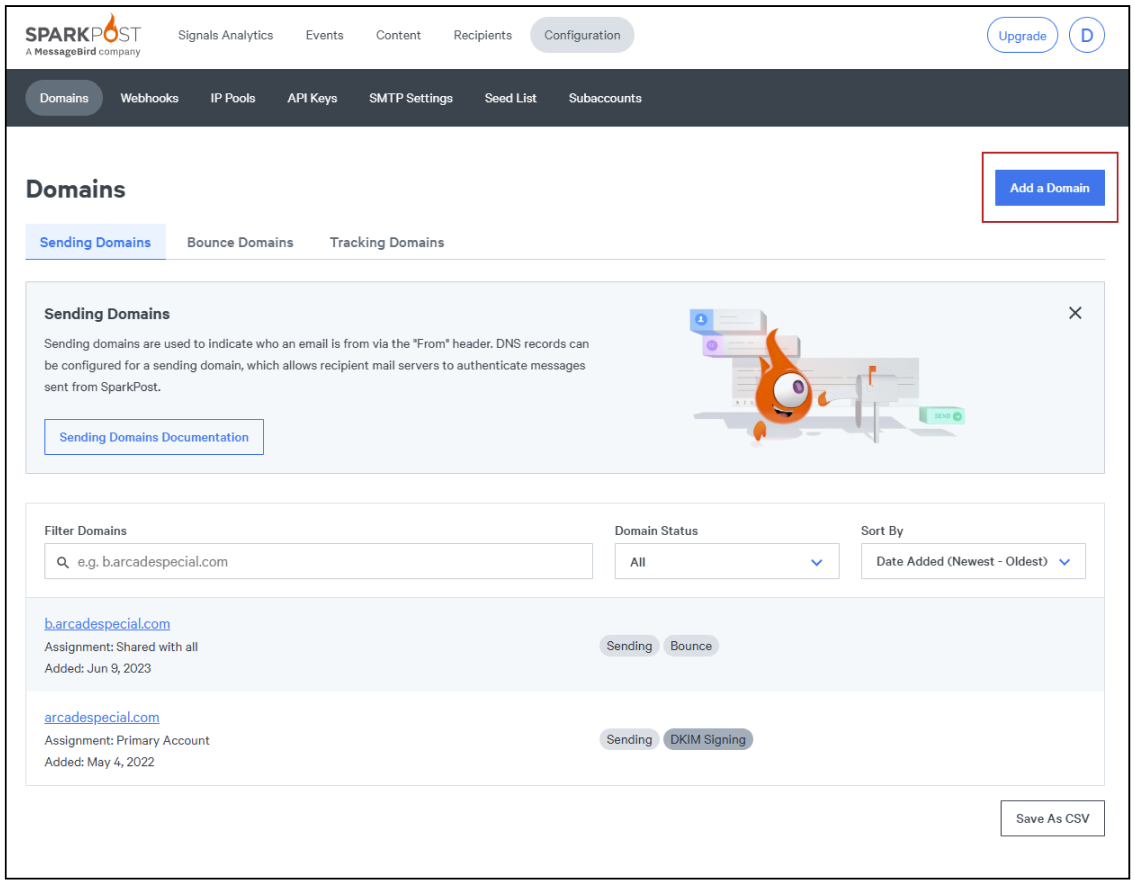
- Log into your account and select “Configuration”, then Domains > Sending Domains tab
- Click “Add a Domain”
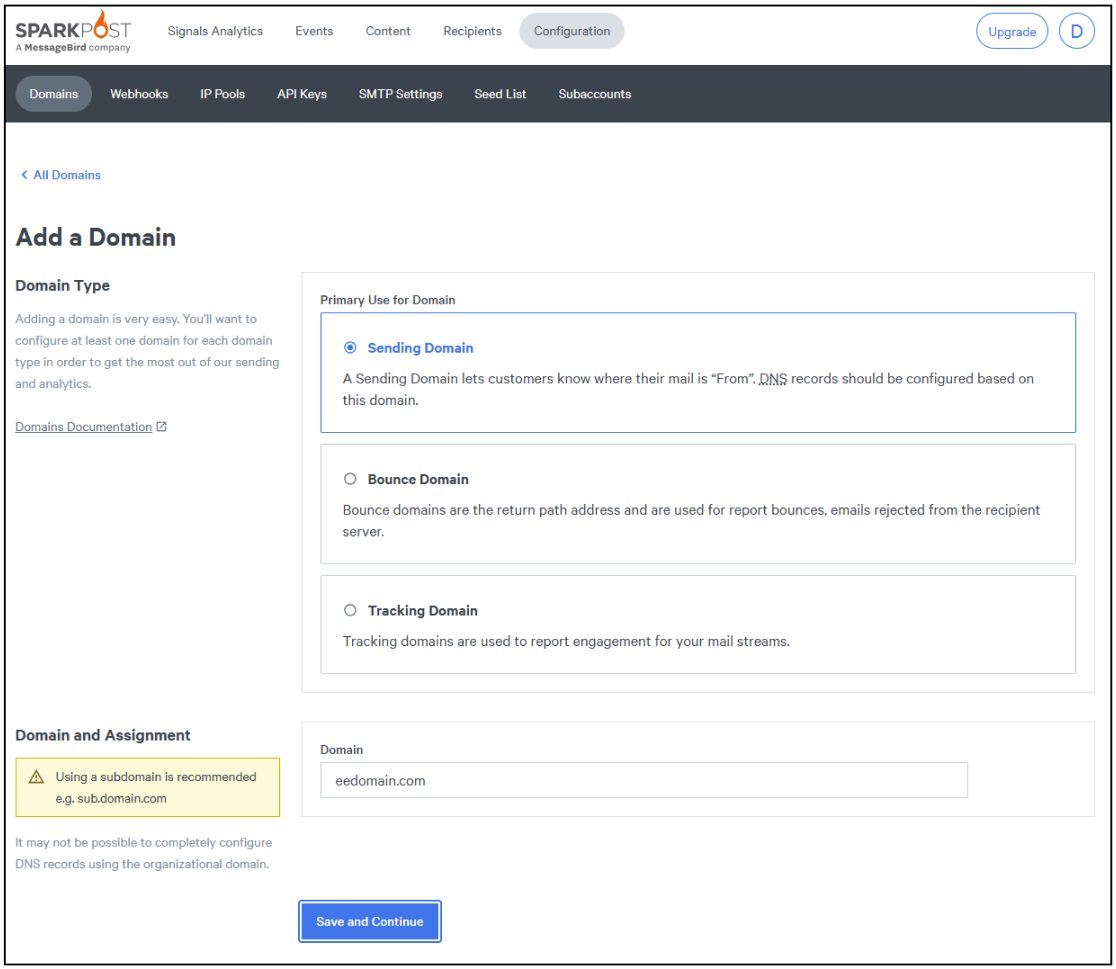
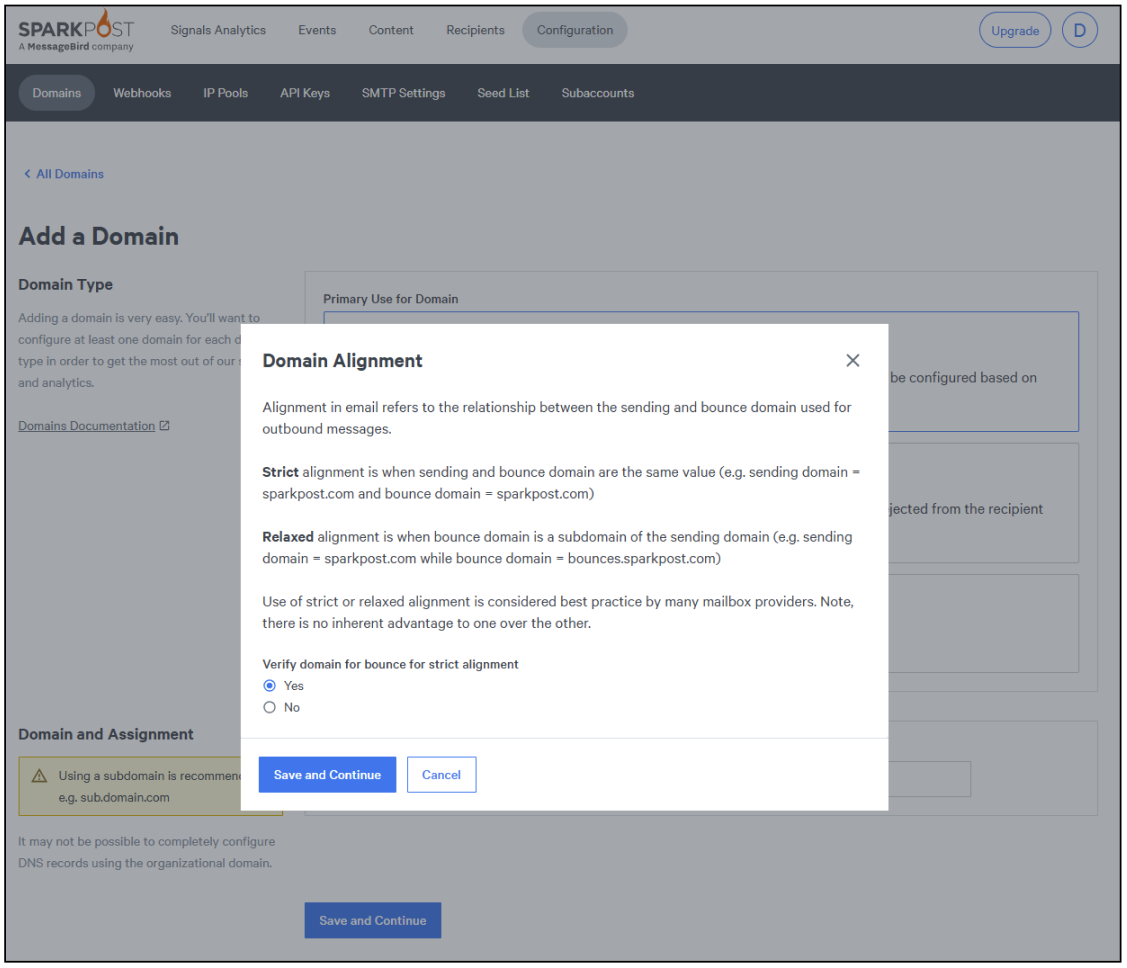
- Click “Save and Continue”, which will then prompt you to select Strict or Relaxed alignment (choose Strict if not using a subdomain), and click “Save and Continue” again.
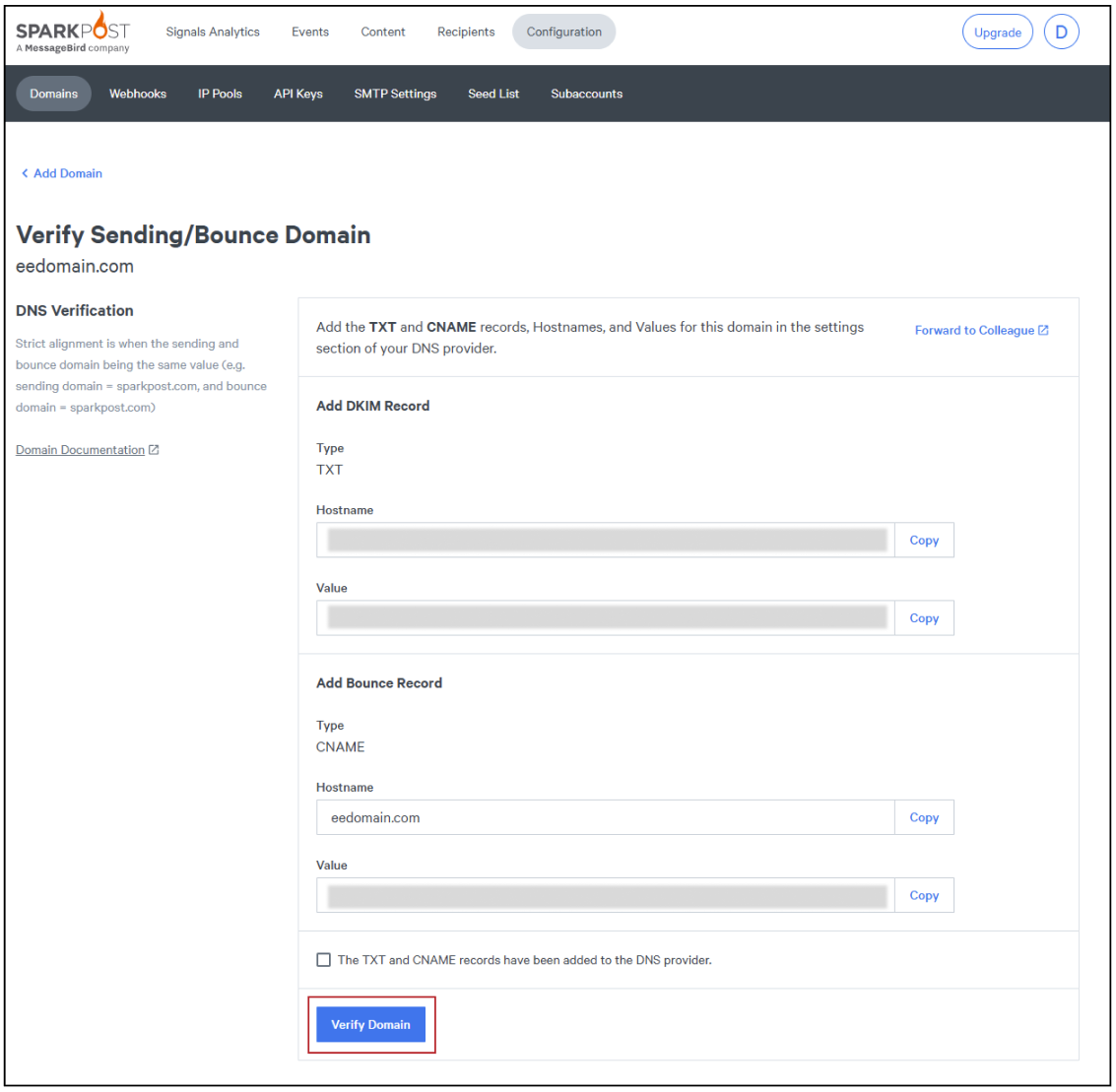
- Once your domain has been added, you will get the DNS records you'll have to add to your domain.
- After you have added these records, click “Verify Domain”
Create a New API Key
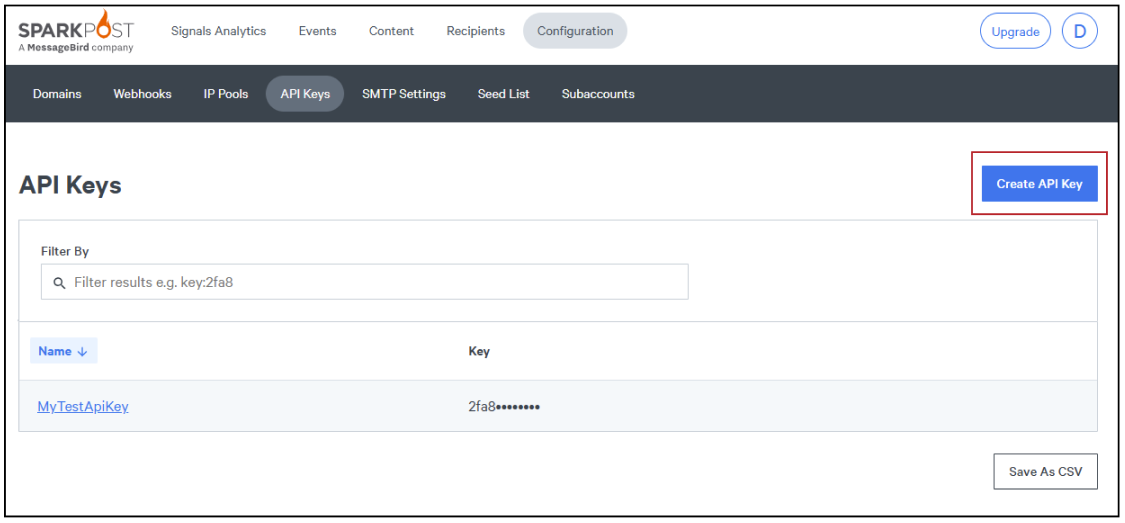
- Select the “API Keys” section and choose “Create API Key”
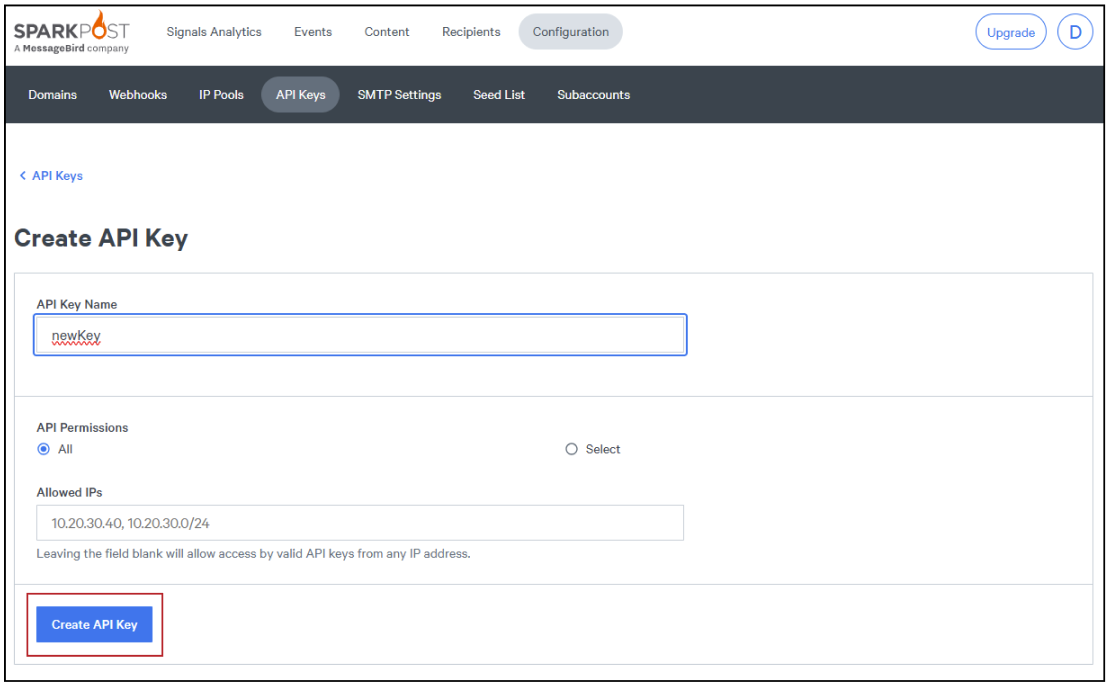
- Enter your API Key Name and click “Create API Key”
Set Up SparkPost in EmailElement
- Go to Send Integrations and create a new integration
- Integration Type: API
- ESP: SparkPost
- API Key: the key you just created. It needs the Transmissions: Read/Write permission.
- Save the integration, then click "Run Test"