
Contact History Walkthrough
Overview
Contact History provides a complete view of a single contact's data, list membership, and engagement activity across all campaigns.
Step 1: Search for a Contact
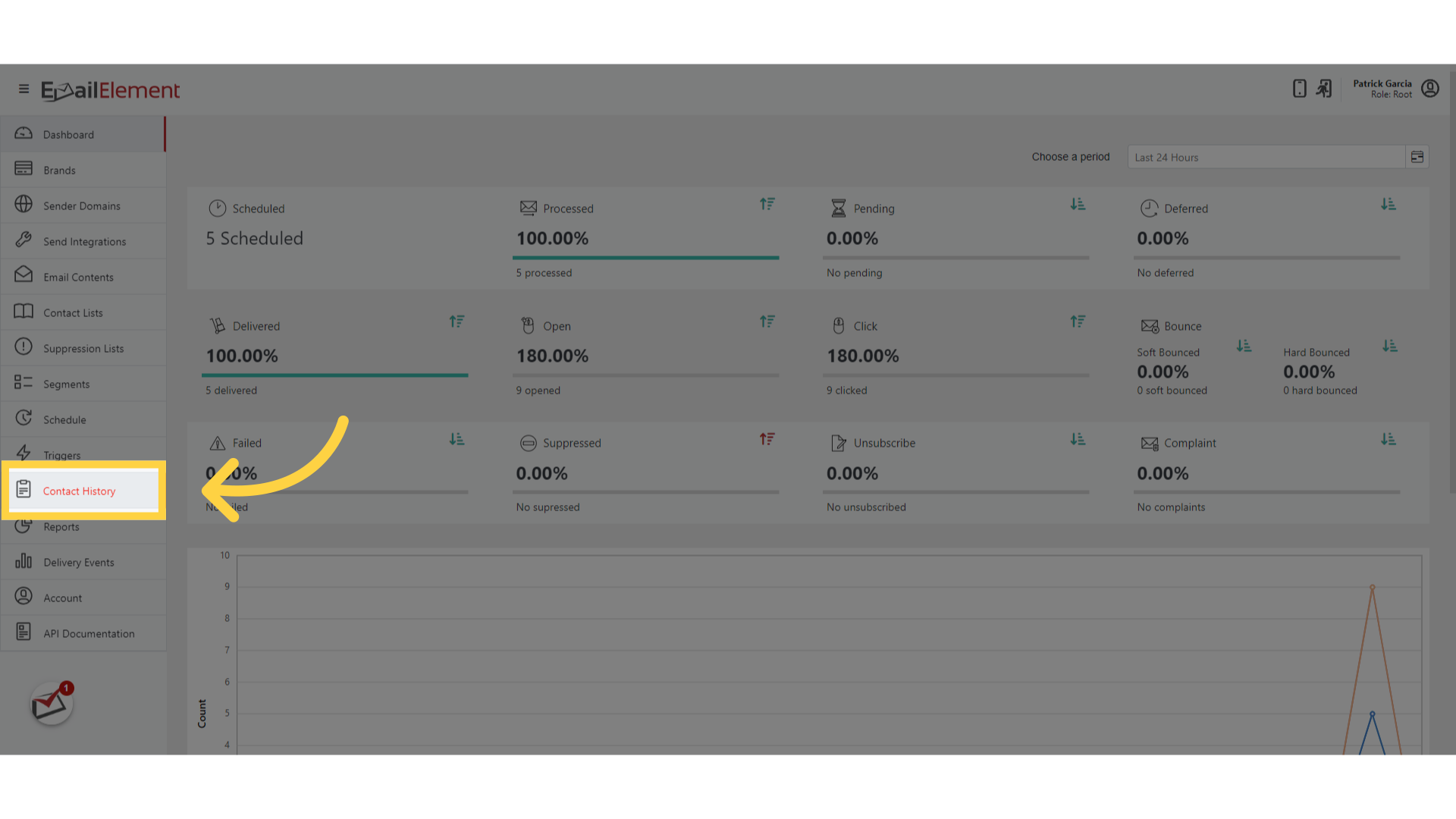
Navigate to Contact History from the sidebar
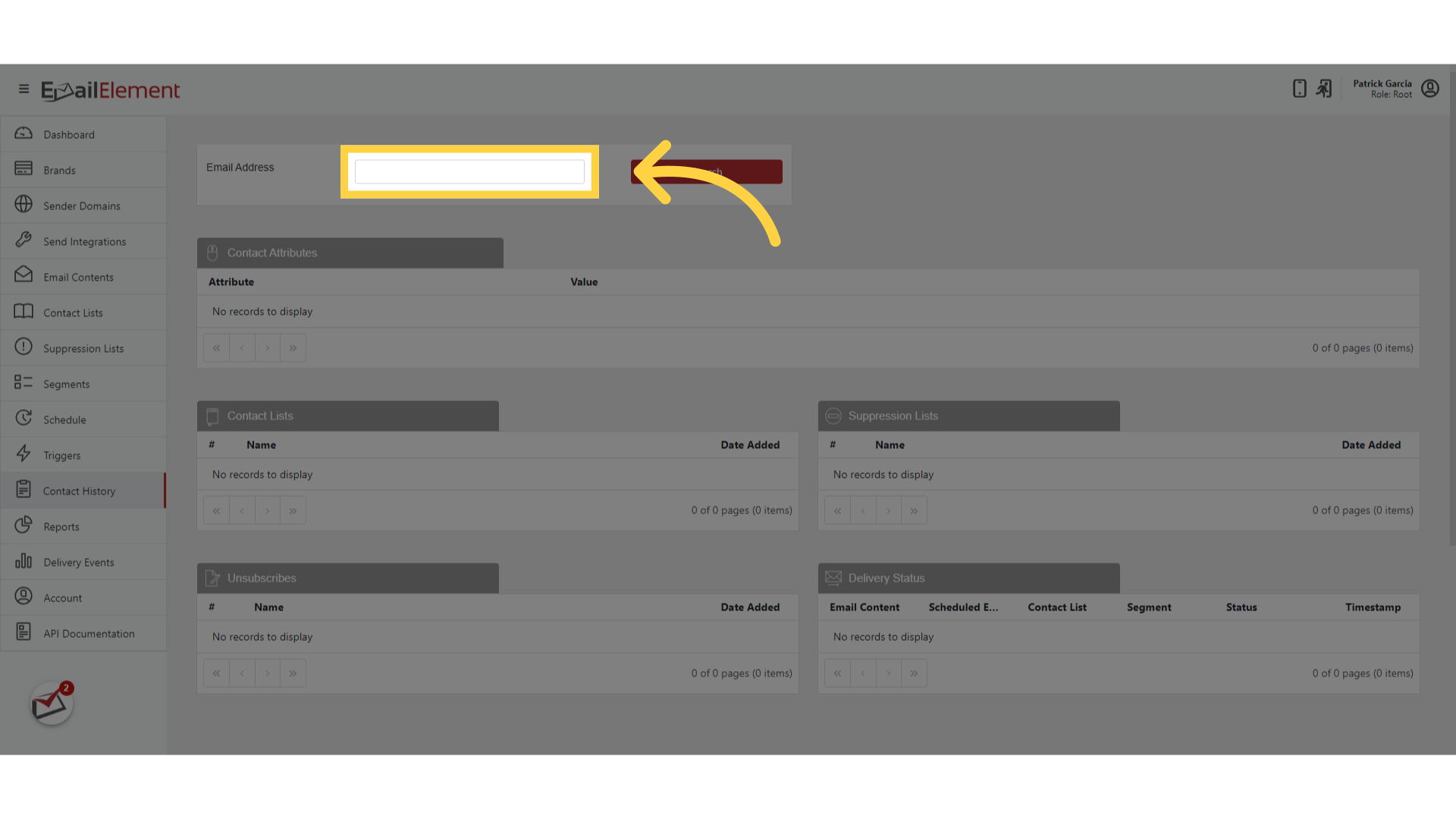
Enter the contact's email address in the search field
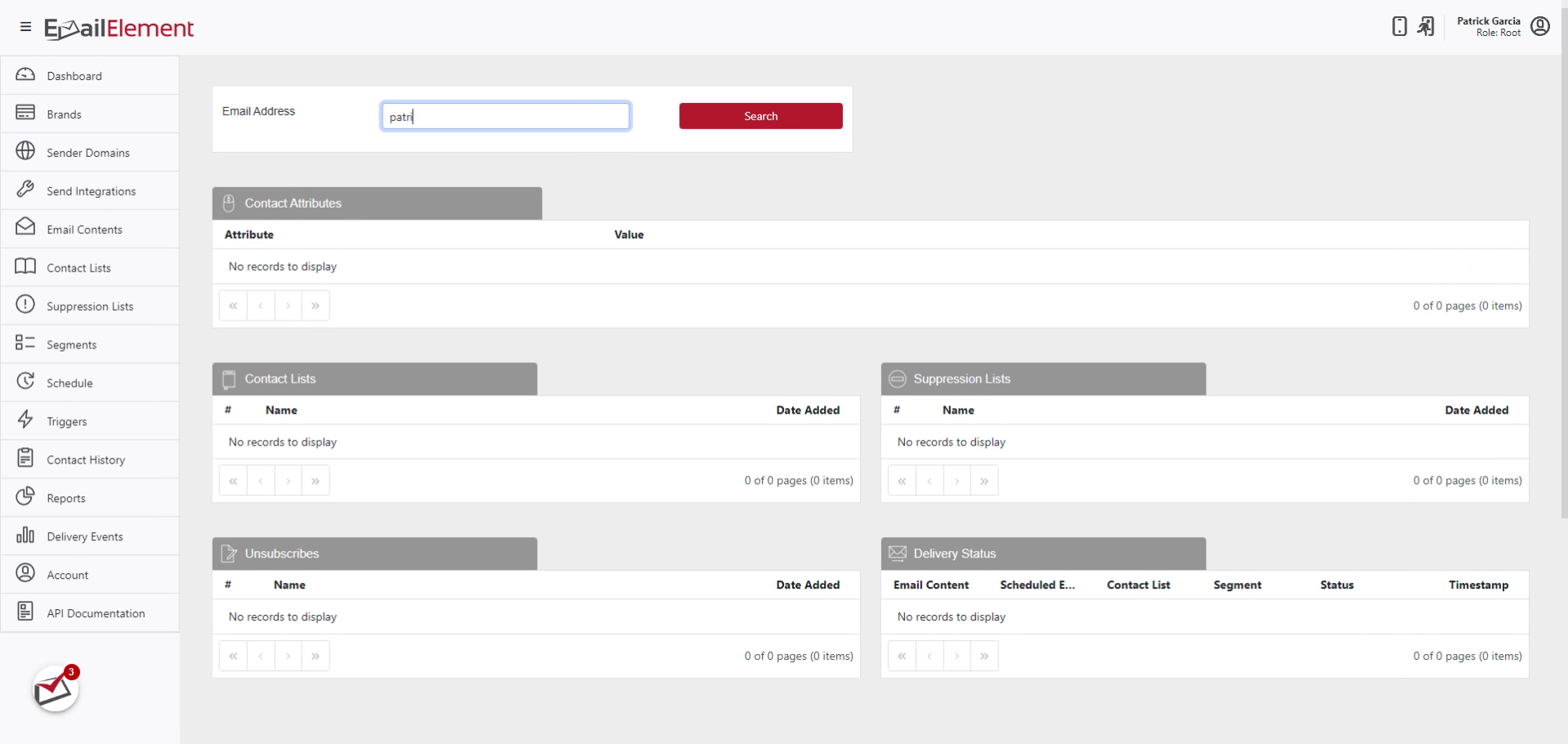
Click Search
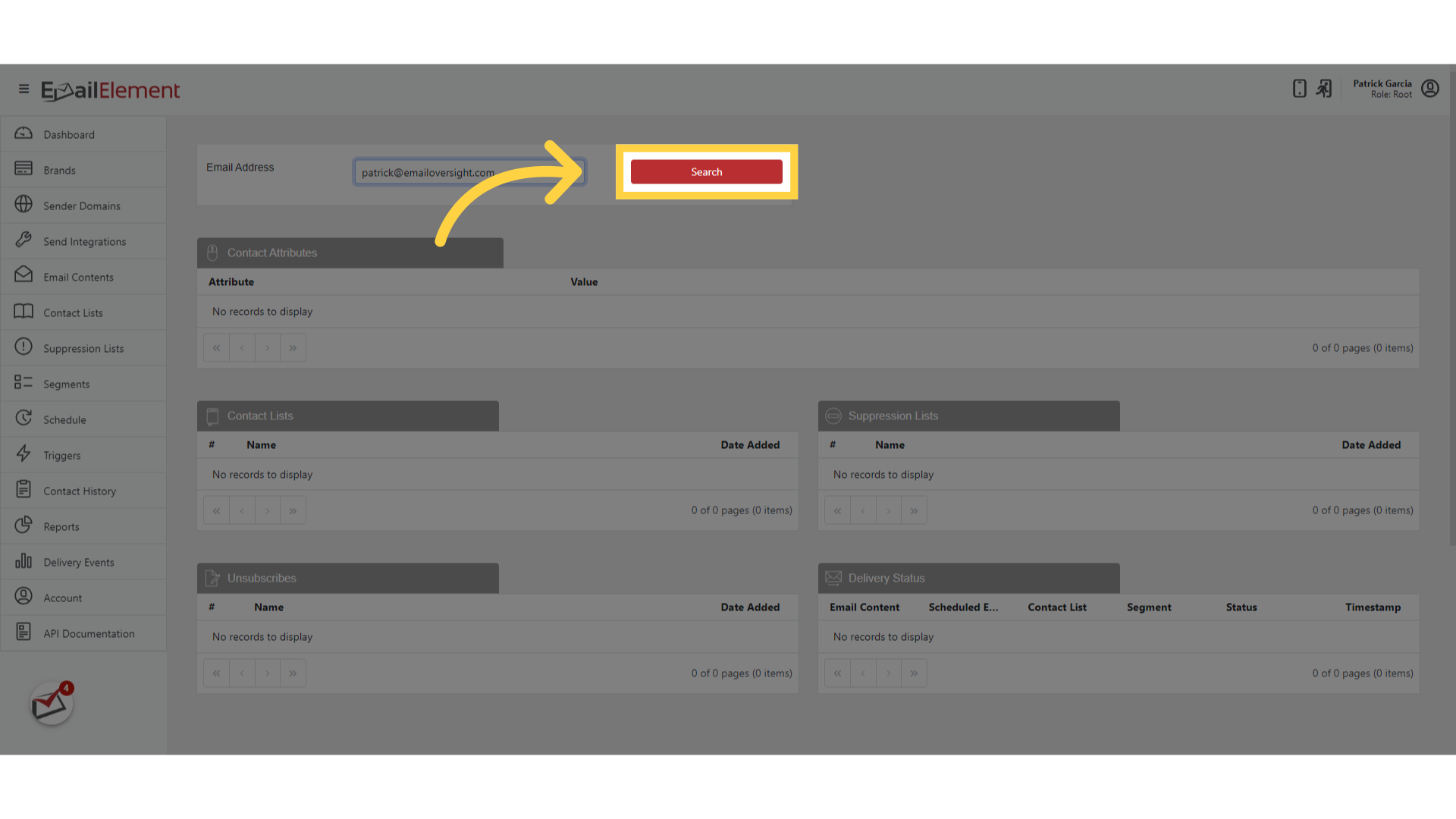
If the contact exists in any Contact List, their profile loads
Step 2: View Contact Attributes
The Contact Attributes section displays all stored field values:
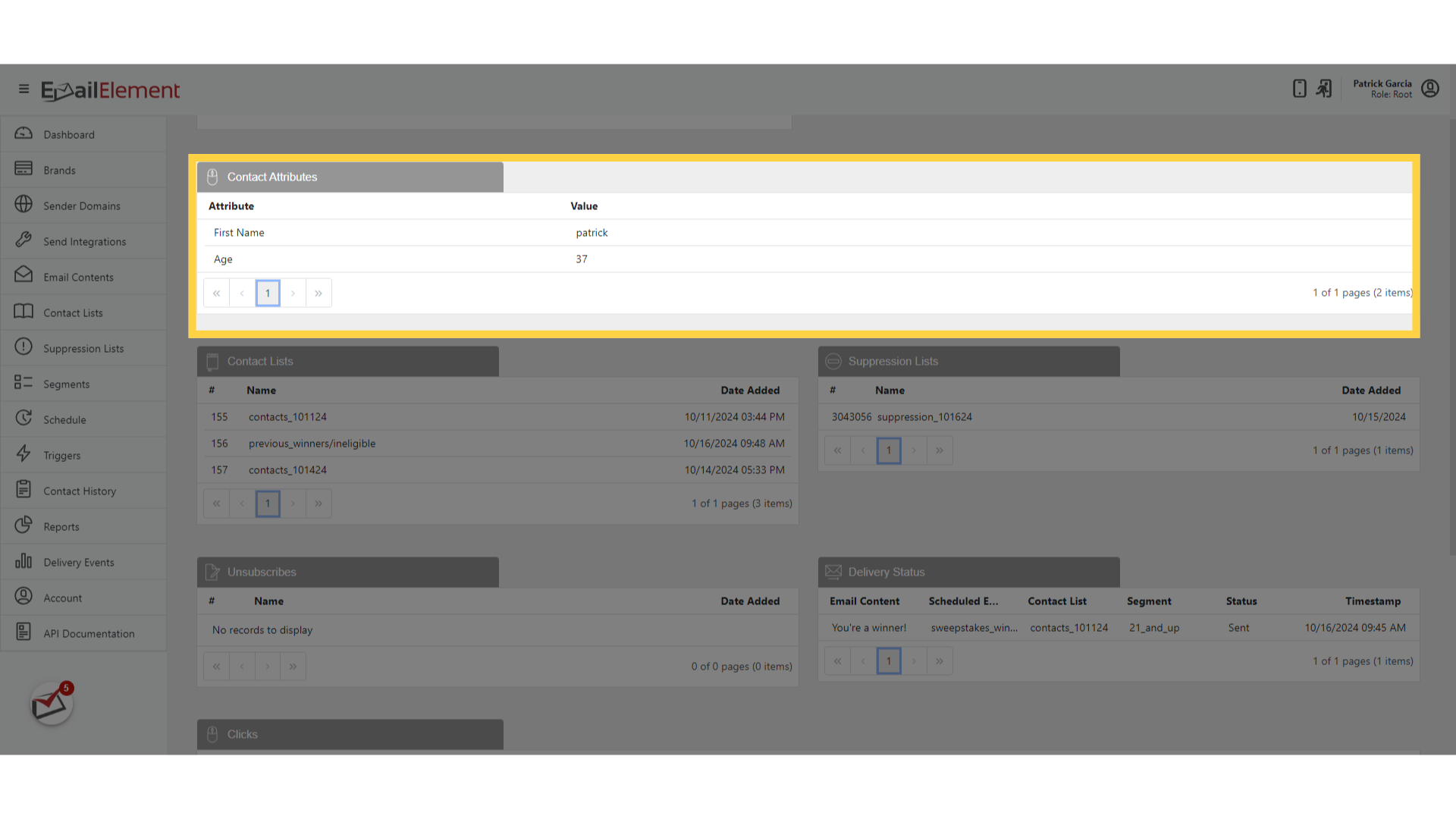
- Standard fields: Email, First Name, Last Name, Phone, Address, City, State, Zip, Country
- Custom fields: any additional fields defined on the Contact Lists this contact belongs to
If the contact exists in multiple lists, attributes from all lists are aggregated
This data reflects the most recent values (updated by imports, API calls, or form submissions)
Step 3: View List Membership
Contact Lists
Shows every Contact List the contact belongs to
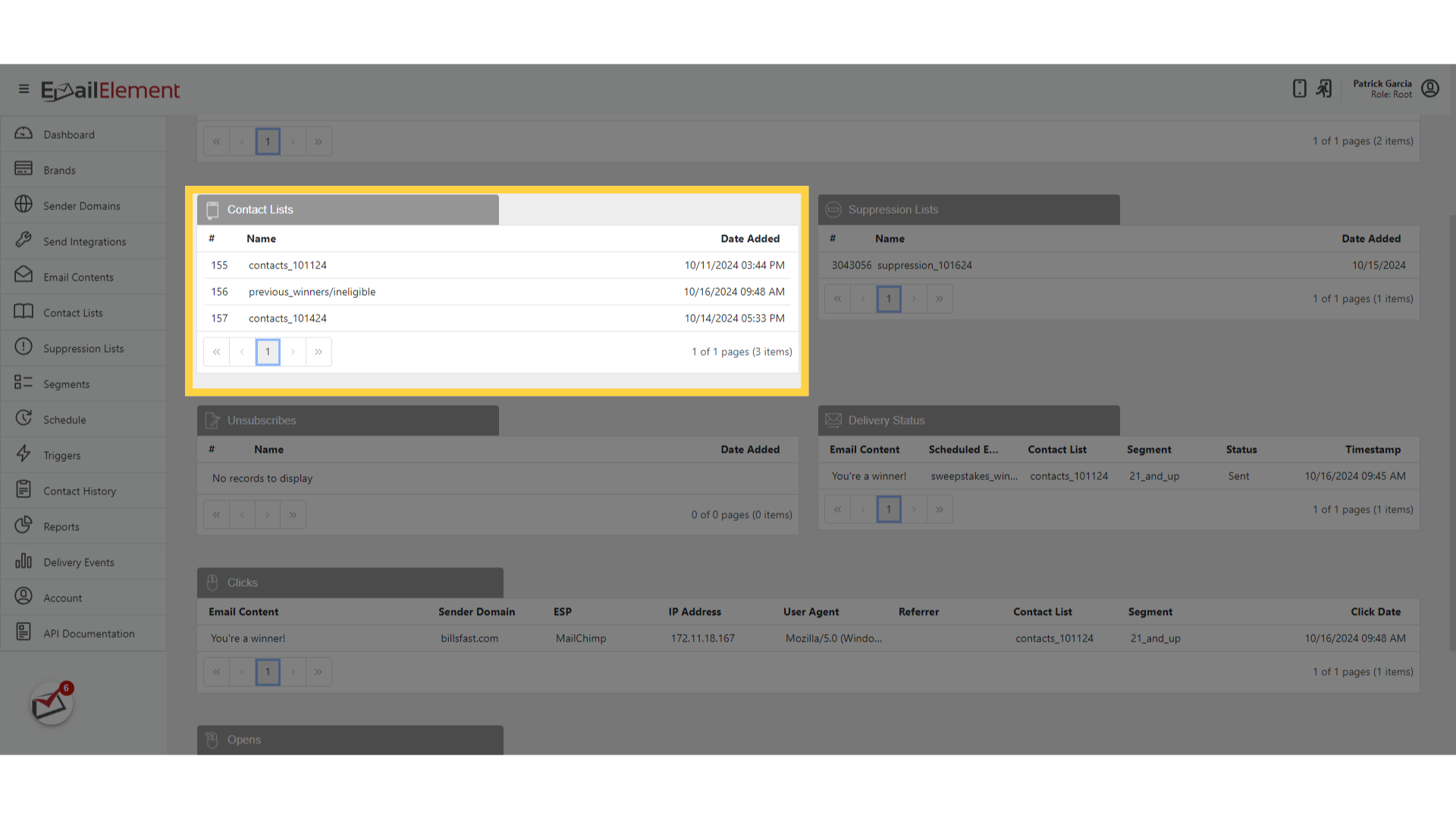
Includes lists the contact was added to via:
- CSV import
- Contact API
- Triggered Sequence actions
- Form submissions
Each entry shows the list name and the date the contact was added
Suppression Lists
Shows every Suppression List the contact appears on
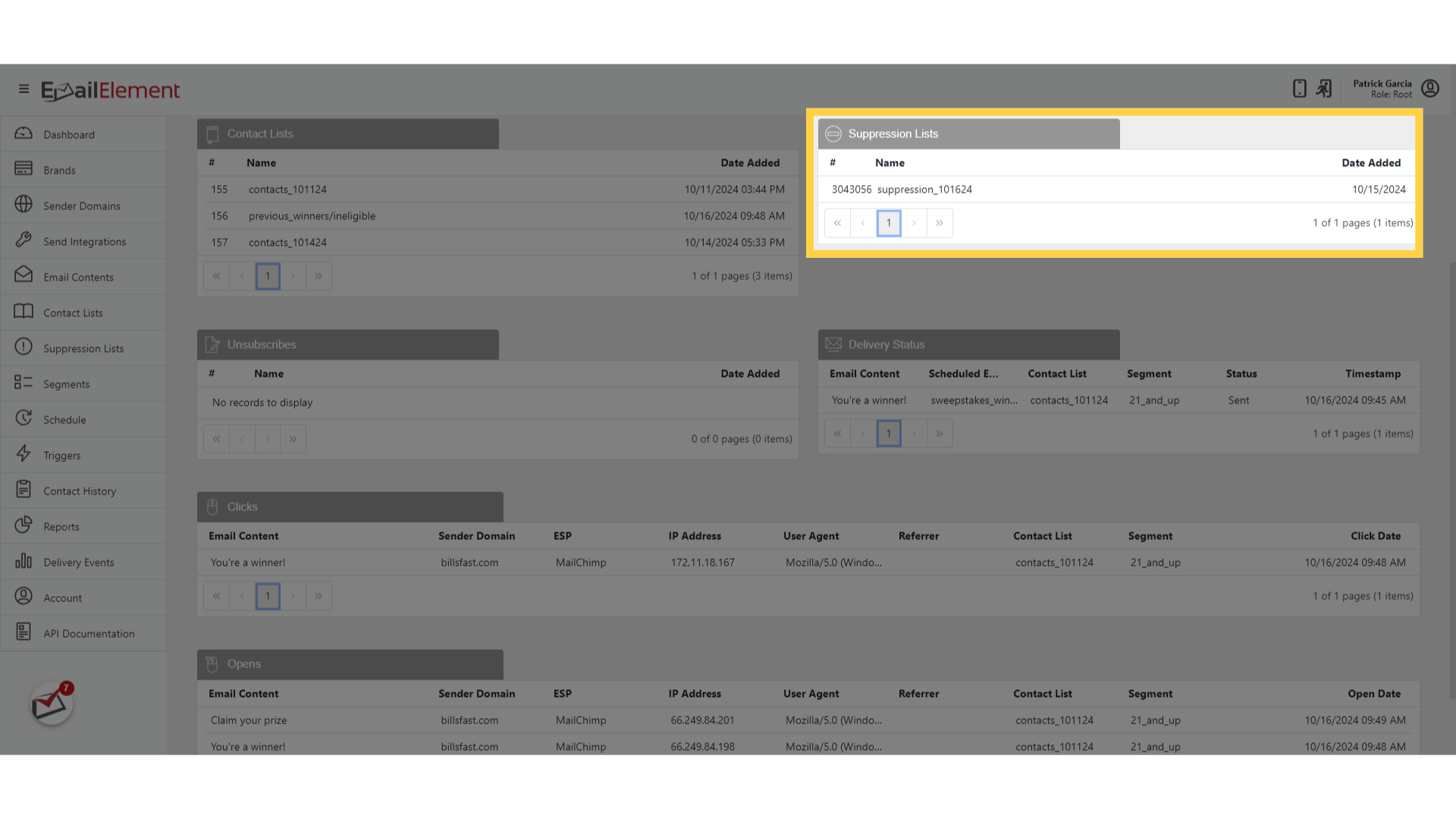
Includes the suppression reason (hard bounce, complaint, manual addition, etc.)
A contact on a suppression list will not receive emails from campaigns using that list
Unsubscribes
Shows brand-level unsubscribe records
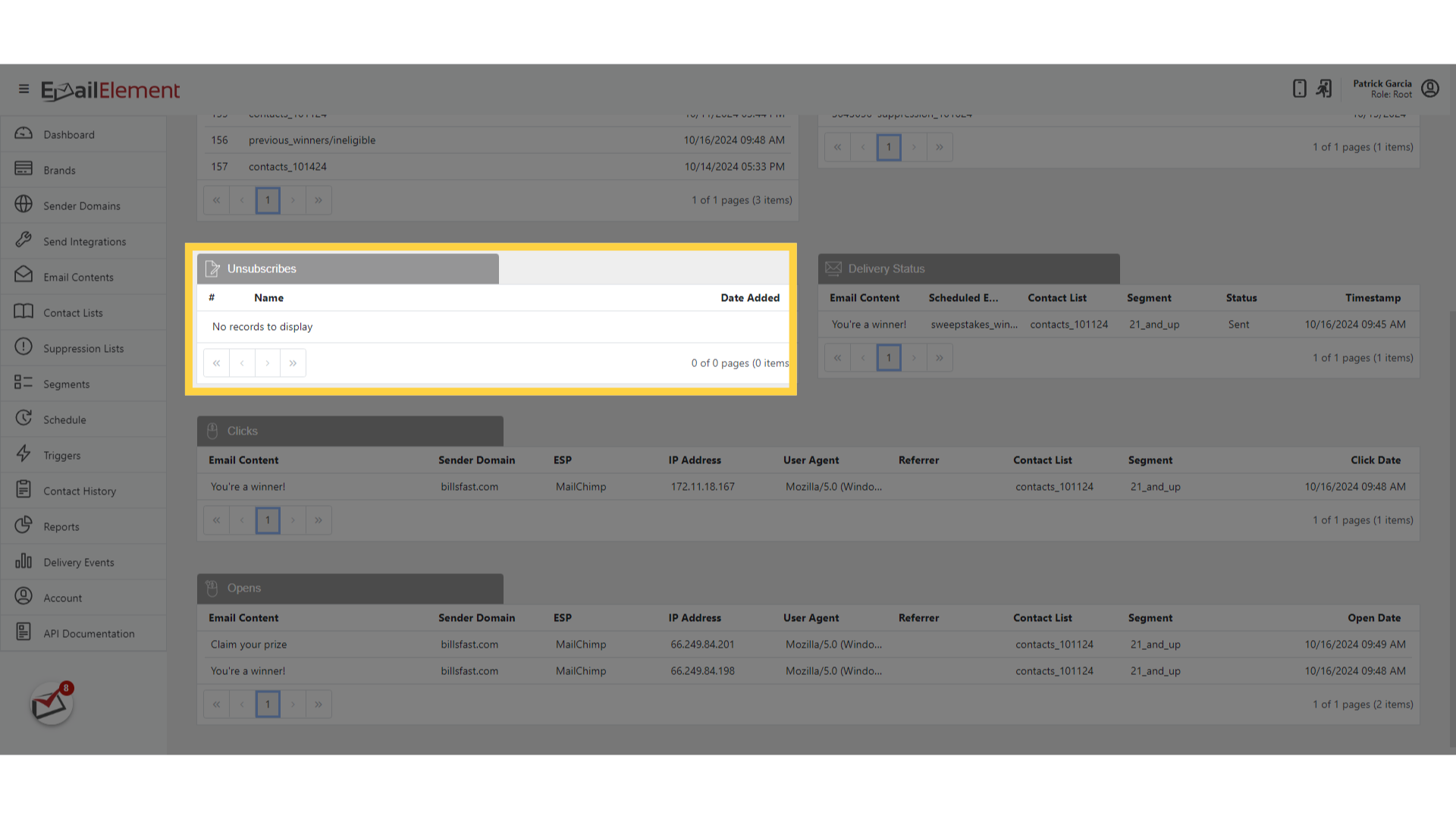
Includes the date of unsubscribe and the method (link click, manual, etc.)
Unsubscribed contacts are automatically suppressed from future sends for that brand
Step 4: View Engagement Data
Delivery Status
A chronological list of all emails sent to this contact
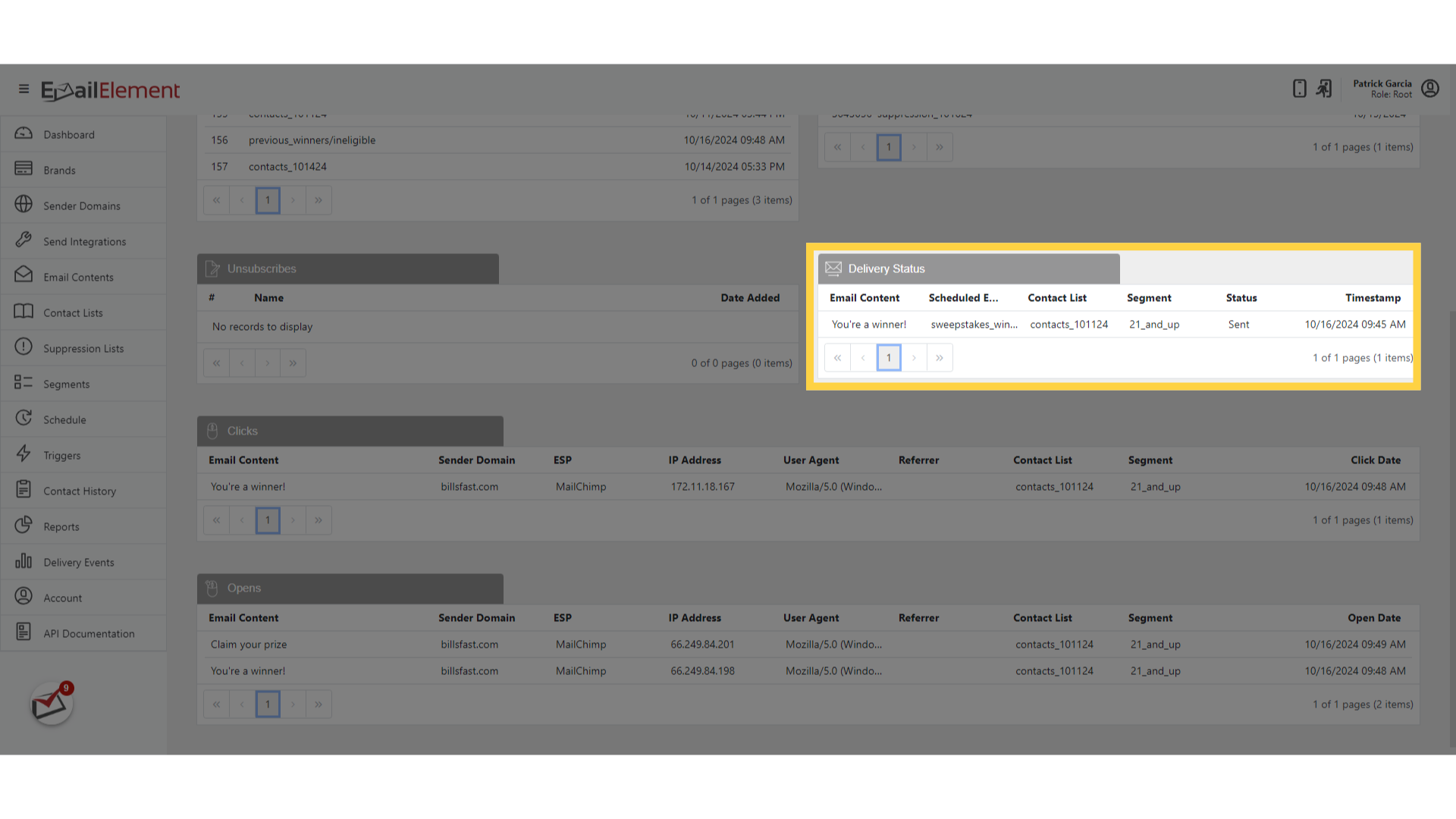
Each entry shows:
- Scheduled Email name
- Event Type (Sent, HardBounced, SoftBounced, Failed, Suppressed, etc.)
- Timestamp
- Send Integration and ESP used
Use this to see if a specific campaign reached the contact
Clicks
All link clicks by this contact across all campaigns
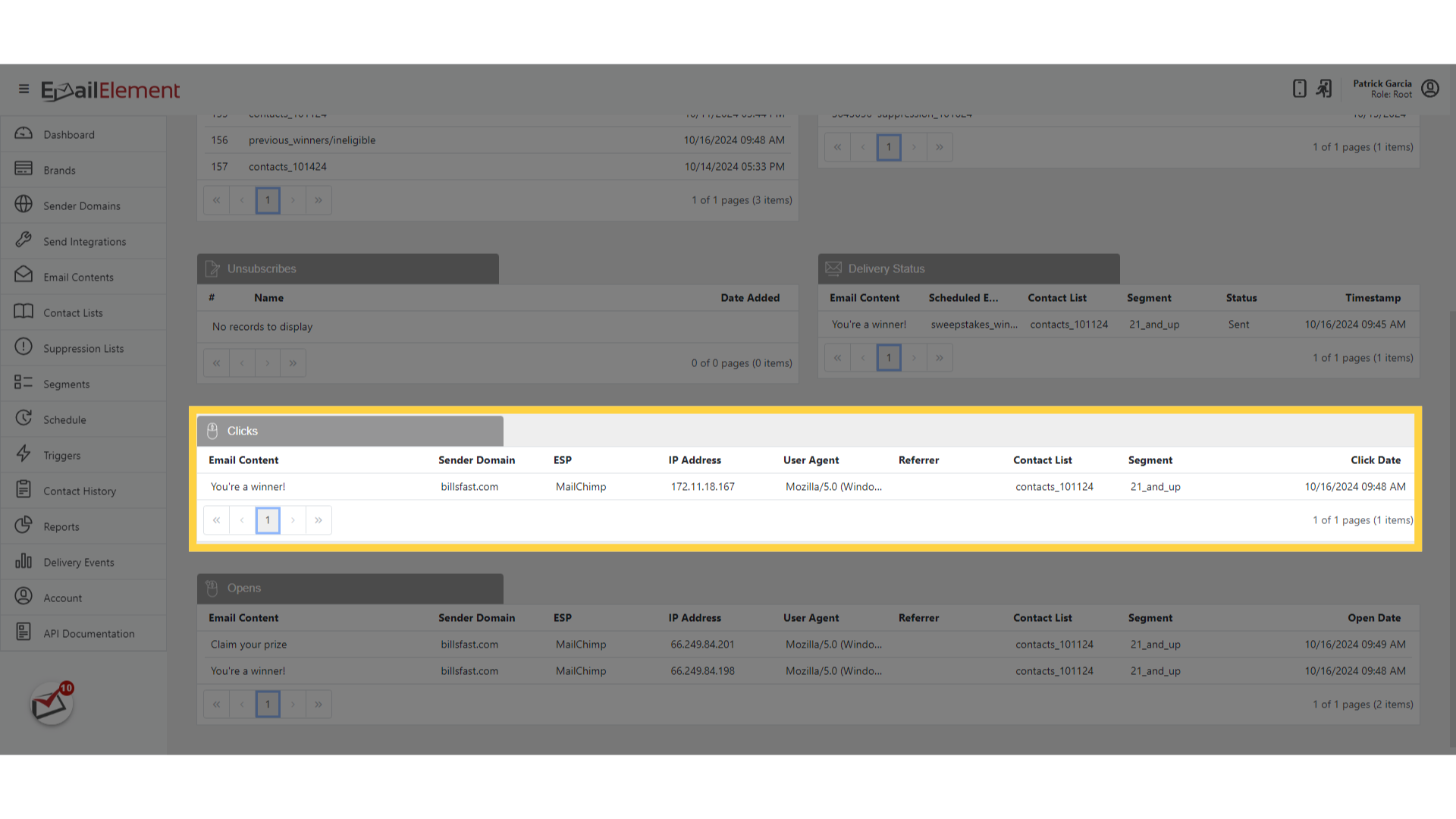
Each entry shows:
- URL clicked
- Timestamp of the click
- Email Content the link was in
Multiple clicks on the same link appear as separate entries
Opens
All email opens recorded for this contact
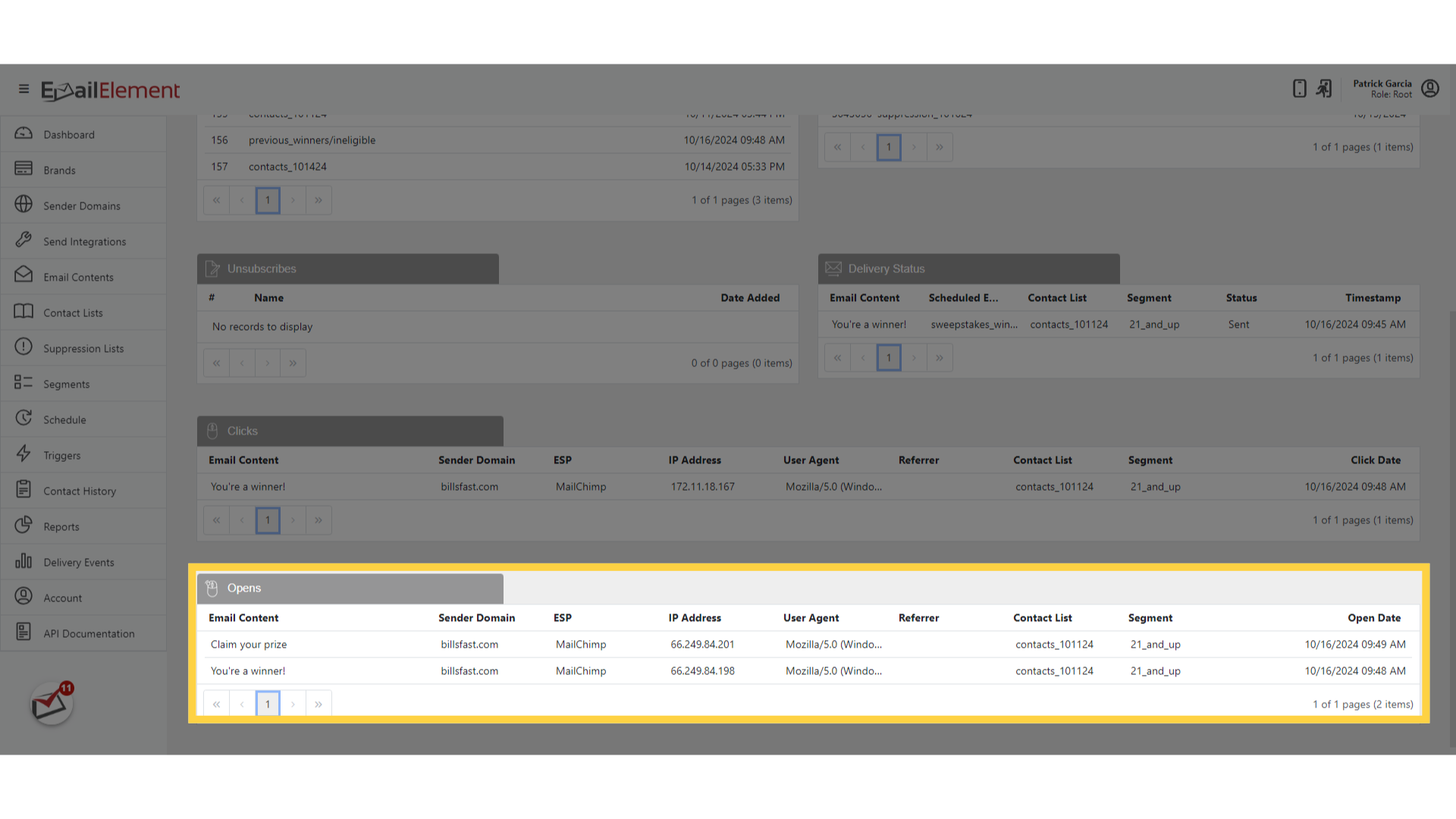
Each entry shows:
- Timestamp of the open
- Email Content opened
- Client info (IP address, user agent when available)
Note: opens rely on tracking pixel loading; some email clients block this
Common Use Cases
- Delivery troubleshooting: Search for a contact who reports not receiving emails > check Delivery Status for bounces or suppressions
- Compliance verification: Confirm a contact is on the correct suppression lists after an unsubscribe request
- Engagement analysis: Review a high-value contact's open and click history to understand their interests
- Data verification: Confirm that API or import operations correctly updated a contact's attributes
- List audit: Check which Contact Lists a contact belongs to and when they were added