
Optizmo
To set up your Optizmo account with EmailElement for Auto-Suppression List downloads, you'll need:
- Access Key
- API Key
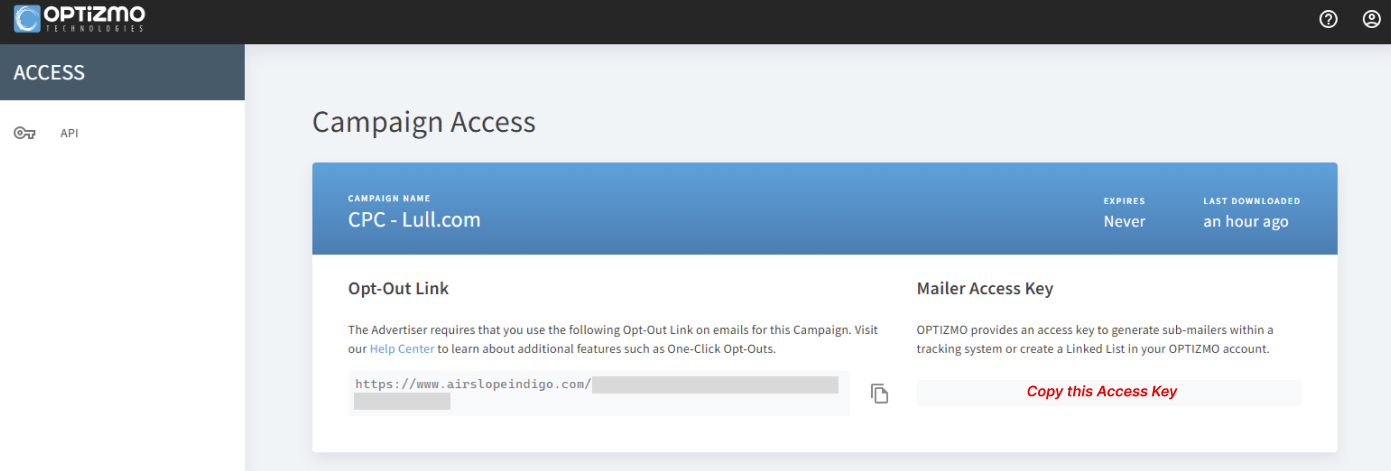
From your Campaign Access in your Optizmo account, copy the Access Key:
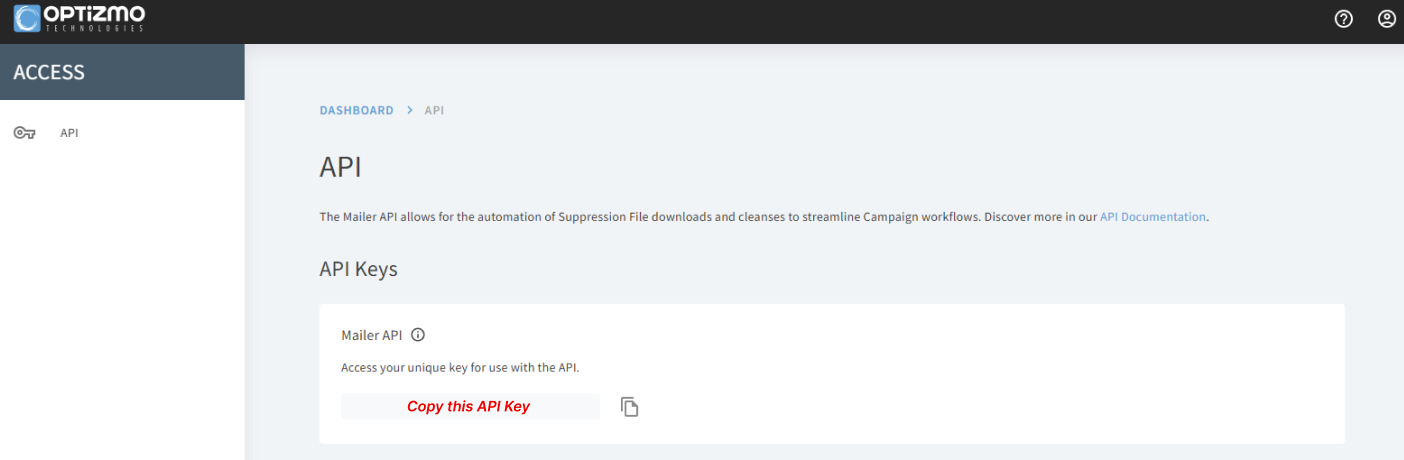
Go to the API section and copy the API Key:
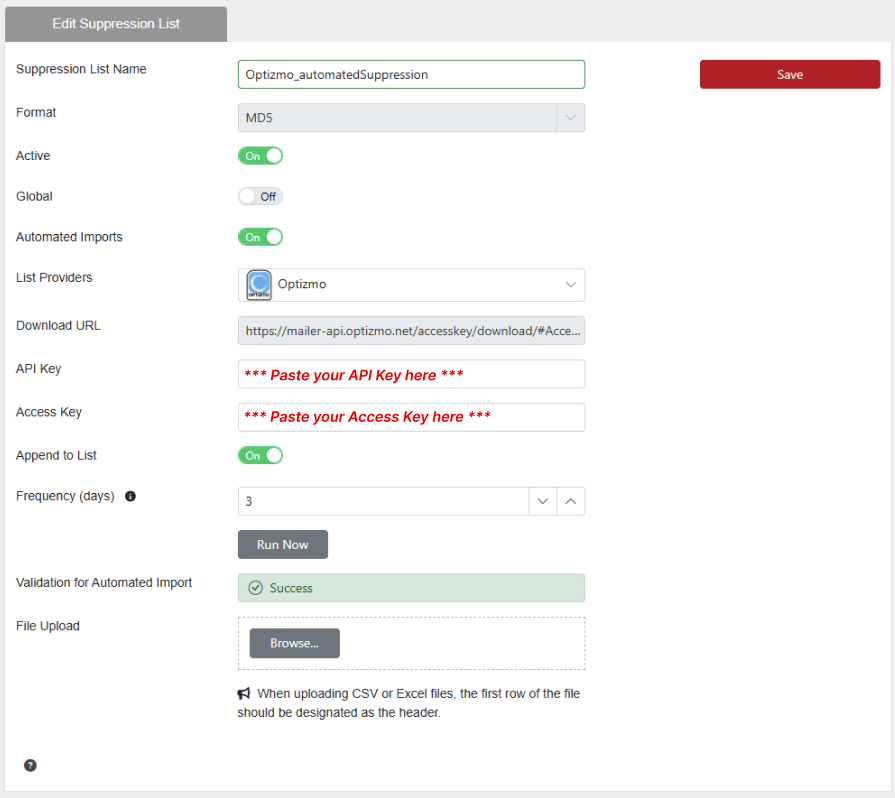
Now you're ready to paste your keys into the appropriate fields in your Suppression List in EmailElement:
Set Up the Import in EmailElement
- Go to Suppression Lists and create or open a list. Optizmo sends MD5 hashes, so the list format must be MD5.
- Turn on Automated Imports.
- Select Optizmo from the List Provider dropdown.
- Enter the Access Key and API Key. The Download URL fills in for you.
- Set the Frequency. Daily keeps the list current with opt-out requests.
- Click Save, then Run Now to pull the first file.
Checking It Worked
- The upload history on the suppression list shows each run and how many records it processed.
- If a run fails, check the keys for stray spaces, that API access is enabled on the Optizmo account, and that the list format is MD5.
- Each import appends to the list, so the count grows over time. Update the keys here as soon as they change in Optizmo.