

EmailElement (Beta)
EmailElement can send your email itself, so there is no outside email service provider to sign up for and no API key to paste in. You add a sender domain that sends through EmailElement, publish the DNS records it gives you, and connect the domain to a send integration that uses EmailElement.
Beta. Sending through EmailElement is in beta. It is turned on per account: when it is off, the EmailElement option does not appear. To have it turned on, contact support@emailelement.com.
What You Need
- An account with EmailElement sending turned on
- Access to the DNS settings of the domain you want to send from
There is no webhook to create and no API key to enter. The DNS records in Step 2 are what the domain needs.
Step 1: Create the Sender Domain
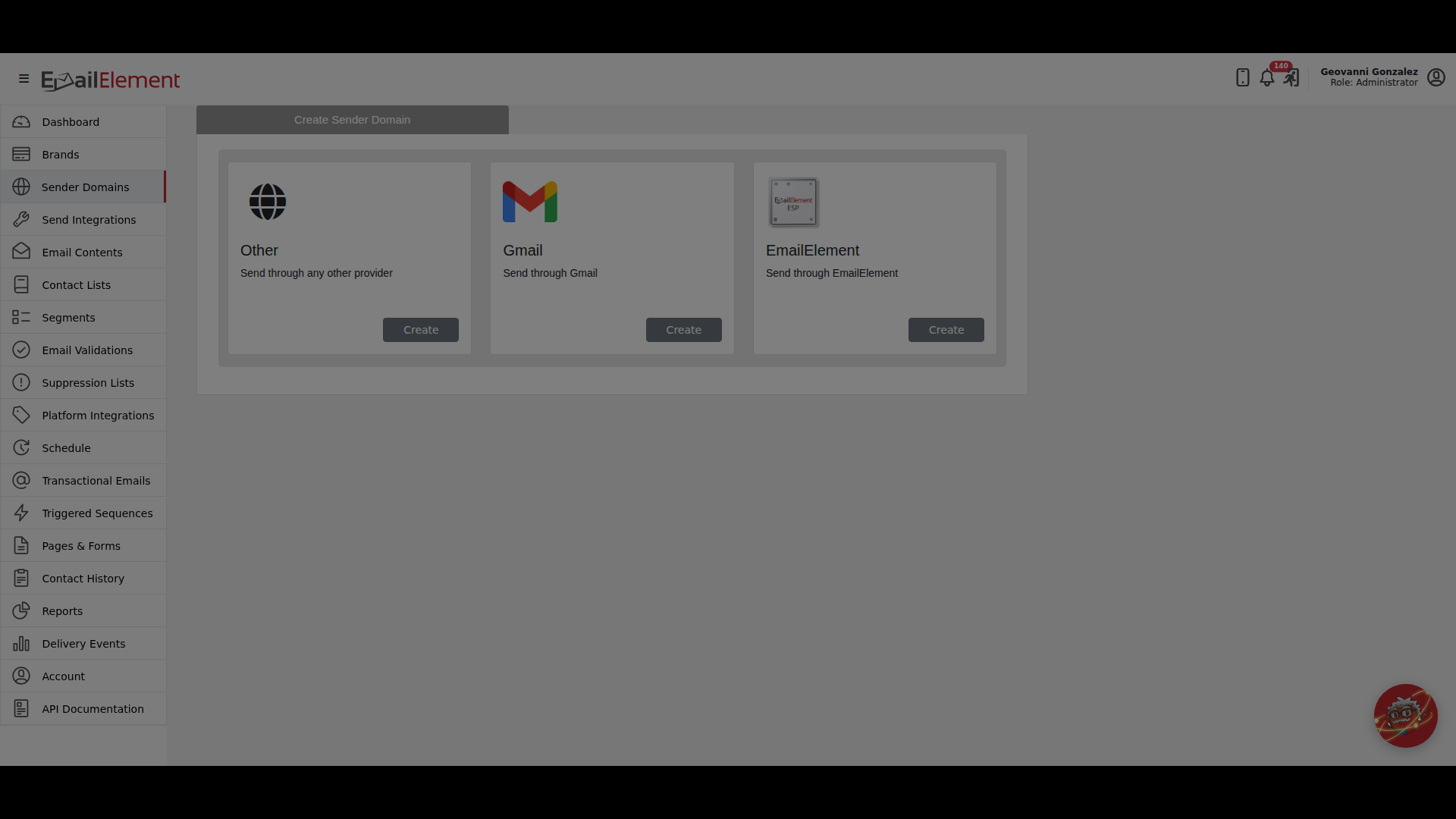
Go to Sender Domains and click Create Sender Domain.
Pick EmailElement (Send through EmailElement) and click Create. The choice stays with the domain, as the Sender Domain Walkthrough explains.
Enter the Domain, pick a Brand, and fill in From Name and From Email.
Click Create.
An EmailElement domain shows fewer sections than one for another provider. Webhook, Bounce Processing and the Yahoo feedback loop are not shown. Reply-To and Recipient Name are still under Advanced.
Step 2: Publish the DNS Records
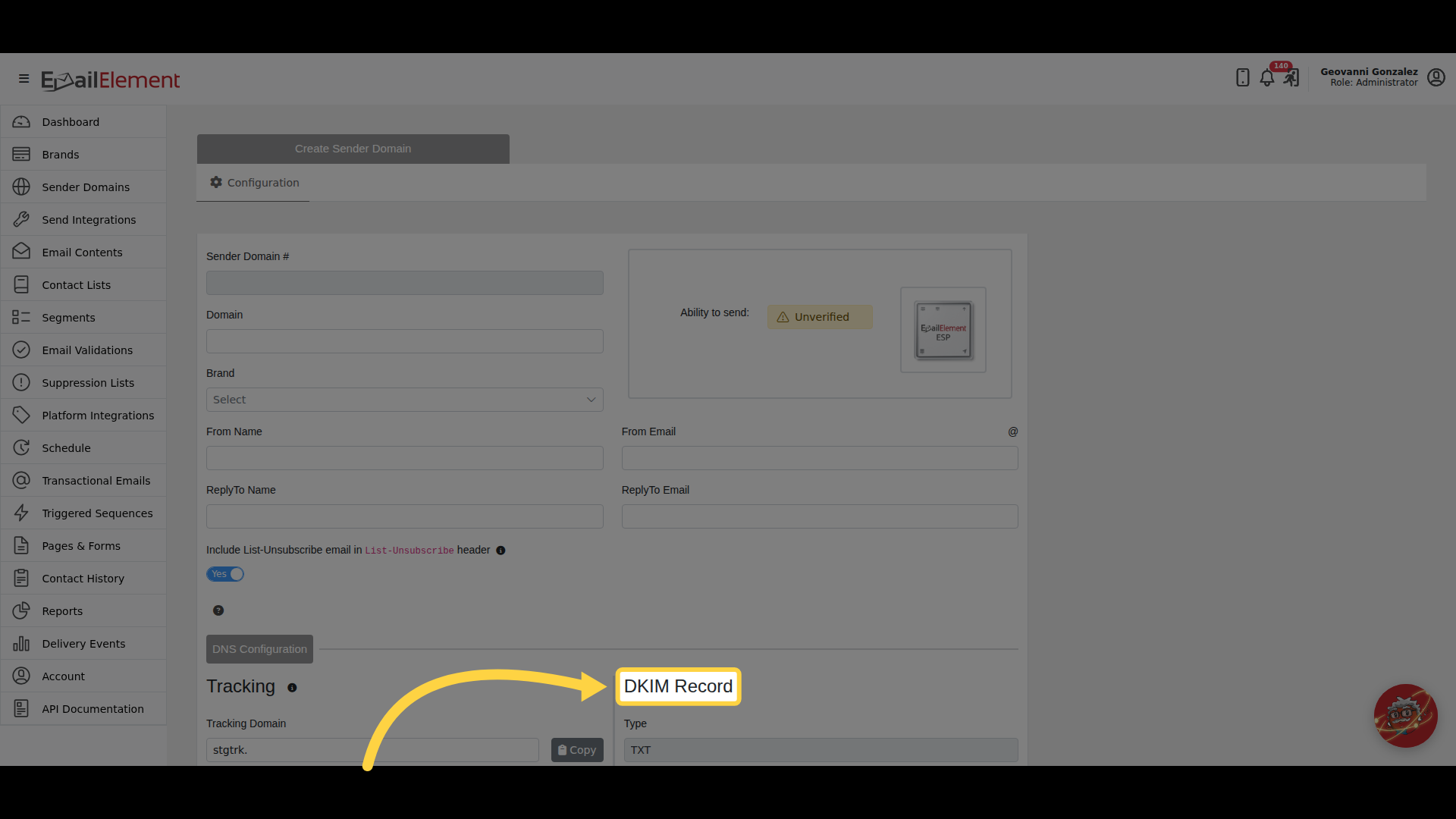
Under DNS Configuration, an EmailElement domain lists the records to add at your DNS provider. Each one has Copy buttons and its own state.
- Tracking lets EmailElement count opens and clicks. What its state means for sending is on the Sender Domain Walkthrough.
- DKIM Record is a TXT record holding the key EmailElement signs your email with.
- DMARC Record is a TXT record that sends DMARC reports to EmailElement.
A domain can only have one DMARC record. A second one switches DMARC off for the whole domain, and the DMARC check stays red. If your domain already has a DMARC record, add the reporting address from the DMARC Record value to the rua of the record you have, instead of adding another.
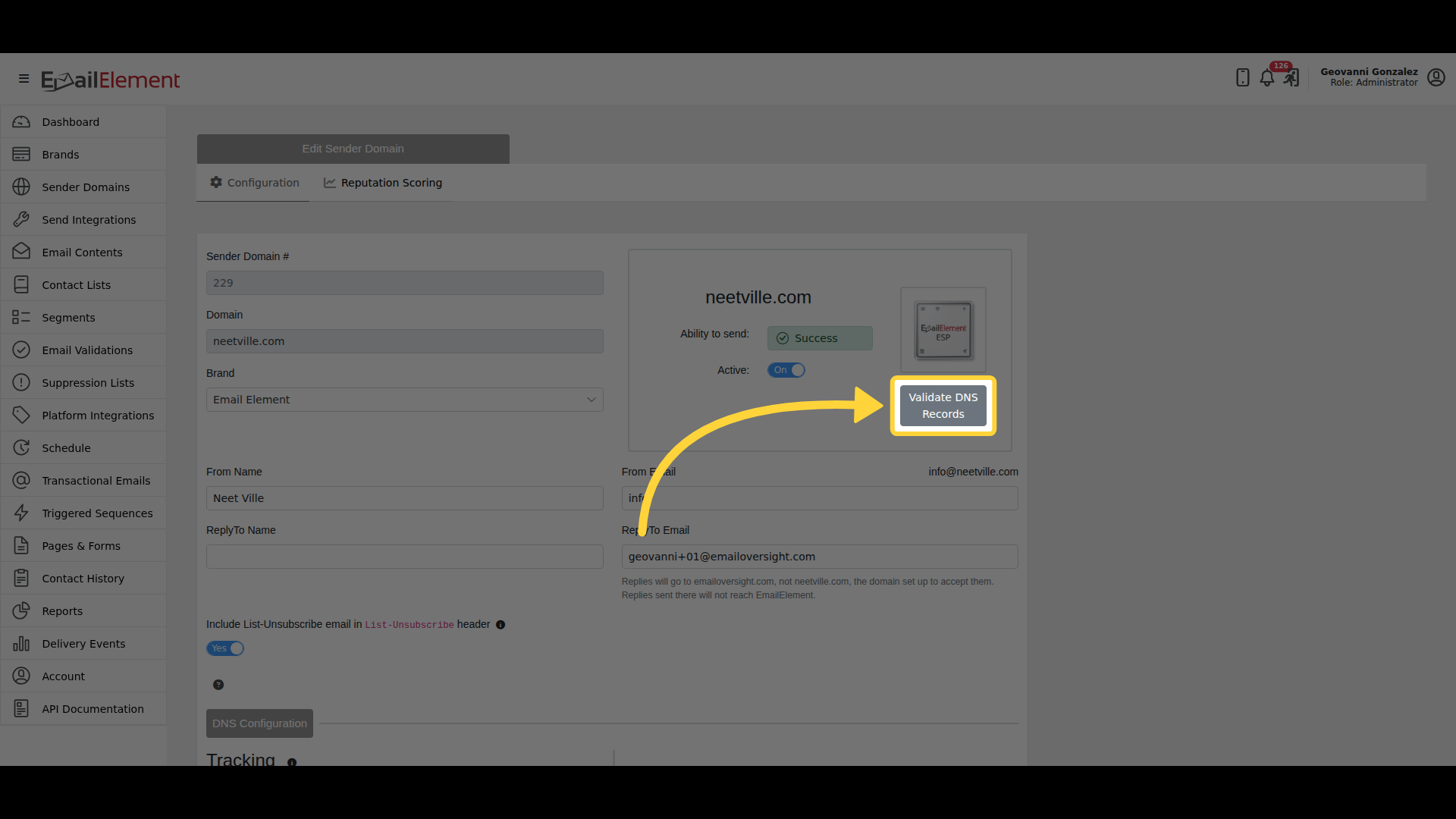
Once the records are published, open the domain and click Validate DNS Records, under the logo on the card at the top right. DNS changes can take a while to be seen, so try again later if a check is not green yet.
Step 3: Connect a Send Integration
- Go to Send Integrations and click Create Send Integration.
- Set Type of Integration to EmailElement, click the EmailElement ESP tile, and click Next.
- Enter a name for the integration.
- Select the sender domains to send from. Only domains created with the EmailElement option are listed.
- Volume Cap and Custom Headers are optional. There are no credentials to enter.
- Click Create.
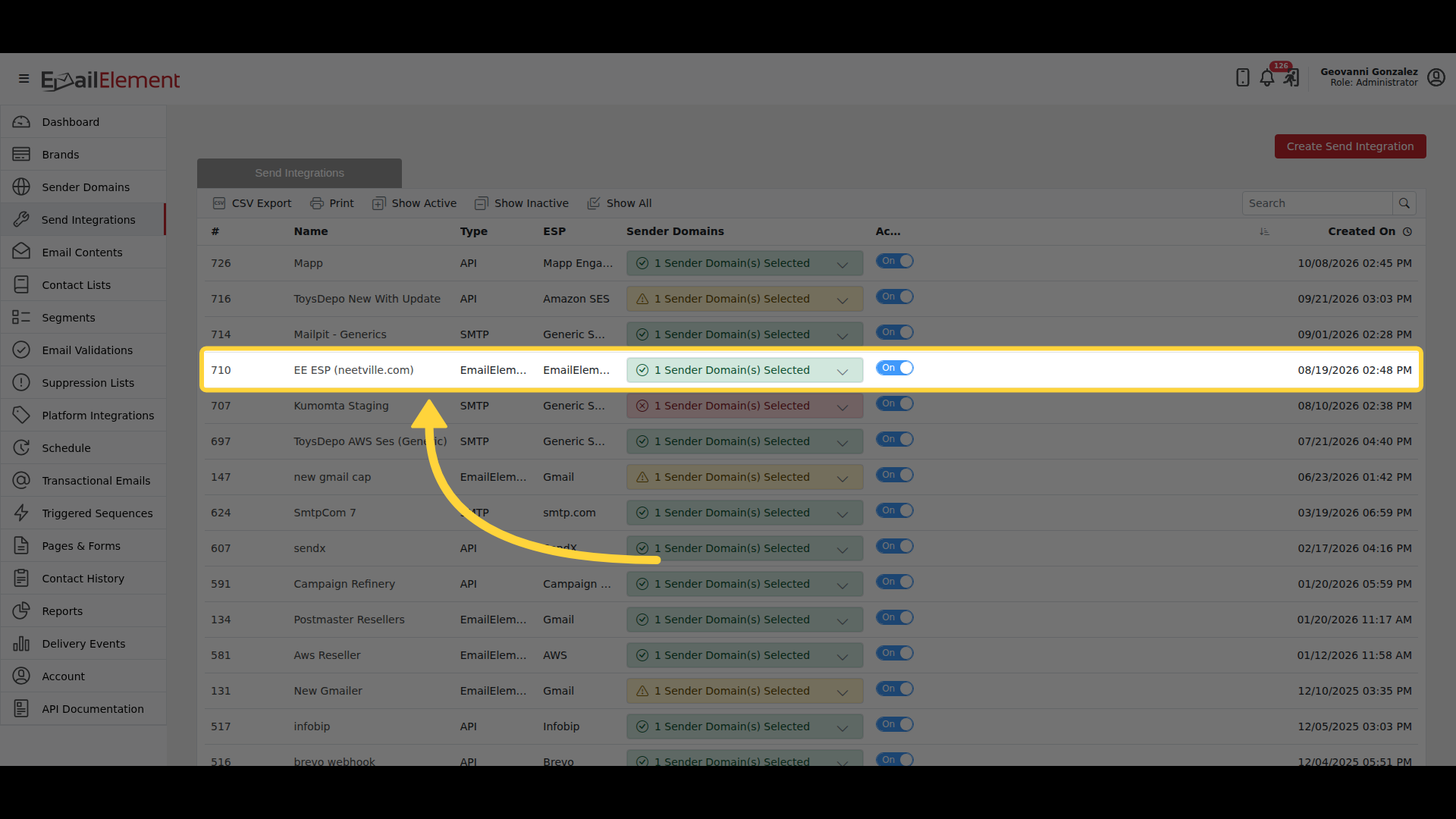
The integration then appears in the list with EmailElement as its Type.
Step 4: Test It
Open the integration and click Run Test.
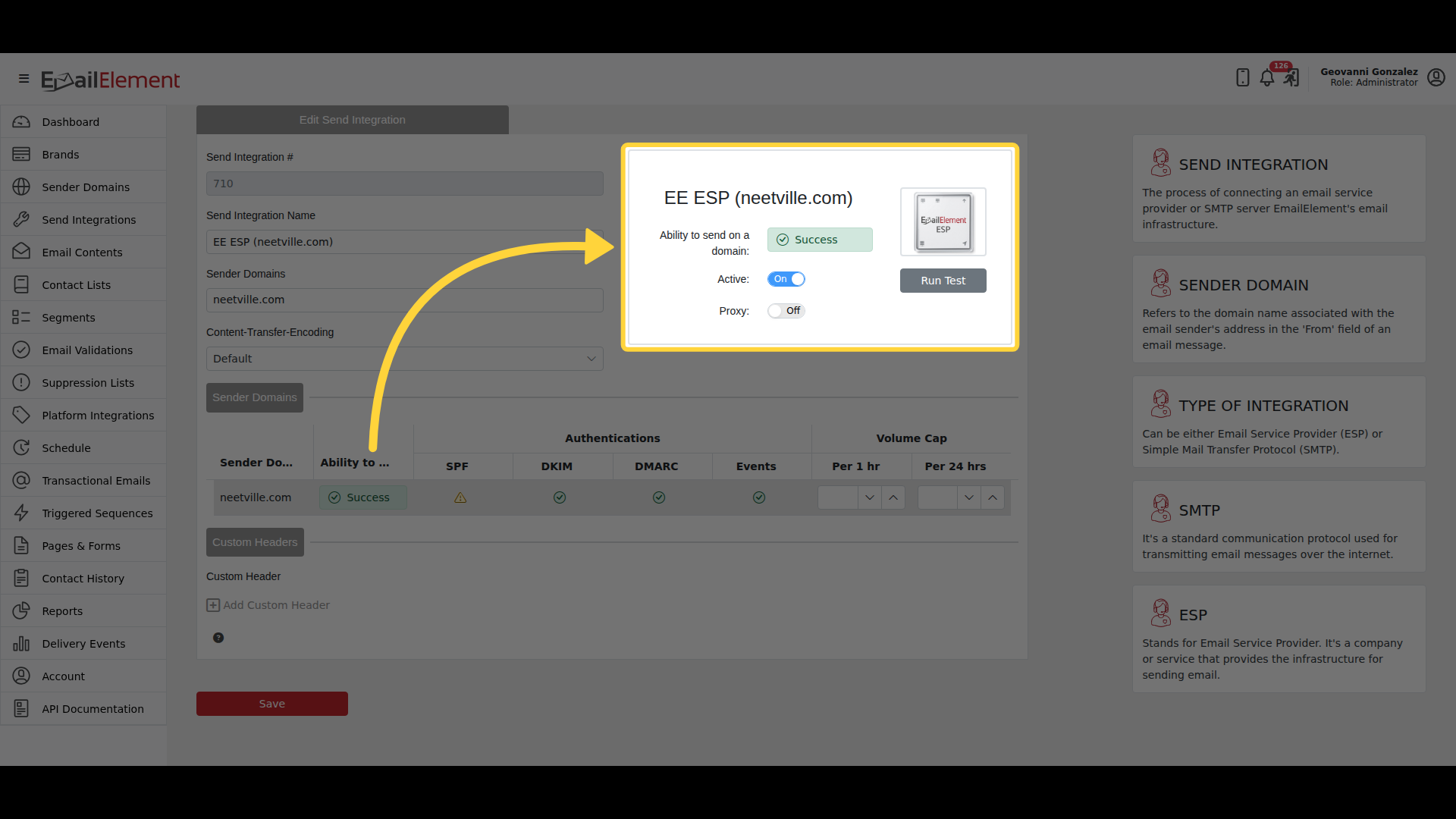
The result is reported for each sender domain on the integration: Ability to Send, then the SPF, DKIM, DMARC and Events checks under Authentications.
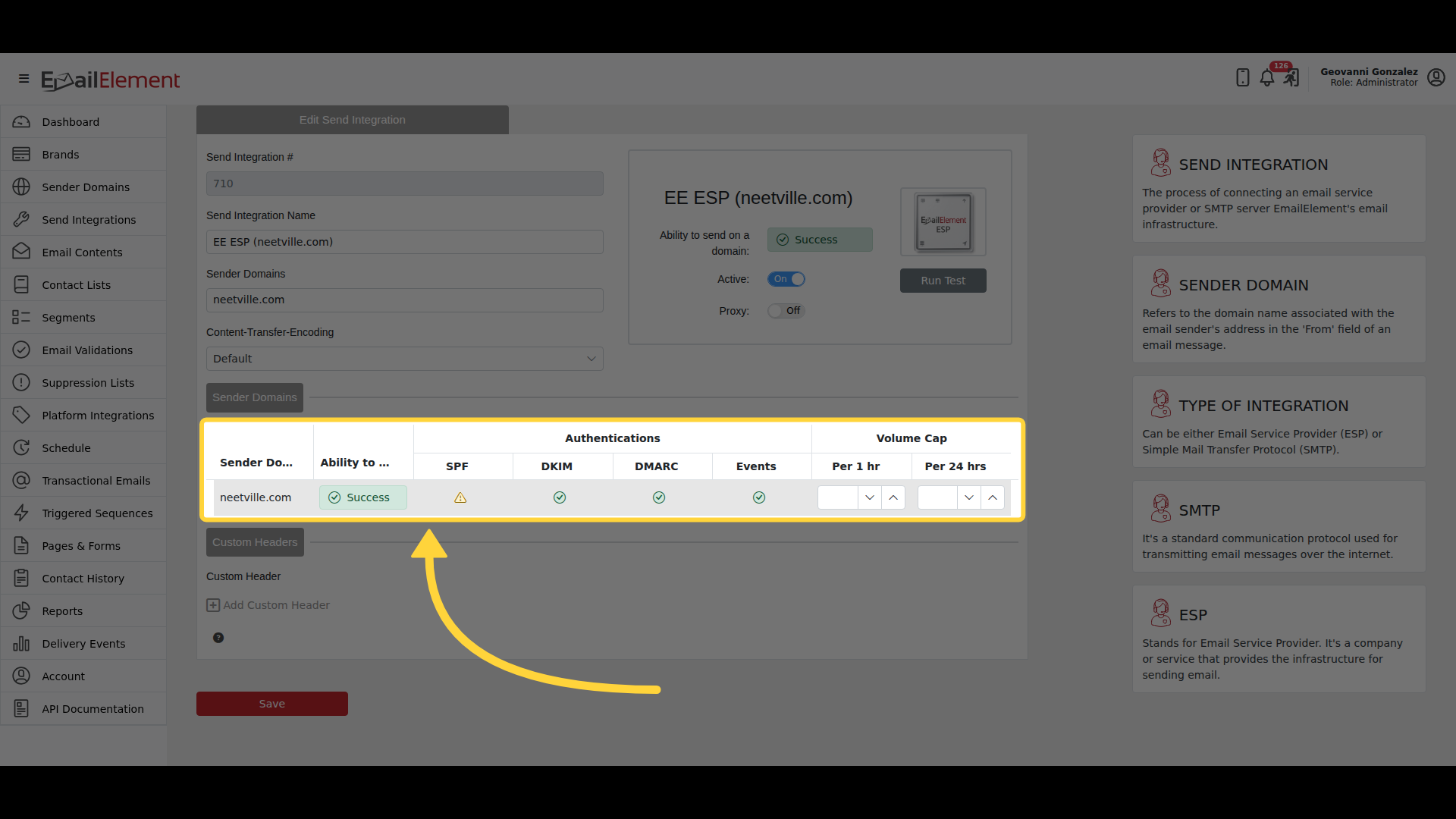
How many domains have to pass for the integration to go active is on Send Integrations.
Troubleshooting
| Issue | Solution |
|---|---|
| There is no EmailElement option on the sender domain, or no EmailElement ESP tile under the EmailElement type | EmailElement sending is not turned on for the account. Contact support@emailelement.com. Do not click Next on the send integration: the list picks the Amazon SES tile on its own, and that makes a different kind of integration. |
| The sender domain is not in the list on the send integration | Only domains created with the EmailElement option can be used. The Sender Domain Walkthrough explains why the option cannot be switched on a saved domain. Contact support@emailelement.com. |
| DKIM stays red | The TXT record has to be published at the exact Name shown, with the whole Value. Some DNS providers add the domain to the name for you, so check it was not added twice. |
| DMARC stays red | Check there is only one DMARC record on the domain, and that it carries the reporting address from the DMARC Record value. |
Related pages
- Sender Domain Walkthrough — every step of adding a sender domain, with screenshots
- Authentication — what SPF, DKIM and DMARC each check
- Send Integrations — the section this belongs to