OpenText
For OpenText Integration, a Tenant ID, Client ID and Client Secret are required to send email. An overview of their messaging API can be found at Messaging | Developer | OpenText
New OpenText User
Creating a Tenant ID using Admin Center
To create a tenant:
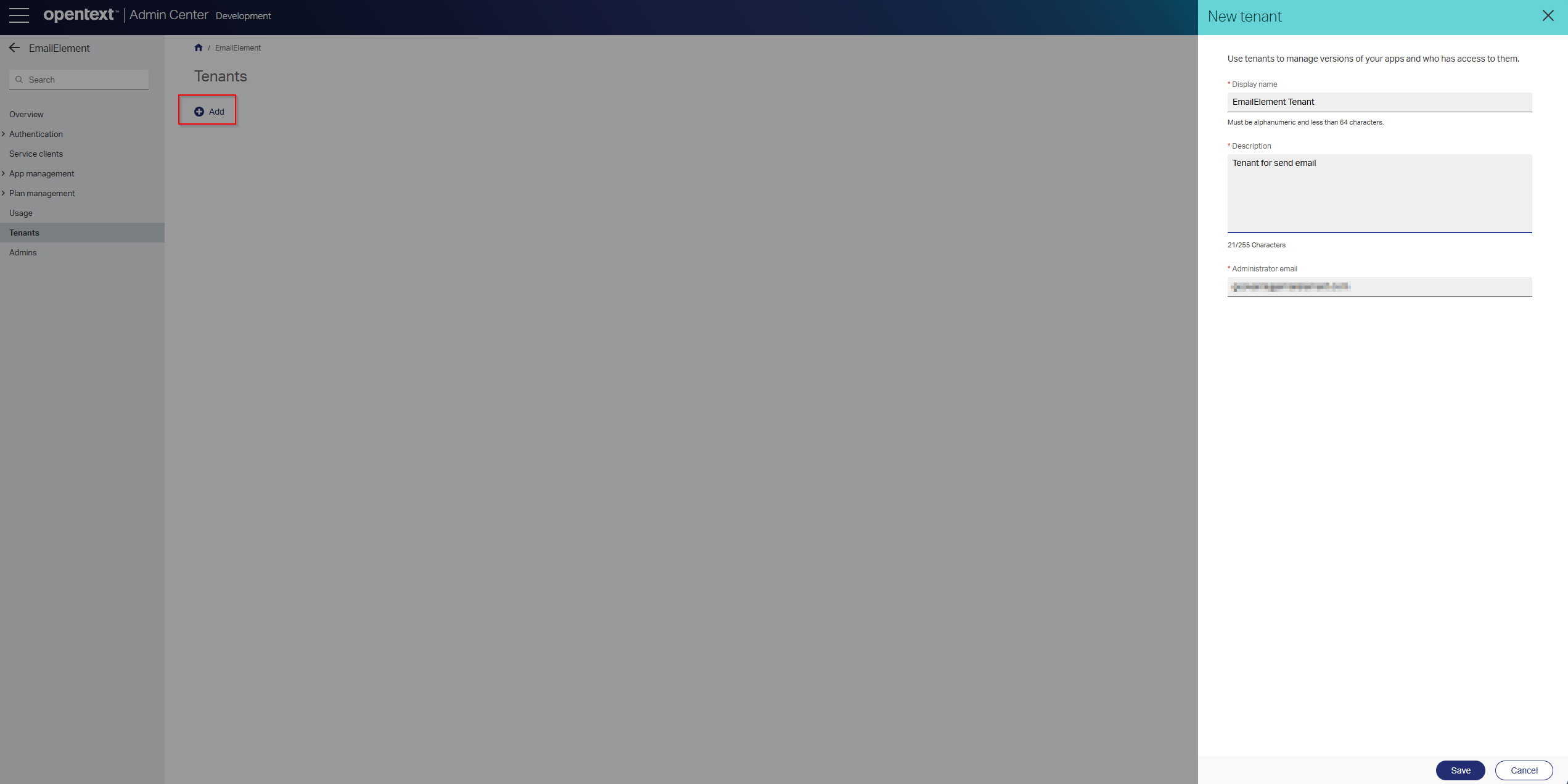
- In the Admin Center for your organization, select Tenants.
- From the Tenants area, click Add and select Create a new tenant.
- Complete the metadata by specifying the Display name and Description.
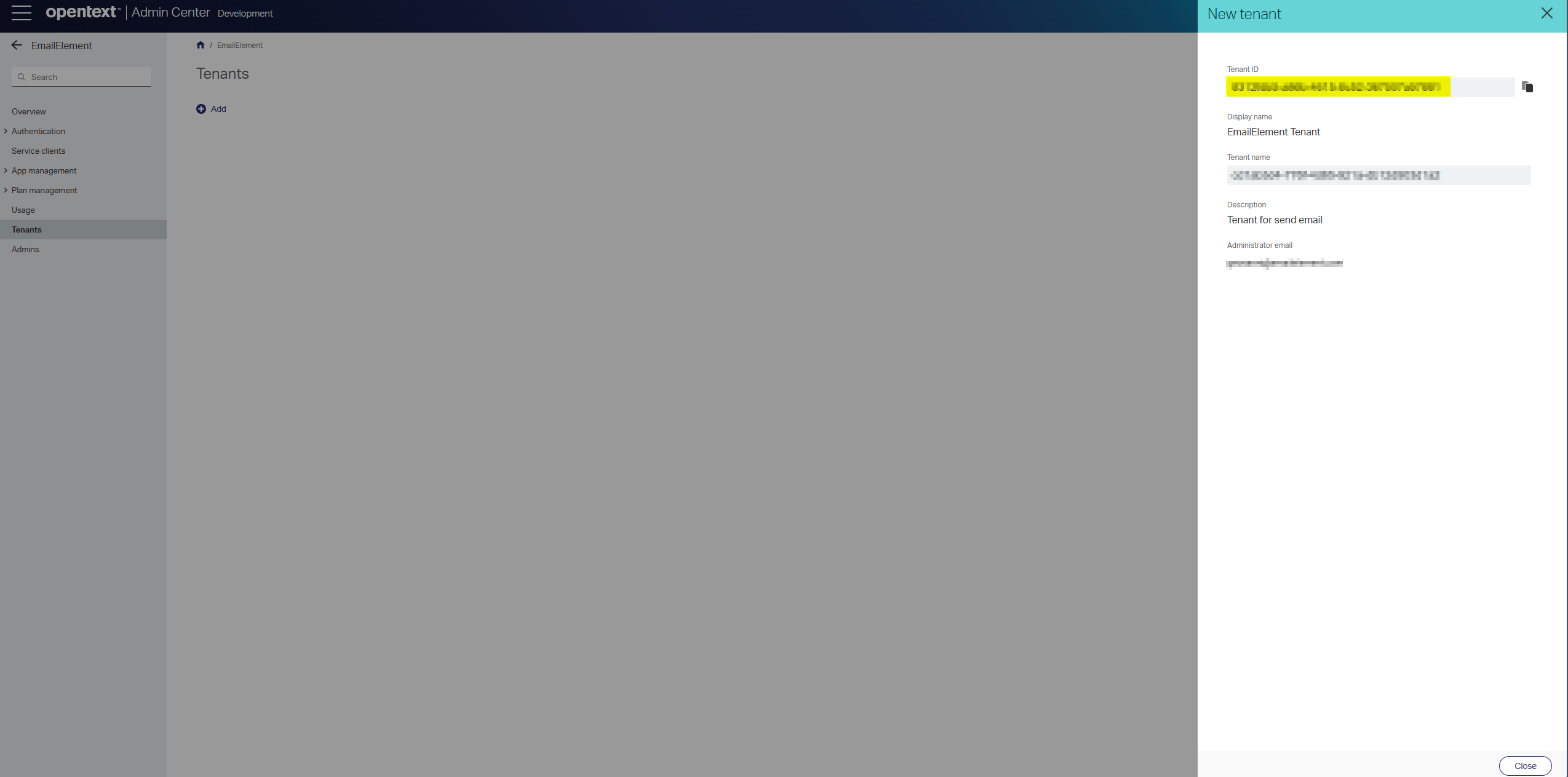
- Click Save. The Tenant ID and Tenant name are displayed.
- Click Close and automatically the tenant page is displayed.
Creating a App using Admin Center
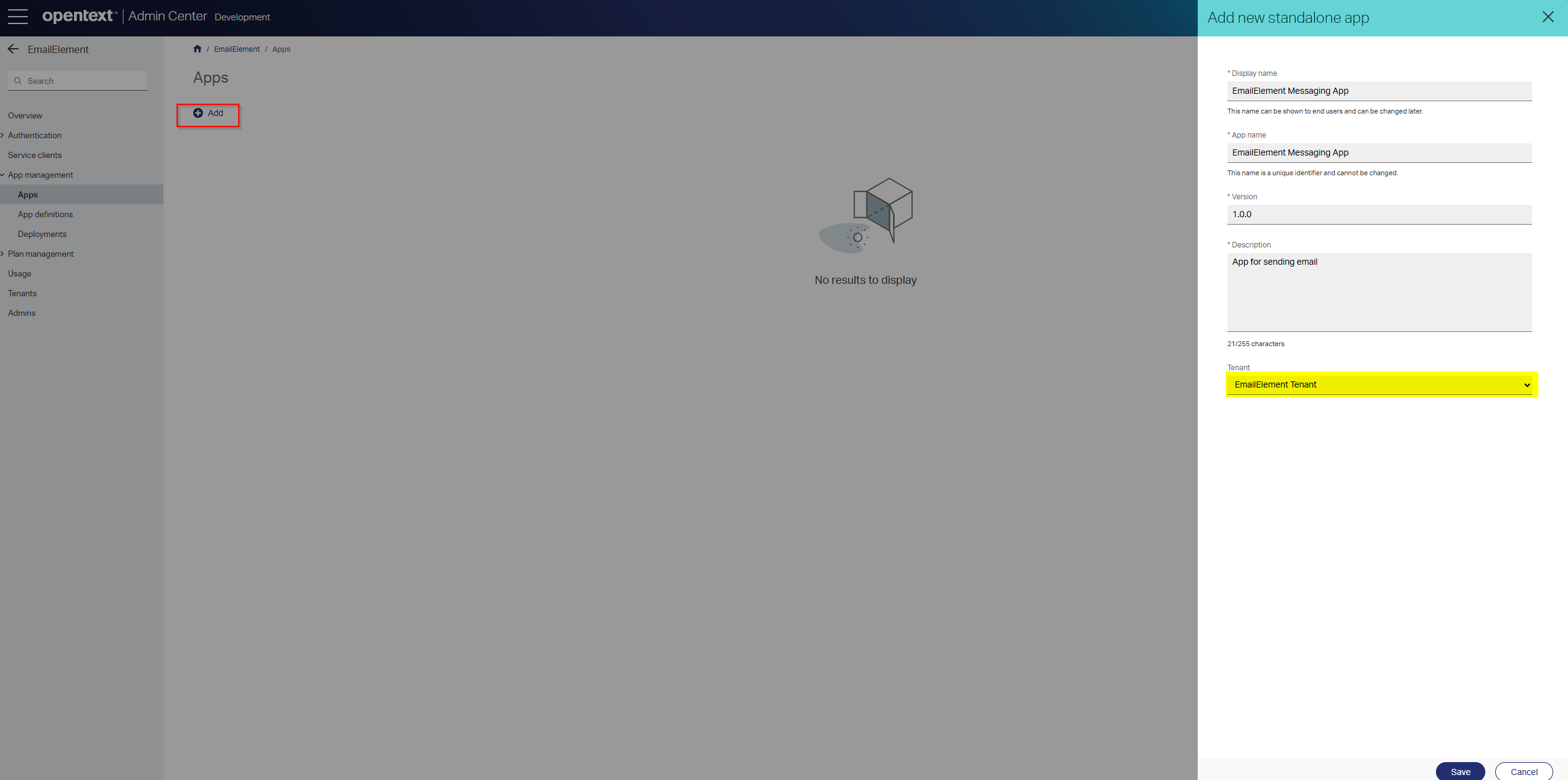
- On the Admin Center navigation menu, select Apps and click Add.
- From the Add list, select Add new standalone app.
- In the Display name box, type a display name for your app. Users will see this name when they access the app.
- In the App name box, type an internal name that uniquely identifies your app.
- In the Version box, type a version number for your app, for example, 1.0.
- In the Description box, type a description for your app.
- From the Tenant list, select the tenant created above.
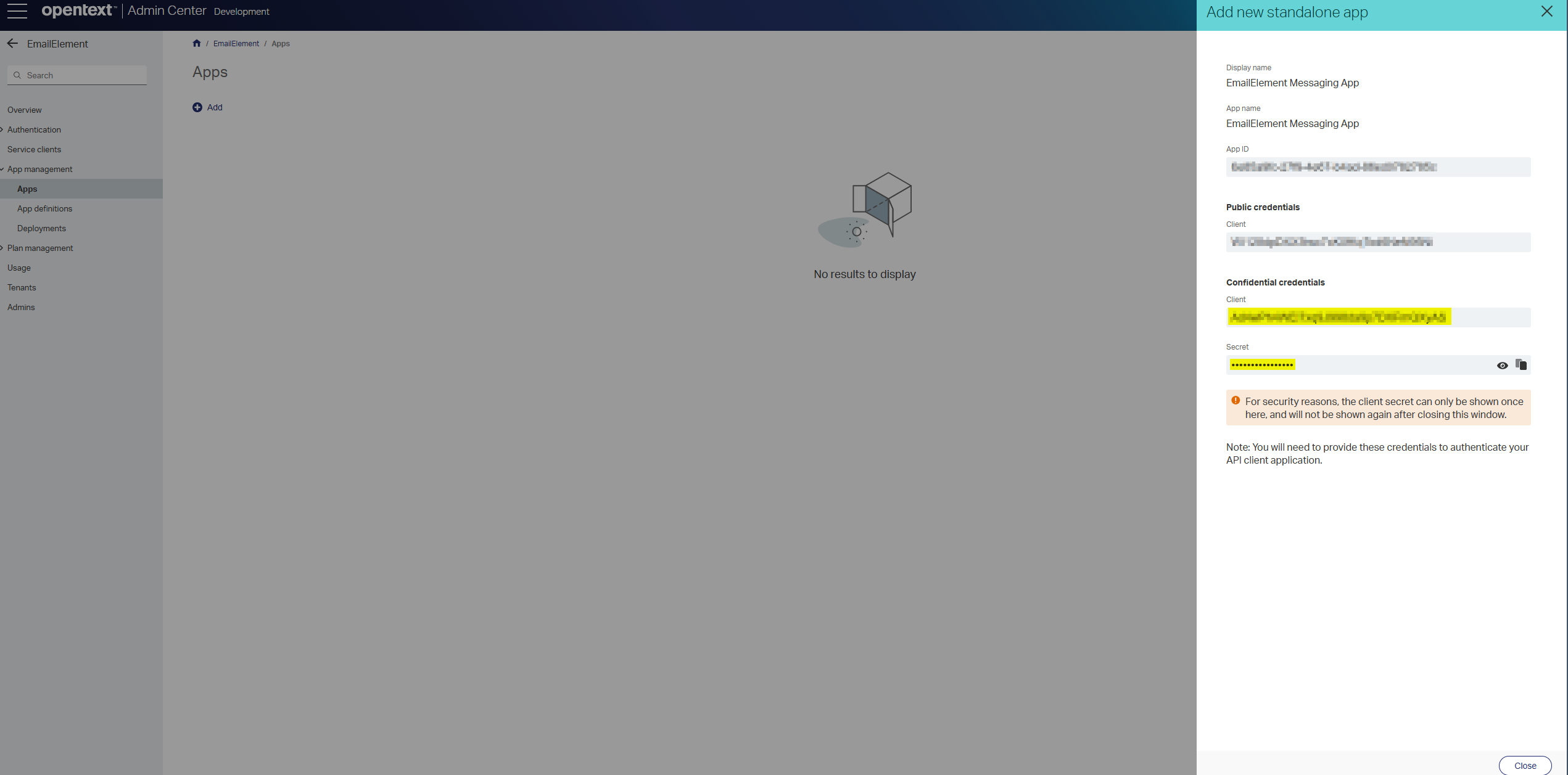
- Click Save to generate both public and confidential credentials for the app.
- Click Copy all to copy all the values shown in the panel to your clipboard.
- Paste the copied information into a text editor and save the file to your file system. Keep your configuration files confidential and never store them in a public repository. The client secret values are not stored in Admin Center. You will not be able to retrieve the client secret value again. If you lose your client secret value, you have to regenerate a new one.
- Click Close to close the form.
Existing OpenText User
Existing OpenText User
Retrieve your tenant ID or tenant name using Admin Center
- Sign in to OpenText Developer website. (Plans | Developer | OpenText)
- Click Console and select <organization name> <region> combination.
- On the Admin Center navigation menu, click Tenants.
- On the Tenants page, click the required tenant.
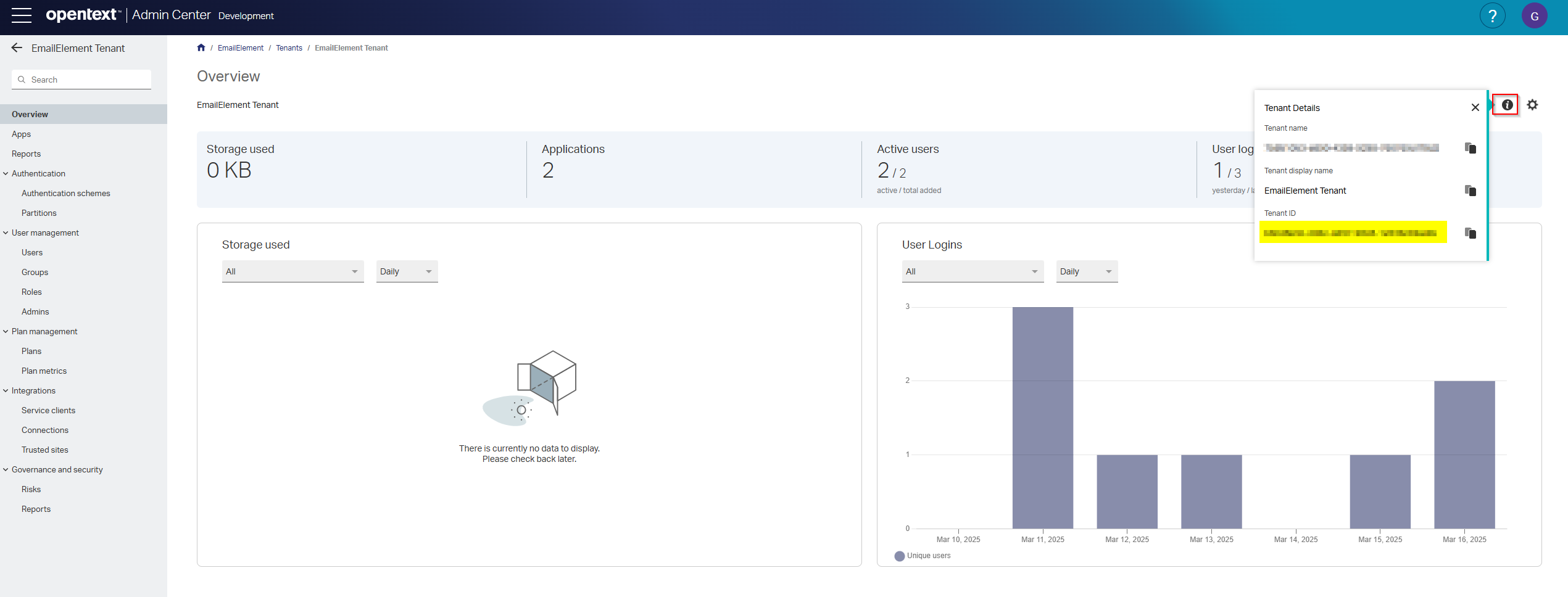
- Click the i button.
- Use Copy button to copy the tenant name and tenant ID.

Retrieve your client ID and client secret using Admin Center
- Sign in to OpenText Developer website. (Plans | Developer | OpenText)
- Click Console and select <organization name> <region> combination.
- On the Admin Center navigation menu, click Apps.
- On the Apps page, click the required app.
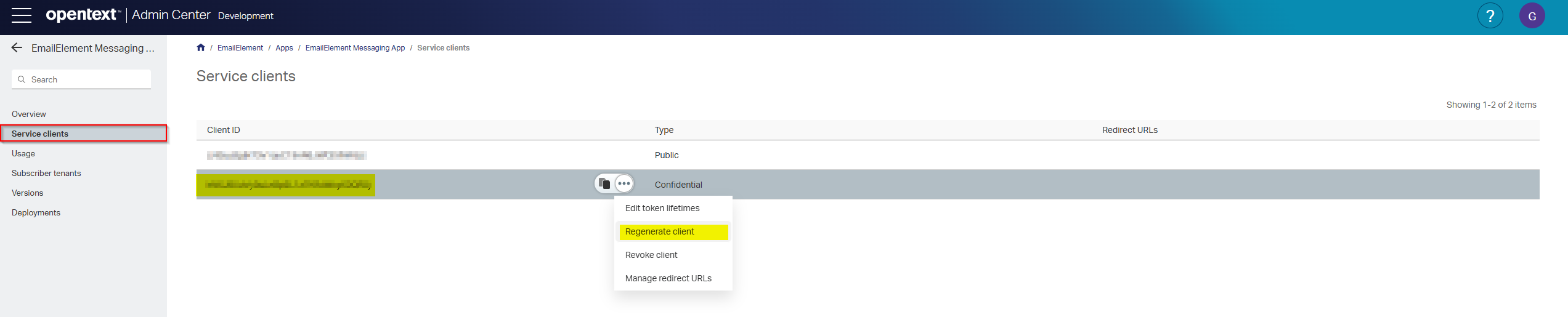
- Click the App navigation menu, click Service clients.
- Use Copy button to copy the client ID.
- The client secret is only generated once when the app is created. If you have misplaced your client secret, select Regenerate client. This should give you a new client secret.
Auth Region
OpenText utilizes OAuth2 when authenticating with their services. Their Authentication service can be hosed in one of many regions. All regions can be found at Authentication | Developer | OpenText.
To find your region,
- Sign in to OpenText Developer website. (Plans | Developer | OpenText)
- Click Console and you will see <organization name> <region> combination, where <region> is the region you are in
Service Region
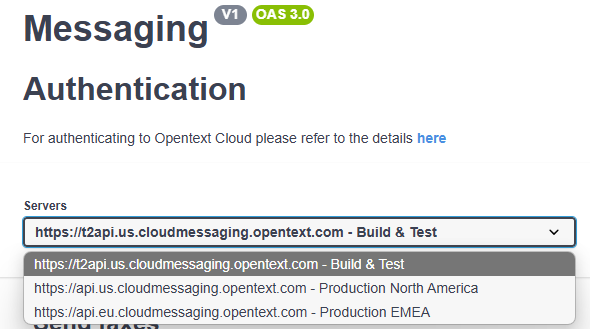
OpenText has different regions for their Messaging service.