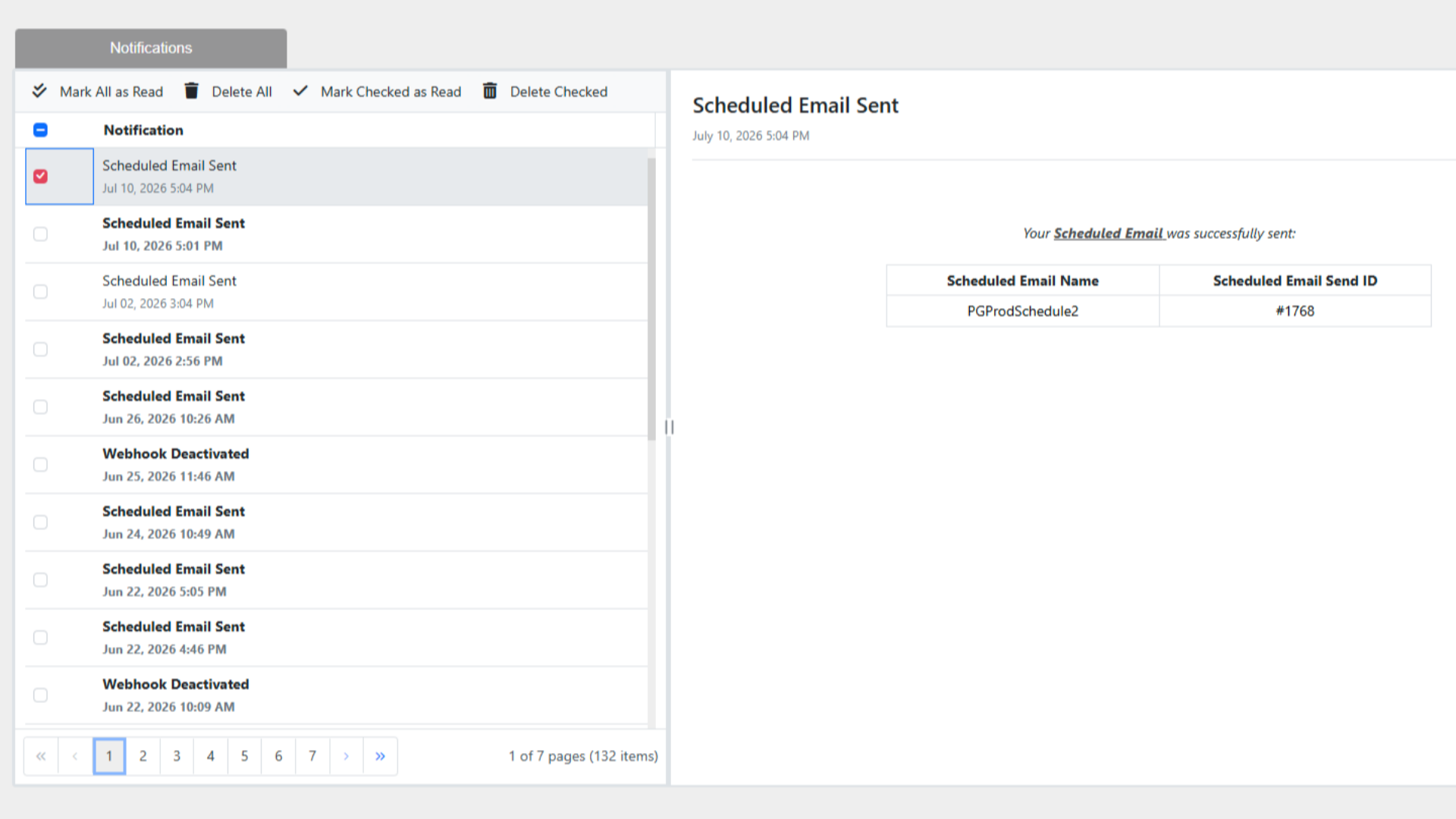
Notifications Walkthrough
Turning Notifications On
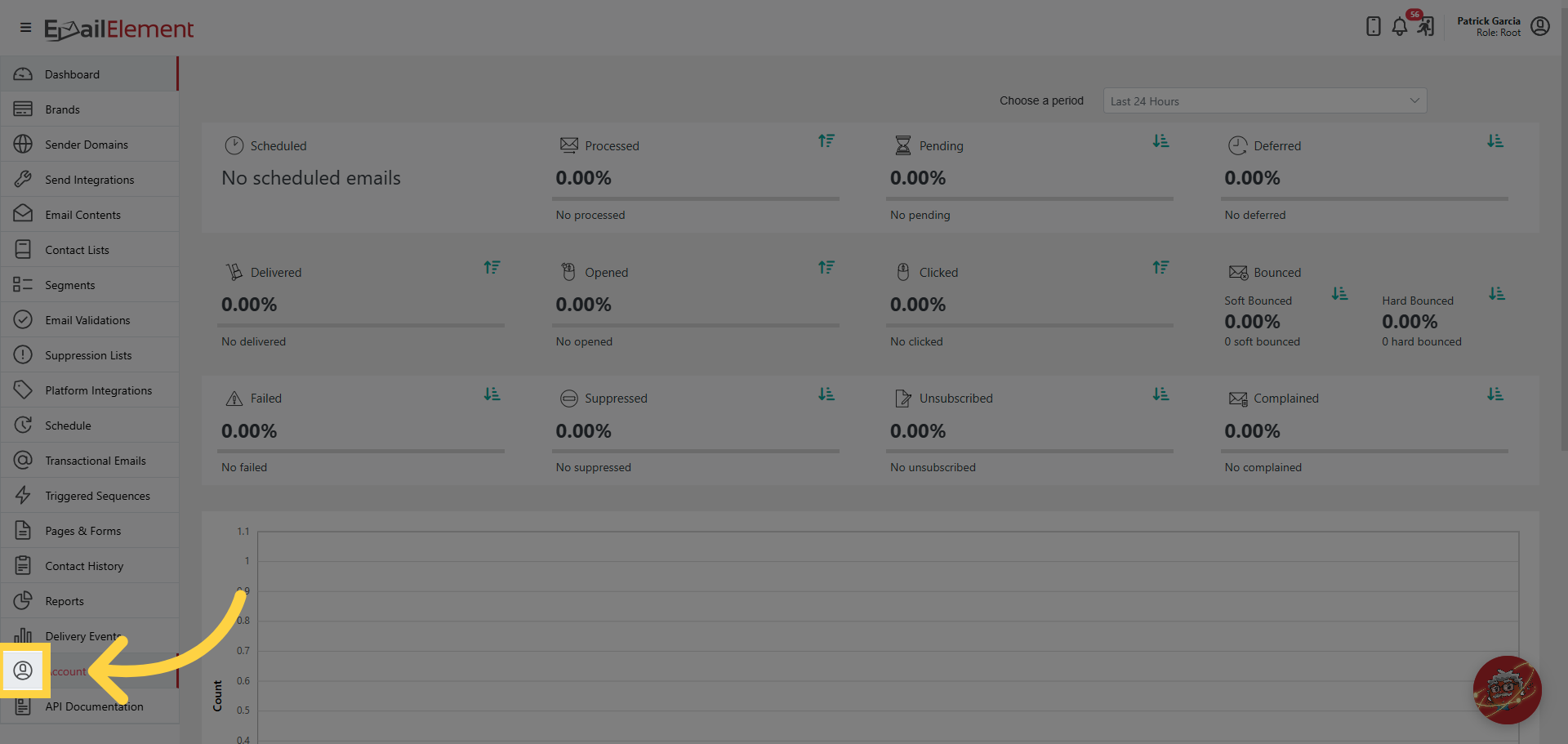
Navigate to Account from the left navigation menu.
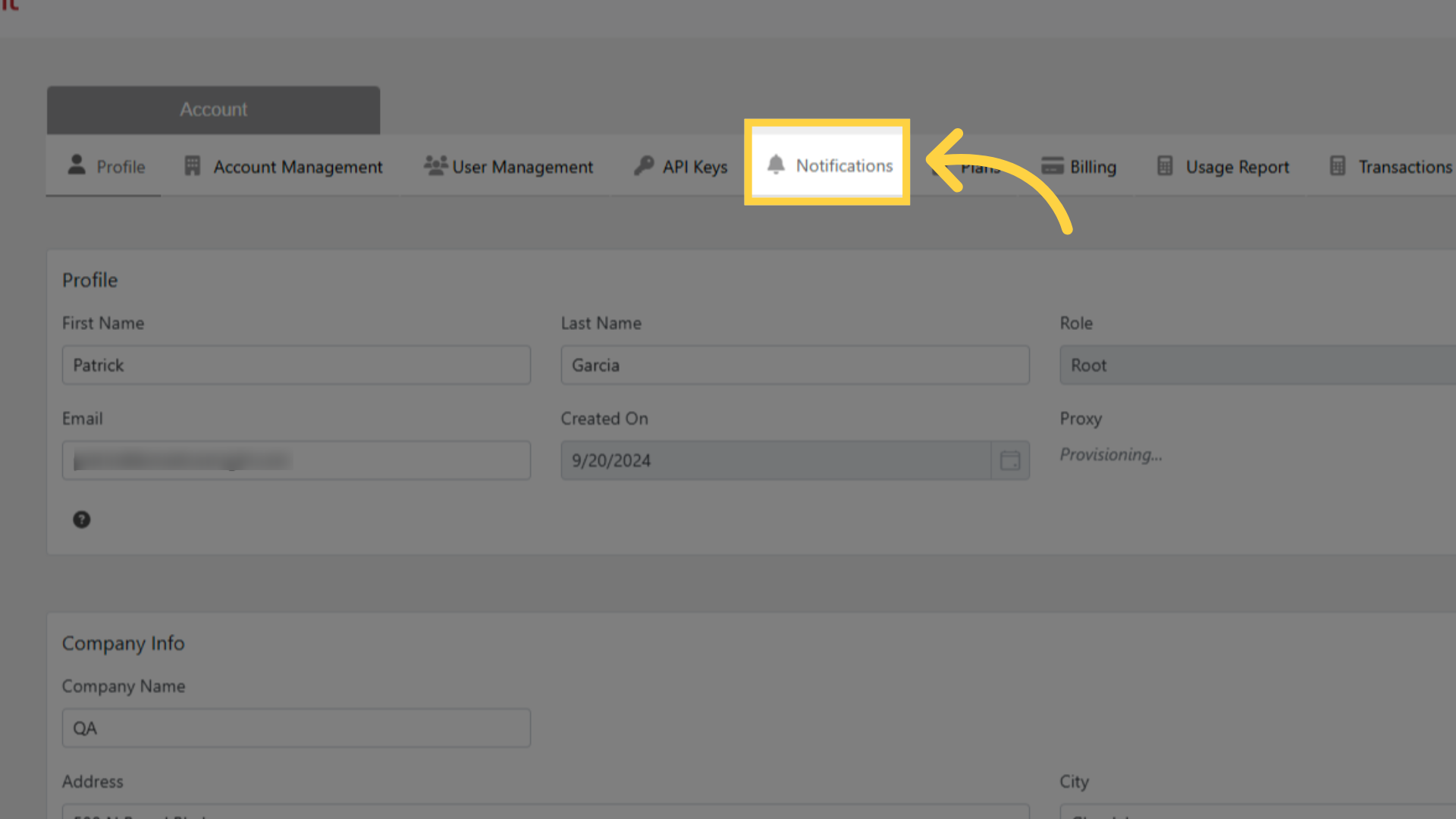
Click the Notifications tab to open the notification settings for the account.
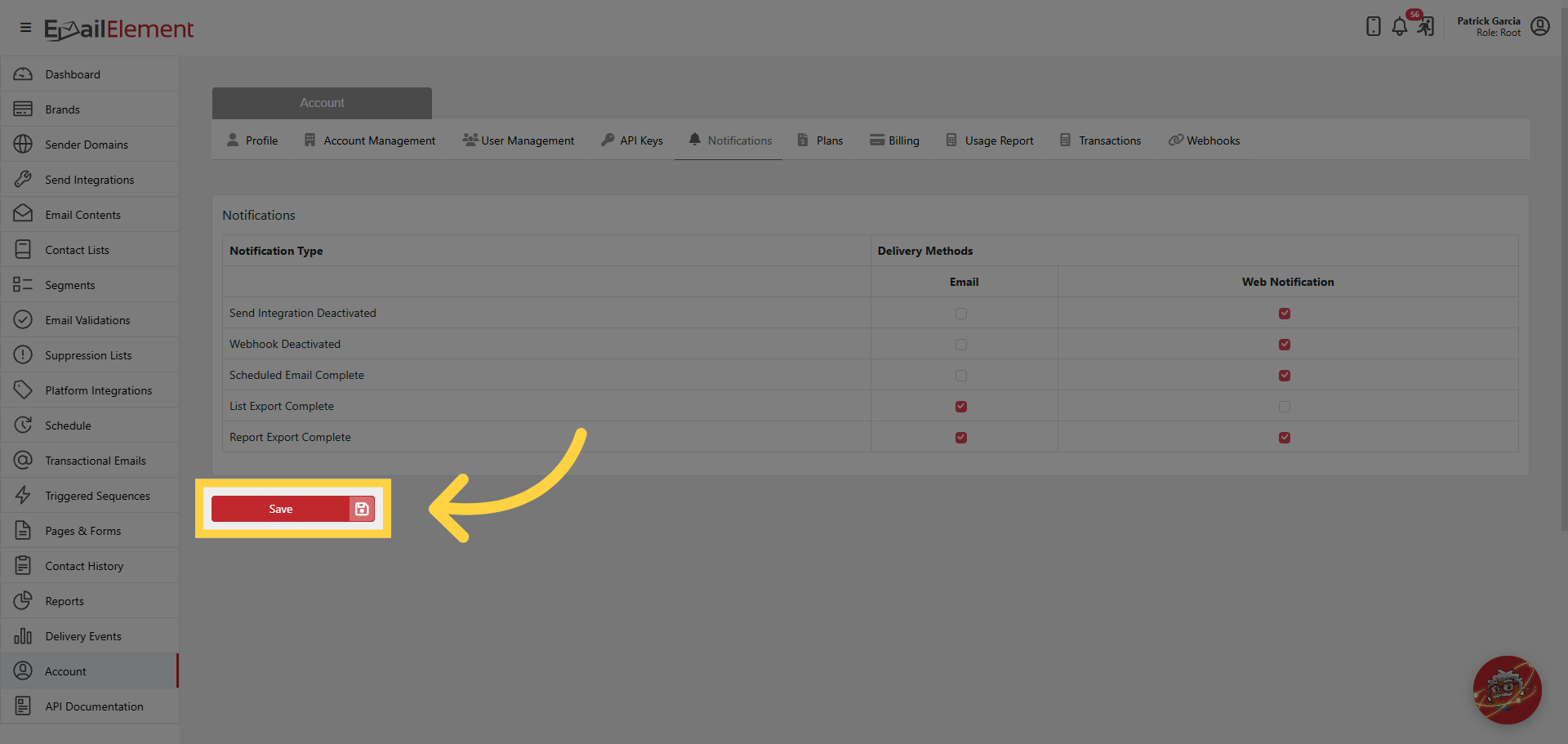
Notifications are supported two ways, Email and Web, across five events.
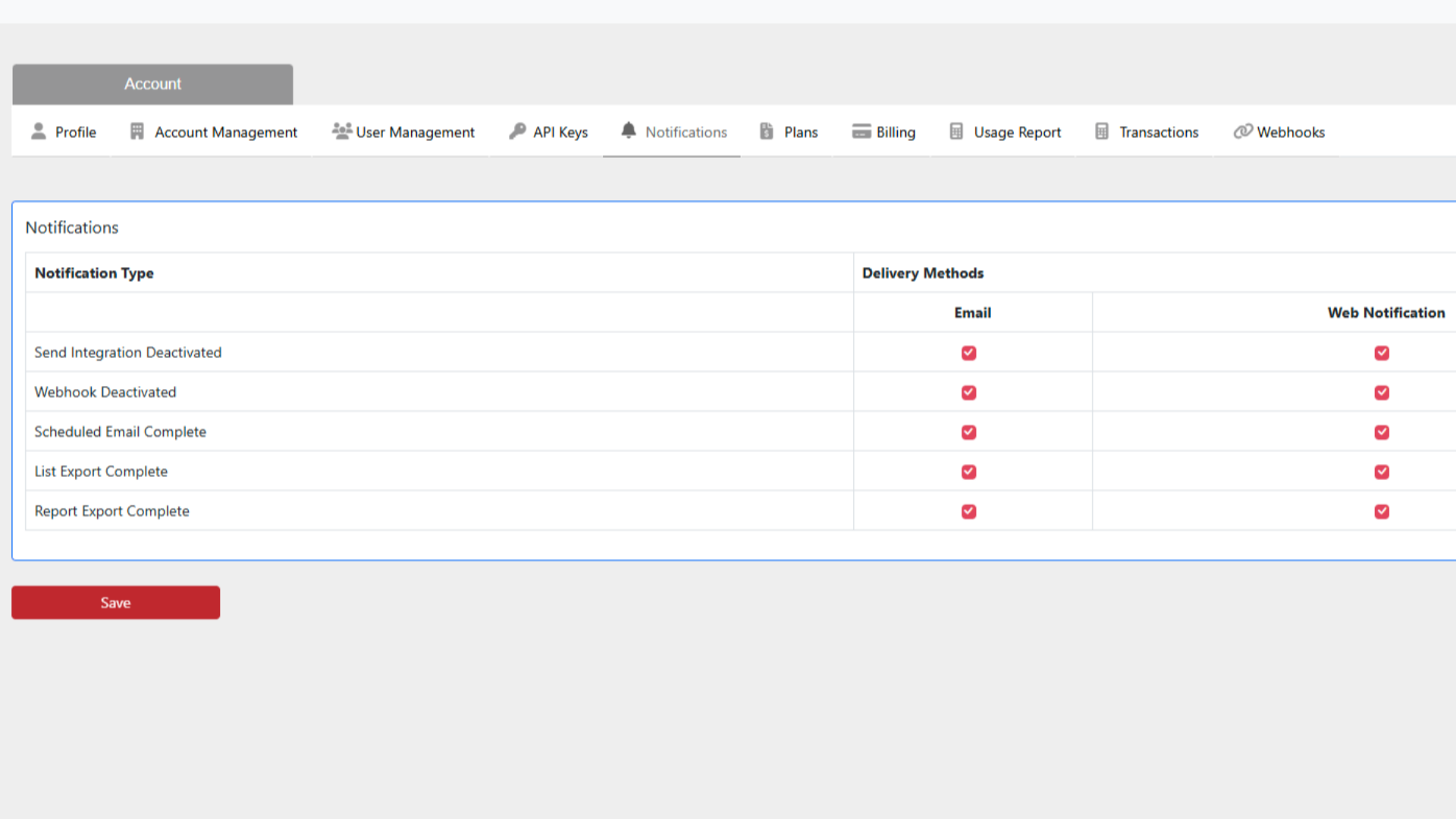
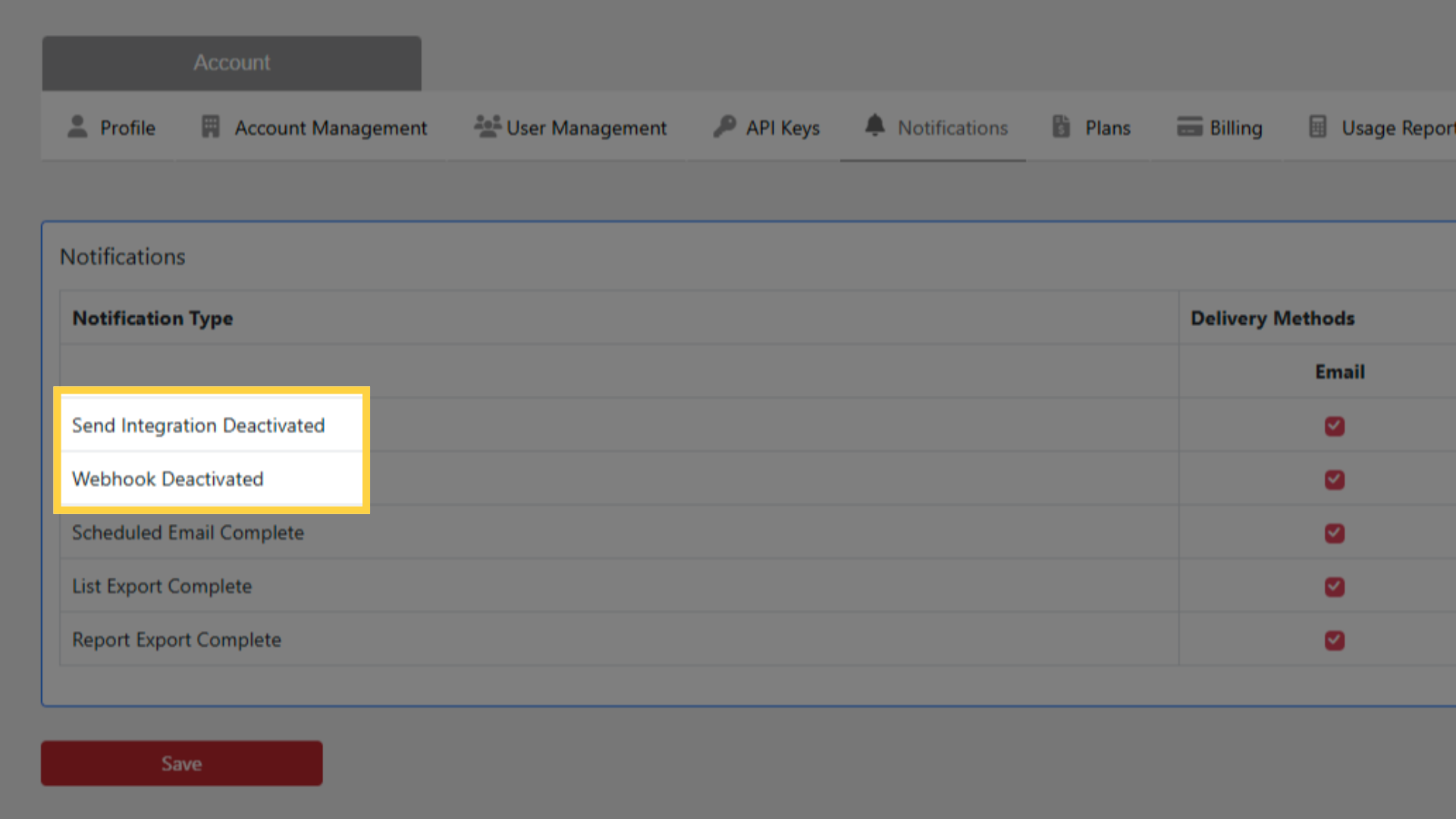
A Send Integration being deactivated, or an account Webhook being deactivated.
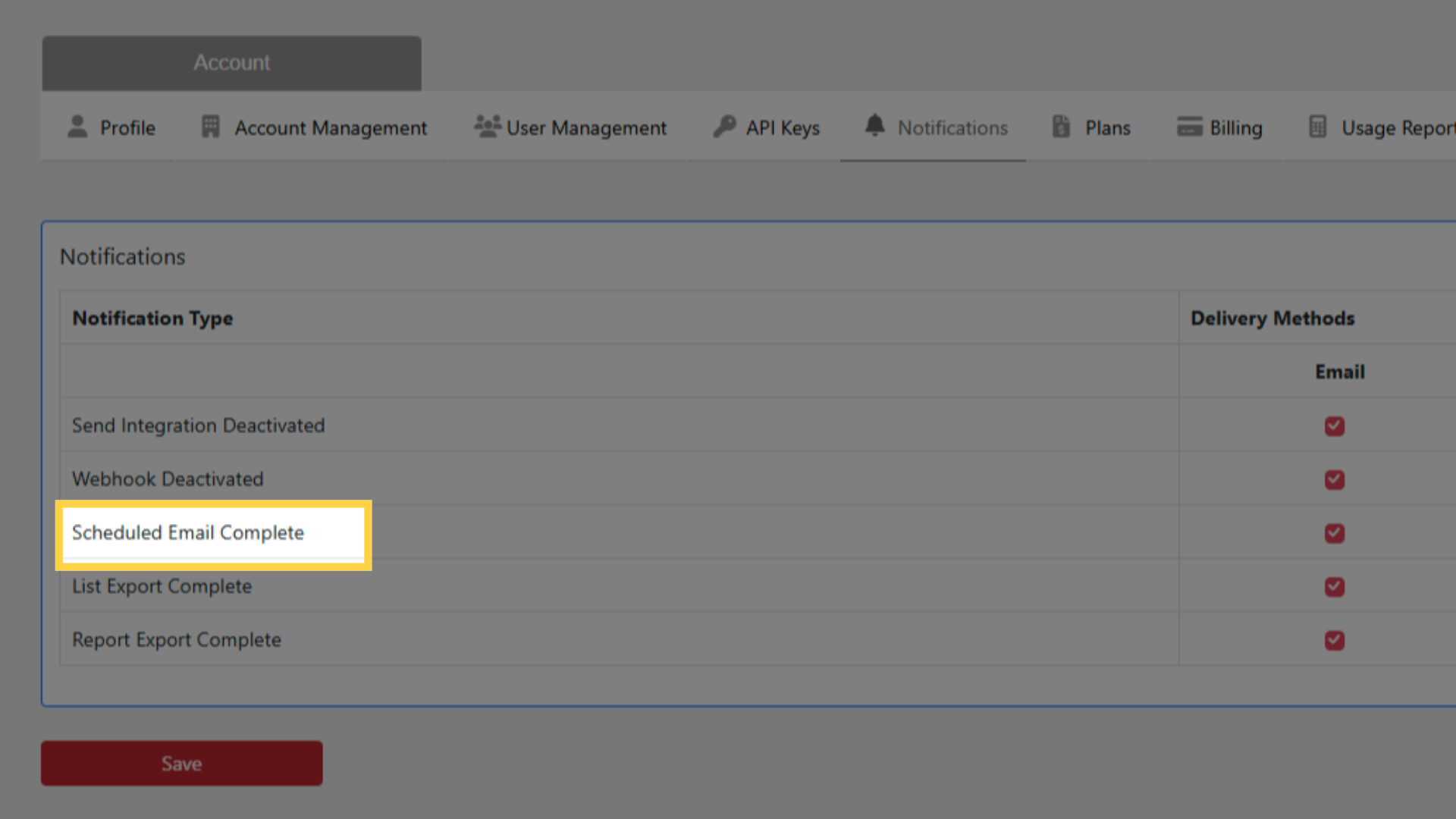
A Scheduled Email finishing its send.
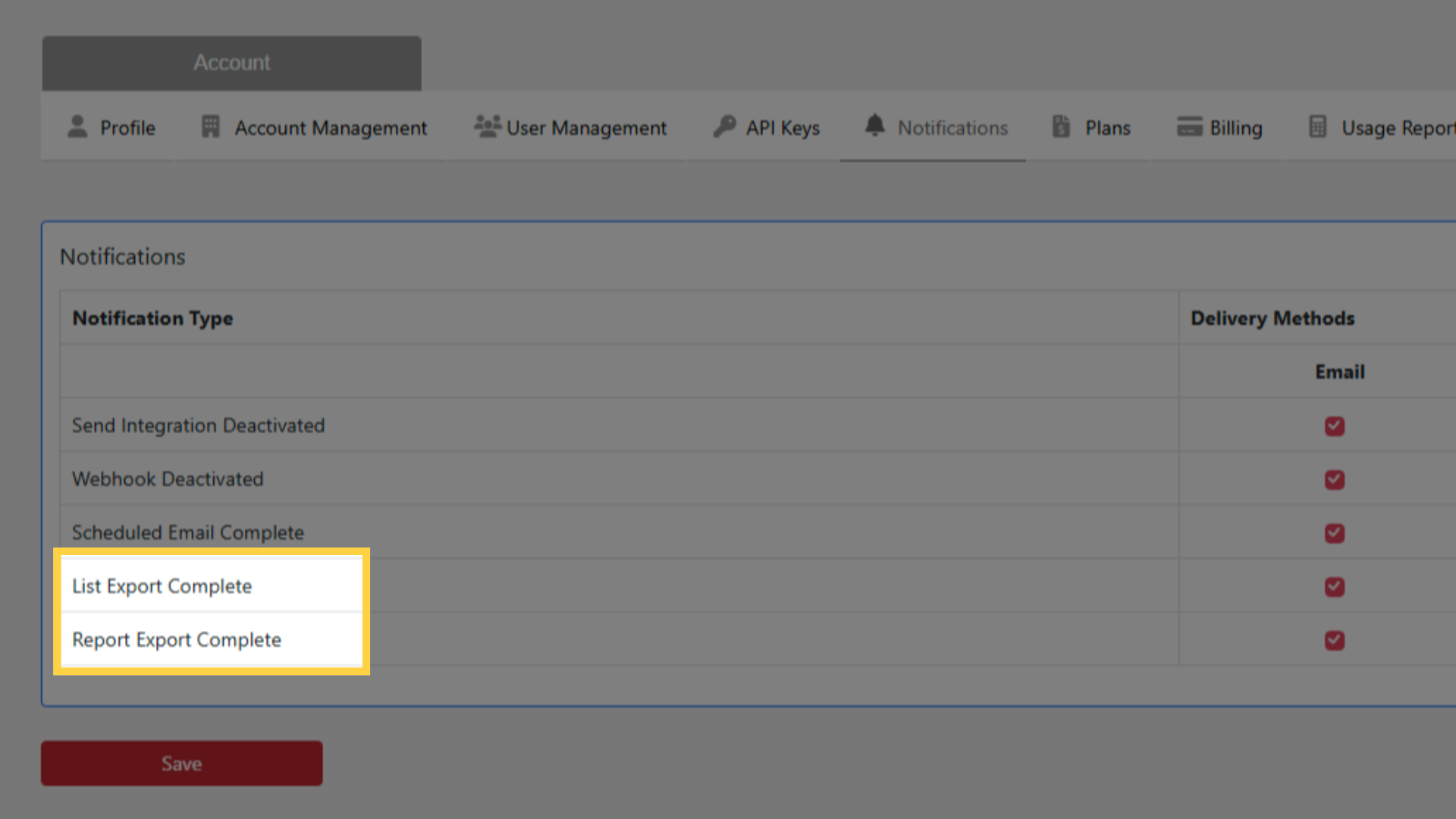
An export ready for a Contact list, a Suppression list or a Report. This is the useful one when exporting something large, because the export takes a while and the notification is how you learn it has finished.
Tick the notifications to subscribe to.
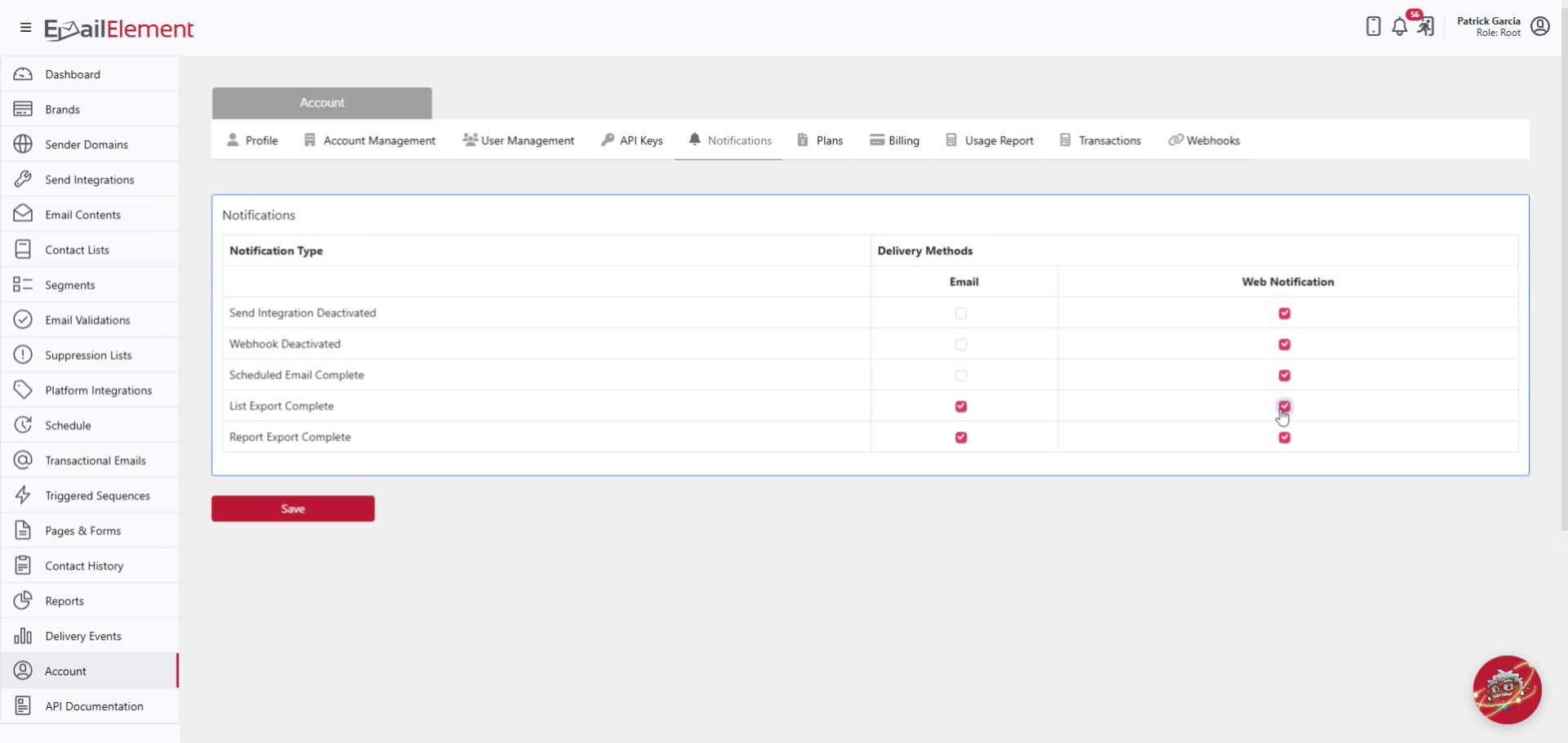
Click Save. Nothing is subscribed until it is saved.
Reading Notifications
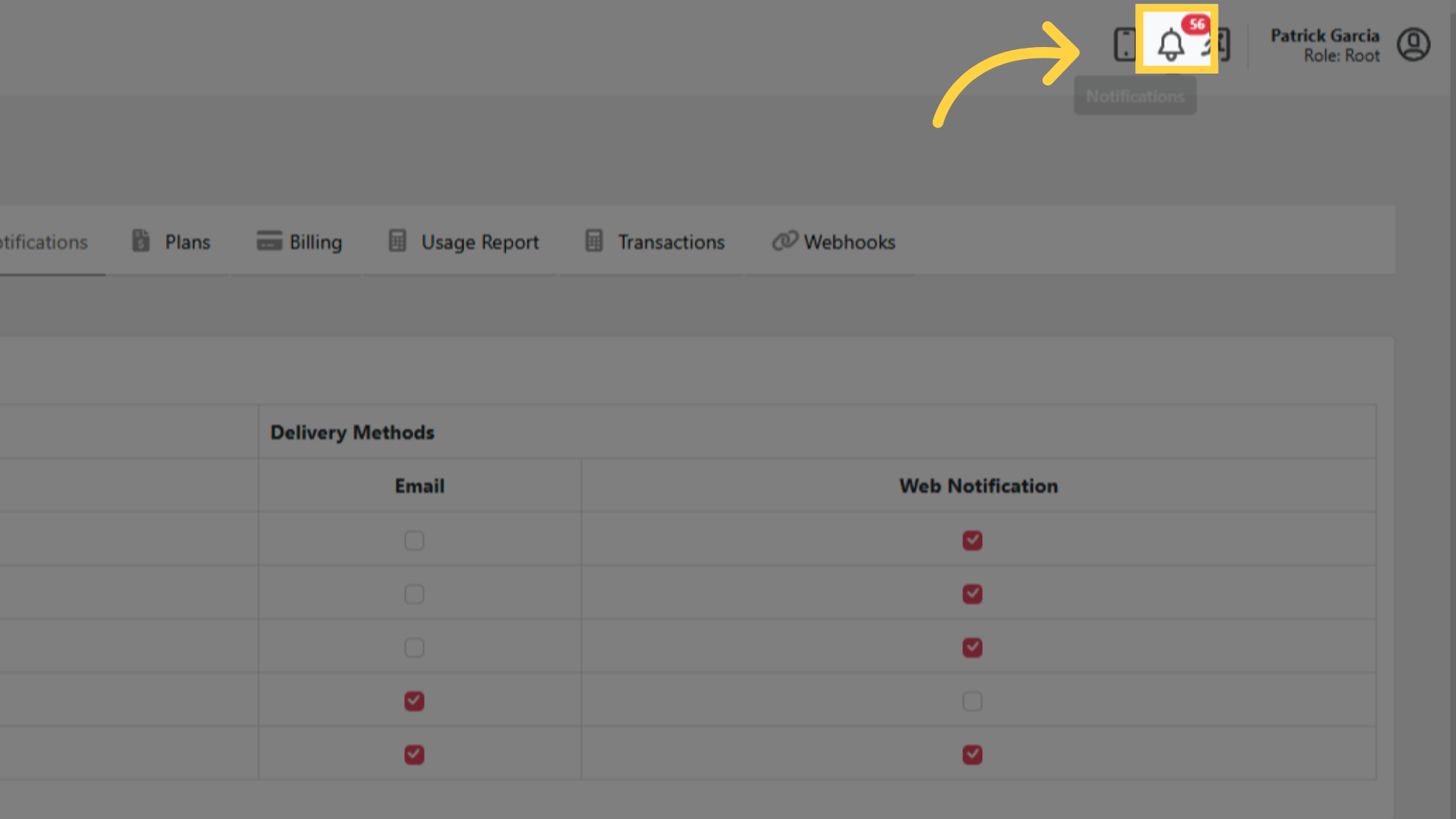
Click the Bell icon in the header to see the most recent notifications in a popover.
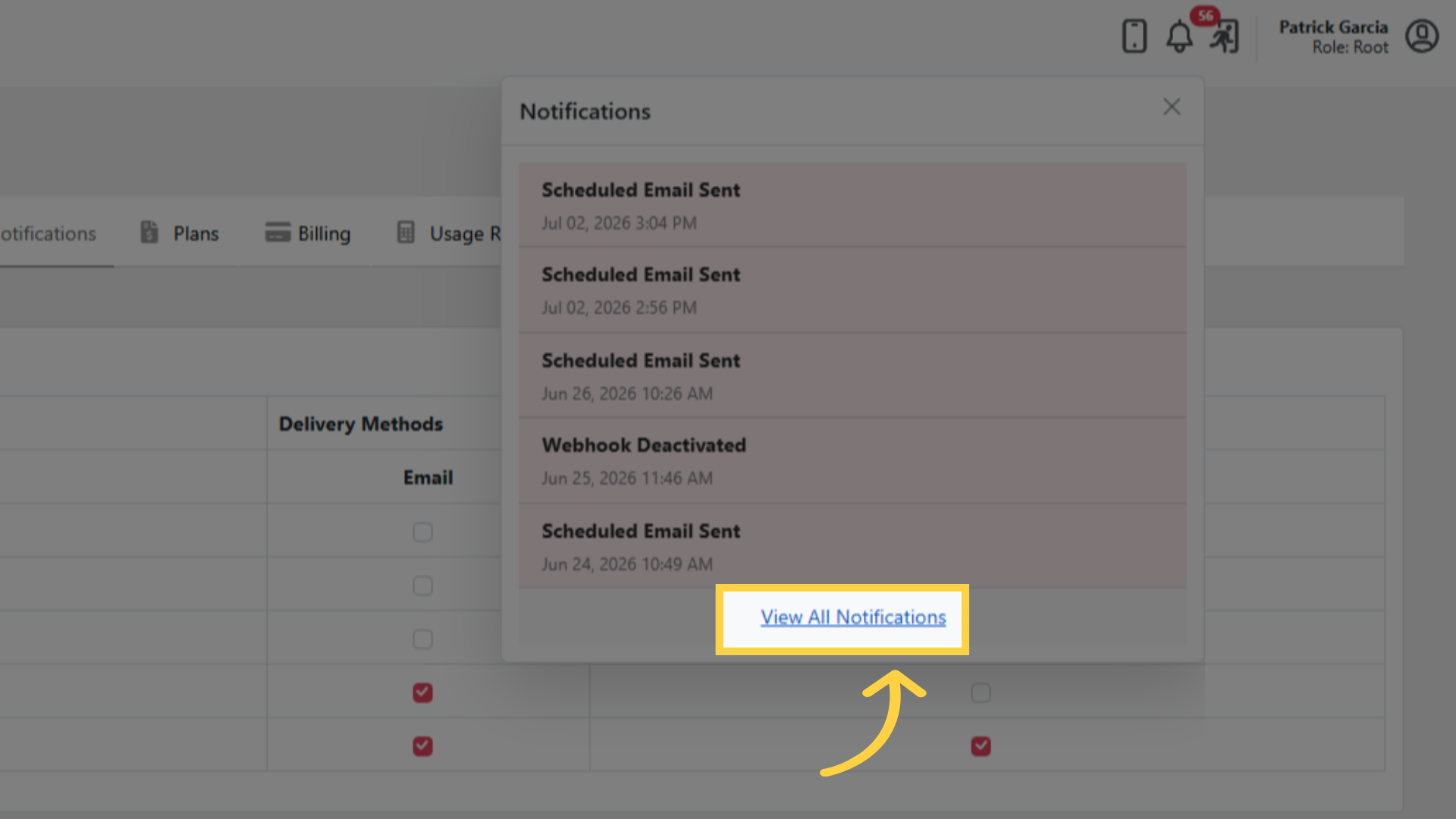
Click View All Notifications to open the full page.
All notifications can be read and managed from that page.