

Mailchimp
To setup MailChimp for integration with EmailElement, you'll need:
- At least one Email Domain setup
- Transactional Emails enabled.
- A non-demo account to send to any domain. https://mailchimp.com/help/transactional-email-demo/
Add and Set Up Email Domain
- Go to your profile page and select the “Domains” tab
- Click the “Add & Verify Domain” button, then follow prompts to verify ownership of it
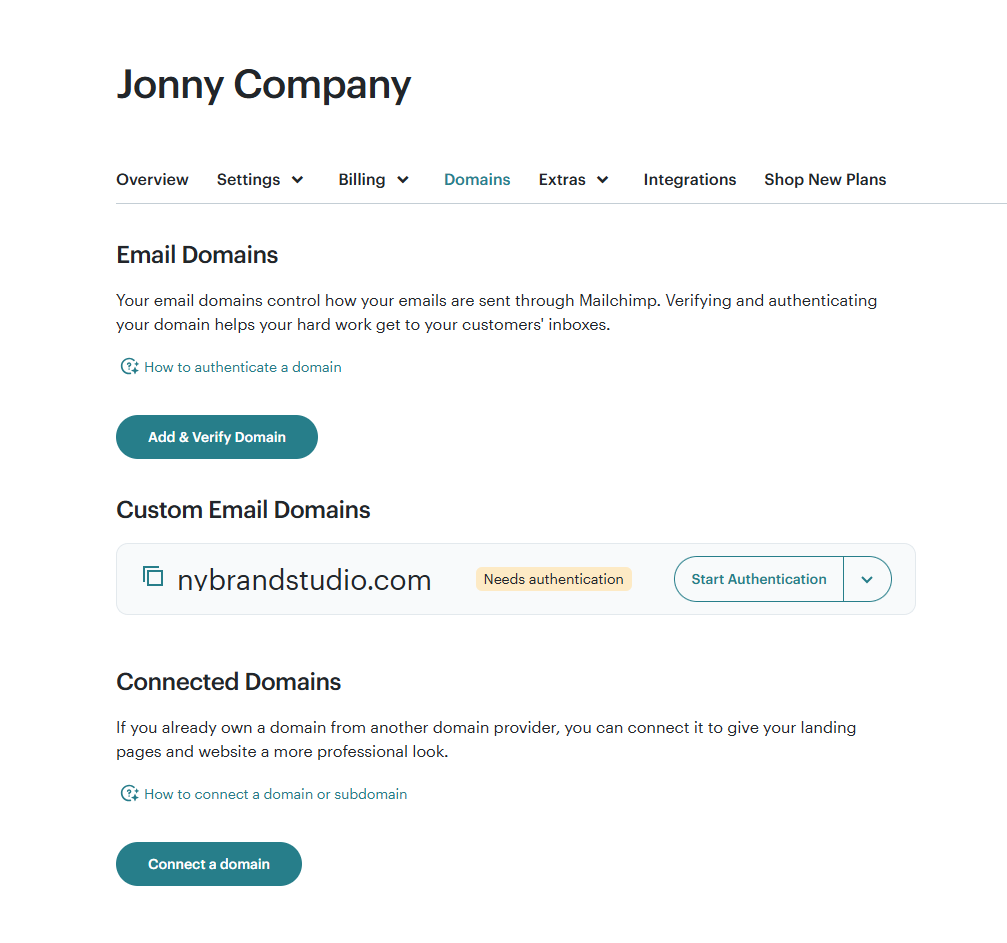
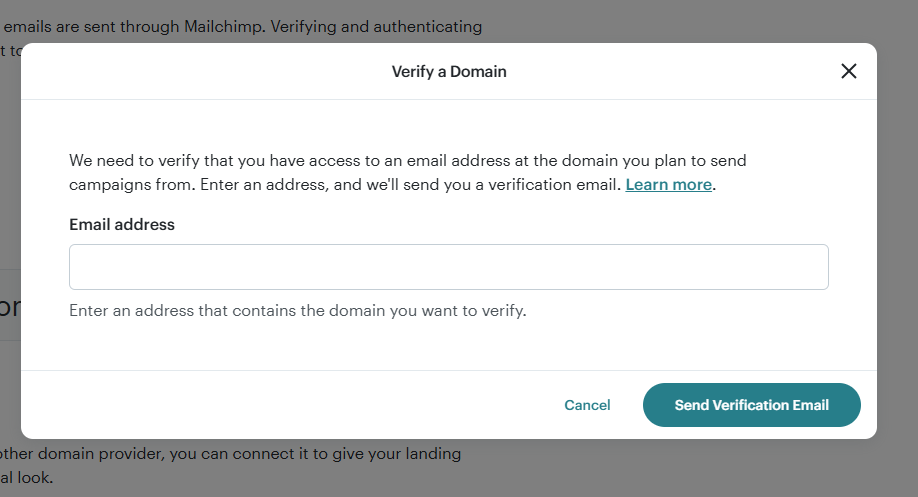
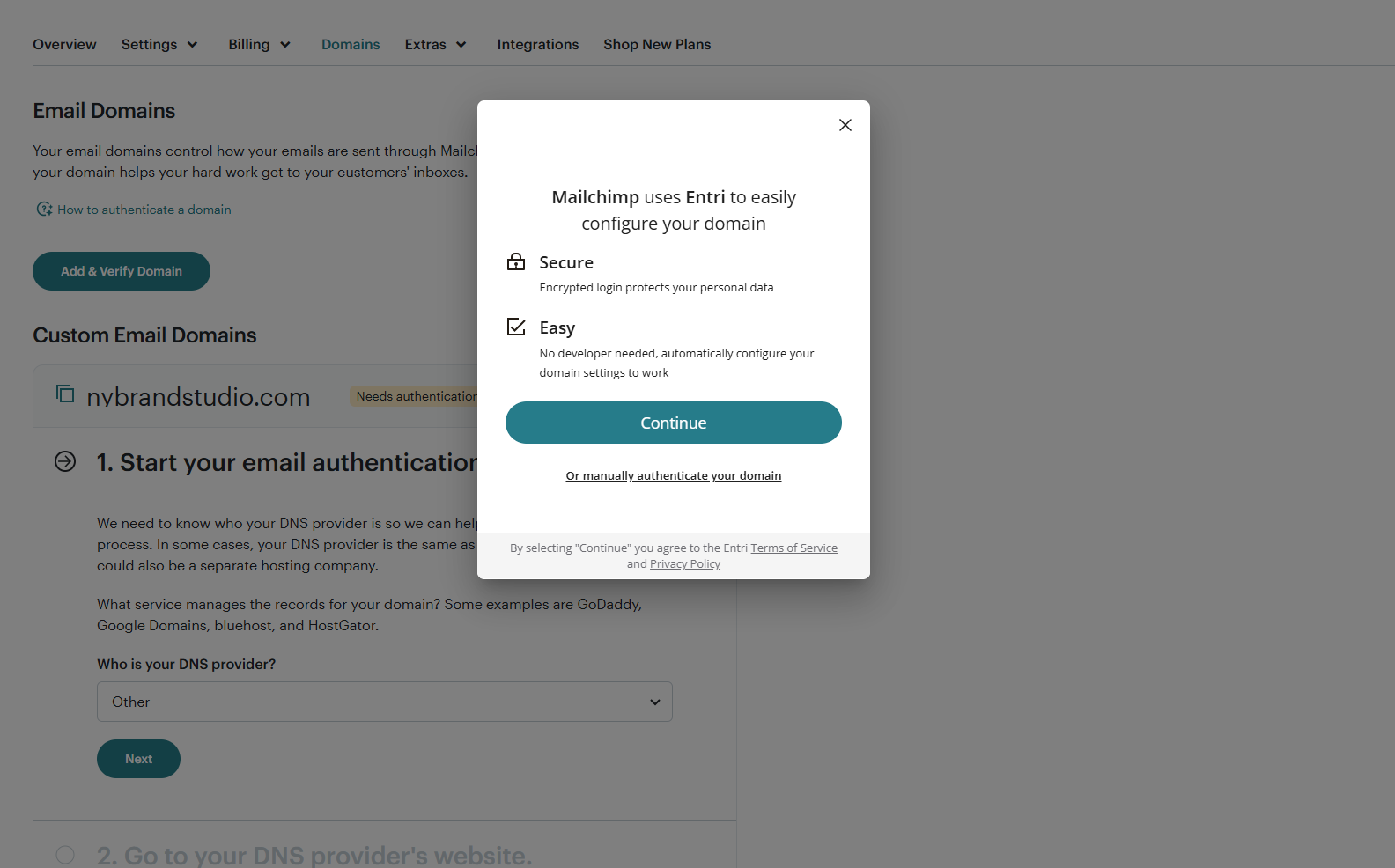
- After the Domain has been added, click “Start Authentication” for the Domain
- Follow Mailchimp's guided setup process
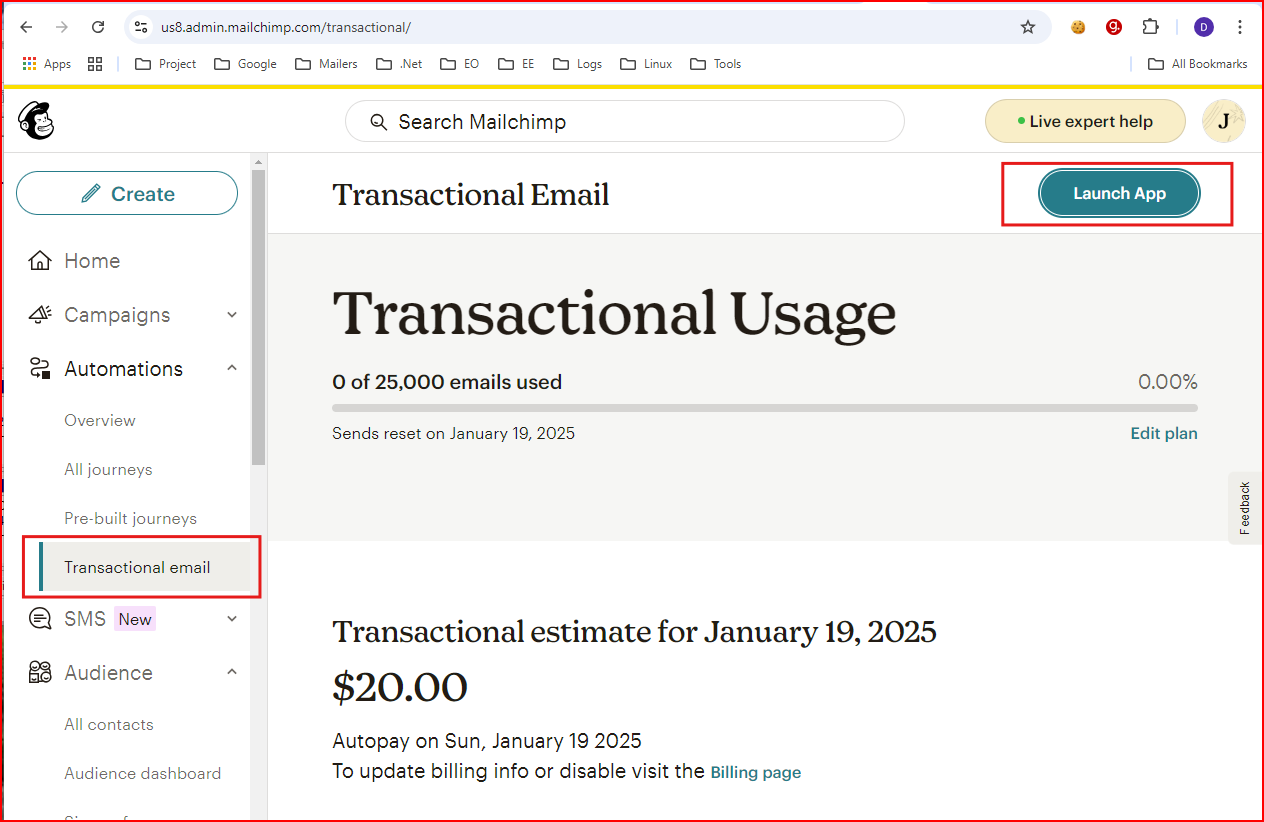
Navigate to Transactional App
- From the navigation panel under Automations, select “Transactional email”
- Click the “Launch App” button
Create API Key
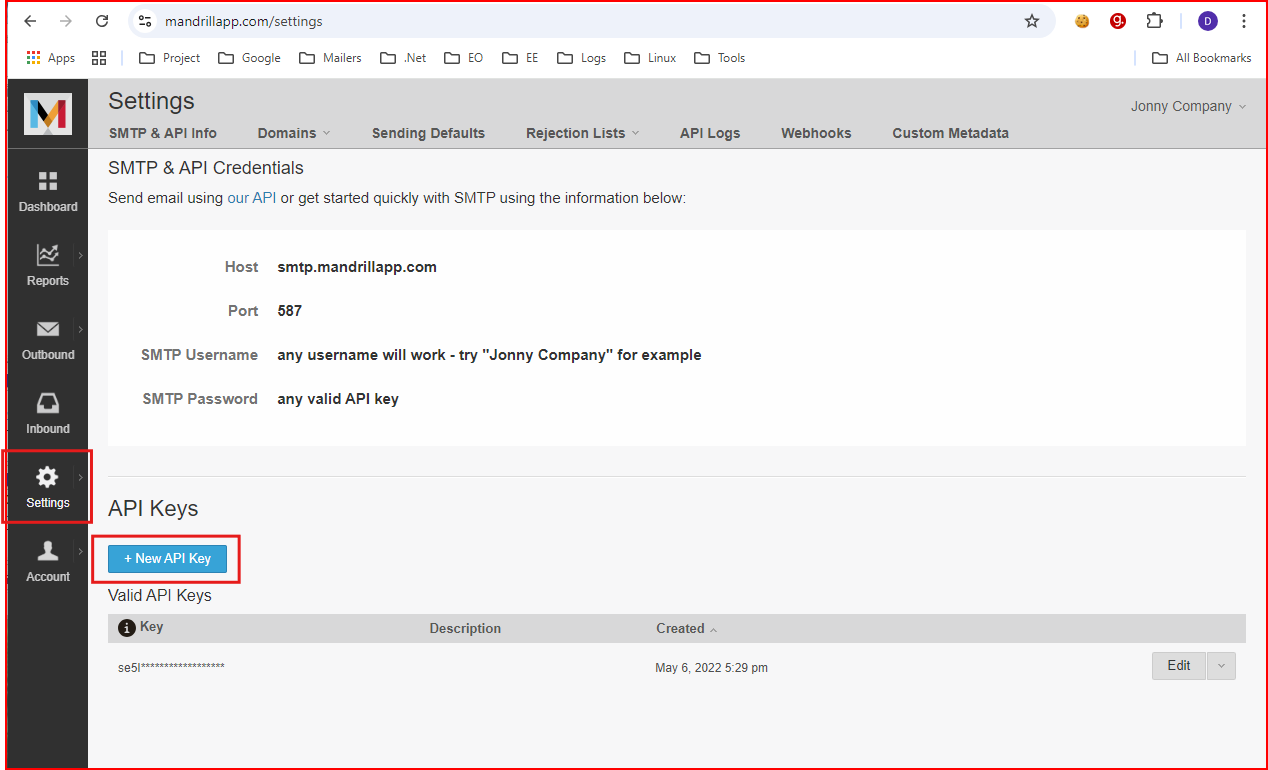
- Once in the Transactional email app, go to “Settings”
- Click “+ New API Key”
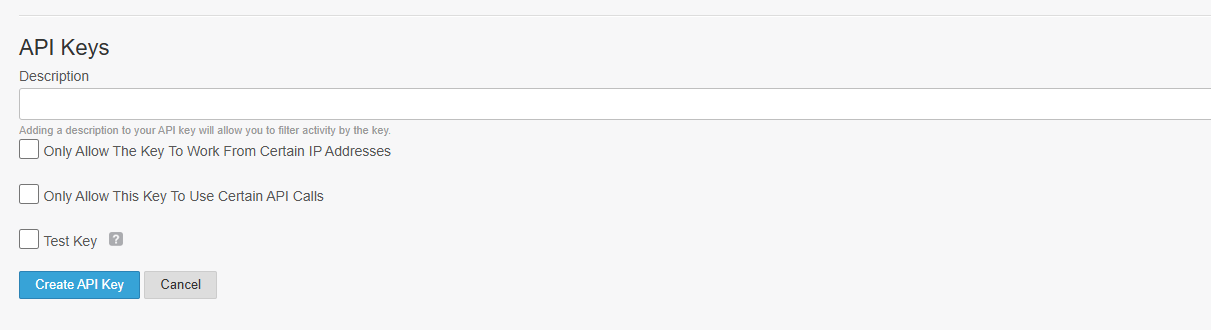
- Select your options and finish by clicking “Create API Key”
Set Up Mailchimp in EmailElement
- Go to Send Integrations and create a new integration
- Integration Type: API
- ESP: Mailchimp
- API Key: the Mandrill API key you just created
- Save the integration, then click "Run Test"