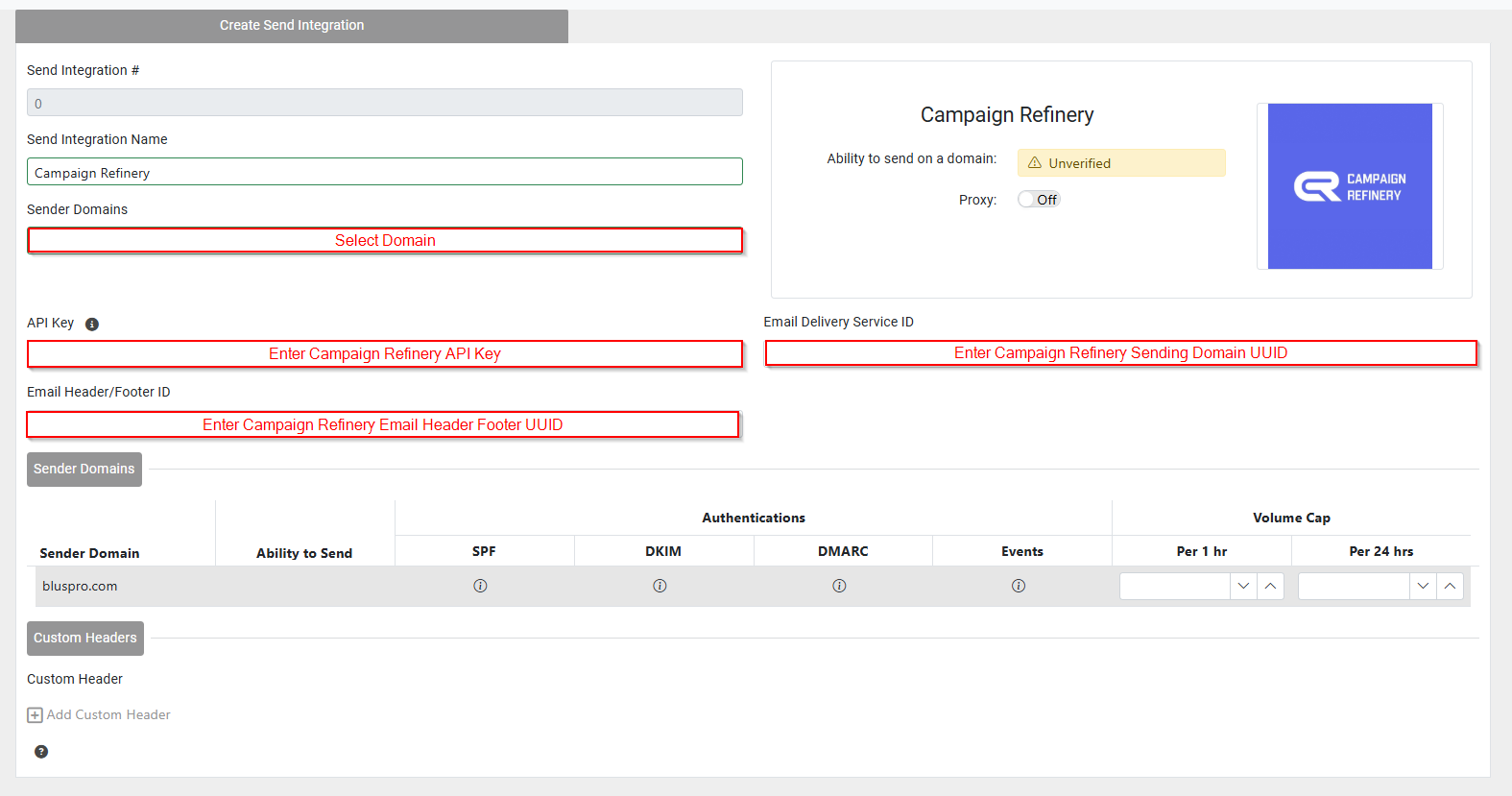
Campaign Refinery
To set up a Campaign Refinery Send Integration, the following are required:
- At least one Email Sending Domain setup
- Webhooks setup and enabled in Mailgun
- API Key from Mailgun and
- API Key from Campaign Refinery
Note: To send to contacts using Campaign Refinery, the contact must be added to Campaign Refinery's system first.
Create and Enable Webhooks in Mailgun
From the left pane, select Send > Sending > Webhooks
Click “Add webhook” in the top right corner
Edit the webhook settings with shown below:
Select the following events
- Delivered Messages
- Accepted
- Permanent Failure
- Temporary Failure
- Unsubscribes
Click “Create webhook” to save the webhook
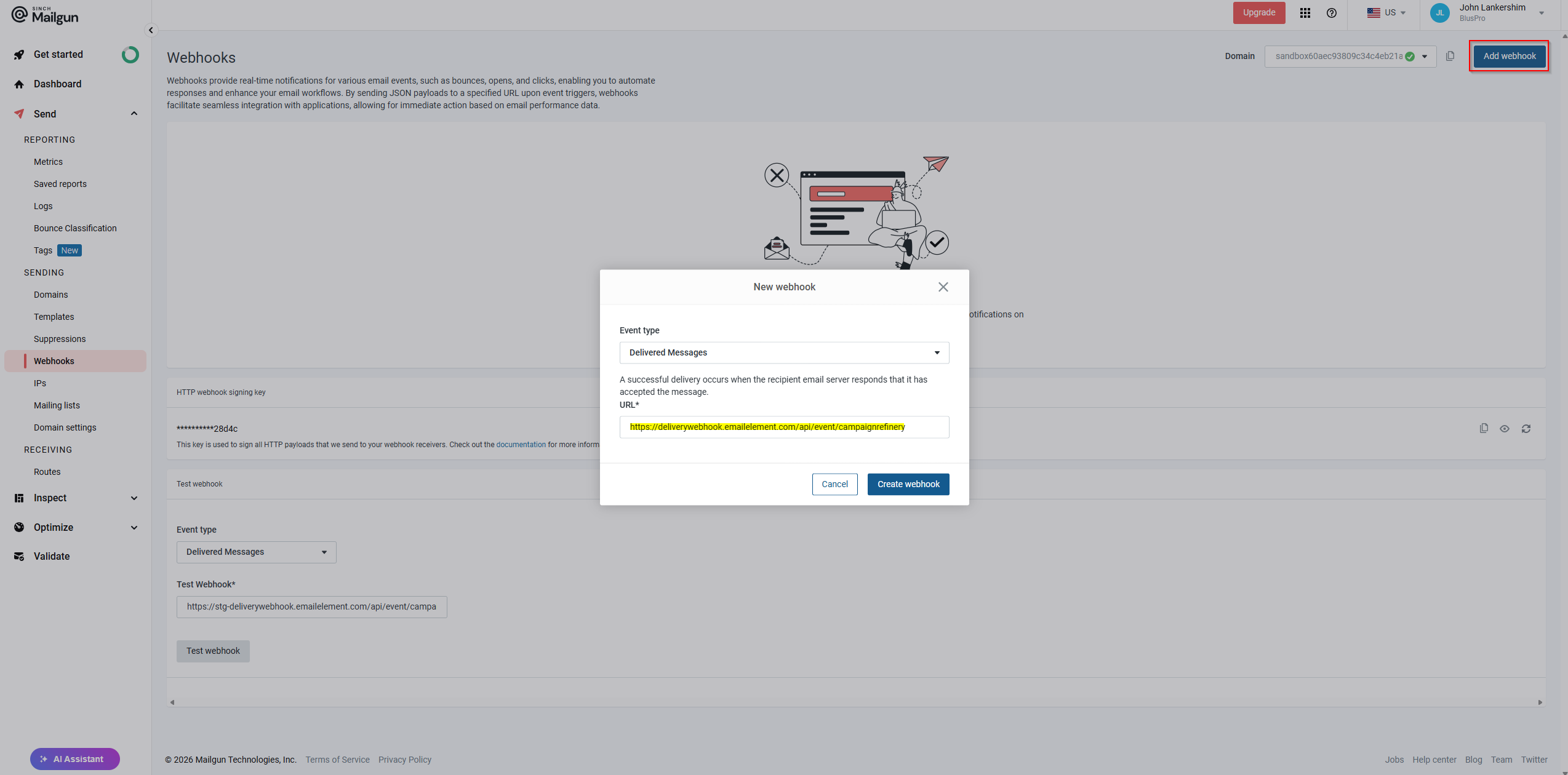
[Use this for easier copy/paste]
Endpoint URL:
https://deliverywebhook.emailelement.com/api/event/campaignrefinery
Create an API Key in Mailgun
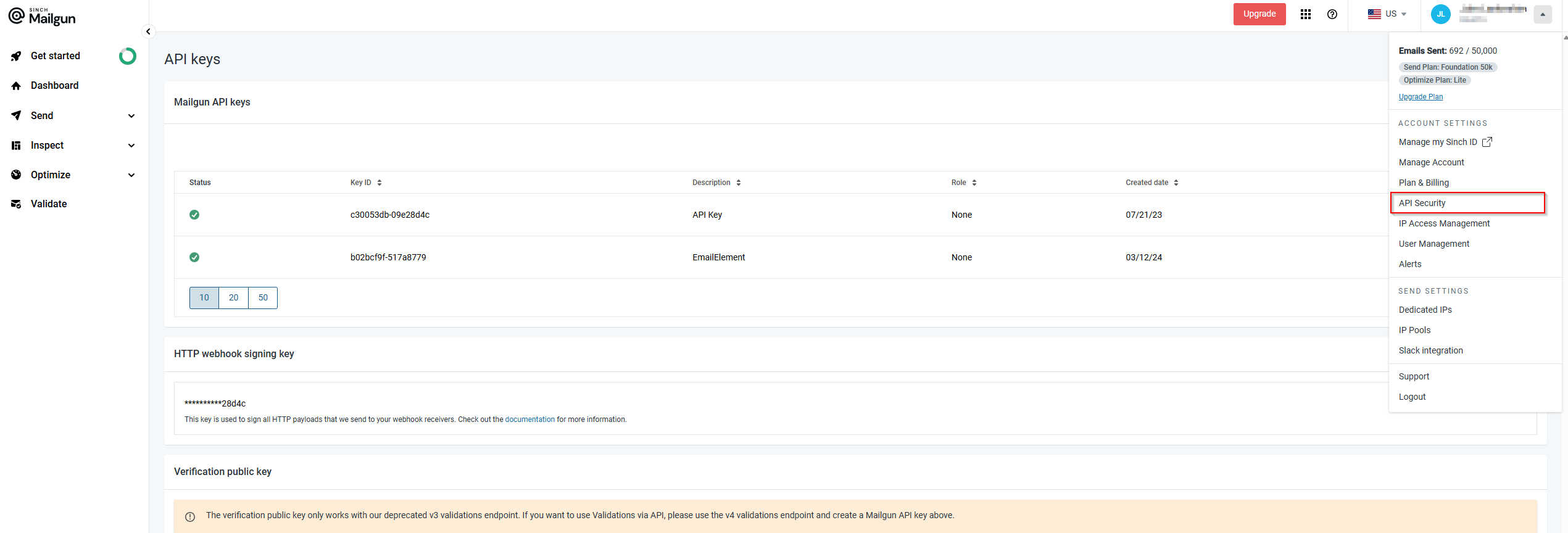
- Select your user info in the op menu
- Select “API Security”
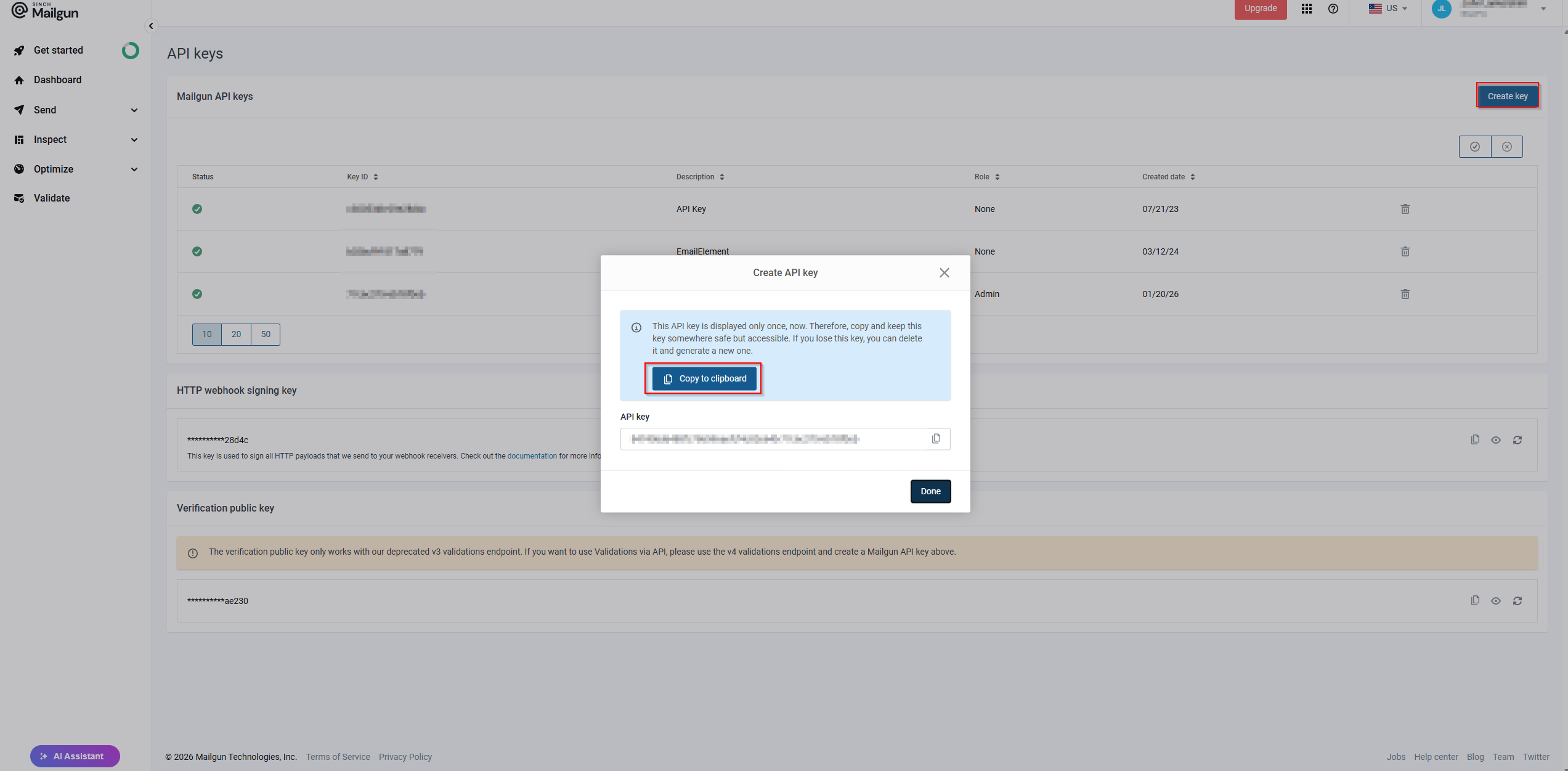
In the API Keys page, select “Create key” with Admin privileges. You will need this key for the next step
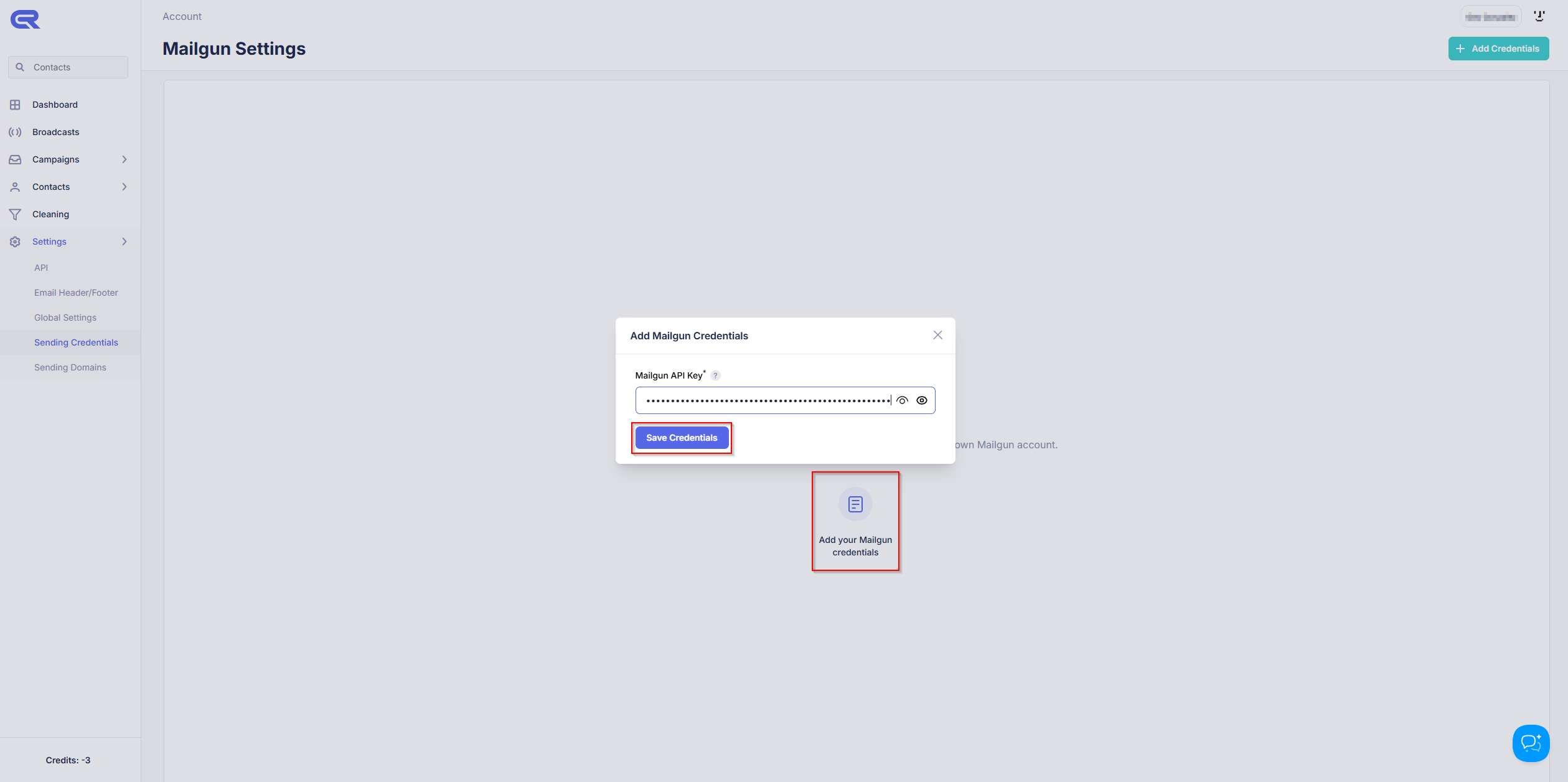
Add Mailgun API key to Campaign Refinery
- From the left pane, select Settings > Sending Credentials
- Click “Add your Mailgun credentials”
- Enter the Mailgun API Key, from the previous steps
Add Mailgun Domain to Campaign Refinery
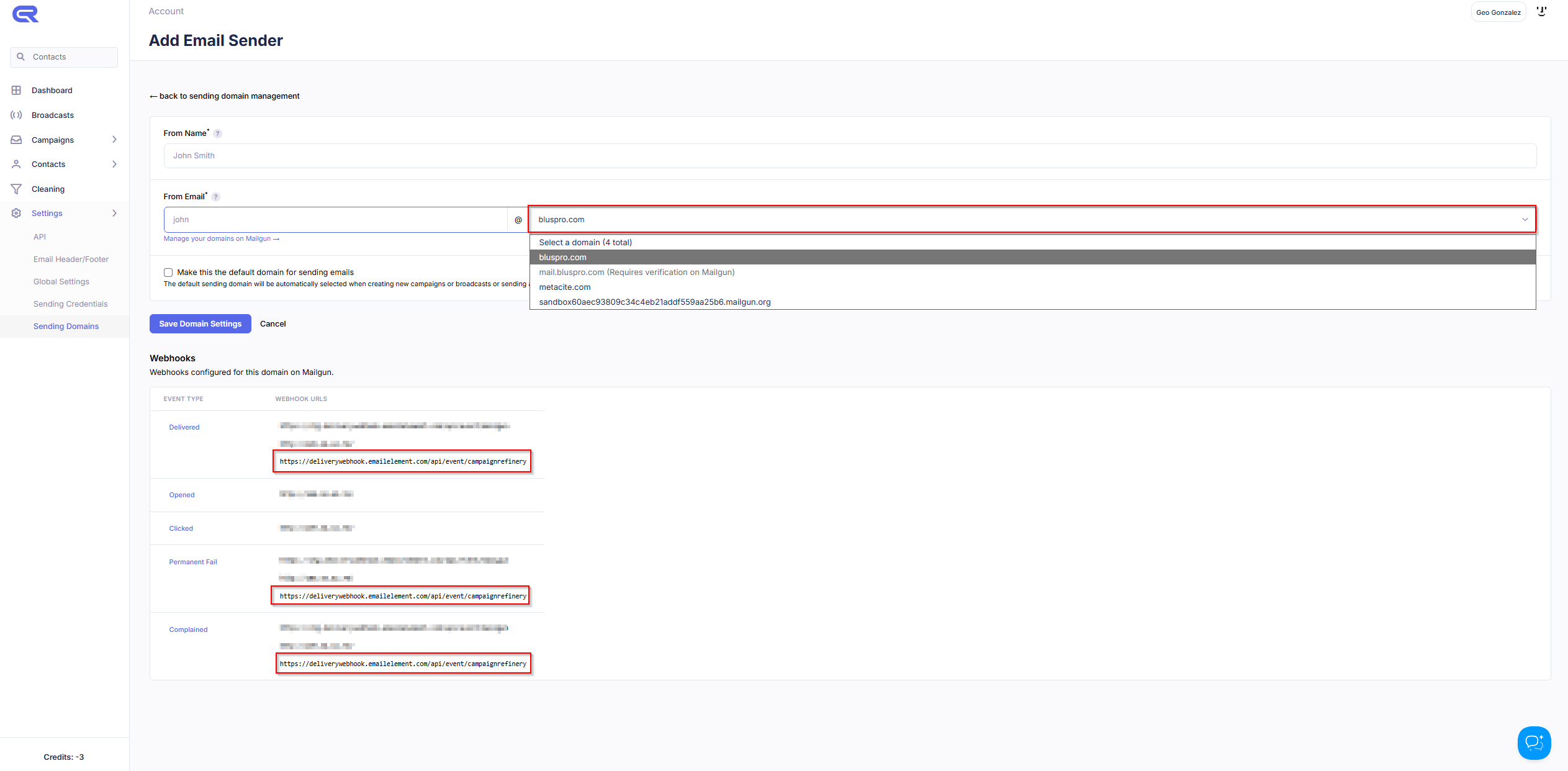
- From the left pane, select Settings > Sending Domains
- Click “Add Sending Domain”
- In the “From Email” Section, select your Mailgun Domain
- The webhooks section will show the webhooks we setup in the previous steps
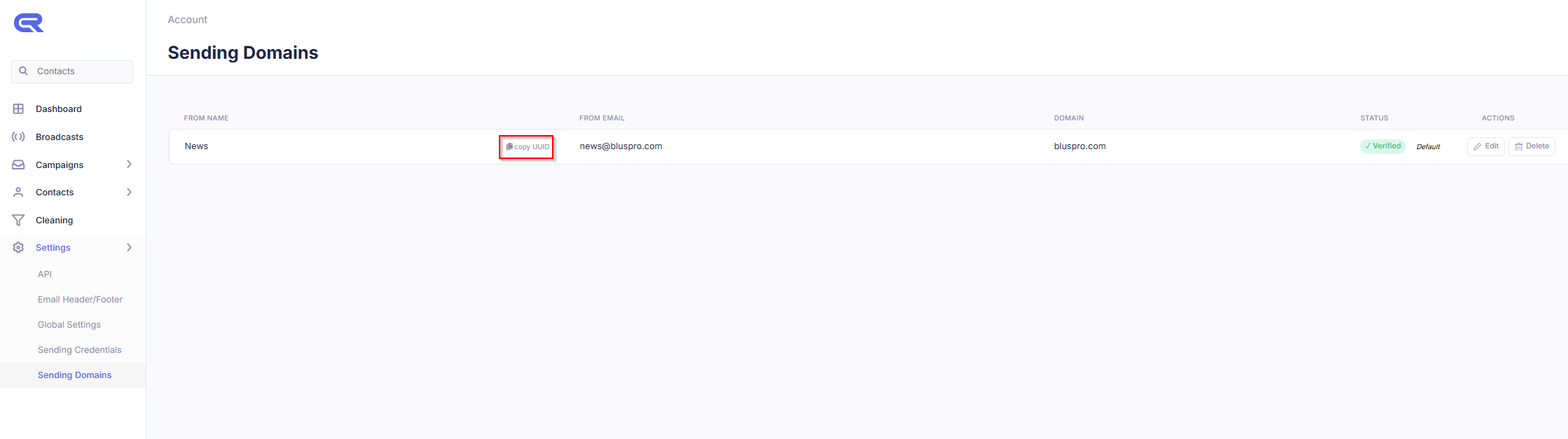
After selecting “Save Domain Settings”, copy the UUID, this will be needed when setting up the Send Integration in EmailElement
- Note: You will only be able to save the domain if the Domain in Mailgun has been fully authenticated with DMARC, SPF, and DKIM.
Create Email Header/Footer in Campaign Refinery
- From the left pane, select Settings > Email Header/Footer
- Click “Setup your first Email Header/Footer”
- Fill out the settings
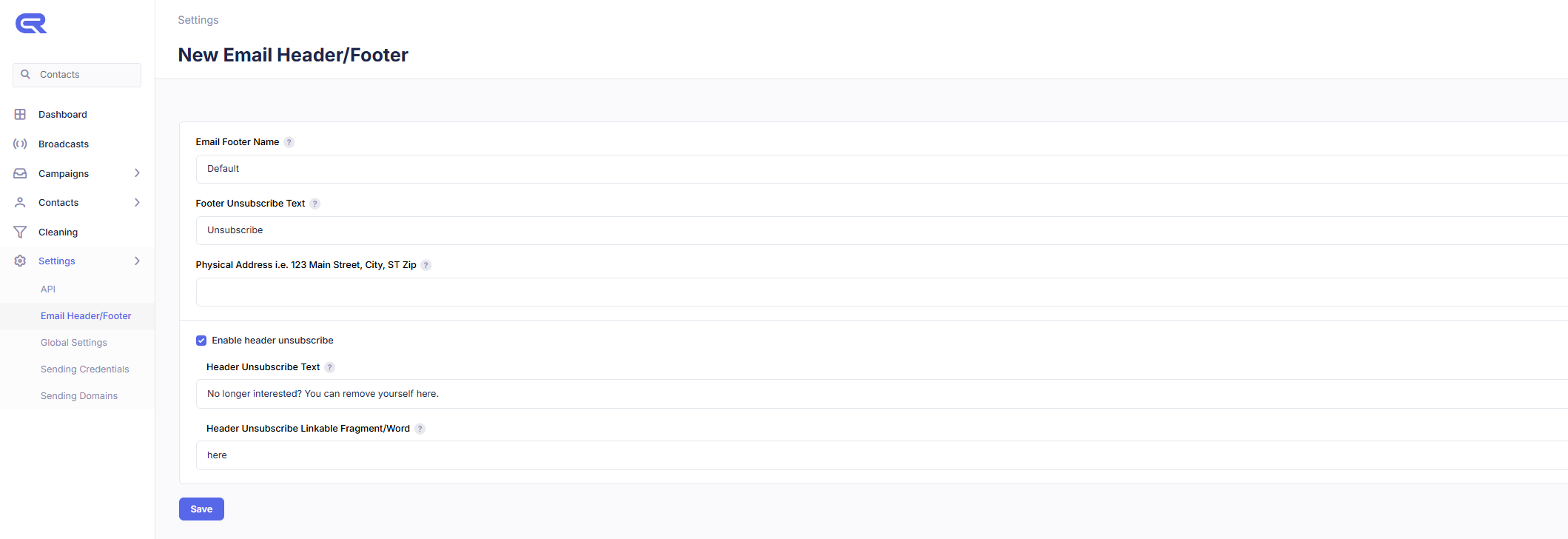
After selecting “Save”, copy the UUID, this will be needed when setting up the Send Integration in EmailElement
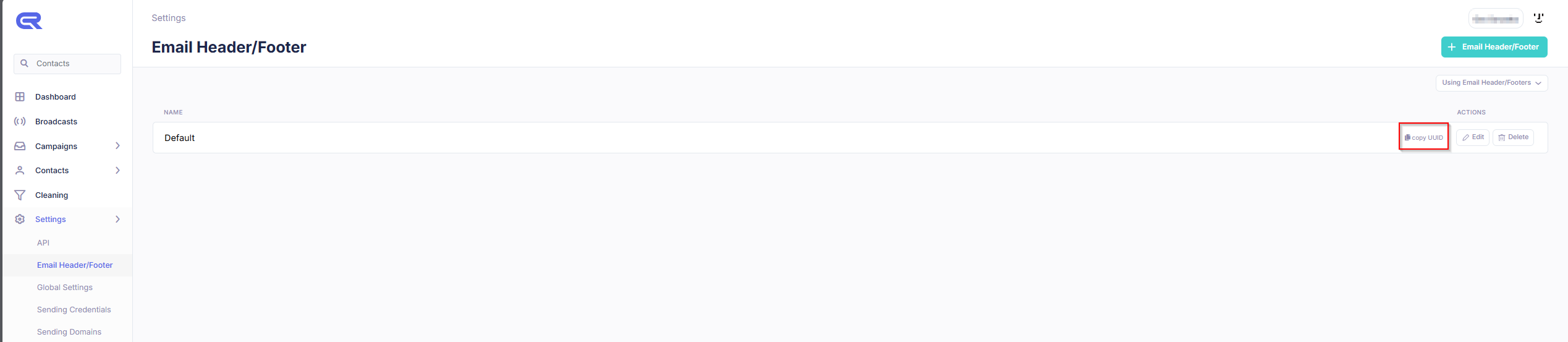
Get API Key from Campaign Refinery
- From the left pane, select Settings > API
- Copy the API key
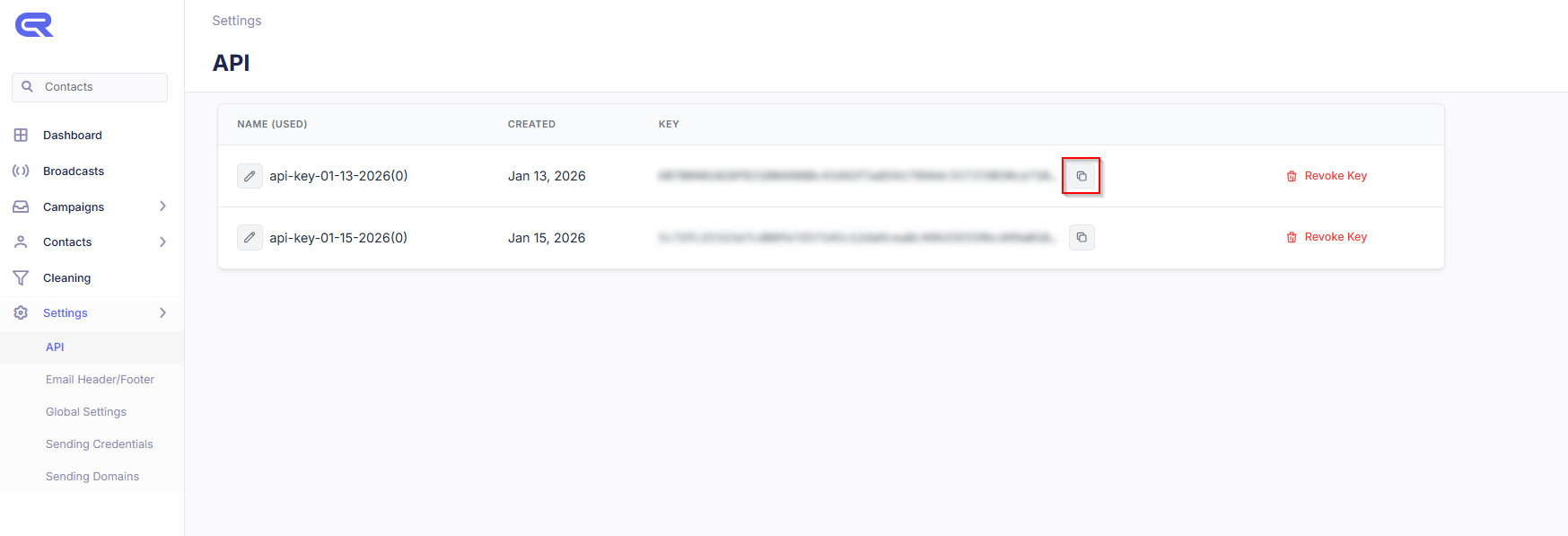
EmailElement Integration
- Back in EmailElement, when setting up your integration, enter these items into their appropriate field