
Custom Field Types Reference
Overview
Custom fields extend the standard contact fields with account-specific data. Each contact list can have up to 25 or 50 custom fields.
Creating a Custom Field
There are two places a custom field can be made. There is no Custom Fields tab on a contact list.
While importing a file
- Open a Contact List and upload your file under File Upload.
- Wait for the upload to finish. Once the whole file is in, Mapping Columns opens with one row per column in your file.
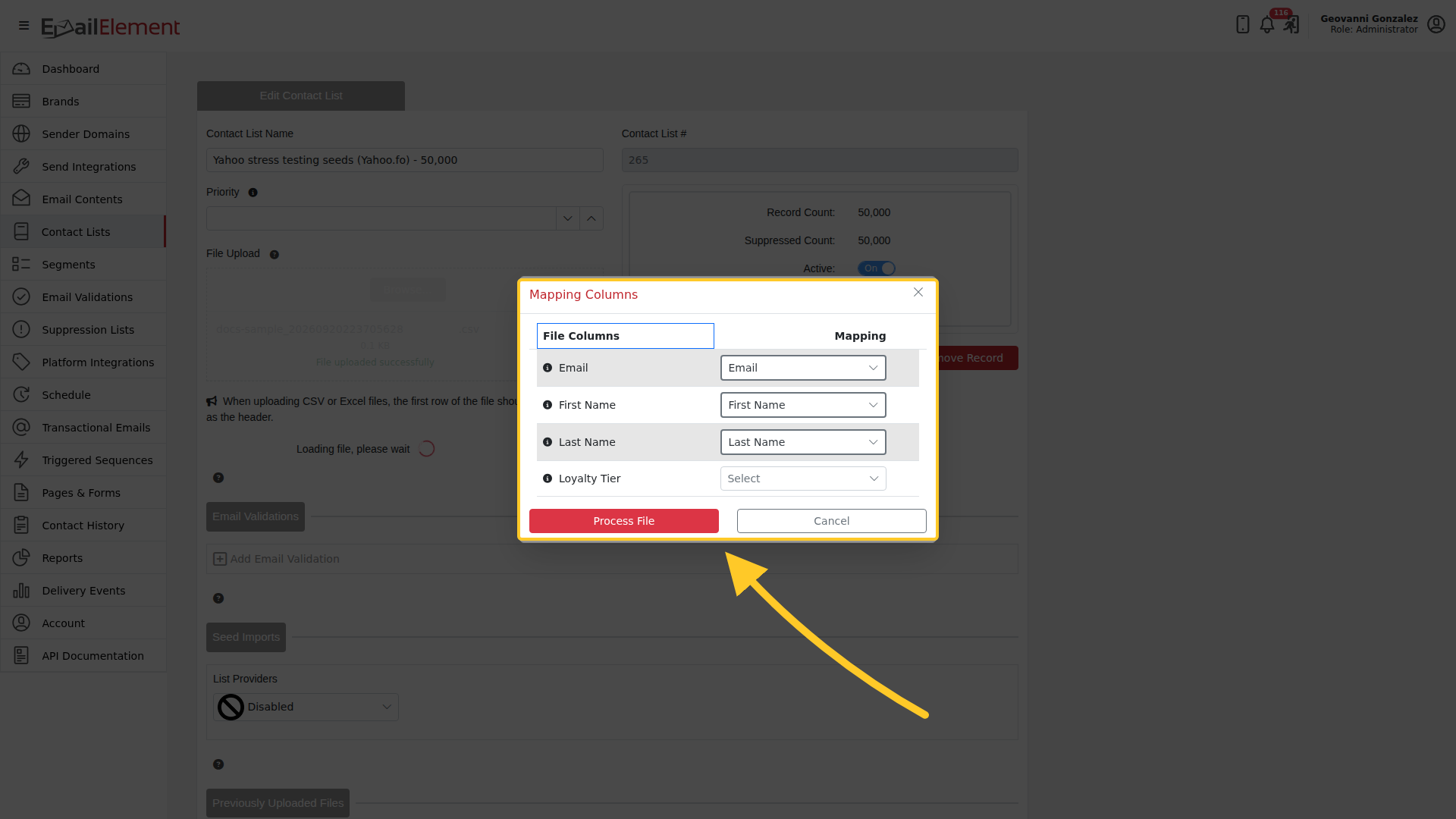
Columns whose names match a field are filled in for you. Anything unmatched sits on Select,
which in the example above is Loyalty Tier.
3. Open the dropdown on an unmatched column. It lists every field on the account with its type
beside it, and it filters as you type.
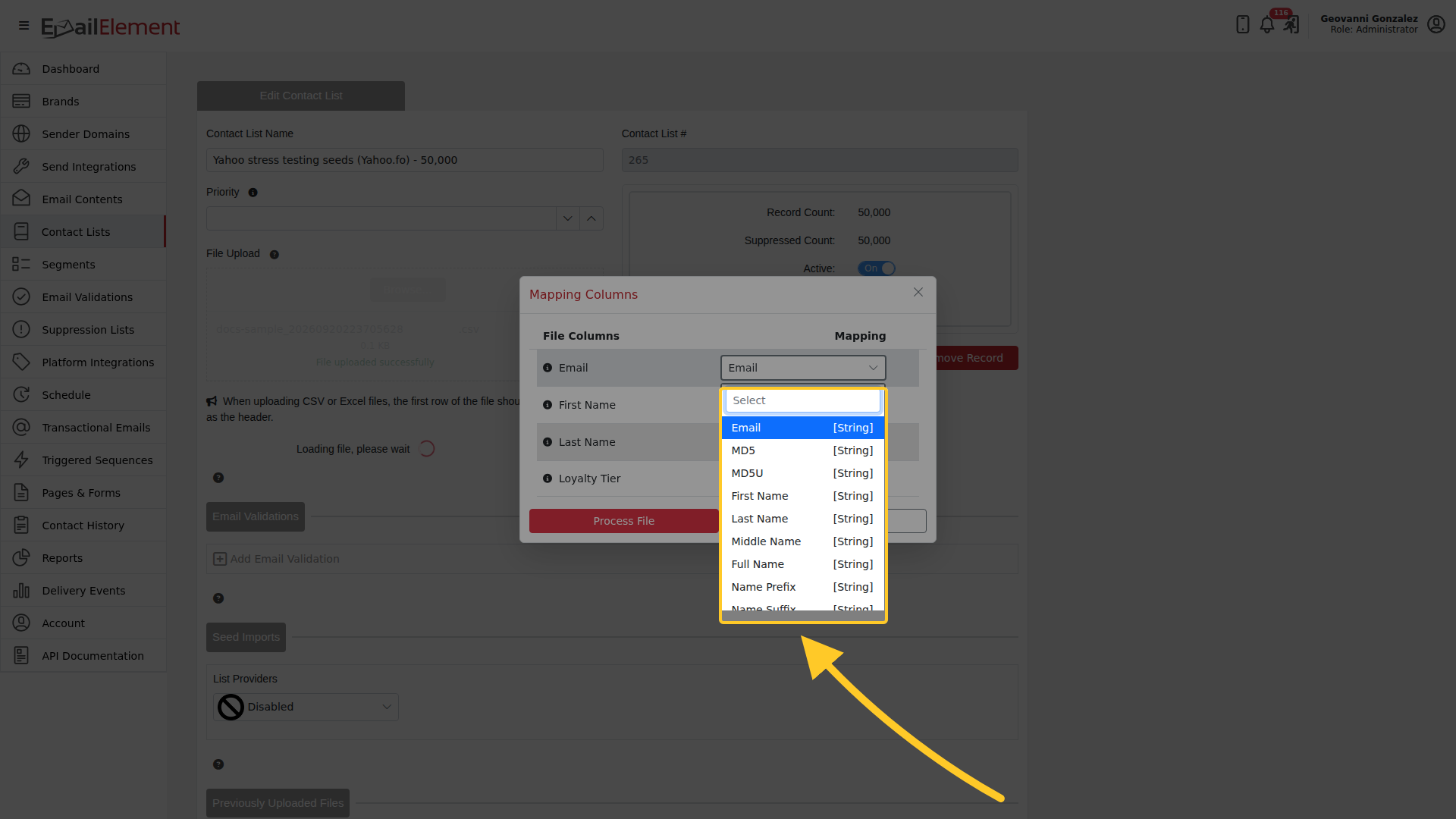
- + Add New Custom Field is the last entry in that list. Scroll to the bottom to reach it.
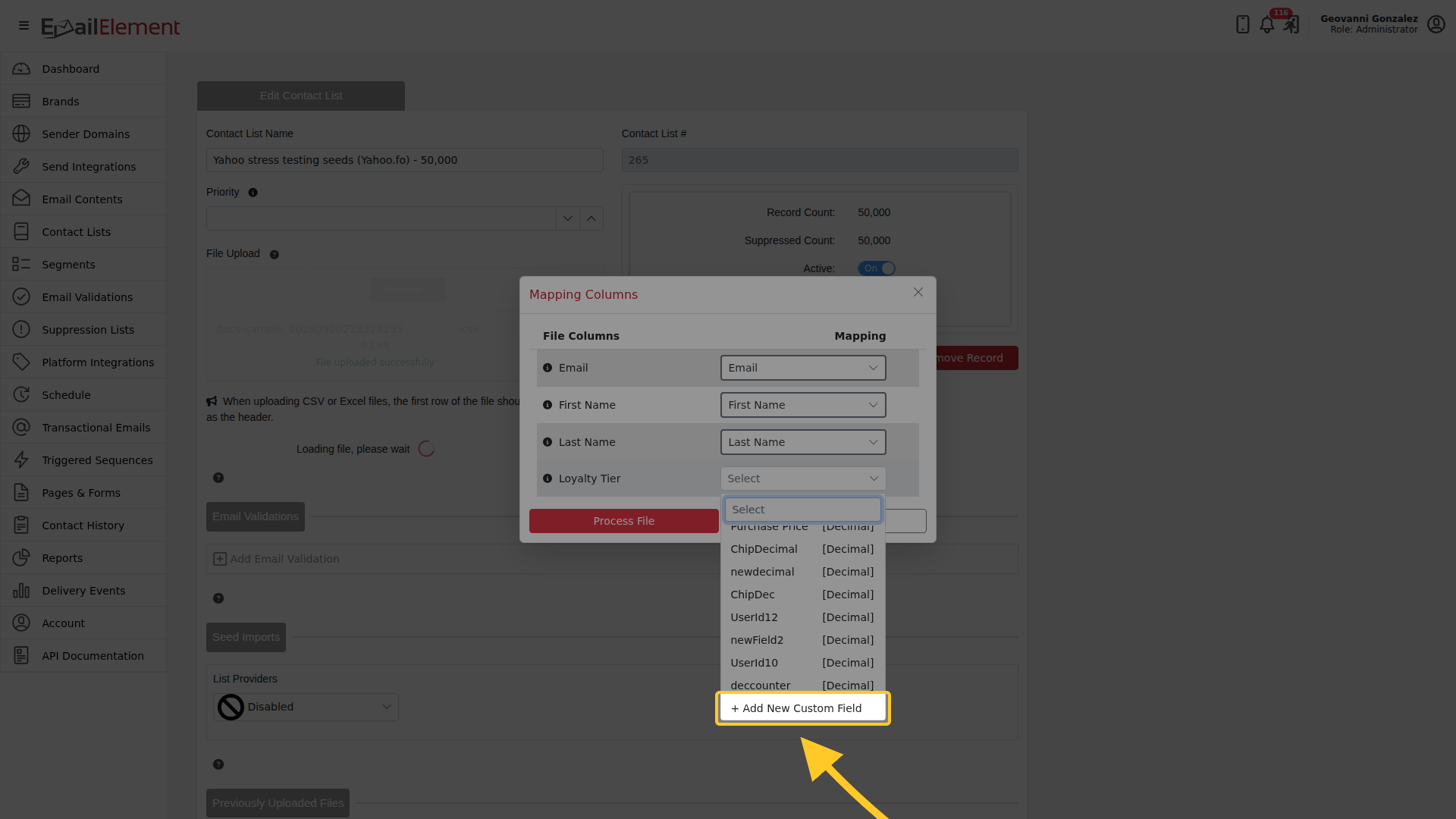
- Choosing it opens Add New Custom Field: a Custom Field Name and a Custom Field Type.
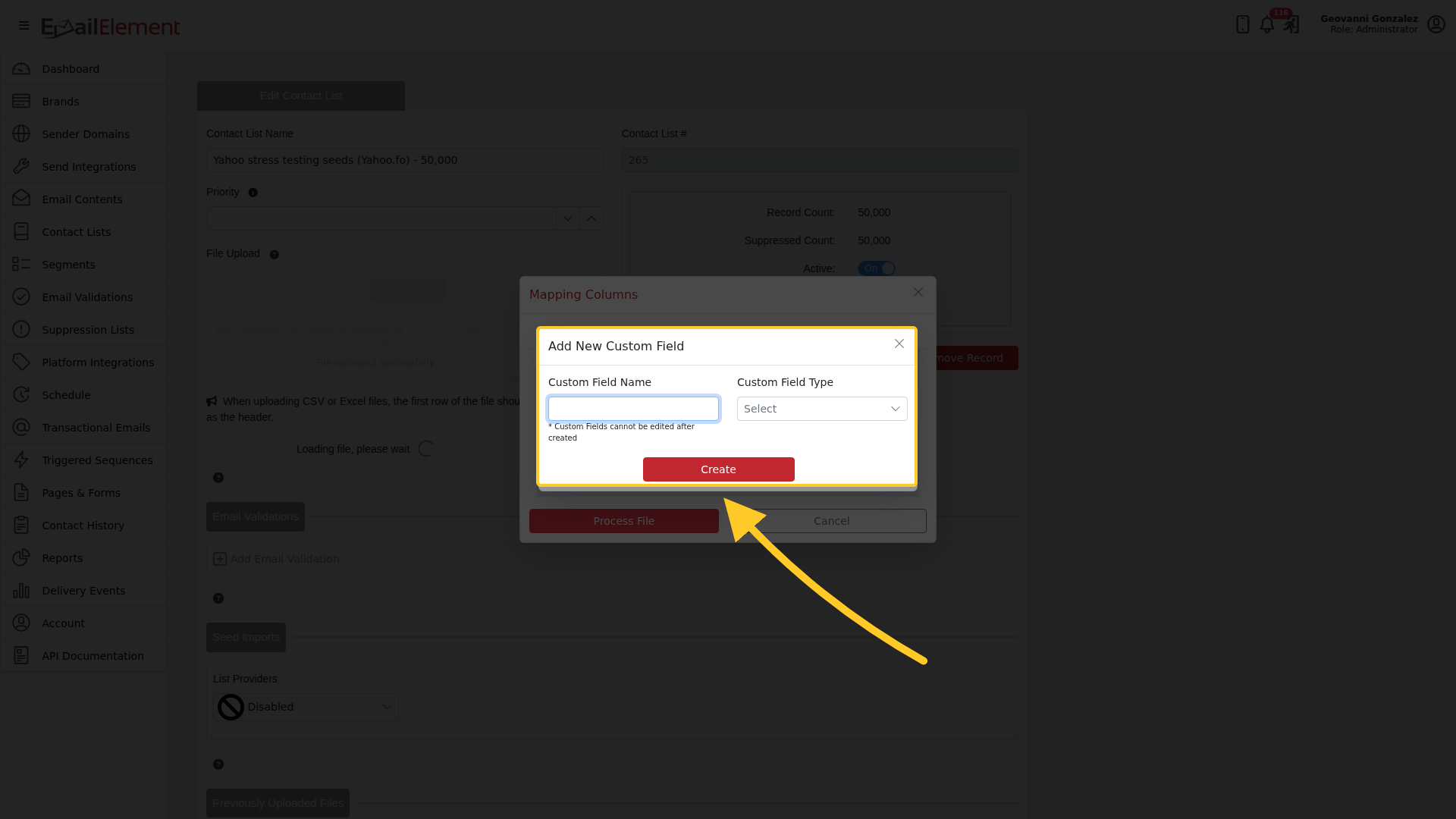
A custom field cannot be edited once it is created. The dialog says so, and it means the name and the type are worth getting right first time. A field you no longer want is left unused rather than renamed.
- Create adds it and maps this column to it. Process File then finishes the import, and the new field is on the account from then on, not just this one import.
Cancel leaves the file uploaded but imports nothing, so a mapping you are unsure about costs nothing to abandon.
From the Contact API page
- API Documentation > Contact API.
- Scroll to the end of the Fields list.
- + Add New Custom Field, name it, choose its type, and Create.
- The new field appears in the list and in the generated request body straight away.
The field is available everywhere once it exists:
- CSV import column mapping
- Replacement tags in Email Content (
{FieldName}) - Segment filter rules
- Contact API data submissions
Where Custom Fields Are Used
Email Content (Replacement Tags)
<p>Hello {First Name}, your customer ID is {CustomerId}.</p>
<p>Your favorite color is {FavoriteColor##blue}.</p>
Use {FieldName##default} syntax for fallback values when the field is empty.
Segments
Create audience rules using custom fields:
- "FavoriteColor equals Blue" — target contacts with specific values
- "CustomerId is not empty" — target contacts that have a value
Contact API
Include custom fields when adding contacts via API:
{
  "data": [
    {
      "Email": "jane@example.com",
      "First Name": "Jane",
      "FavoriteColor": "Blue",
      "CustomerId": "CUST-12345"
    }
  ]
}
CSV Import
When uploading a CSV file to a Contact List:
- The column mapping step shows all available fields
- Map CSV columns to custom fields by selecting them from the dropdown
- Custom field names must match exactly (case-sensitive)
Limits
- Maximum 25 or 50 custom fields per account (varies by field type)
- The Custom Fields section on a contact list shows current usage (used vs. available) per field type
- Once created, custom fields cannot be renamed — delete and recreate if needed
Best Practices
- Use descriptive names that make sense as replacement tags (e.g.,
FavoriteColornotcf1) - Plan custom fields before importing data — adding fields after import requires re-importing
- Use custom fields in Segments to create targeted audiences for better engagement